


- Blazor Overview
- Get Started with Blazor
- Free and Open Source Software (FOSS) License
- Section 508 Compliance
- Blazor Project Types
- Adding NuGet Packages to your App
- Controls
- Release History
Behavior
The TreeView control allows you to customize its selection and expanding/collapsing node behavior. It provides several properties that help you customize its behavior. Let us explore how to customize TreeView behavior using different properties in the following sections.
Node Selection
By default, TreeView allows you to select a single node at a time. However, you can choose to select a multiple nodes using SelectionMode property of the C1TreeView class. The SelectionMode property manages how the nodes are selected in the TreeView control and accepts values from the C1SelectionMode enumeration. The C1SelectionMode enumeration specifies the selection behavior of the TreeView control by letting you choose one of the following options:
Single: Allows user to select only one node at a time.
Multiple: Allows user to select multiple nodes without holding down a modifier key.
Extended: Allows user to select multiple consecutive nodes while holding down the corresponding modifier key.
None: Does not allow the user to select any node.
The following image displays multiple nodes selected in the TreeView.
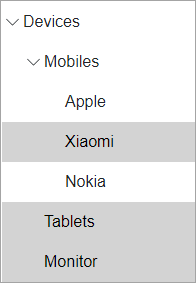
The following code demonstrates how to set the SelectionMode property to Extended.
@using C1.Blazor.TreeView
<C1TreeView SelectionMode="C1SelectionMode.Extended">
        <TreeViewItem Header="Devices">
            <TreeViewItem Header="Mobiles">
                <TreeViewItem Header="Apple" />
                <TreeViewItem Header="Xiaomi" />
                <TreeViewItem Header="Nokia" />
            </TreeViewItem>
            <TreeViewItem Header="Tablets" />
            <TreeViewItem Header="Monitor" />
        </TreeViewItem>
</C1TreeView>
Expand/Collapse Nodes
TreeView allows you to expand/collapse nodes either by clicking the expand/collapse icon or by clicking the node header. By default, the nodes can be expanded or collapsed by clicking the expand/collapse icons. Hence, clicking the node header only selects the node if it is not selected. However, you can change this behavior of the TreeView nodes by setting ExpandOnClick property of the C1TreeView class to true. The ExpandOnClick property determines whether to expand/collapse nodes when user clicks the node header. Hence, setting the ExpandOnClick property to true allows user to expand/collapse nodes by clicking the node header.
Furthermore, TreeView allows you to expand multiple TreeView nodes simultaneously, by default. This behavior can be managed by using ExpandMode property of the C1TreeView class. The ExpandMode property determines whether a user can expand single or multiple TreeView nodes simultaneously using the TreeViewExpandMode enumeration.
The following GIF shows how the TreeView behaves when a single TreeView node is allowed to expand at a time.

The following code snippet demonstrates how to expand a single TreeView node at a time using the ExpandMode property.
@using C1.Blazor.TreeView
@using System.Collections.ObjectModel
<C1TreeView Class="shadow" ItemsSource="@_dataSource" ExpandMode="TreeViewExpandMode.Single" ChildItemsPaths="Subdirectories" DisplayMemberPaths="Name" />
@code {
    readonly ObservableCollection<CompanyRecord> _dataSource = new ObservableCollection<CompanyRecord>()
{
        new CompanyRecord()
        {
            Name = "Reports",
            Subdirectories = new ObservableCollection<CompanyRecord>
    {
                new CompanyRecord
                {
                    Name = "Sales Report",
                    Subdirectories = new ObservableCollection<CompanyRecord>
            {
                        new CompanyRecord {Name = "April Sales"},
                        new CompanyRecord {Name = "May Sales"},
                        new CompanyRecord {Name = "June sales"}
                    }
                },
                new CompanyRecord
        {
            Name = "Quarter Summary",
        }
            }
        },
        new CompanyRecord
        {
            Name = "Sales Employees",
            Subdirectories = new ObservableCollection<CompanyRecord>
             {
                        new CompanyRecord {Name = "Bob Tony"},
                        new CompanyRecord {Name = "Sue Winchell"},
                        new CompanyRecord {Name = "Lui Sang"}
                    }
        }
    };
    public class CompanyRecord
    {
        public string Name { get; set; }
        public ObservableCollection<CompanyRecord> Subdirectories { get; set; }
    }
}
Drag and Drop
TreeView supports drag-and-drop operations within a tree and between TreeView controls. During a drag operation, TreeView expands or collapses a target node when the pointer moves over its expand/collapse icon.
Drag and drop within a tree
Set the AllowDragDrop property of the C1TreeView class to true to enable drag-and-drop operations within a TreeView. Nodes can be moved above, below, or into other nodes as child nodes.
The following TreeView events customize drag-and-drop behavior:
OnDragStart: Occurs when a drag-and-drop operation is about to start. The event handler can inspect the node being dragged and cancel the operation by setting the event's cancel parameter to
true.OnDragOver: Occurs while a node is dragged over another node. The event handler can inspect the target node and drop position, cancel the drop, or modify the drop position through the event's cancel and position parameters.
OnDrop: Occurs when a node is dropped at a new location. The event handler can inspect the target node and drop position, cancel the drop, or modify the drop position through the event's cancel and position parameters.
|
|---|

The following code sets the AllowDragDrop property to enable drag-and-drop operations
@using C1.Blazor.Core
@using C1.Blazor.TreeView
@using System.Collections.ObjectModel
<C1TreeView Class="shadow" ShowLines="true" AllowDragDrop="true" IsExpandedPath="Expanded" ItemsSource="@_dataSource" ChildItemsPaths="Subdirectories" DisplayMemberPaths="Name"
            Style="@_c1Style" KeyboardNavigation="true" SelectionMode="C1SelectionMode.Extended" />
@code {
readonly C1Style _c1Style = new C1Style
    {
        Height = 500,
        Width = 300,
    };
readonly ObservableCollection<CompanyRecord> _dataSource = new ObservableCollection<CompanyRecord>()
{
        new CompanyRecord()
        {
            Name = "Reports",
            Subdirectories = new ObservableCollection<CompanyRecord>
    {
                new CompanyRecord
                {
                    Name = "Sales Report",
                    Subdirectories = new ObservableCollection<CompanyRecord>
            {
                        new CompanyRecord {Name = "April Sales"},
                        new CompanyRecord {Name = "May Sales"},
                        new CompanyRecord {Name = "June sales"}
                    }
                },
                new CompanyRecord
        {
            Name = "Quarter Summary",
        }
            }
        },
        new CompanyRecord
        {
            Name = "Sales Employees",
            Subdirectories = new ObservableCollection<CompanyRecord>
             {
                        new CompanyRecord {Name = "Bob Tony"},
                        new CompanyRecord {Name = "Sue Winchell"},
                        new CompanyRecord {Name = "Lui Sang"}
                    }
        }
    };
    public class CompanyRecord
    {
        public string Name { get; set; }
        public ObservableCollection<CompanyRecord> Subdirectories { get; set; }
    }
}
Drag and drop between trees
To enable drag-and-drop operations between TreeView controls, set the AllowDragDrop property to true and handle the OnDragOver event. Set the cancel parameter to true for an invalid operation or to false for a valid operation.
|
|---|
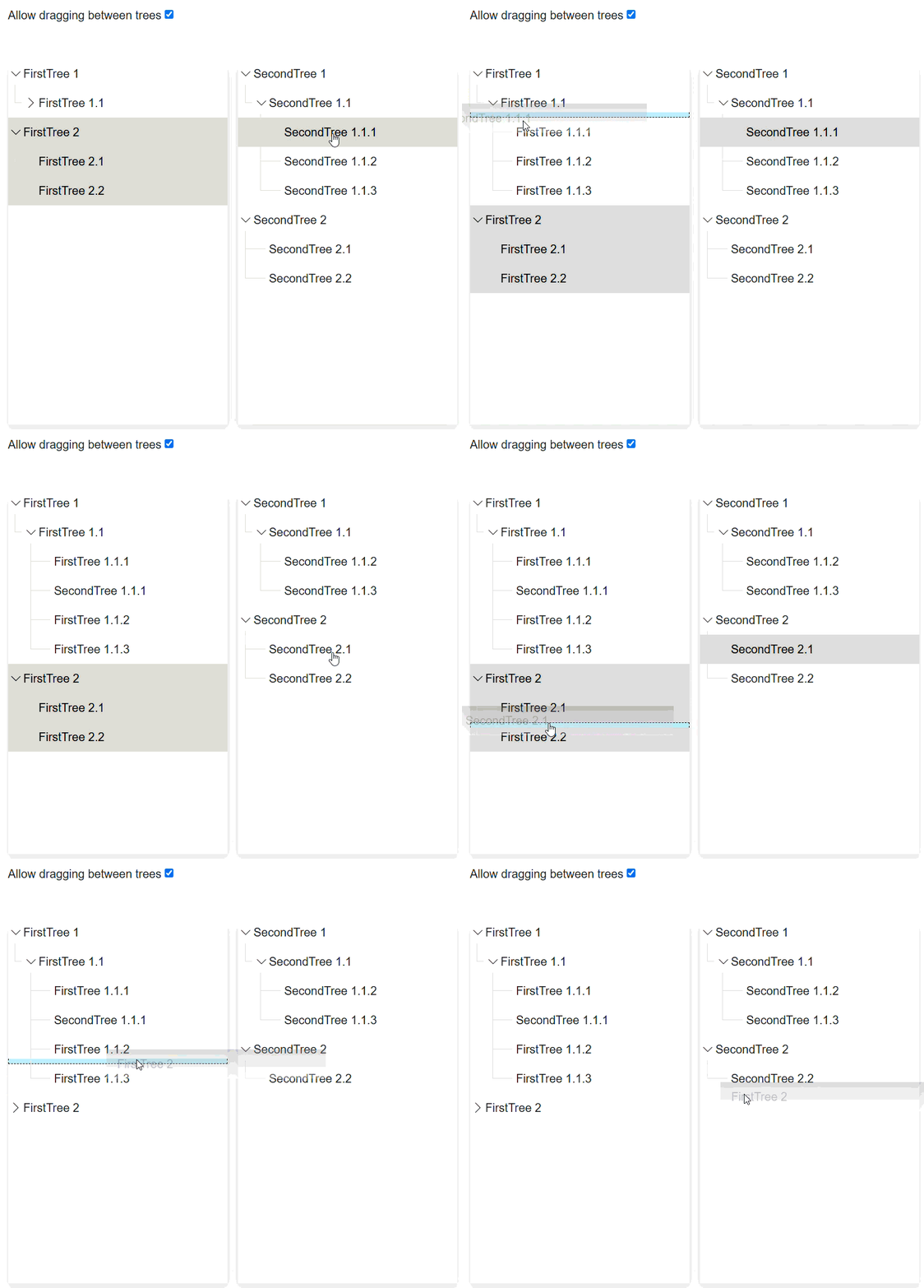
The following code implements drag-and-drop operations between two TreeView controls.
@using C1.Blazor.Core
@using C1.Blazor.TreeView
@using C1.Blazor.Input
@using System.Collections.ObjectModel
<div style="margin-bottom: 3rem;">
    <div>Allow dragging between trees <C1CheckBox @bind-IsChecked="@dragBetween" /></div>
</div>
<div>
    <div style="float: left; margin-right: 15px;">
        <C1TreeView Class="shadow" ShowLines="true" AllowDragDrop="true" IsExpandedPath="Expanded" ItemsSource="@_firstTreeDataSource" ChildItemsPaths="Subdirectories" DisplayMemberPaths="Name"
                    Style="@_c1Style" KeyboardNavigation="true" SelectionMode="C1SelectionMode.Extended" OnDragOver="OnDragOverHandler" />
    </div>
    <div>
        <C1TreeView Class="shadow" ShowLines="true" AllowDragDrop="true" IsExpandedPath="Expanded" ItemsSource="@_secondTreeDataSource" ChildItemsPaths="Subdirectories" DisplayMemberPaths="Name"
                    Style="@_c1Style" KeyboardNavigation="true" SelectionMode="C1SelectionMode.Extended" OnDragOver="OnDragOverHandler" />
    </div>
</div>
@code{
    bool? dragBetween = true;
    readonly C1Style _c1Style = new C1Style
    {
        Height = 500,
        Width = 300,
    };
    readonly ObservableCollection<Directory> _firstTreeDataSource = new ObservableCollection<Directory>()
{
        new Directory()
        {
            Name = "FirstTree 1",
            Subdirectories = new ObservableCollection<Directory>
{
                new Directory
                {
                    Name = "FirstTree 1.1",
                    Subdirectories = new ObservableCollection<Directory>
    {
                        new Directory {Name = "FirstTree 1.1.1"},
                        new Directory {Name = "FirstTree 1.1.2"},
                        new Directory {Name = "FirstTree 1.1.3"},
                    }
                }
            }
        },
        new Directory
        {
            Name = "FirstTree 2",
            Subdirectories = new ObservableCollection<Directory>()
{
                new Directory {Name = "FirstTree 2.1"},
                new Directory {Name = "FirstTree 2.2"}
            }
        },
    };
    readonly ObservableCollection<Directory> _secondTreeDataSource = new ObservableCollection<Directory>()
{
        new Directory()
        {
            Name = "SecondTree 1",
            Subdirectories = new ObservableCollection<Directory>
{
                new Directory
                {
                    Name = "SecondTree 1.1",
                    Subdirectories = new ObservableCollection<Directory>
    {
                        new Directory {Name = "SecondTree 1.1.1"},
                        new Directory {Name = "SecondTree 1.1.2"},
                        new Directory {Name = "SecondTree 1.1.3"},
                    }
                }
            }
        },
        new Directory
        {
            Name = "SecondTree 2",
            Subdirectories = new ObservableCollection<Directory>()
{
                new Directory {Name = "SecondTree 2.1"},
                new Directory {Name = "SecondTree 2.2"}
            }
        },
    };
    public class Directory
    {
        public string Name { get; set; }
        public ObservableCollection<Directory> Subdirectories { get; set; } = new();
        public bool Expanded { get; set; } = true;
    }
    void OnDragOverHandler(object sender, C1.Blazor.TreeView.EventArgs.TreeViewDragDropEventArgs arg)
    {
        if (arg.TargetDragTree != arg.TargetDropTree && dragBetween.Value)
        {
            arg.Cancel = false;
        }
    }
}