


Quick Start
This quick start creates a Blazor page with C1ColorPicker controls that define colors of a CSS linear-gradient preview.
1. Create the Project
Create a Blazor Web App project with the following options:
Interactive render mode: Server
Interactivity location: Per page/component
Add the  C1.Blazor.ColorPicker NuGet package to the project.
2. Add the namespaces
Add the following namespaces to Components/_Imports.razor:
@using C1.Blazor.Core
@using C1.Blazor.ColorPicker
@using C1.Blazor.Input
3. Add the styles and scripts
Add the ColorPicker style sheets and scripts to Components/App.razor. Retain the files generated by the Blazor project template, including application style sheets and the Blazor framework script.
<head>
    <meta charset="utf-8" />
    <meta name="viewport" content="width=device-width, initial-scale=1.0" />
    <base href="/" />
    <ResourcePreloader />
    <link rel="stylesheet" href="@Assets["lib/bootstrap/dist/css/bootstrap.min.css"]" />
    <link rel="stylesheet" href="@Assets["app.css"]" />
    <link rel="stylesheet" href="@Assets["YourProject.styles.css"]" />
    <!-- Added for ColorPicker -->
    <link rel="stylesheet" href="_content/C1.Blazor.Core/styles.css" />
    <link rel="stylesheet" href="_content/C1.Blazor.ColorPicker/styles.css" />
    <link rel="stylesheet" href="_content/C1.Blazor.Input/styles.css" />
    <ImportMap />
    <link rel="icon" type="image/png" href="favicon.png" />
    <HeadOutlet />
</head>

<body>
    <Routes />
    <ReconnectModal />
    <!-- Added for ColorPicker -->
    <script src="_content/C1.Blazor.Core/scripts.js"></script>
    <script src="_content/C1.Blazor.ColorPicker/scripts.js"></script>
    <script src="_content/C1.Blazor.Input/scripts.js"></script>
    <script src="@Assets["_framework/blazor.web.js"]"></script>
</body>
Note: C1.Blazor.Input is installed automatically as a dependency of C1.Blazor.ColorPicker, so you don't need to add a second package. The ColorPicker uses its styles and scripts, so reference them as shown.
4. Add the page
Replace the contents of Components/Pages/Home.razor with the following markup:
@page "/"
@rendermode InteractiveServer

<PageTitle>Color</PageTitle>

<h1>Color</h1>

<div style="display:flex; gap:32px; align-items:flex-start; flex-wrap:wrap;">
    <div>
        <div>Color</div>
        <C1ColorPicker @bind-SelectedColor="_color" />
    </div>

    <div>
        <div style="width:320px; height:160px; border:1px solid #d0d7de; border-radius:6px; background:@ColorCss;"></div>
        <code style="display:block; margin-top:12px;">background: @ColorCss;</code>
    </div>
</div>

@code {
    C1Color _color = C1Color.FromArgb(255, 0, 122, 204);

    string ColorCss
    {
        get
        {
            var color = _color ?? C1Color.Transparent;
            var alpha = (color.A / 255d).ToString("0.###", System.Globalization.CultureInfo.InvariantCulture);
            return $"rgba({color.R}, {color.G}, {color.B}, {alpha})";
        }
    }
}Note:@bind-SelectedColor keeps _color in sync with the picker. ColorCss falls back to C1Color.Transparent if the value is ever null. It formats the alpha value with CultureInfo.InvariantCulture so cultures that use a decimal comma still produce valid CSS.
Run the application
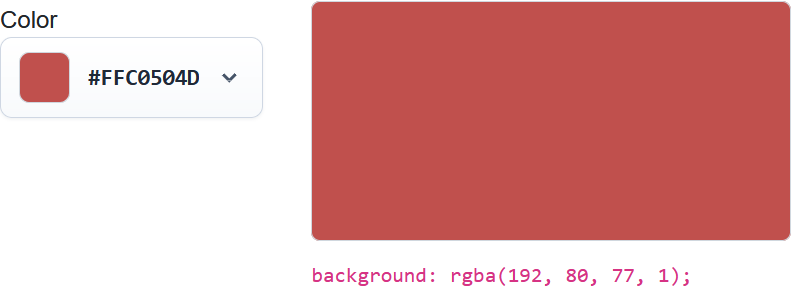
Run the application and open the site root.
Select a color. The gradient preview and its CSS value update when the selected color changes.