


Layout mode
General
When designing a report, you can choose between two layout modes:
Free-form layout— the default mode that allows you to place report items freely on the design surface. TheSnap to GridandSnap to Guidelinesoptions can help you align and size items more precisely, but positioning remains flexible.Cell-based layout— divides the design surface into a grid of cells. Report items occupy one or more cells horizontally and vertically and cannot overlap. Designing in this mode is similar to working in a spreadsheet, which is intentional — the cell-based layout ensures accurate alignment and structure when exporting reports to Excel.
Switch between layout modes
You can switch between Free-form and Cell-based layout modes at any time.
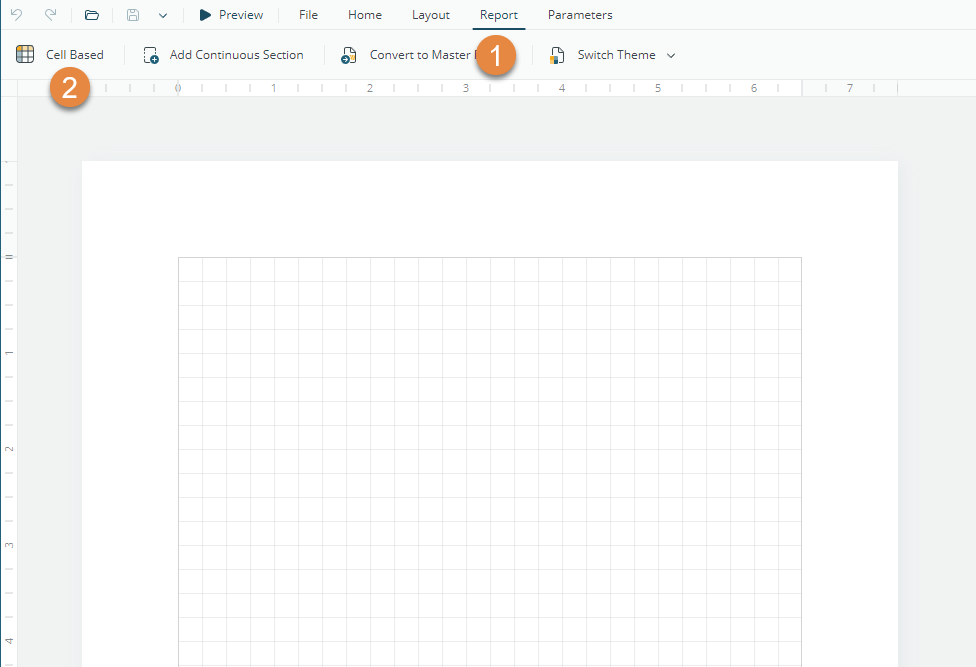
Select the Report tab on the application bar.
Click Cell-based or Free-form to switch to the desired layout mode.
Alternatively, select the preferred value from the Design Mode drop-down in the Report Properties panel.
Working with Cell-based mode
The Cell-based layout mode divides the design surface into a grid of cells. By default, each cell measures 1 in × 0.25 in.When you switch to Cell-based mode, the dimensions of report sections and items may be automatically adjusted to fit a whole number of cells. In such cases, the designer displays a notification explaining the applied changes:

You can modify the cell size in the Report Properties and adjust the section size and margins to achieve the desired layout.
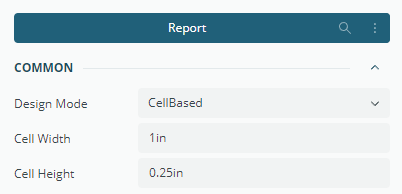
Working in the Cell-based layout is similar to working in a spreadsheet: report items have Column Number, Row Number, Column Span, and Row Span properties that define their position and size. Report items cannot overlap. All other aspects of report design remain unchanged.
Recommendations
Choose Cell-based layout when designing reports that are primarily exported to Excel, as it ensures accurate alignment between the report layout and the resulting spreadsheet structure.
This mode provides greater accuracy and precision when positioning report items, since every element aligns with a defined cell grid.
Use Free-form layout when you need complete flexibility in positioning and layering items, for example, in visually rich or non-tabular reports.