


Editing Views with ColectionView
The CollectionView provides support for editing items with methods similar to those found in .NET's IEditableCollectionView interface: editItem, commitEdit, and cancelEdit.
The editItem method saves a copy of the item and puts the collection in 'edit mode'. While in edit mode, the view is not refreshed, so items will not be sorted or filtered out of view during the edit process.
The commitEdit method exits edit mode so sorting and filtering become active again. If the item has changed, the collectionChanged event fires so bound controls can show the changes.
The cancelEdit method restores the original data and exits edit mode.
Editing behavior
When editing starts, a pencil icon appears on the row header to indicate the collection is in edit mode.

If you press the 'Escape' key while in edit mode, the edits will be canceled and the original data will be restored.
If you move the selection to a different row, or move the focus away from the grid, the edits WILL be committed! At this point, the collection will refresh and any active filtering/sorting will be applied using the new item values.
Adding Items
The CollectionView provides support for adding items with the methods addNew, commitNew, and cancelNew. Removing items is done with the remove method.
The addNew method adds an empty item to the collection and returns a reference to the new item. The caller can use this return value to initialize the new item. Alternatively, you can provide a CollectionView.newItemCreator function to create and initialize new items.
The addNew method also puts the collection in 'add' mode, suspending sorting and filtering to keep the new item in place until it is committed.
The commitNew method causes the collection to exit 'add mode' and refreshes the collection so sorting and filtering are restored.
The cancelNew method removes the new item from the collection and exits 'add mode'.
To add an item, you must first enable the grid to add new items. Set the allowAddNew property to true. Then move the selection to the last row, the "New Item Template" (it has an asterisk on the row header). It looks like this:

Edit the new item as usual, and when you are done press Enter or move the selection to a different row to commit the new row.
If you press the 'Escape' key while editing the new row, the addition will be canceled and the new row will be removed from the collection.
Controlling the Insertion Position of New Items
By default, calling addNew() appends the new item to the end of the sourceCollection.
When paging is enabled (pageSize > 0), the new item therefore appears on the last page, regardless of the currently displayed page.
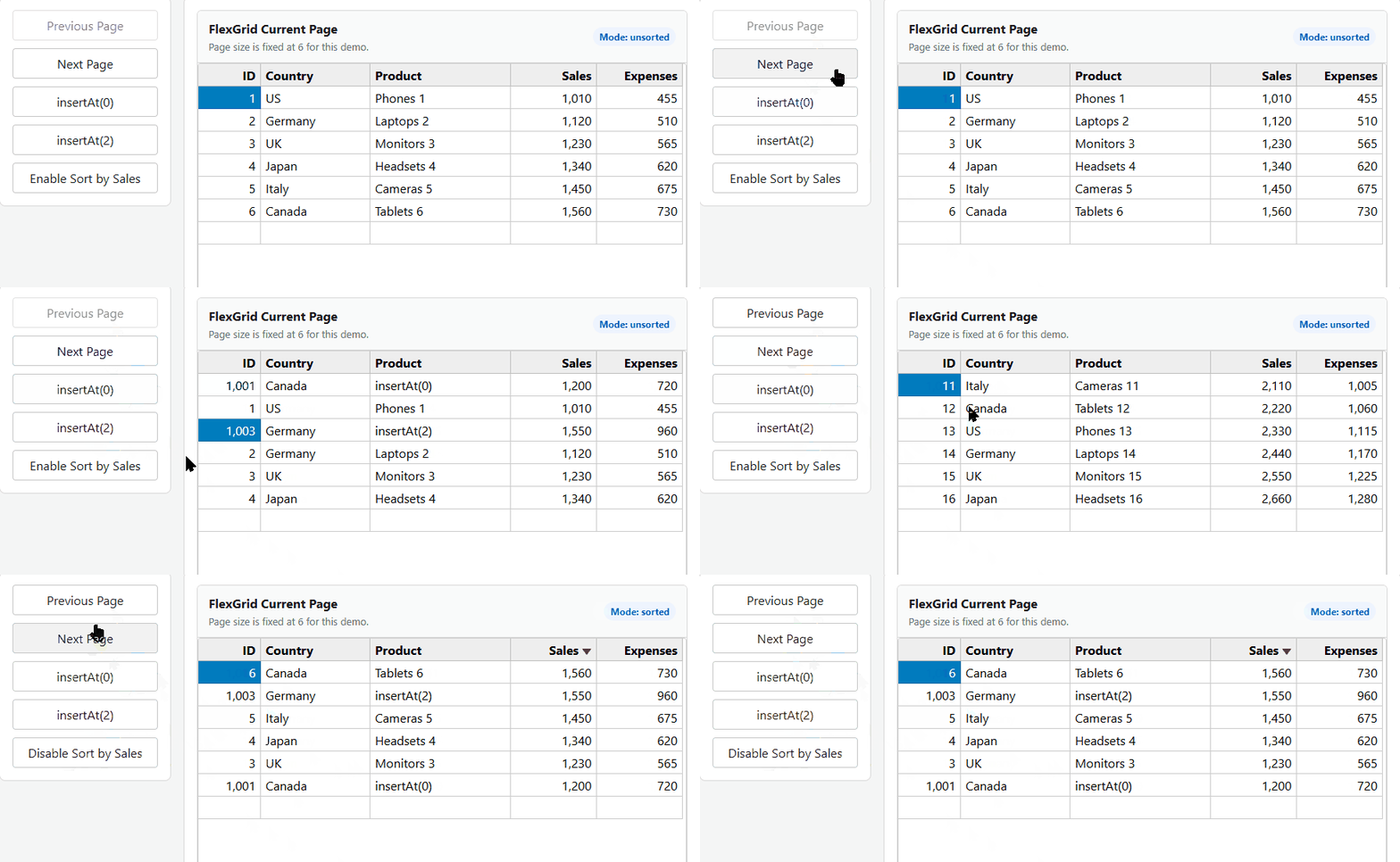
To control the insertion position of new items, use:
CollectionView.newItemIndexCollectionView.insertAt()
When paging is enabled, insertion indexes are interpreted relative to the current page.
When paging is disabled, non-negative indexes are interpreted relative to the full sourceCollection.
Page‑Relative Insertion
With paging enabled:
Valid indexes are in the range
0..pageSize - 1.Index
0inserts at the top of the current page.Index
pageSize - 1inserts at the bottom of the current page.
When paging is disabled (pageSize <= 0), non-negative index values represent positions within the full sourceCollection.
Using newItemIndex
The newItemIndex property is used by the standard addNew() workflow, including the FlexGrid new row template.
When set to a value within the valid page range, new items are inserted at that position on the current page.
Otherwise, the default append behavior is used.
import * as wijmo from '@mescius/wijmo';

let view = new wijmo.CollectionView(data, {
    pageSize: 5
});

// insert new items at the top of the current page
view.newItemIndex = 0;

let item = view.addNew();
item.name = 'New Item';
view.commitNew();
When sorting, filtering, or grouping is active, explicit insertion positions are not applied. In these cases, new items follow the default add-new behavior and are appended to the sourceCollection, after which the active view transformation determines their final position.
Using insertAt
The insertAt(index, item?, commit?) method inserts a new item at a specific position in the view.
With paging enabled:
Valid indexes are in the range
0..pageSize - 1.Indexes less than
0or greater than or equal topageSizeare ignored.
With paging disabled:
Non-negative indexes represent positions within the full
sourceCollection.
If sorting, filtering, or grouping is active, valid indexes fall back to the default add-new behavior and append the item to the end of the sourceCollection.
The method returns:
The inserted item when
commitisfalse.nullwhencommitistrue, or when the insertion cannot be completed.
import * as wijmo from '@mescius/wijmo';

let view = new wijmo.CollectionView(data, {
    pageSize: 5
});

// insert at index 2 of the current page
let item = view.insertAt(2);
if (item) {
    item.name = 'Inserted Item';
    view.commitNew();
}
Commit Behavior
When multiple addNew() or insertAt() calls are made without calling commitNew() between operations, additional deletions are not supported until the pending item is committed.
Calling moveToPage() or changing the current page automatically calls commitNew() and commits any pending new item.
Notes
These APIs affect only the in-memory order of the sourceCollection.
When view transformations such as sorting, filtering, or grouping are active, the final display position is determined by those transformations.
If you use a remote data source, you are responsible for persisting the insertion order.
Removing Items
To remove items, select an entire row by clicking the row header, then press the Delete key. The grid will call the collection's remove method and the item will be removed from the collection.
Tracking Changes
Web applications often use a pattern of downloading some data from the server, making changes locally, and updating the server with the changes later.
The CollectionView can help by keeping track of items that have been added, removed, or modified.
To use this feature, set the trackChanges property to true. Once you do that, the CollectionView will add items to these collections:
itemsAdded
itemsRemoved
itemsEdited
When you are ready, send the changes to the server and call the clearChanges method to reset the change-tracking collections.
Check out the Tracking Changes Demo
Validation
The CollectionView has a getError property that provides validation support. To use it, set getError to a function that takes two parameters containing the data item being validated and the property to validate, and returns a string describing the error condition (or null if there are no errors),
import * as wijmo from '@mescius/wijmo';

let view = new wijmo.CollectionView();

// only accept gmail email addresses.
view.getError = (item, property) => {
    if ( property == "email" && item.endsWith('@gmail.com') ) {
        return null;
    }
    else {
        return 'Invalid email. Please enter a gmail address';
    }
}
The getError property goes beyond basic HTML5 validation based only on the value itself (such as min, max, required, pattern, etc). It allows you to specify conditions that involve multiple properties.
The getError property allows you to include the validation logic in the collection itself, rather than in the UI used for editing items. The same method can then be used by input forms or by controls such as the FlexGrid.