


License Activation
License activation is necessary to verify the authenticity of the serial key used to license the product. It also ensures that keys are only used to license a permitted number of machines. Activation is done with the MESCIUS License Manager .
Once you have downloaded and installed Spread for WPF as evaluation from the official website or through the NuGet gallery, a trial key is automatically installed on your machine. This trial key will expire in the next 30 days.
After the trial expires, if you still want to evaluate the controls, you can contact us to obtain an Extend Trial License. You may also choose to purchase a license and activate it with a valid serial key. For more information about current licensing prices, please check out our Spread.NET Pricing page.
Online Activation
Using MESCIUS License Manager
After installation, navigate to C:\ProgramData\SA3\Desktop on your machine, double click sa3client-ui.exe, and click Activate Serial Key.

Enter the license key and click Activate.
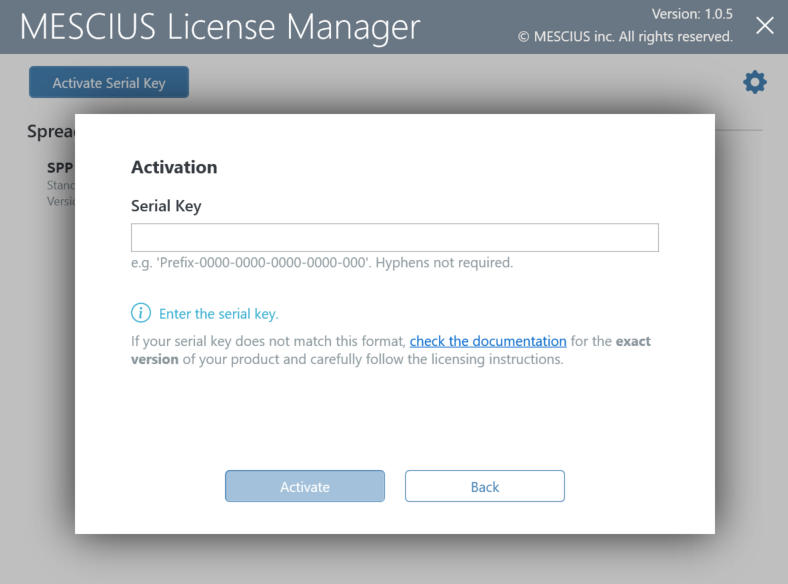
Click OK.
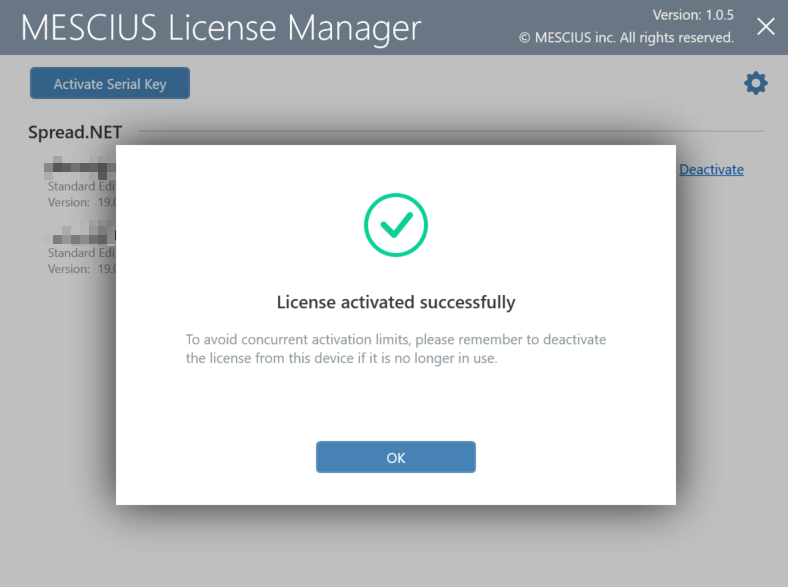
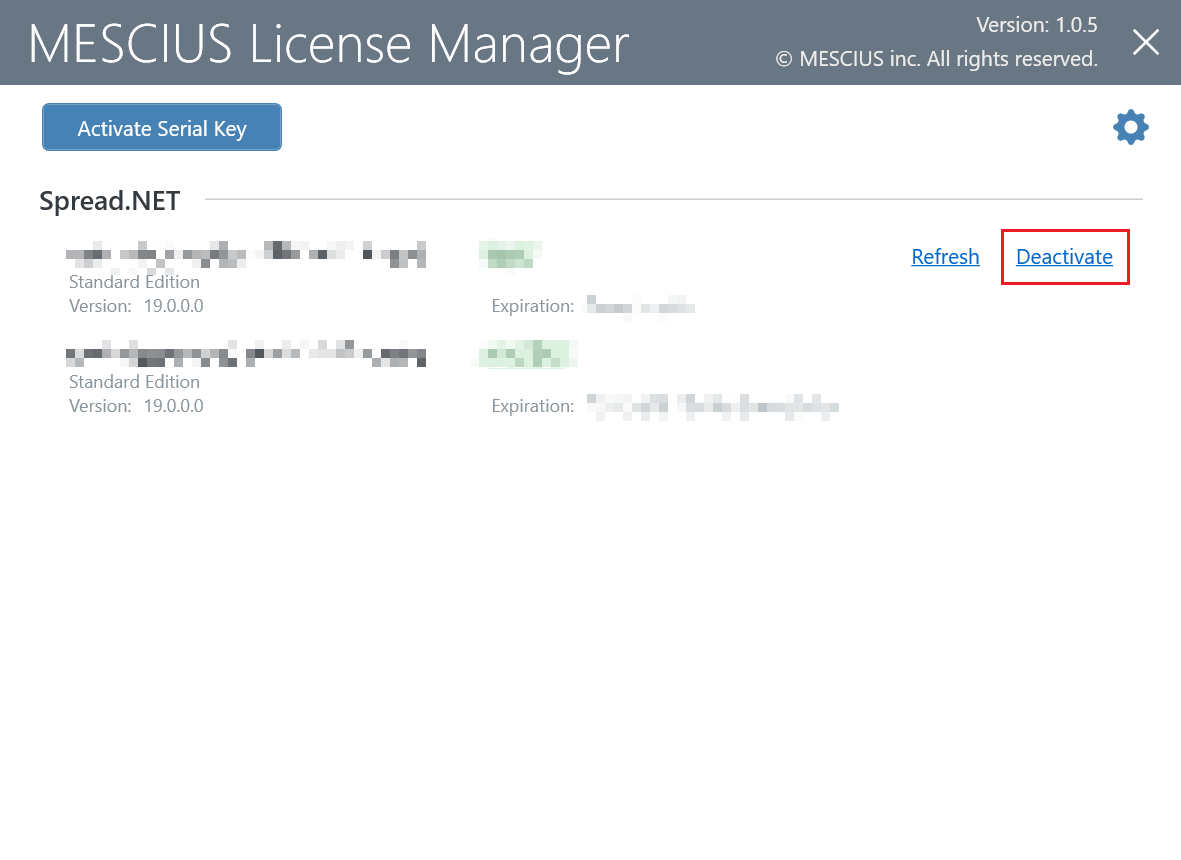
Use MESCIUS License Manager to deactivate the license before moving the license to another machine. Click sa3client-ui.exe located in C:\ProgramData\SA3\Desktop and click Deactivate.
Using Visual Studio
If you are trying to activate the product package installed from the NuGet Package Manager in Visual Studio, follow the steps mentioned below:
Create a project in Visual Studio.
Open NuGet Package Manager and install the product package from nuget.org.
Build the project in Visual Studio. You will see a popup window during build.
Click on Run the License Manager in the popup window to launch the License Manager app.

Click the Activate Serial Key for the product in the window, and enter your serial key.
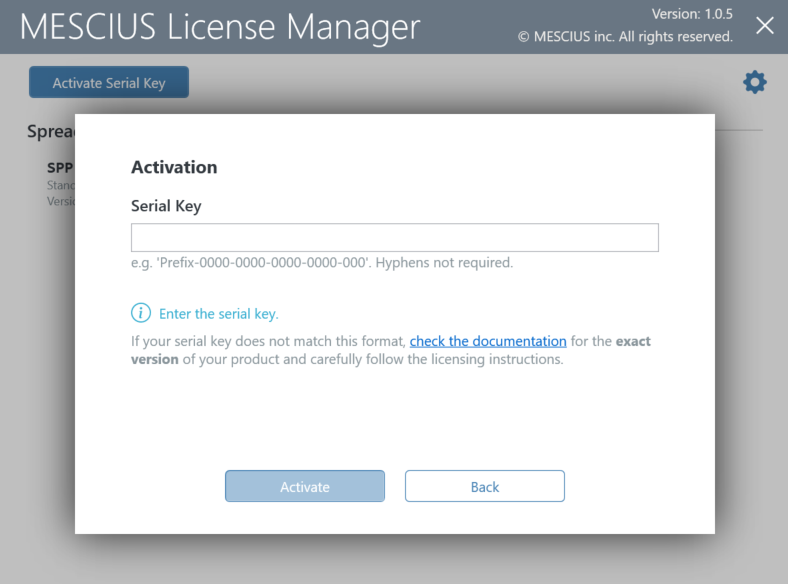
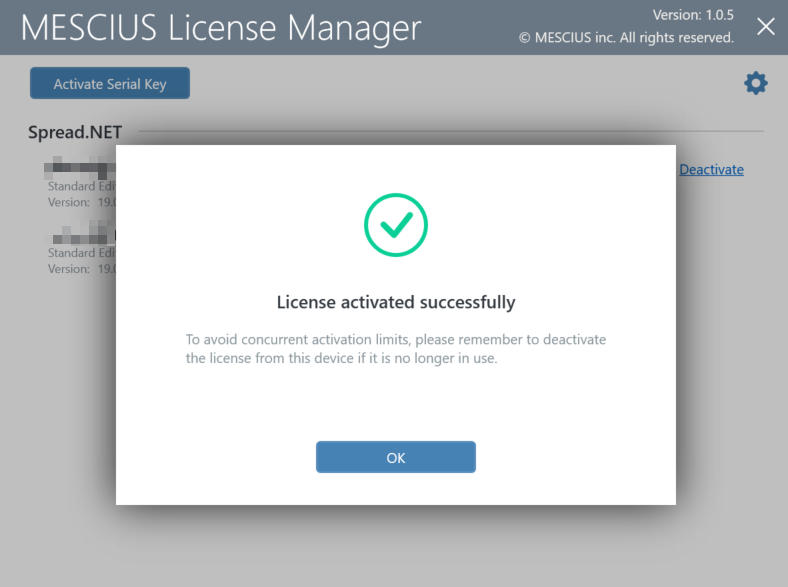
After clicking the Activate button, License Manager App will connect to our website. If successful, you will see the result:
After closing the License Manager window, Visual Studio will continue the build.
Using Command Line Interface
You can activate the product using the command line interface if the graphics UI of the License Manager does not work normally. This is useful, especially for a build machine.
After installation, open the command prompt.
Use the following commands to activate, deactivate, or refresh the license.
The following command line options are available for MESCIUS License Manager:
Command Option | Description |
|---|---|
sa3client ( a | activate ) <serial-key> | Activate license for the product.
|
sa3client ( d | deactivate ) <serial-key-prefix> | Deactivate license for the product.
|
sa3client ( r | refresh ) <serial-key-prefix> | Refresh license for the product.
|
Offline Activation
Suppose the target machine cannot access the internet, but there is another machine that can access the SA3 website via web browser. In that case, you can activate a normal developer license in offline mode.
Using MESCIUS License Manager
Run the sa3client-ui.exe from C:\ProgramData\SA3\Desktop and try to activate a serial key without network access. Our tool will display the following error on the window.
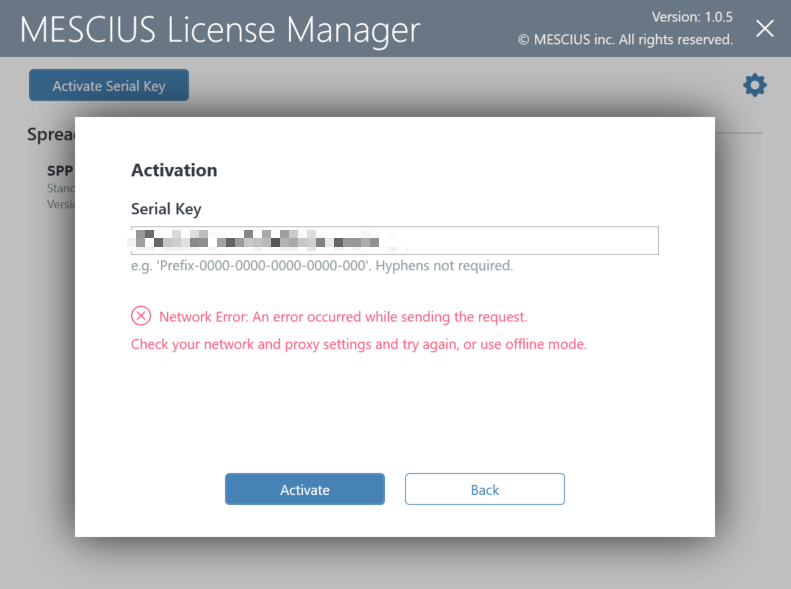
Click the
 icon at the top right to open the Settings page, and set the connection mode to Offline, then click Back.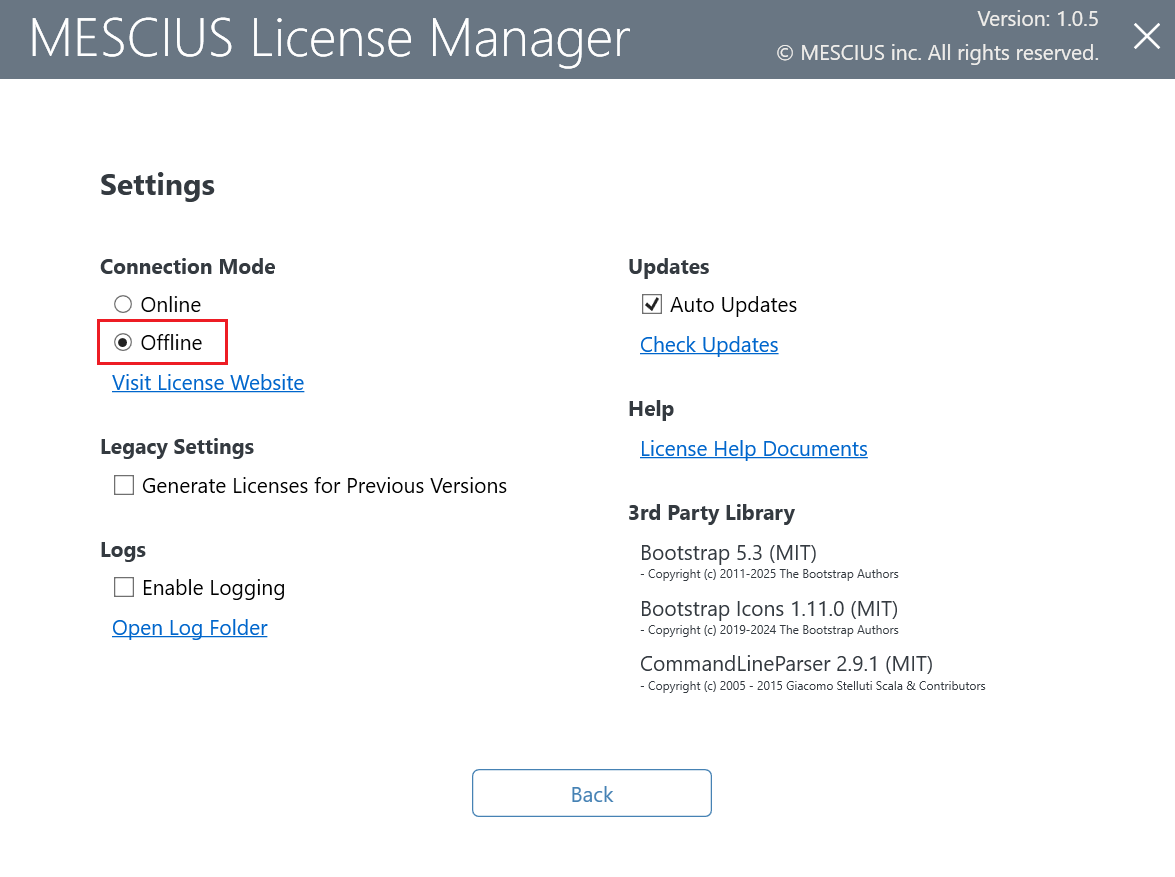
Click the Activate Serial Key button and enter your serial key. An Offline Activation Request dialog will appear, save the content to a local file.
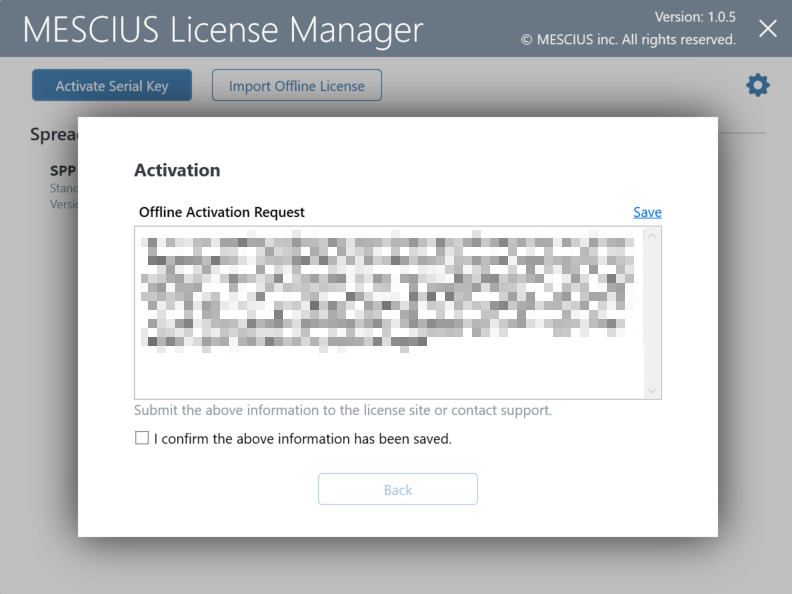
Copy the local file that contains Offline Activation Request to another machine which could access the SA3 website.
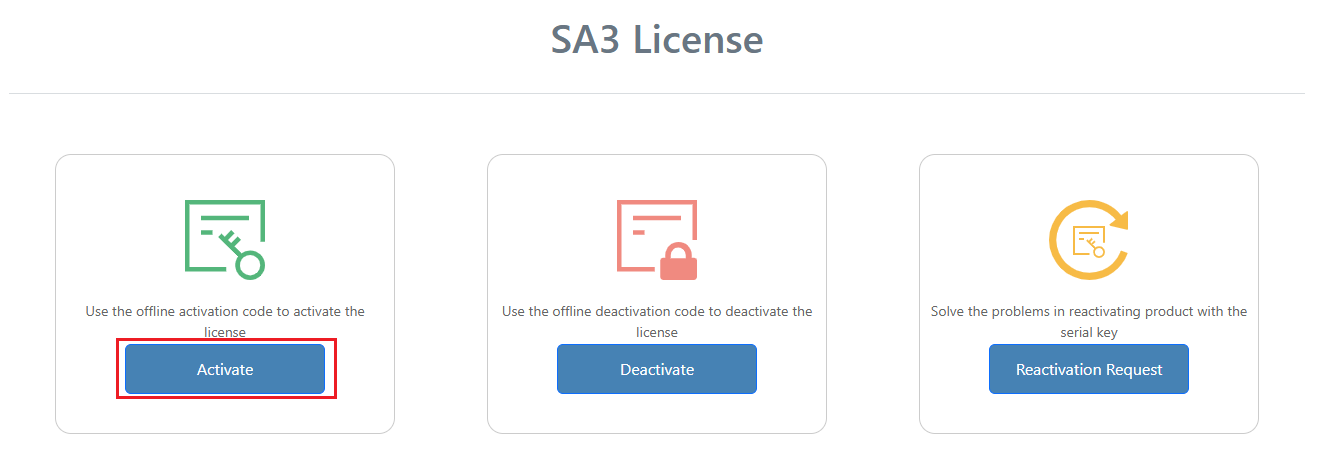
On that machine, access SA3 website and click Activate.
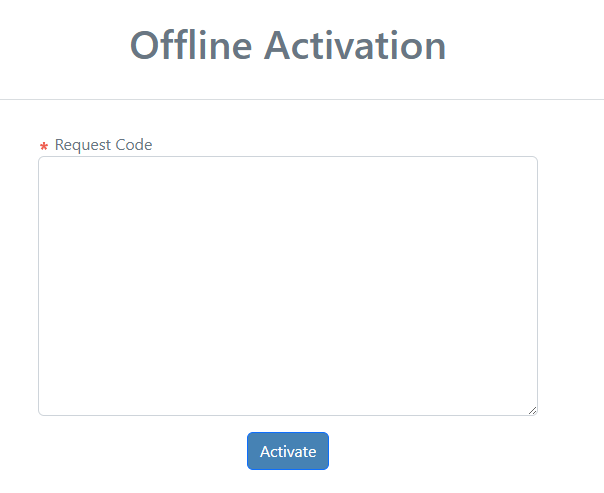
Paste the Request Code and click Activate button to generate the license data.
Save the license data and copy it back to the original machine.
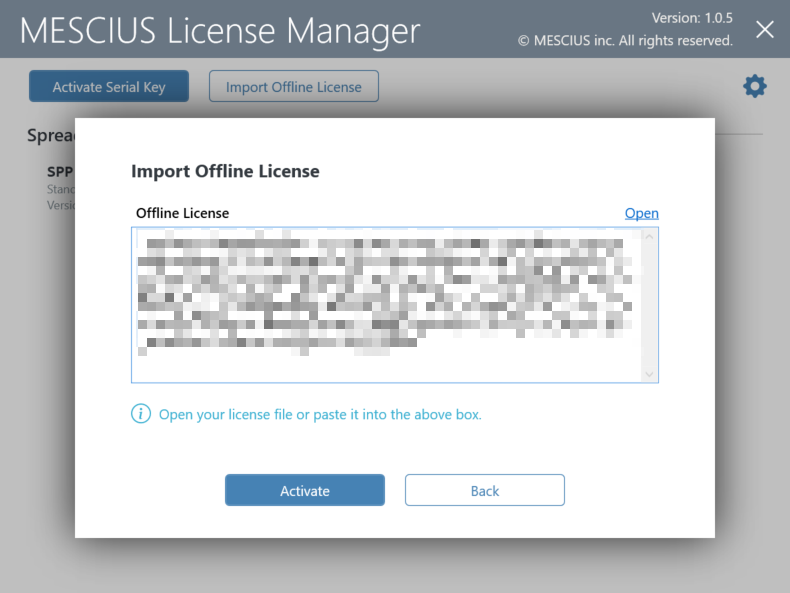
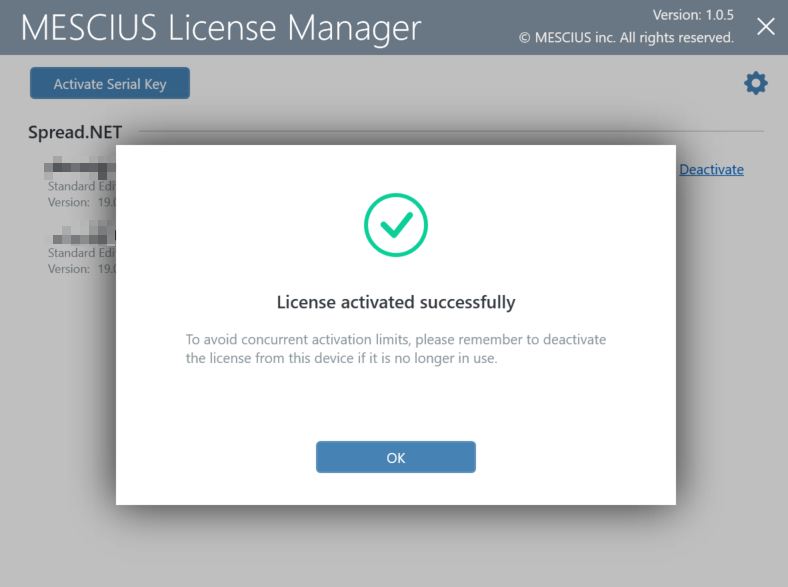
In the License Manager, click Import Offline License, paste the license data, and click Activate. The License is activated.
Using Command Line Interface
Open the command prompt.
Use the following commands to activate or deactivate the license.
The following command line options are available for MESCIUS License Manager:
Command Option | Description |
|---|---|
sa3client ( a | activate ) <serial-key> [( -o | --output ) <offline-file-path>] | Activate license for the product. |
sa3client ( i | import ) <offline-file-path> | Import the license file from the SA3 site or support team.. |
sa3client ( d | deactivate ) <serial-key-prefix> [( -o | --output ) <offline-file-path>] | Deactivae license for the product.
|
Note:
For both offline methods, the deactivation steps are similar to activation. So, you need to copy the Offline Deactivation File to the SA3 site to release the usage of the activation key.
If you want to switch from the trial version to the licensed version, no need to reinstall the product. Simply open the MESCIUS License Manager from "C:\ProgramData\SA3\Desktop\sa3client-ui.exe", enter your product key, and activate the licensed version. When both a trial key and an activated license key are present, there is no need to switch manually. The system will automatically use the appropriate license.
If you want to use one commercial license on multiple machines, first deactivate the license on existing machine and then activate it on the other. There is no need to reinstall the product each time when transferring licenses.
For any issues with activating your serial key, you can also contact to our support team.