


Migrate from Previous Versions
When using projects created with earlier versions of SPREAD for WPF in this version, or when applying a service pack, it is necessary to migrate the projects accordingly. This section outlines important considerations and step-by-step instructions for the migration process.
Coexistence of This and Previous Versions
It is not possible to add both the current and previous versions of the GcSpreadSheet control to the Visual Studio Toolbox simultaneously. If one version of the control has already been added to the Toolbox, please remove it or reset the Toolbox before adding the other version.
In new projects or projects that do not currently use SPREAD, if you drag and drop the GcSpreadSheet control from a previous version onto a form, assemblies from the current version may be automatically added to the project references.
Therefore, you must manually remove the assemblies for the current version from the project references and add the corresponding assemblies for the previous version.
Performing the following steps may cause Visual Studio to terminate unexpectedly:
1. While a project using a previous version is open, select File > Close Solution to close the solution.
2. Open a project that uses the current version, or create a new project, and add the GcSpreadSheet control from the Toolbox.
3. Open the SPREAD Designer from the context menu of the GcSpreadSheet control.
At this point, an exception will occur and Visual Studio will close. To avoid this issue, do not select Close Solution in step 1 above; instead, close Visual Studio directly.
How to Upgrade
Use NuGet Package
Open the Solution Explorer panel, right-click the project, and select Manage NuGet Packages to add the .NET references to your project.
In the Manage Packages for Solution dialog, select nuget.org as the Package source.
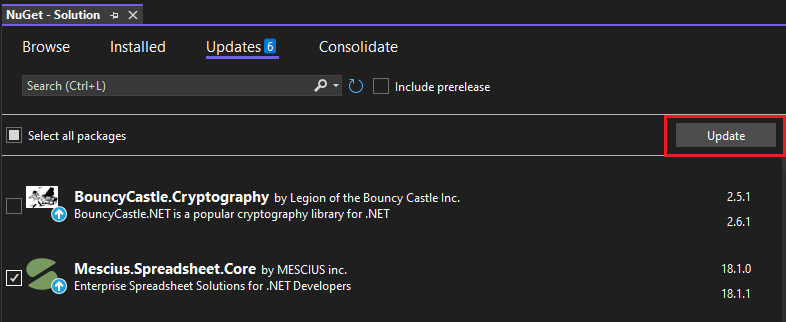
Update NuGet Package for Your Project.
Use Local Package
You can uninstall the previous package and then install the new one. For detailed steps, please refer to: Product Installation.