


- Licensing Overview
- Licensing Process
- Evaluation License
- Activating a Serial Key
- Additional Activation Scenarios
- Licensing Applications
-
Additional Licensing Scenarios
- Create a Runtime License
- License User Controls
- Pipeline Licensing
- License Visual C++ Applications
- Create Components at Runtime
- Generate licenses.licx File Manually
- Create Runtime App Key
- Inheriting from Licensed Components
- Using Licensed Components in Console Applications
- Using Licensed Components with Automated Testing Products
- Licensing FAQs
- Troubleshooting
Create Runtime App Key
This topic applies to licensing UWP, Xamarin, Web API and ASP.NET Core MVC applications which contain old versions of ComponentOne controls (version 2020 v1 and earlier). See the FAQ - How do I find my ComponentOne product version?
Note: It's highly recommended to update to the latest version for much easier licensing. For licensing the latest version, see Licensing Applications.
Older versions of ComponentOne UWP, Xamarin, Web API and ASP.NET Core MVC controls required that your application was licensed with a unique runtime app key.
The runtime app key can be generated through Visual Studio or developer.MESCIUS.com.
Create Runtime App Key Through Visual Studio
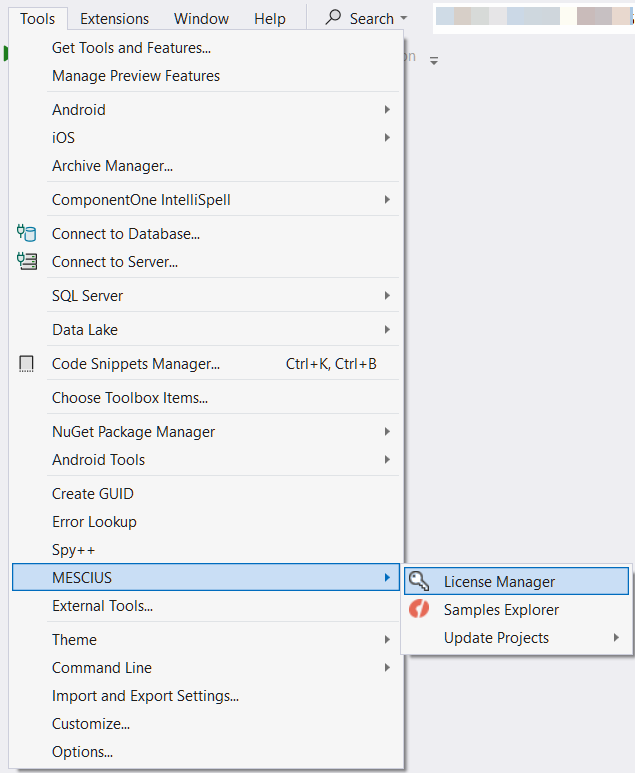
From the Tools menu, select MESCIUS > MESCIUS License Manager
The MESCIUS License Manager window appears as shown in the image below:
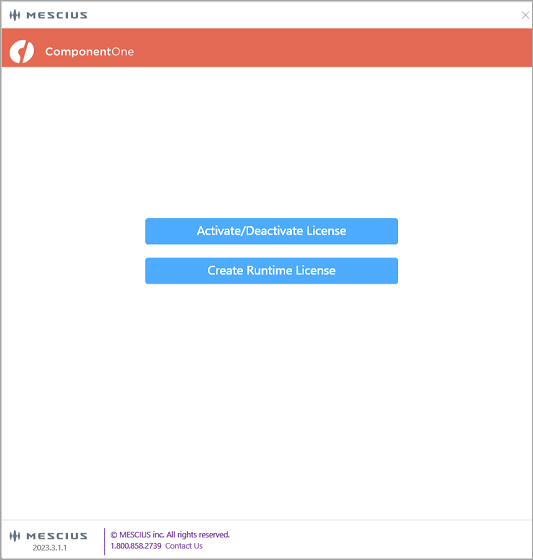
Select Create RunTime License. It allows the users to generate runtime license for the project(s). On clicking this option, the following window appears:
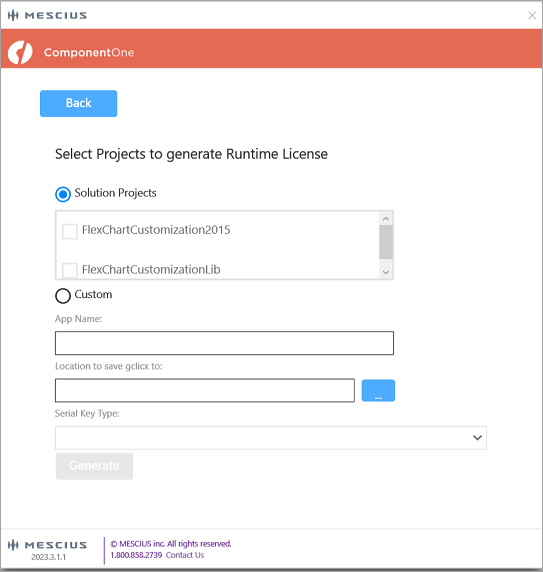
From the above window, you can license the project using Solution Projects or Custom options
In the Solution Projects option, select the license and the project for which license needs to be generated. On clicking the Generate button, a success message appears and a license file <ProjectName>.gclicx is generated.
On selecting Custom option, you can provide the App Name manually for which the license needs to be generated and the location where gclix file needs to save. Also select the type of license in the Serial Key Type dropdown. On clicking the Generate button, a success message appears and a license file <ProjectName>.gclicx is generated
Create Runtime App Key Through MESCIUS.com
If you can't access the Visual Studio Extension, you may also generate runtime app keys from our website by following these steps:
Visit https://developer.mescius.com/en/my-account/create-app-key.
Note: You must create a MESCIUS account and login to access this web page.
If you are generating a full license, select your ComponentOne Ultimate serial number from the Select License drop-down menu on the page. If you are generating a trial license, leave it selected as Evaluation.
Note: You should have ComponentOne License to generate the runtime license.
Select app type from the App Type drop-down based on the type of application that you are building.
In the App Name textbox, enter the name of your application.
Click the Generate APP KEY button. A runtime license will be generated in the form of a string contained within a class.
Copy the license and complete the following steps to add it to your application.
Open your application in Visual Studio.
In the Solution Explorer, right click the project YourAppName.
Select Add | New Item. The Add New Item dialog appears.
Under installed templates, select Visual C# | Class.
Set the name of the class as License.cs and click Add.
In the class License.cs, replace the content with the copied runtime license key.
public static class License
{
     public const string Key = "Your Key";
}
Follow the given step for the specific platform you are working on. MVC
From the Solution Explorer, open Startup.cs and assign the key as per the requirement to it as shown below.
public void ConfigureServices(IServiceCollection services)
{
     C1.Web.Mvc.LicenseManager.Key = License.Key;
     C1.Web.Mvc.Finance.LicenseManager.Key = License.Key
     C1.Web.Mvc.Sheet.LicenseManager.Key = License.Key
     C1.Web.Mvc.Viewer.LicenseManager.Key = License.Key
     C1.Web.Mvc.MultiRow.LicenseManager.Key = License.Key
     C1.Web.Mvc.Olap.LicenseManager.Key = License.Key
     C1.Web.Mvc.TransposedGrid.LicenseManager.Key = License.Key
}
Web API
From the Solution Explorer, open Startup.cs and assign the key to it as shown below.
public void ConfigureServices(IServiceCollection services)
{
        C1.Web.Api.LicenseManager.Key = License.Key;
        services.AddMvc(); //To add Mvc services
}
Xamarin
From the Solution Explorer, open App.xaml.cs and set the runtime license, inside the constructor App() method as shown below.
C1.Xamarin.Forms.Core.LicenseManager.Key = License.Key;UWP
From the Solution Explorer, open the main initialization constructor for your app and set the runtime license as shown below.
C1.UWP.LicenseManager.Key = License.Key;Service components
From the Solution Explorer, open the main initialization constructor for your app and set the runtime license as shown below. In the following code, replace "XXX" with the service component's name. For example, DataEngine and TextParser.
C1.XXX.LicenseManager.Key = License.Key;