


- Document Solutions for Excel Java Overview
- Key Features
- Getting Started
-
Features
- Worksheet
- Workbook
- Comments
- Hyperlinks
- Sort
- Filter
- Group
- Conditional Formatting
- Data Validations
- Data Binding
- Import Data
- Digital Signatures
- Formulas
- Custom Functions
- Shapes
- Document Properties
- Styles
- Form Controls
- Barcodes
- Themes and Colors
- Chart
- Table
- Pivot Table
- Pivot Chart
- Sparkline
- Slicer
- Print Settings
- Logging
- Defined Names
- AI Assistant
- Templates
- Formula Reference
- File Operations
- Tutorials
- Use JDK 8 Date Time API
- Document Solutions Data Viewer
- API Reference
- Release Notes
Custom XML Parts
DsExcel Java allows you to store custom XML data in a workbook using custom XML parts. A custom XML part contains an XML payload that is independent of worksheet data and can be accessed by applications or macros that process the workbook.
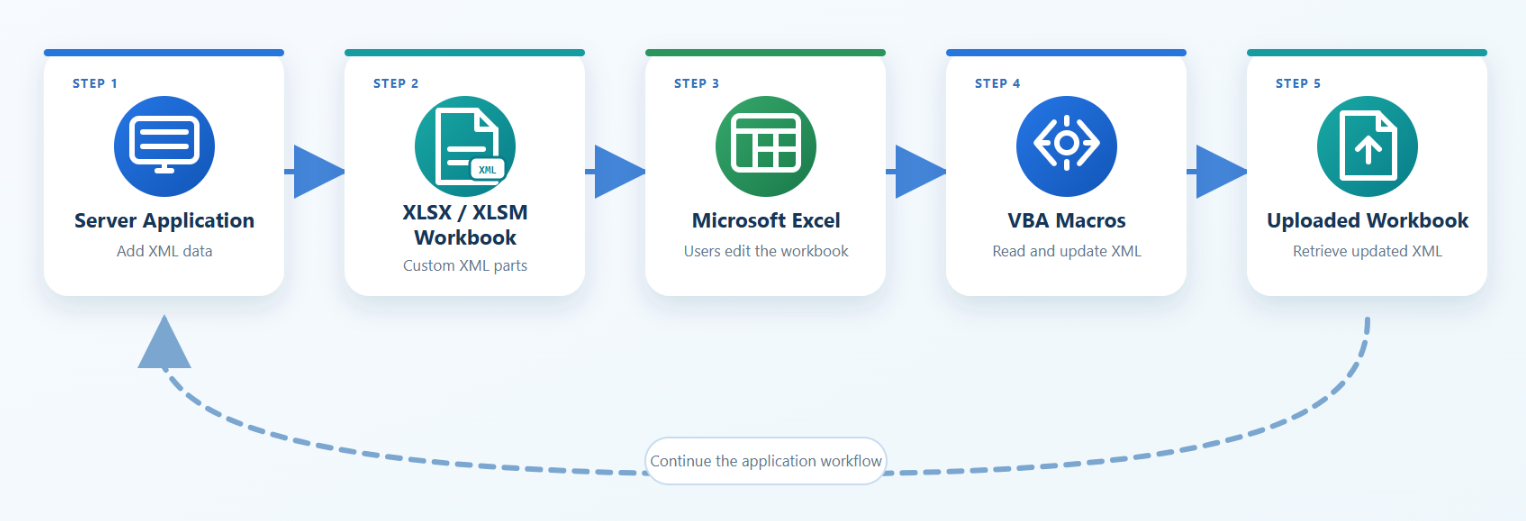
You can use custom XML parts to exchange XML data between an application and Microsoft Excel. For example, an application can add XML data to an XLSM workbook before it is downloaded. After a user edits the workbook and a macro updates the XML data, the application can reopen the uploaded workbook and retrieve the updated data.
Use the getCustomXmlParts method of the Workbook class to access the ICustomXmlPartCollection collection. Each ICustomXmlPart object in the collection contains a generated ID and the XML data as a byte array.
Add Custom XML Parts
Use the add method of the ICustomXmlPartCollection interface to add a custom XML part. DsExcel generates a unique ID for each part. Use the setData method to assign the XML payload as a byte array.
The following example adds customer and order XML data to a workbook.
// Create a workbook.
Workbook workbook = new Workbook();
ICustomXmlPartCollection customXmlParts = workbook.getCustomXmlParts();

// Add customer XML data.
ICustomXmlPart customerPart = customXmlParts.add();
customerPart.setData(
    "<customer><name>Grace Green</name><region>West</region></customer>"
        .getBytes(StandardCharsets.UTF_8)
);

// Add order XML data.
ICustomXmlPart orderPart = customXmlParts.add();
orderPart.setData(
    "<order><number>SO-1001</number><total>1680</total></order>"
        .getBytes(StandardCharsets.UTF_8)
);

// Save the workbook.
workbook.save("AddCustomXmlParts.xlsx");
The getId method is read-only. The generated ID is stored with the workbook and remains available after the workbook is saved and reopened.
Note: DsExcel does not validate the data assigned to a custom XML part. Ensure that the data contains valid XML before saving the workbook. Invalid XML may prevent Microsoft Excel from opening the saved file.
Retrieve and Update Custom XML Parts
You can retrieve a custom XML part by its ID or zero-based index. An ID is useful when you need to locate the same part after reopening a workbook.
The following example retrieves and updates a custom XML part.
Workbook workbook = new Workbook();
ICustomXmlPartCollection customXmlParts = workbook.getCustomXmlParts();

// Add a custom XML part.
ICustomXmlPart customerPart = customXmlParts.add();
customerPart.setData(
    "<customer><name>Grace Green</name><region>West</region></customer>"
        .getBytes(StandardCharsets.UTF_8)
);

String customerPartId = customerPart.getId();

// Retrieve the part by ID.
ICustomXmlPart partById = customXmlParts.get(customerPartId);

// Retrieve the first part by index.
ICustomXmlPart firstPart = customXmlParts.get(0);

// Update the XML data.
partById.setData(
    "<customer><name>Grace Green</name><region>East</region></customer>"
        .getBytes(StandardCharsets.UTF_8)
);

// Save the workbook.
workbook.save("UpdateCustomXmlParts.xlsx");
If the specified ID is not found, the ID indexer returns null. If the specified index is outside the valid range, the index indexer throws an ArgumentOutOfRangeException.
The byte array returned by the setData method is a copy of the stored data. Modifying the returned array does not update the custom XML part. Assign the modified array to the setData method to update the part.
Remove Custom XML Parts
The ICustomXmlPartCollection interface implements IEnumerable<ICustomXmlPart>. You can enumerate the collection to inspect or update its parts.
Use the remove method to remove a part by ID or zero-based index.
The following example enumerates the collection and removes custom XML parts by ID and index.
Workbook workbook = new Workbook();
ICustomXmlPartCollection customXmlParts = workbook.getCustomXmlParts();

ICustomXmlPart customerPart = customXmlParts.add();
customerPart.setData(
    "<customer><name>Grace Green</name></customer>"
        .getBytes(StandardCharsets.UTF_8)
);

ICustomXmlPart orderPart = customXmlParts.add();
orderPart.setData(
    "<order><number>SO-1001</number></order>"
        .getBytes(StandardCharsets.UTF_8)
);

// Enumerate the custom XML parts.
for (ICustomXmlPart customXmlPart : customXmlParts) {
    String id = customXmlPart.getId();
    byte[] data = customXmlPart.getData();
}

// Remove a part by ID.
customXmlParts.remove(customerPart.getId());

// Remove the first remaining part by index.
if (customXmlParts.getCount() > 0) {
    customXmlParts.remove(0);
}

// Save the workbook.
workbook.save("RemoveCustomXmlParts.xlsx");
If the specified ID or index does not identify an existing part, the remove method does not change the collection.