


- Document Solutions for PDF .NET Overview
- Key Features
- Getting Started
- Product Architecture
- Features
- Access Primitive and High-Level PDF Objects
- Render HTML to PDF
- Save PDF as Image
- Barcodes in PDF
- Best Practices
- Walkthrough
- Tutorials
- Samples
- API Reference
- Document Solutions PDF Viewer Overview
- Release Notes
Programmatically Convert HTML to PDF
This tutorial shows how to convert HTML content to PDF in .NET applications using Document Solutions for HTML (DsHtml) and Document Solutions for PDF (DsPdf). DsHtml can render local HTML files, HTML strings, and live web pages into high-quality PDF output while preserving layout, styling, fonts, and CSS. It works with Chrome, Edge, or a compatible Chromium build running in headless mode, making it a practical option for generating invoices, reports, records, and other portable PDF documents from web-based content.
Follow along with the video tutorial below:
Prerequisites
Before you begin, make sure you have the following installed:
Visual Studio 2022 or later
.NET 8 or later
Google Chrome, Microsoft Edge, or access to a compatible Chromium build
Basic familiarity with C# and .NET console applications
DsHtml uses a headless browser process to render HTML content. It can use Chrome or Edge already installed on the system, or it can download a compatible Chromium build for the application to use.
Create a .NET Console Application
Open Visual Studio and create a new Console App project targeting .NET 8 or later.
This tutorial uses a console application to demonstrate the core HTML-to-PDF conversion workflow. The same concepts can also be applied in ASP.NET Core, desktop, background service, or document automation projects.
Install the Required NuGet Packages
To convert HTML to PDF, install the following NuGet packages:
DS.Documents.Html
DS.Documents.Pdf
In Visual Studio, right-click the project in Solution Explorer and select Manage NuGet Packages. Search for each package in the Browse tab, select the package, and click Install.
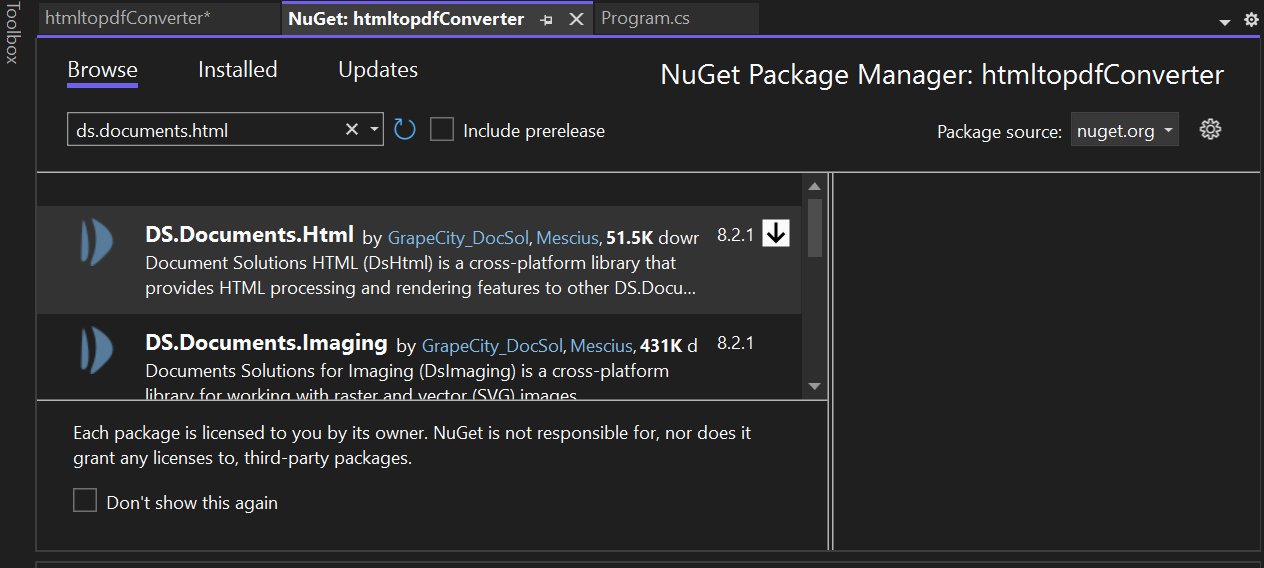
You can also install the packages from the Package Manager Console:
Install-Package DS.Documents.Html
Install-Package DS.Documents.Pdf
After the packages are installed, add the following namespaces to Program.cs:
using GrapeCity.Documents.Html;
using GrapeCity.Documents.Pdf;
using GrapeCity.Documents.Drawing;
using System.Drawing;
using System.IO;
These namespaces provide the browser rendering, PDF creation, drawing, and file APIs used throughout the tutorial.
Understand the Main DsHtml Classes
The DsHtml conversion workflow is built around the following core classes:
BrowserFetcher locates an installed Chrome or Edge browser, or downloads a compatible Chromium build from a public source.
GcHtmlBrowser represents the headless browser process used to render HTML content.
HtmlPage represents a browser tab that loads HTML content and exports it to PDF or image formats.
The legacy GcHtmlRenderer class is obsolete. It is still available for backward compatibility, but internally it is implemented using GcHtmlBrowser.
Choose an HTML to PDF Conversion Approach
DsHtml supports two main approaches for converting HTML content to PDF:
Use GcHtmlBrowser to Generate a PDF from HTML
Use the GcHtmlBrowser and HtmlPage workflow when you want to create a PDF directly from an HTML page, local HTML file, or HTML string. This approach is useful when the PDF output should be based primarily on the rendered HTML content.
The NewPage method creates an HtmlPage from a URL or HTML string. Then, the SaveAsPdf method exports the rendered page to a PDF file.
Use DrawHtml to Add HTML to an Existing PDF
Use the DrawHtml method when you want to place HTML content inside an existing PDF document. This approach is useful when you need to combine HTML fragments with other PDF content, such as headers, footers, graphics, tables, or additional drawing operations.
The DrawHtml method extends GcPdfGraphics and supports rendering either an HTML string or an HTML page specified by URI:
bool GcPdfGraphics.DrawHtml(GcHtmlBrowser browser, string html, float x, float y, HtmlToPdfFormat format, out SizeF size);bool GcPdfGraphics.DrawHtml(GcHtmlBrowser browser, Uri htmlUri, float x, float y, HtmlToPdfFormat format, out SizeF size);The HtmlToPdfFormat class controls how the HTML content is rendered inside the PDF page.
Convert a Live HTML Invoice Page to PDF
A common HTML-to-PDF use case is invoice generation. Invoices are often created as HTML for browser viewing, but converting them to PDF makes them easier to email, archive, download, and view consistently across devices.
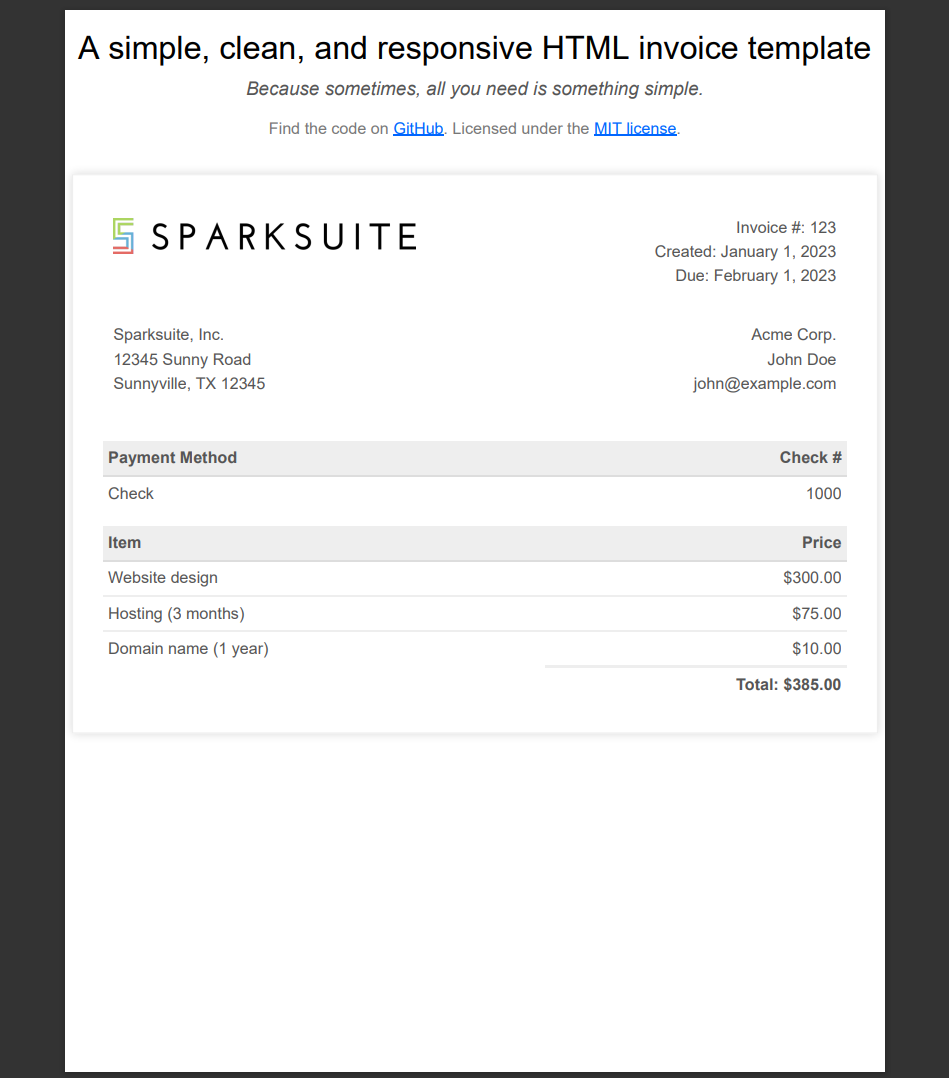
In this example, the application renders a live HTML invoice template in a headless browser and exports it directly to PDF.
Replace the contents of Program.cs with the following code:
using GrapeCity.Documents.Html;
using System.Drawing;

namespace MyApp
{
    internal class Program
    {
        static void Main(string[] args)
        {
            // Use BrowserFetcher to get a compatible Chromium executable.
            var browserExecutablePath = new BrowserFetcher().GetDownloadedPath();

            // Create the GcHtmlBrowser instance using the fetched Chromium path.
            using var browser = new GcHtmlBrowser(browserExecutablePath);

            // Define the URL of the HTML invoice template to convert to PDF.
            var uri = new Uri("https://sparksuite.github.io/simple-html-invoice-template/", UriKind.Absolute);

            // Create a new page and load the URL.
            using (var page = browser.NewPage(uri, new PageOptions
            {
                WindowSize = new Size(1024, 1024)
            }))
            {
                // Save the rendered HTML page as a PDF file.
                page.SaveAsPdf("Invoice_Example.pdf", new PdfOptions
                {
                    FullPage = false
                });

                Console.WriteLine("PDF saved as 'Invoice_Example.pdf'");
            }
        }
    }
}
When you run the application, DsHtml loads the invoice page, renders it in headless mode, and saves the result as Invoice_Example.pdf.
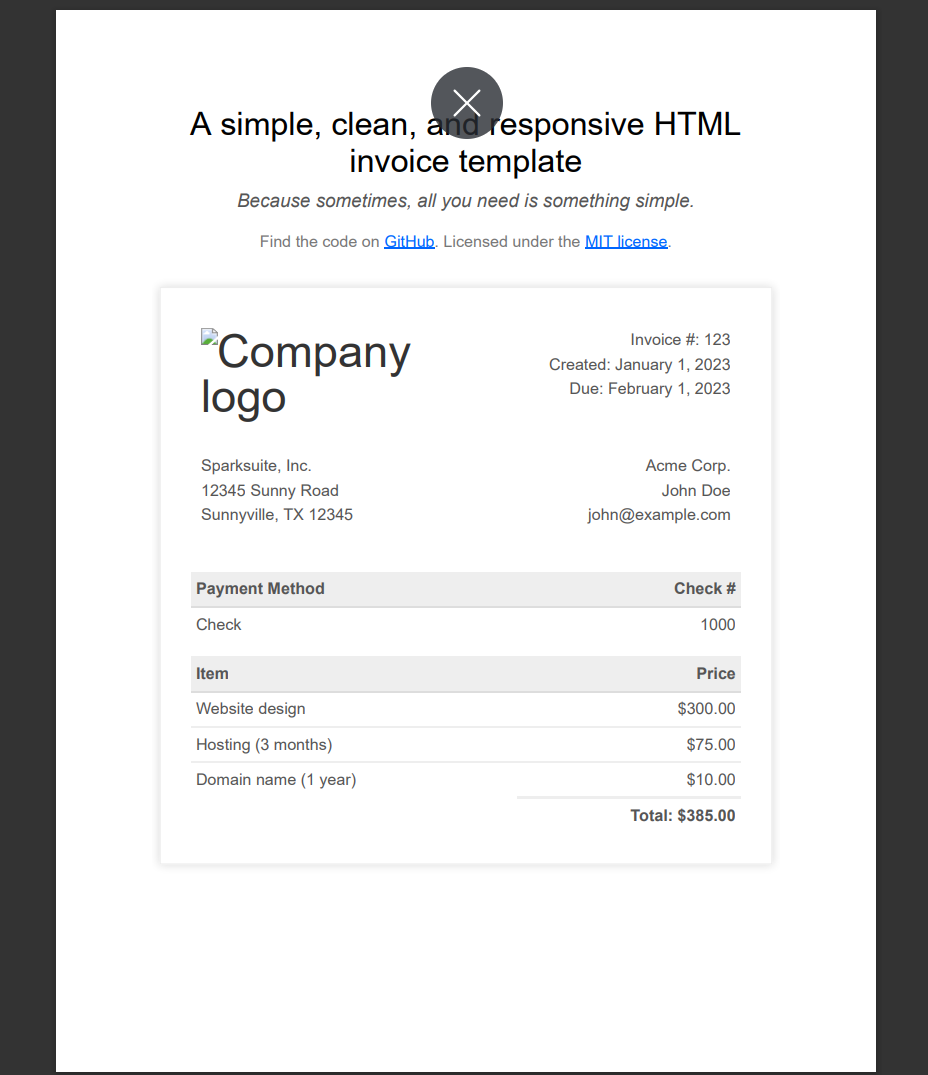
Convert a Local HTML File to PDF with DrawHtml
The DrawHtml method is useful when you already have a PDF document and want to render HTML content into a specific location on a page. For example, you may want to add a styled invoice section to a PDF template that also includes other programmatically drawn content.
For this example, add a local HTML file named invoice.html to your project. Then replace the contents of Program.cs with the following code:
using GrapeCity.Documents.Html;
using GrapeCity.Documents.Pdf;
using GrapeCity.Documents.Drawing;
using System.Drawing;
using System.IO;

namespace MyApp
{
    internal class Program
    {
        static void Main(string[] args)
        {
            // Use BrowserFetcher to locate or download a compatible Chromium build.
            var browserExecutablePath = new BrowserFetcher().GetDownloadedPath();

            // Create the GcHtmlBrowser instance with the fetched Chromium executable.
            using var browser = new GcHtmlBrowser(browserExecutablePath);

            // Create a GcPdfDocument instance.
            var doc = new GcPdfDocument();

            // Add a new page to the document.
            var page = doc.Pages.Add();

            // Get the Graphics instance of the page.
            var g = page.Graphics;

            // Read the local HTML file and draw it onto the PDF page.
            g.DrawHtml(
                browser,
                File.ReadAllText("invoice.html"),
                72, 72,
                new HtmlToPdfFormat(false)
                {
                    MaxPageWidth = 6.5f,
                    MaxPageHeight = 9f
                },
                out SizeF size);

            // Save the PDF document.
            doc.Save("Invoice_Draw.pdf");
            Console.WriteLine("PDF saved as 'Invoice_Draw.pdf'");
        }
    }
}
The output PDF renders the local HTML content inside the PDF page while still allowing you to add other PDF drawing logic before or after the HTML content.
Generate a PDF from an HTML String
You can also render an HTML string directly into a PDF document. This is useful for dynamically generated content, such as confirmation messages, labels, notices, summaries, or HTML fragments built from application data.
Replace the contents of Program.cs with the following code:
using GrapeCity.Documents.Html;
using GrapeCity.Documents.Pdf;
using GrapeCity.Documents.Drawing;
using System.Drawing;

namespace MyApp
{
    internal class Program
    {
        static void Main(string[] args)
        {
            // Create a variable containing the HTML code as a string.
            var html = "<!DOCTYPE html>" +
"<html>" +
"<head>" +
"<style>" +
"p.round {" +
"font: 36px verdana;" +
"color: Red;" +
"border: 4px solid SlateBlue;" +
"border-radius: 16px;" +
"padding: 3px 5px 3px 5px;" +
"}" +
"</style>" +
"</head>" +
"<body>" +
"<p class='round'>Thank You for shopping with us!</p>" +
"<p class='round'>Hope to see you again soon.</p>" +
"</body>" +
"</html>";

            // Create a GcPdfDocument instance.
            var doc = new GcPdfDocument();

            // Add a new page to the document.
            var page = doc.Pages.Add();

            // Get the Graphics instance of the page.
            var g = page.Graphics;

            // Define the GcHtmlBrowser instance.
            var path = new BrowserFetcher().GetDownloadedPath();
            using (var browser = new GcHtmlBrowser(path))
            {
                // Render the HTML string on the PDF using DrawHtml.
                var ok = g.DrawHtml(browser, html, 72, 72,
                    new HtmlToPdfFormat(false) { MaxPageWidth = 6.5f },
                    out SizeF size);

                // Optionally draw a rounded rectangle around the rendered HTML content.
                if (ok)
                {
                    var rc = new RectangleF(72 - 4, 72 - 4, size.Width + 8, size.Height + 8);
                    g.DrawRoundRect(rc, 8, Color.PaleVioletRed);
                }

                // Save the PDF document.
                doc.Save("HTMLStringToPDF.pdf");
            }
        }
    }
}
When the application runs, it creates a PDF containing the rendered HTML string and its embedded CSS styles. The rounded rectangle demonstrates how rendered HTML can be combined with additional PDF graphics.

Convert a Live Web Page to PDF
You can use GcHtmlBrowser and HtmlPage to render live web pages to PDF. This is helpful for generating automated reports, monthly snapshots, web archives, product release summaries, or printable versions of online content.
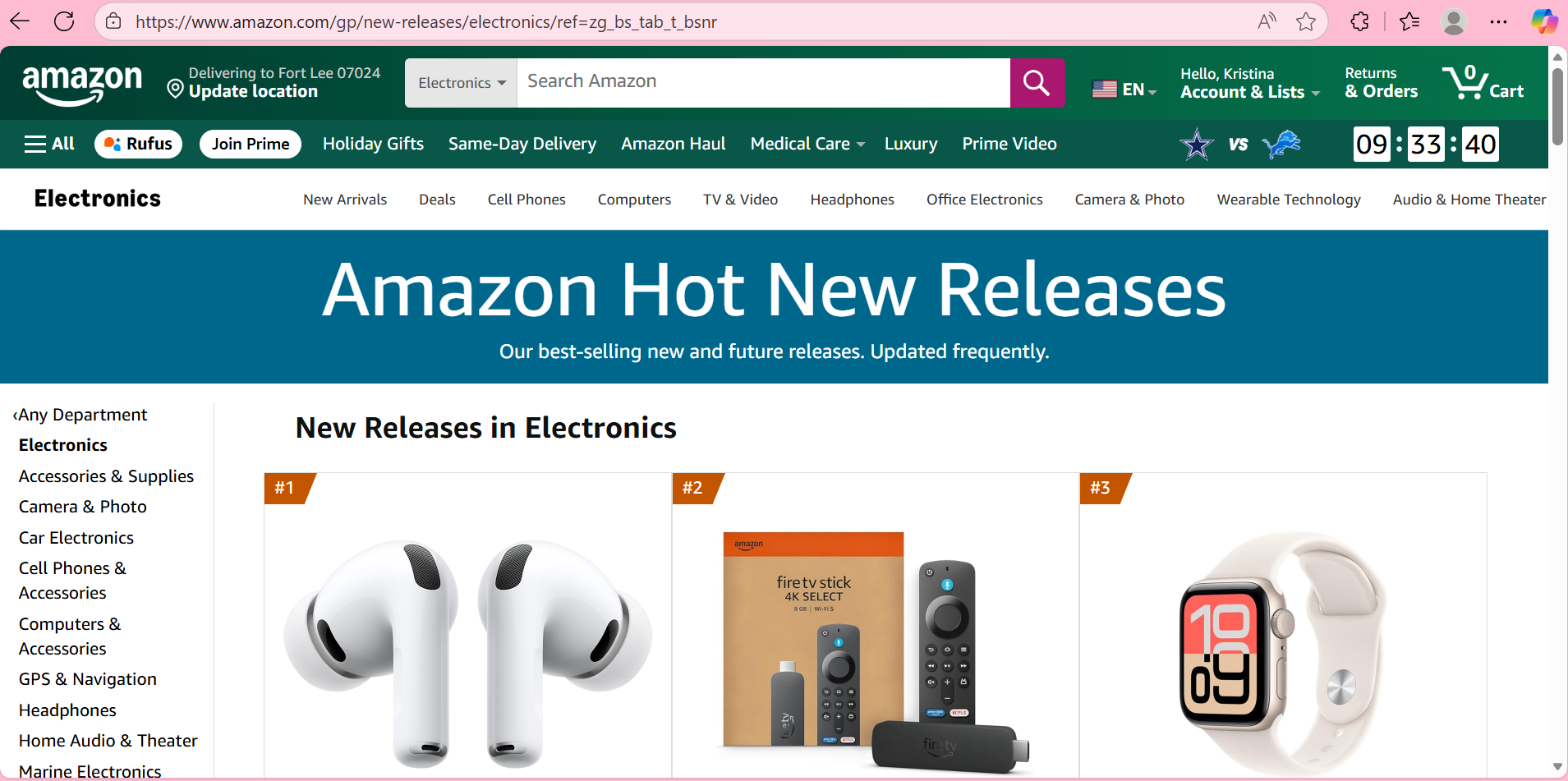
Replace the contents of Program.cs with the following code:
using GrapeCity.Documents.Html;
using GrapeCity.Documents.Pdf;
using GrapeCity.Documents.Drawing;
using System.Drawing;

namespace MyApp
{
    internal class Program
    {
        static void Main(string[] args)
        {
            // Specify the PDF file name.
            var fn = @"webpage.pdf";

            // Specify the URL to use for PDF conversion.
            var uri = new Uri(@"https://www.amazon.com/gp/new-releases/electronics/ref=zg_bs_tab_t_bsnr");

            // Define the GcHtmlBrowser instance.
            var path = new BrowserFetcher().GetDownloadedPath();
            using (var browser = new GcHtmlBrowser(path))
            {
                // Define PDF-related settings.
                var pdfOptions = new PdfOptions()
                {
                    PageRanges = "1-100",
                    Margins = new PdfMargins(0.2f),
                    Landscape = false,
                    PreferCSSPageSize = true
                };

                // Create an HtmlPage instance from the source URL.
                using var htmlPage = browser.NewPage(uri);

                // Render the webpage into a PDF file.
                htmlPage.SaveAsPdf(fn, pdfOptions);
            }
        }
    }
}
After the application runs, the specified live web page is rendered and saved as webpage.pdf.

Customize the PDF Output
The PdfOptions class controls how the rendered PDF output is generated. Common options include:
DisplayHeaderFooter: Specifies whether headers and footers are rendered.
HeaderTemplate: Defines the HTML template for the page header.
FooterTemplate: Defines the HTML template for the page footer.
FullPage: Renders the full HTML page as a single PDF page.
Landscape: Sets whether the page uses landscape orientation.
Margins: Sets page margins in inches.
PageHeight: Sets the output page height in inches.
PageWidth: Sets the output page width in inches.
PageRanges: Specifies the page range to render, such as
1-5, 8, 11-13.PreferCSSPageSize: Uses the CSS-defined page size when available.
PrintBackground: Specifies whether background graphics are printed.
Scale: Sets the scale factor between
0.1and2.0.
Here is a simple example using PdfOptions:
var pdfOptions = new PdfOptions()
{
    Margins = new PdfMargins(0.25f),
    Landscape = false,
    PreferCSSPageSize = true,
    PrintBackground = true,
    Scale = 1.0f
};
These options make it easier to fine-tune the PDF output for reports, invoices, printable pages, and other production document workflows.
FAQ
What is DsHtml used for?
DsHtml is used to render HTML content into PDF documents and images in .NET applications. It supports local HTML files, HTML strings, and live web pages.
Does DsHtml require a custom Chromium build?
No. DsHtml can use Chrome or Edge installed on the system. It can also download a compatible Chromium build when needed.
When should I use GcHtmlBrowser instead of DrawHtml?
Use
GcHtmlBrowserandHtmlPage.SaveAsPdf()when you want to generate a PDF directly from a full HTML page or URL. UseDrawHtmlwhen you want to render HTML into an existing PDF page alongside other PDF content.Can I convert dynamic HTML strings to PDF?
Yes. You can create an HTML string in C#, render it with
DrawHtml, and save the result as a PDF.Can I customize page size, margins, headers, and footers?
Yes. Use the
PdfOptionsclass to configure page ranges, margins, orientation, CSS page sizing, headers, footers, scaling, and background printing.