


- Document Solutions for Excel .NET Overview
- Key Features
- Getting Started
-
Features
- Worksheet
- Workbook
- Comments
- Hyperlinks
- Sort
- Filter
- Group
- Conditional Formatting
- Data Validations
- Data Binding
- Import Data
- Digital Signatures
- Formulas
- Custom Functions
- Shapes
- Document Properties
- Styles
- Form Controls
- Barcodes
- Themes and Colors
- Chart
- Table
- Pivot Table
- Pivot Chart
- Sparkline
- Slicer
- Logging
- Defined Names
- AI Assistant
- Templates
- Formula Reference
- File Operations
- Tutorials
- Document Solutions Data Viewer
- API Reference
- Release Notes
Data Fields and Calculations
This topic explains how to apply multiple calculation functions to the same field, create calculated fields with custom formulas, add calculated items for custom data analysis, and set Show Values As to display data as percentages, differences, or running totals.
Add Field Function
Refer to the following example code to add field function in a pivot table.
//Set field amount function
field_Amount.Function = ConsolidationFunction.Average;
Apply Different Calculations on a Pivot Field
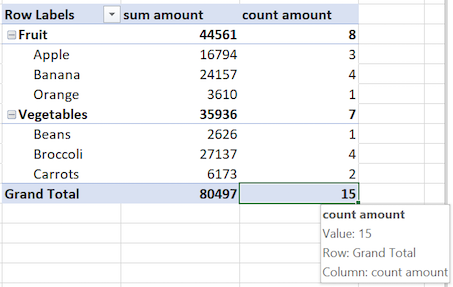
In DsExcel, you can add a pivot table field to a pivot table multiple times by applying various calculation functions on it. These functions include sum, average, min, max, count etc. The final pivot table output will contain multiple data fields based on the calculations applied over the pivot table field.
Refer to the following example code to add a pivot table field as multiple data fields by applying different calculation functions.
//config pivot table's fields
var field_Category = pivottable.PivotFields["Category"];
field_Category.Orientation = PivotFieldOrientation.RowField;

var field_Product = pivottable.PivotFields["Product"];
field_Product.Orientation = PivotFieldOrientation.RowField;

//sum function on Amount field
var field_Amount = pivottable.PivotFields["Amount"];
pivottable.AddDataField(field_Amount, "sum amount", ConsolidationFunction.Sum);

//count function on Amount field
var field_Amount2 = pivottable.PivotFields["Amount"];
pivottable.AddDataField(field_Amount2, "count amount", ConsolidationFunction.Count);
The output of above example code when viewed in Excel, looks like below:
Calculated Fields
Calculated fields in pivot table refer to the data fields created by applying additional logic or formula on existing data fields of the underlying data source. These fields are especially useful when summary functions and custom calculations do not generate the desired output. For instance, an employee database of a company holds data about existing salary and performance rating of each employee. At year end, one can easily calculate the raised salary of employees by creating calculated field using salary and the rating field.
In DsExcel, CalculatedFields property represents the collection of all calculated fields in a particular pivot table. You can use Add method of the ICalculatedFields interface to create a new calculated field in the pivot table. The Add method accepts fieldname and IPivotField.Formula property as its parameters to generate the calculated field. To remove a calculated field from the collection you can use the Remove method which takes target field name as its parameter.
Refer to the following code to create a calculated field in the pivot table:
IWorksheet calculatedFieldSheet = workbook.Worksheets.Add();
calculatedFieldSheet.Name = "CalculatedField";

// Add pivot table.
IPivotCache pivotCache = workbook.PivotCaches.Create(worksheet.Range["A1:F71"]);
IPivotTable calculatedFieldTable = calculatedFieldSheet.PivotTables.Add(pivotCache, calculatedFieldSheet.Range["A1"]);
calculatedFieldTable.PivotFields["Product"].Orientation = PivotFieldOrientation.RowField;
calculatedFieldTable.PivotFields["Amount"].Orientation = PivotFieldOrientation.DataField;
calculatedFieldTable.DataFields["Sum of Amount"].NumberFormat = "$#,##0_);($#,##0)";

// Add calculated field.
calculatedFieldTable.CalculatedFields.Add("Tax", "=IF(Amount > 1000, 3% * Amount, 0)");

// Set calculated field as data field.
calculatedFieldTable.PivotFields["Tax"].Orientation = PivotFieldOrientation.DataField;
calculatedFieldTable.DataFields["Sum of Tax"].NumberFormat = "$#,##0_);($#,##0)";
Calculated Items
Calculated items are pivot table items that use custom formulas containing constants or refer to other items in the pivot table. These items can be added to the row or column field area of the pivot table but do not exist in the source data.
In DsExcel, ICalculatedItems interface represents the collection of calculated items in a particular pivot table. You can fetch this collection of pivot items by using IPivotField.CalculatedItems method. To add calculated items to a pivot table, the ICalculatedItems interface provides Add method which accepts name and formula of the item as parameters. You can also use IPivotItem.Formula for setting the formula of a calculated item. To remove a calculated item from the ICalculatedItems collection, you can use Remove method which accepts name of the target field as parameter. Pivot cache manages all the calculated items, hence changing a calculated item affects all pivot tables using same cache in the current workbook. Also, any kind of addition, deletion or change in calculated item triggers the pivot table update.
Note: An exception is thrown on:
Adding the same field to the data field section when a calculated item exists in the pivot table.
Adding calculated items when data field is having two or more same fields.
Adding a calculated item with a used name. Name parameter of calculated item is case-insensitive. Hence, pivot table considers the name “Formula” and “formula” as same.
Refer to the following code to create calculated items in the pivot table:
// Get the calculated item for the specified field
ICalculatedItems countryCalcItems = calculatedItemTable.PivotFields["Country"].CalculatedItems();
ICalculatedItems productCalcItems = calculatedItemTable.PivotFields["Product"].CalculatedItems();

// Add some calculated items using formulas
countryCalcItems.Add("Oceania", "=Country[Australia]+Country[NewZealand]");
countryCalcItems.Add("America", "=Country[Canada]");
IPivotItem myPivotItem = countryCalcItems.Add("Europe", "=Country[France]");

// Change the formula of the calculated item
myPivotItem.Formula = "=Country[France]+Country[Germany]";

// Add calculated item using constant value
productCalcItems.Add("IPhone 13", "=2500");

// Get the CalculatedItema count
Console.Write("Calculated Items count : " + countryCalcItems.Count);

// Remove a calculated item
countryCalcItems.Remove("America");
Show Value As
While analyzing spreadsheet data, instead of comparing exact values, you may want to compare the values in terms of calculations. For instance, there are many ways to evaluate performance of a sales employee. You can compare his sales with target, sales as a percentage of total sales or sales in comparison to previous month's sale etc. To achieve these calculations easily, DsExcel provides "Show Value As" option which allows you to perform custom calculations in a pivot table by using several predefined formulas such as “% of Parent Total” or “% of Grand Total”.
DsExcel.NET provides Calculation property of PivotField interface which accepts values from PivotFieldCalculation enumeration for setting the predefined calculations. You can also set the base field and base field item to perform these calculations using BaseField and BaseItem properties respectively.
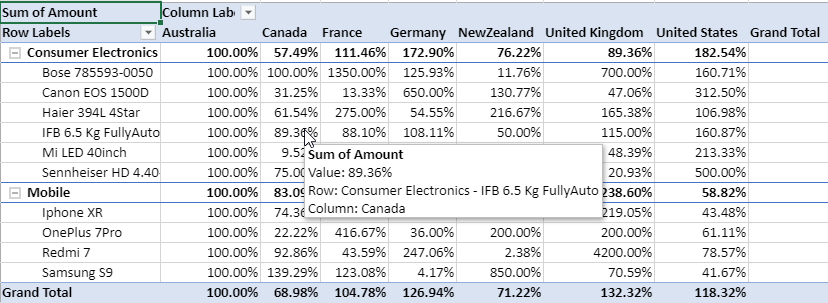
Refer to the following example code which demonstrates the value as percent of Australia.
IPivotTable percentOfTable = percentOfSheet.PivotTables.Add(pivotCache, percentOfSheet.Range["A1"]);
percentOfTable.PivotFields["Category"].Orientation = PivotFieldOrientation.RowField;
percentOfTable.PivotFields["Product"].Orientation = PivotFieldOrientation.RowField;
percentOfTable.PivotFields["Country"].Orientation = PivotFieldOrientation.ColumnField;
percentOfTable.PivotFields["Amount"].Orientation = PivotFieldOrientation.DataField;

// set show value as, base field, base item.
IPivotField percentOfTableDataField = percentOfTable.DataFields["Sum of Amount"];
percentOfTableDataField.Calculation = PivotFieldCalculation.PercentOf;
percentOfTableDataField.BaseField = "Country";
percentOfTableDataField.BaseItem = "Australia";

percentOfSheet.Range["A:I"].AutoFit();