


- Document Solutions for Excel .NET Overview
- Key Features
- Getting Started
-
Features
- Worksheet
- Workbook
- Comments
- Hyperlinks
- Sort
- Filter
- Group
- Conditional Formatting
- Data Validations
- Data Binding
- Import Data
- Digital Signatures
- Formulas
- Custom Functions
- Shapes
- Document Properties
- Styles
- Form Controls
- Barcodes
- Themes and Colors
- Chart
- Table
- Pivot Table
- Pivot Chart
- Sparkline
- Slicer
- Logging
- Defined Names
- AI Assistant
- Templates
- Formula Reference
- File Operations
- Tutorials
- Document Solutions Data Viewer
- API Reference
- Release Notes
Defined Names
Defined names refer to names given to constants, tables, cell ranges, or formulas so that you can refer to them in a formula without making it too complex to understand. The defined names are especially useful in complex calculations, such as calculating taxes for a whole financial year, where you will have difficulty finding and understanding the cells having different investments, taxable incomes, etc.
DsExcel supports defined names with the help of Names property in Workbook class and IWorksheet interfaces and Name property in ITable interface.
Name a Table
Name a table by using Name property of ITable interface. The scope of the table name is workbook by default, as tables are created in workbook scope only. This name appears in Excel's Name Manager, as shown below.

Refer to the following example code to name the table.
// Name a table.
ITable table = worksheet.Tables.Add(worksheet.Range["A1:F7"], true);
table.Name = "Master Table";
Name a Cell Range, Formula, and Constant
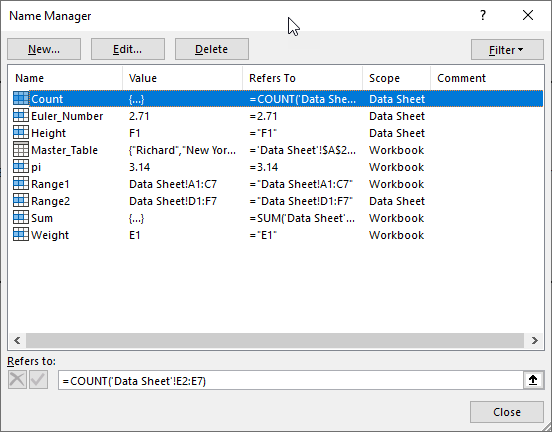
Name a cell range, formula, and constant using the Names property with Workbook and Worksheet objects. This property adds an IName object storing the name and referenced cell, formula, or constant. The name added to a workbook object is stored in the workbook scope, while the name added to a worksheet object is saved in the worksheet scope. It appears in Excel’s Name Manager, as shown below.
Refer to the following example code to name a cell range, a formula, and a constant in workbook scope.
// Name a range in wokrbook scope.
workbook.Names.Add("Range1", "Data Sheet!A1:C7");

// Name formula in workbook scope.
workbook.Names.Add("Sum", "=SUM(F2:F7)");

// Name a constant in workbook scope.
workbook.Names.Add("pi", "3.14");

// Name a cell in workbook scope.
workbook.Names.Add("Weight", "E1");
Refer to the following example code to name a cell range, a formula, and a constant in worksheet scope.
// Name a range in worksheet scope.
workbook.Worksheets[worksheet.Index].Names.Add("Range2", "Data Sheet!D1:F7");

// Name formula in worksheet scope.
workbook.Worksheets[worksheet.Index].Names.Add("Count", "=COUNT(E2:E7)");

// Name a constant in worksheet scope.
workbook.Worksheets[worksheet.Index].Names.Add("Euler_Number", "2.71");

// Name a cell in worksheet scope.
workbook.Worksheets[worksheet.Index].Names.Add("Height", "F1");
Show or Hide Defined Names
DsExcel .NET allows you to control whether a defined name is visible in Excel's Name Manager by using the Visible property of the IName interface. This property is supported for both workbook-scoped and worksheet-scoped defined names.
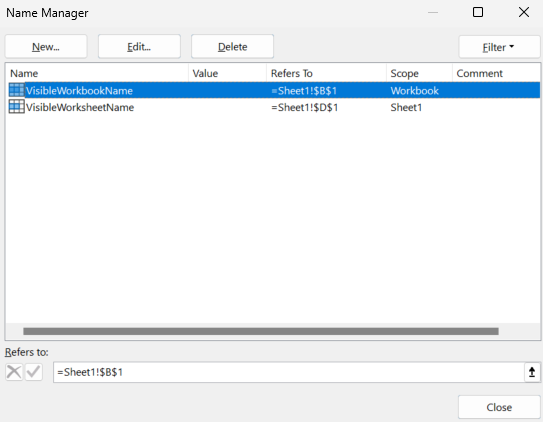
Set the Visible property to false to hide a defined name. Hidden defined names remain available to formulas and workbook logic, but they do not appear in Excel's Name Manager. Newly created defined names are visible by default.
Refer to the following example code to hide workbook-scoped and worksheet-scoped defined names.
// Create a new workbook.
var workbook = new Workbook();
IWorksheet worksheet = workbook.Worksheets[0];
worksheet.Name = "Sheet1";

// Add two workbook-scoped defined names and set one of them to be invisible.
IName workbookName = workbook.Names.Add("HiddenWorkbookName", "=Sheet1!$A$1");
workbookName.Visible = false;
IName visibleWorkbookName = workbook.Names.Add("VisibleWorkbookName", "=Sheet1!$B$1");
visibleWorkbookName.Visible = true;

// Add two worksheet-scoped defined names and set one of them to be invisible.
IName worksheetName = worksheet.Names.Add("HiddenWorksheetName", "=Sheet1!$C$1");
worksheetName.Visible = false;
IName visibleWorksheetName = worksheet.Names.Add("VisibleWorksheetName", "=Sheet1!$D$1");
visibleWorksheetName.Visible = true;

// Save the workbook.
workbook.Save("HiddenDefinedNames.xlsx");
The Name Manager will appear as shown in the image.
Note: Hidden defined names are preserved when you save and reopen an Excel file. However, hidden defined names are not supported in SJS/SSJSON I/O because SpreadJS does not preserve this state.