


- Document Solutions for Excel .NET Overview
- Key Features
- Getting Started
-
Features
- Worksheet
- Workbook
- Comments
- Hyperlinks
- Sort
- Filter
- Group
- Conditional Formatting
- Data Validations
- Data Binding
- Import Data
- Digital Signatures
- Formulas
- Custom Functions
- Shapes
- Document Properties
- Styles
- Form Controls
- Barcodes
- Themes and Colors
- Chart
- Table
- Pivot Table
- Pivot Chart
- Sparkline
- Slicer
- Logging
- Defined Names
- AI Assistant
- Templates
- Formula Reference
- File Operations
- Tutorials
- Document Solutions Data Viewer
- API Reference
- Release Notes
Cell Checkboxes
A cell checkbox is an interactive control embedded in a worksheet cell. It supports three states: checked, unchecked, indeterminate, and is bound to the cell value (true/false/null). As part of the cell, the checkbox moves with the cell during operations such as sorting, filtering, inserting rows/columns, and deleting rows/columns. DsExcel .NET supports creating, setting, and removing cell checkboxes in worksheets, and it can preserve their display when exporting to PDF and images.
When a cell contains a checkbox, the mapping between the cell value and the checkbox state is shown in the following table:
Cell Value (IRange.Value) | Checkbox State | Display |
|---|---|---|
true | Checked |
|
false | Unchecked |
|
null | Indeterminate |
|
Text/number/error value | No checkbox | Displays the original value |


Add Checkboxes to Cells
DsExcel .NET provides the SetCheckbox method of the ICellControl interface to add checkboxes to all cells in a selected range. This operation will replace the existing cell control format in the target area, but will not change the cell values. To achieve behavior consistent with Microsoft Excel (i.e., checkboxes are initially unchecked), you can set IRange.Value to false after adding the checkboxes.
After adding a checkbox, use the Type property of the ICellControl interface to get the control type for the current range. If all cell controls in the range are of the same type, it returns that specific type; otherwise, it returns CellControlType.None. In the current version, only the checkbox control type is available.
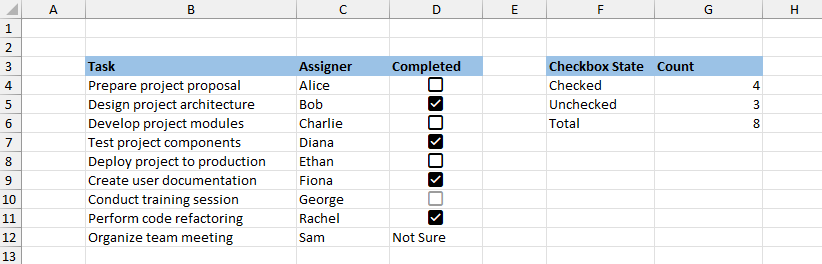
The following example demonstrates how to batch-add checkboxes to cells and set different cell values to display different checkbox states.
// Create a new workbook.
var workbook = new GrapeCity.Documents.Excel.Workbook();
IWorksheet worksheet = workbook.Worksheets[0];

// Set data.
worksheet.Range["B3:D12"].Value = new object[,] {
    { "Task", "Assigner", "Completed" },
    { "Prepare project proposal", "Alice", false },
    { "Design project architecture", "Bob", true },
    { "Develop project modules", "Charlie", false },
    { "Test project components", "Diana", true },
    { "Deploy project to production", "Ethan", false },
    { "Create user documentation", "Fiona", true },
    { "Conduct training session", "George", null },
    { "Perform code refactoring", "Rachel", true },
    { "Organize team meeting", "Sam", "Not Sure" }
};
worksheet.Range["B:B"].ColumnWidth = 28;
worksheet.Range["C:D"].ColumnWidth = 12;
worksheet.Range["F:G"].ColumnWidth = 14;
worksheet.Range["B3:D3"].Interior.Color = Color.FromArgb(155, 194, 230);
worksheet.Range["F3:G3"].Interior.Color = Color.FromArgb(155, 194, 230);
worksheet.Range["B3:G3"].Font.Bold = true;

// Add checkboxes to cells in the D4:D12 range.
worksheet.Range["D4:D12"].CellControl.SetCheckbox();
worksheet.Range["F3:G6"].Value = new object[,] {
    { "Checkbox State", "Count" },
    { "Checked", null },
    { "Unchecked", null },
    { "Total", null },
};
worksheet.Range["G4"].Formula = "=COUNTIF(D4:D12, TRUE)";
worksheet.Range["G5"].Formula = "=COUNTIF(D4:D12, FALSE)";
worksheet.Range["G6"].Formula = "=COUNTA(D4:D12)";

// Save to an excel file.
workbook.Save("CellCheckbox.xlsx");
The output is shown in the figure below:
Configure Checkbox Format
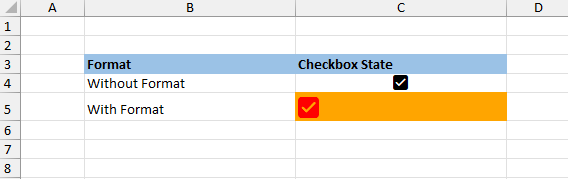
As a part of the cell, a checkbox will inherit the cell’s formatting, including fill color, alignment, font size, and font color.
The following example demonstrates how to format a checkbox by setting the cell’s font style.
// Create a new workbook.
var workbook = new GrapeCity.Documents.Excel.Workbook();
IWorksheet worksheet = workbook.Worksheets[0];

// Set data.
worksheet.Range["B:C"].ColumnWidth = 28;
worksheet.Range["B3:C3"].Interior.Color = Color.FromArgb(155, 194, 230);
worksheet.Range["B3:C3"].Font.Bold = true;
workbook.ActiveSheet.Range["B3"].Value = "Format";
workbook.ActiveSheet.Range["C3"].Value = "Checkbox State";
workbook.ActiveSheet.Range["B4"].Value = "Without Format";
workbook.ActiveSheet.Range["B5"].Value = "With Format";

// Add checkboxes to cells in the C4:C5 range.
workbook.ActiveSheet.Range["C4:C5"].Value = true;
worksheet.Range["C4:C5"].CellControl.SetCheckbox();

// Set formatting for cell C5.
worksheet.Range["C5"].Interior.Color = Color.Orange;
worksheet.Range["C5"].Font.Color = Color.Red;
worksheet.Range["C5"].Font.Size = 16;
worksheet.Range["C5"].HorizontalAlignment = HorizontalAlignment.Left;

// Save to an excel file.
workbook.Save("CellCheckboxFormat.xlsx");
The output is shown in the figure below:
Copy and Paste Checkboxes
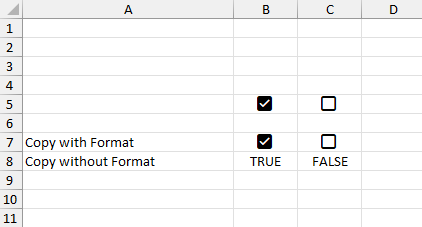
When copying a cell that contains a checkbox, the checkbox is copied along with the cell. Whether the checkbox is included when pasting depends on whether the paste type includes formats (PasteType.Formats). If formats are included, the checkbox is pasted into the target cell; if formats are not included, the checkbox control is not displayed.
The following example demonstrates how to copy and paste checkboxes with and without formats.
// Create a new workbook.
var workbook = new GrapeCity.Documents.Excel.Workbook();
IWorksheet worksheet = workbook.Worksheets[0];
worksheet.Range["A:A"].ColumnWidth = 28;
workbook.ActiveSheet.Range["B5"].Value = true;
workbook.ActiveSheet.Range["C5"].Value = false;

// Add checkboxes to cells in the B5:C5 range.
worksheet.Range["B5:C5"].CellControl.SetCheckbox();
workbook.ActiveSheet.Range["A7"].Value = "Copy with Format";
workbook.ActiveSheet.Range["A8"].Value = "Copy without Format";

// Copy the checkboxes and paste them into the specified cells.
worksheet.Range["B5"].Copy(worksheet.Range["B7"]);
worksheet.Range["B5"].Copy(worksheet.Range["B8"], new PasteOption { PasteType =  ~PasteType.Formats });
worksheet.Range["C5"].Copy(worksheet.Range["C7"]);
worksheet.Range["C5"].Copy(worksheet.Range["C8"], new PasteOption { PasteType = ~PasteType.Formats });

// Save to an excel file.
workbook.Save("CopyCellCheckbox.xlsx");
The output is shown in the figure below:
Remove Checkboxes
DsExcel provides the RemoveControls method of the IRange interface to remove checkbox controls from cells while retaining their values.
In addition, you can also remove checkboxes using the cell content clearing strategies:
Use the IRange.Clear method to remove the checkbox control, formatting, and value.
Use the IRange.ClearFormats method to remove only the checkbox control and formatting, while retaining its value.
Use the IRange.ClearContents method to remove only the checkbox value, while retaining the checkbox control and formatting.
// Remove the checkbox control and retain the cell value.
worksheet.Range["A5"].RemoveControls();

// Remove the checkbox control, formatting, and value.
worksheet.Range["B5"].Clear();

// Remove the checkbox control and formatting, and retain the cell value.
worksheet.Range["C5"].ClearFormats();

// Remove the cell value and retain the control and formatting.
worksheet.Range["D5"].ClearContents();Note: SpreadJS reuses the existing CheckBoxCellType to bridge to Excel's cell checkbox behavior in modern mode. DsExcel supports lossless conversion of cell checkboxes between SJS and SSJSON formats:
Cell checkboxes created using the ICellControl.SetCheckbox method are exported in the modern CheckBoxCellType mode when saving as SJS or SSJSON files, ensuring that SpreadJS can correctly recognize and display them.
When importing CheckBoxCellType from SJS or SSJSON formats, the CheckBoxCellType can be obtained through IRange.CellControl. CheckBoxCellType in modern mode can be recognized and displayed by MsExcel when exporting to Excel files. If the CheckBoxCellType has
isThreeState: trueand the cell value isnull, DsExcel will render it as indeterminate state.CheckBoxListCellType remains consistent with modern CheckBoxCellType in both display and interactive behavior.