


Data Labels
You can add data labels in the FlexPie to show the exact values corresponding to each section of the pie. All you have to do is set the PieLabelPosition enumeration at design time and get the data labels displayed in the plot area. In FlexPie, users can choose to set data labels at the following positions.
- None - No data labels.
- Inside- Displays data labels within the pie.
- Center- Displays data labels right in the center of the pie.
- Outside- Displays data labels outside the pie.
- Radial- Displays data labels inside the pie slice and depends on its angle.
- Circular - Displays data labels inside the pie slice in circular direction.
The image given below shows a FlexChart control that displays sales data with data labels corresponding to months.
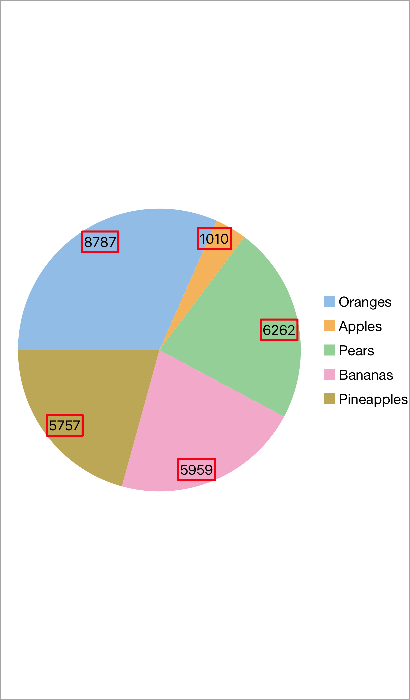
The following code example shows how to set data labels for FlexPie control. The example uses the sample created in the Quick Start section.
pieChart.DataLabel.Position = PieLabelPosition.Inside;
pieChart.DataLabel.Content = "{y}";
pieChart.DataLabel.Border = true;
pieChart.DataLabel.BorderStyle = new ChartStyle { Stroke = UIColor.Red, StrokeThickness = 2 };
pieChart.DataLabel.Style = new ChartStyle { FontFamily = UIFont.SystemFontOfSize(20, UIFontWeight.Black) };