


Save and Load Layout
C1DockControl provides built-in support for saving and loading dock layouts, allowing applications to preserve a user’s workspace across sessions. This feature ensures that the position, docking state, tab order, and grouping of docked and floating windows can be restored exactly as the user left them.
By persisting the layout configuration, developers can improve usability by eliminating the need for users to repeatedly rearrange their interface each time the application starts. Layout data is stored as XML through the C1DockSettings class and can be saved to various storage mechanisms such as application settings, XML files, or isolated storage.
The saving process captures the current state of the dock control, while the loading process reconstructs the layout from the saved data. When element names are included during saving, C1DockControl can automatically restore tabs and dock groups without requiring manual layout reconstruction.
The following guide explains how to save the current layout of a C1DockControl and how to load it when the application starts or when a user chooses to restore a saved workspace.
C1DockSettings
The C1DockSettings class represents the layout configuration of a C1DockControl. Its Root property contains an XElement object that stores the XML structure of the layout. Developers can persist this information to any storage medium, such as:
Application settings
XML files
Isolated storage
Save Layout
This guide explains how to save the layout of C1DockControl so that it can be restored when the application runs again.
1. Call the Save method
Invoke the Save method on the C1DockControl, passing true as the parameter.
private void Window_Closing(object sender, System.ComponentModel.CancelEventArgs e)
{
    C1DockSettings settings = dockControl.Save(true);
2. Convert the layout to XML
Create an XDocument and add the layout XML from the C1DockSettings.Root property.
var doc = new XDocument();
doc.Add(settings.Root);
3. Save Layout
Save the XML string to an application setting. In this example, the setting is named DockLayout.
private void Window_Closing(object sender, System.ComponentModel.CancelEventArgs e)
{
    // Save the settings to an application setting
    C1DockSettings settings = dockControl.Save(true);
    var doc = new XDocument();
    doc.Add(settings.Root);
    Properties.Settings.Default.DockLayout = doc.ToString();
    Properties.Settings.Default.Save();
}
Alternative options include:
Saving via a dedicated Save Layout button.
Saving after layout changes using the ViewChanged event.
Saving Layout with Named Dock Elements
When saving a layout using the overloaded Save(true) method, C1DockControl records the names of all dock elements in the generated XML. These names are required to reconstruct the layout and reposition tabs when the layout is loaded.
The true parameter instructs C1DockControl to include the names of each C1DockTabControl, C1DockGroup, and C1DockTabItem in the layout data. If this parameter is not provided, the control does not store element names, and the developer must manually reconstruct the layout.
To enable automatic layout restoration, each dock element must define a unique x:Name value in XAML.
The following example shows a C1DockControl configuration with properly named dock groups, tab controls, and tab items.
<c1:C1DockControl  x:Name="dockControl">
    <c1:C1DockGroup x:Name="c1DockGroup1">
        <c1:C1DockTabControl x:Name="c1DockTabControl1" Dock="Top">
            <c1:C1DockTabItem x:Name="c1DockTabItem1" Header="Tab 1" TabShape="Sloped">
                <!--Your Content Here-->
            </c1:C1DockTabItem>
            <c1:C1DockTabItem x:Name="c1DockTabItem2" Header="Tab 2" TabShape="Sloped">
                <!--Your Content Here-->
            </c1:C1DockTabItem>
        </c1:C1DockTabControl>
        <c1:C1DockTabControl x:Name="c1DockTabControl2">
            <c1:C1DockTabItem x:Name="c1DockTabItem3" Header="Tab 3" TabShape="Sloped" >
                <!--Your Content Here-->
            </c1:C1DockTabItem>
        </c1:C1DockTabControl>
    </c1:C1DockGroup>
    <c1:C1DockGroup x:Name="c1DockGroup2">
        <c1:C1DockTabControl x:Name="c1DockTabControl3" Dock="Top" DockWidth="500" DockHeight="500" TabItemShape="Rounded">
            <c1:C1DockTabItem x:Name="c1DockTabItem4" Header="Tab 4">
                <!--Your Content Here-->
            </c1:C1DockTabItem>
            <c1:C1DockTabItem x:Name="c1DockTabItem5" Header="Tab 5">
                <!--Your Content Here-->
            </c1:C1DockTabItem>
        </c1:C1DockTabControl>
        <c1:C1DockTabControl>
            <c1:C1DockTabItem x:Name="c1DockTabItem6" Header="Tab 6">
                <!--Your Content Here-->
            </c1:C1DockTabItem>
        </c1:C1DockTabControl>
    </c1:C1DockGroup>
    <c1:C1DockTabControl x:Name="c1DockTabControl4">
        <c1:C1DockTabItem x:Name="c1DockTabItem7" Header="Tab 7" TabShape="Sloped">
            <!--Your Content Here-->
        </c1:C1DockTabItem>
        <c1:C1DockTabItem x:Name="c1DockTabItem8" Header="Tab 8" TabShape="Sloped">
            <!--Your Content Here-->
        </c1:C1DockTabItem>
    </c1:C1DockTabControl>
</c1:C1DockControl> 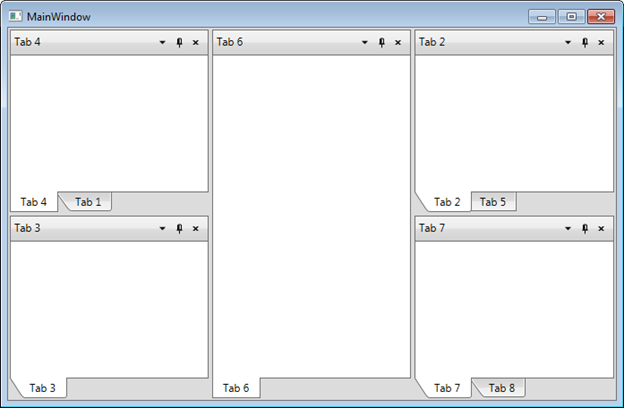
Load Layout
Loading a layout restores a previously saved C1DockControl configuration, including the position, docking state, and grouping of tabs. This process enables applications to reapply a user’s workspace when the application starts or when a layout is explicitly reloaded.
This guide explains how to restore a previously saved C1DockControl layout.
1. Retrieve the Saved Layout
Read the layout string from the application settings.
string savedLayout = Properties.Settings.Default.DockLayout;2. Validate the Layout Data
Verify to make sure that retrieved layout string is not null or empty before attempting to load it.
if (!String.IsNullOrEmpty(savedLayout))
{
    // Continue loading
}
3. Parse the Layout XML
Convert the saved layout string into an XDocument so it can be consumed by C1DockControl.
XDocument doc = XDocument.Parse(savedLayout);4: Load the Layout into C1DockControl
Call the Load method on the C1DockControl and pass true as the second parameter to preserve tab items and restore their positions.
dockControl.Load(doc.Root, true);