


UI Automation
C1Calendar supports User Interface (UI) Automation for identifying calendar elements, inspecting and changing date selection, and navigating calendar views. Automation clients can access dates, weekday headings, the calendar header, and month and year choices.
Enable UI Automation
Set AutomationEnabled to True before an automation client first queries the calendar. The effective automation setting defaults to false.
The following example enables automation and assigns an automation name and identifier to the calendar:
<calendar:C1Calendar
    xmlns:calendar="clr-namespace:C1.WPF.Calendar;assembly=C1.WPF.Calendar"
    x:Name="BookingCalendar"
    AutomationEnabled="True"
    AutomationProperties.Name="Booking date"
    AutomationProperties.AutomationId="BookingCalendar"
    SelectionMode="Single" />
For an existing calendar instance, enable automation programmatically before the first automation query:
BookingCalendar.AutomationEnabled = true;Automation Elements and Patterns
The following table lists the automation control types and patterns added by this feature:
Element | Automation control type | Pattern added |
|---|---|---|
Calendar | Calendar | Selection |
Header | Button | Invoke |
Weekday heading | HeaderItem | None |
Date cell | DataItem | SelectionItem |
Month choice | Button | Invoke |
Year choice | Button | Invoke |
Calendar elements belonging to inactive pages or view modes are excluded from the calendar’s exposed automation children and from automation control and content views.
Element Names and Identifiers
Existing nonblank automation names and identifiers take precedence over the following fallback values:
Element | Fallback name | Fallback automation identifier |
|---|---|---|
Header | Text from the calendar’s header formatter | CalendarHeader_{ViewMode} |
Weekday heading | DayOfWeek enum text | CalendarDayOfWeek_{DayOfWeek} |
Date cell | Full date, formatted with "D" | CalendarDay_{date:yyyyMMdd} |
Month choice | Month and year, formatted with "MMMM yyyy" | CalendarMonth_{date:yyyyMM} |
Year choice | Year number | CalendarYear_{year} |
Assign AutomationProperties.AutomationId to specify an application-level identifier for the calendar.
The default previous and next navigation buttons have the automation names Previous Page and Next Page, respectively.
Note: Date and month fallback names follow the current culture. Weekday fallback names use enum text, and the default navigation button names are English literals. Date-derived identifiers are formatted without an explicit invariant culture and should not be assumed identical across cultures and calendars.
Select Dates
C1Calendar exposes selection information through the Selection pattern. Individual date cells expose selection state and actions through the SelectionItem pattern.
Calendar Selection
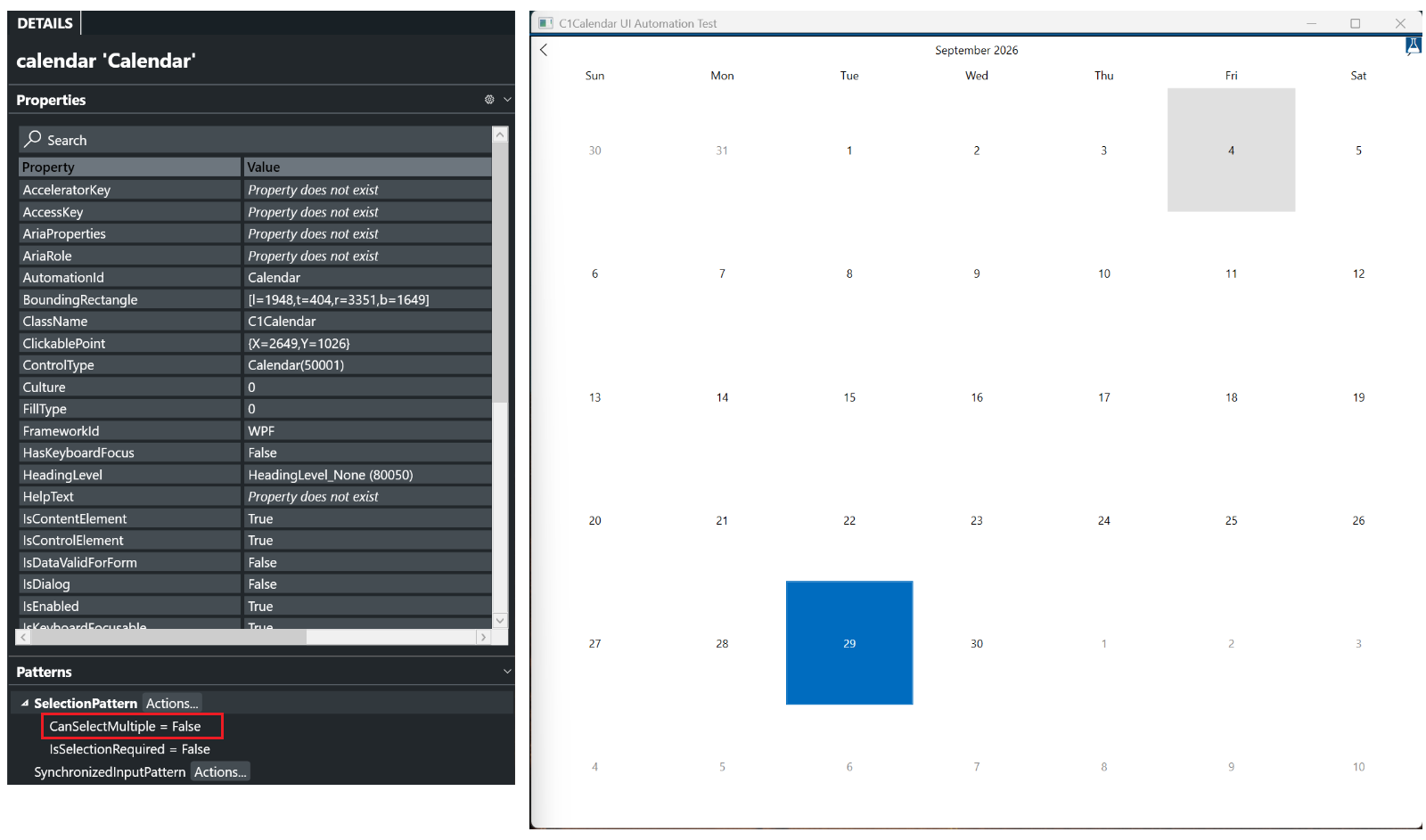
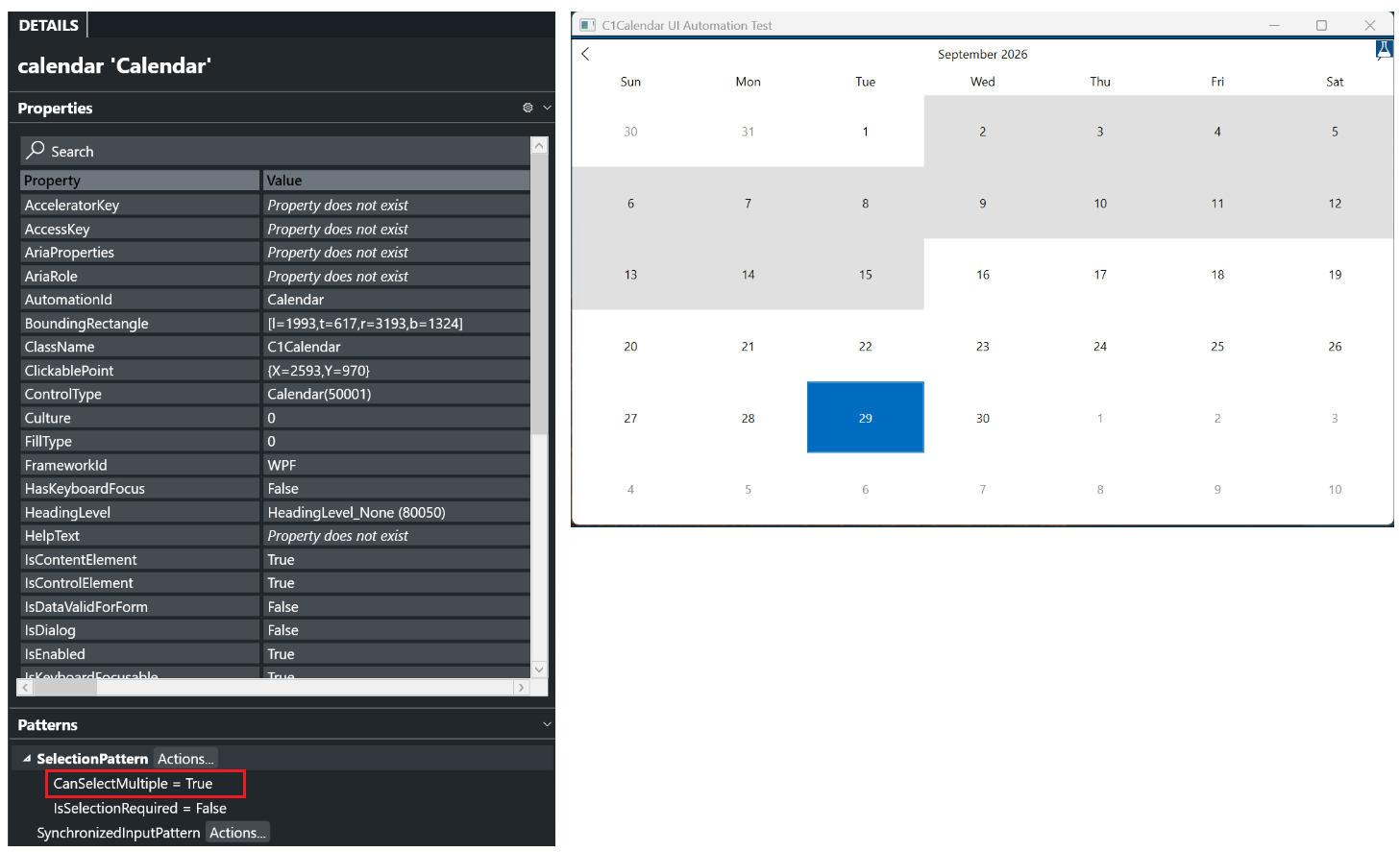
The calendar’s Selection pattern exposes the selection in the active view and reports whether multiple selection is allowed through CanSelectMultiple.
The following image shows CanSelectMultiple set to False when multiple selection is disabled.
When multiple selection is enabled, CanSelectMultiple is True, as shown in the following image.
Date-Cell Selection
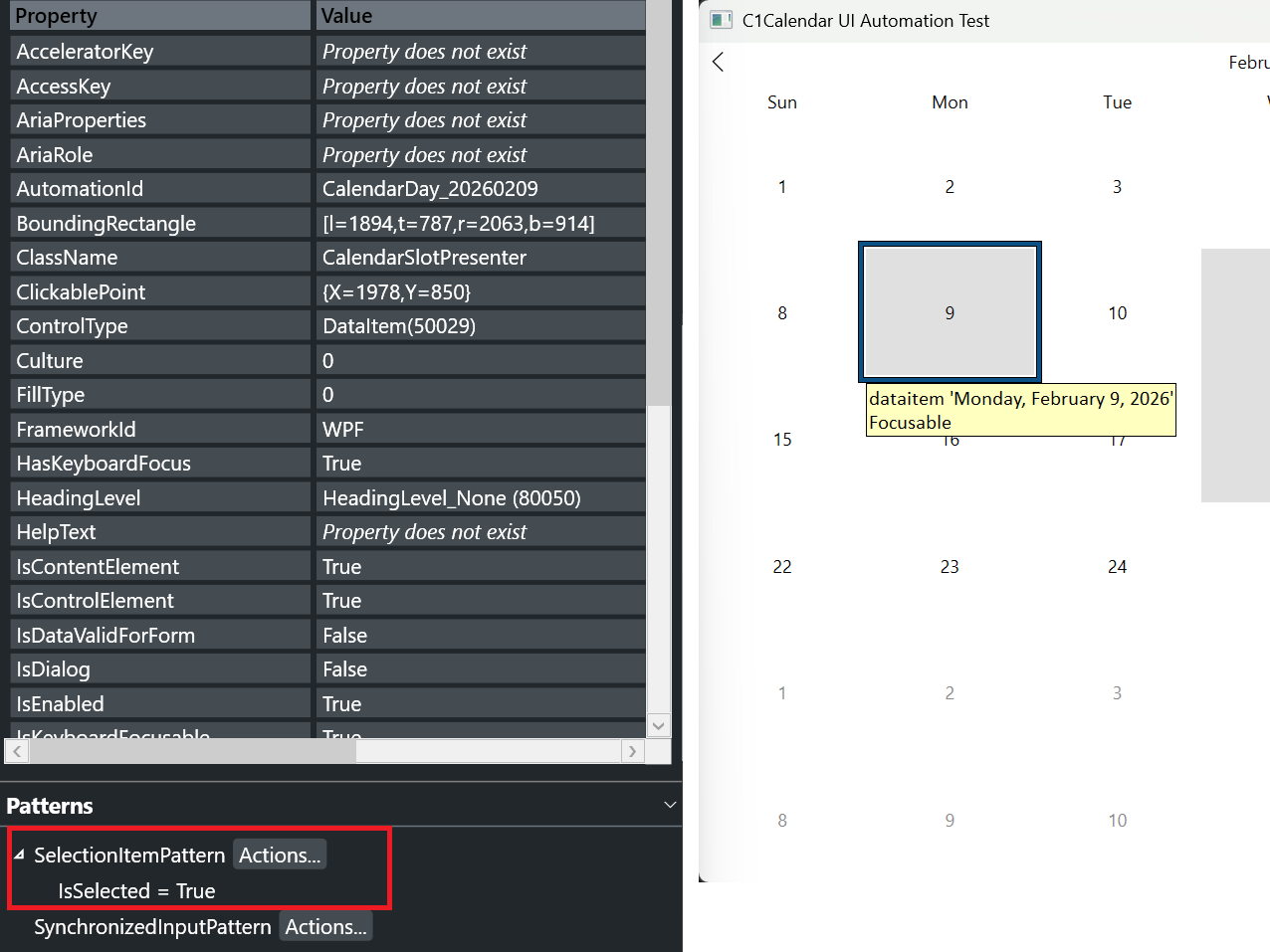
Date cells expose the SelectionItem pattern for the following actions:
Select a date.
Add a date to the selection.
Remove a selected date.
The following image shows a date cell’s automation properties and selection state in Accessibility Insights for Windows. IsSelected is set to True.
Navigate Calendar Views
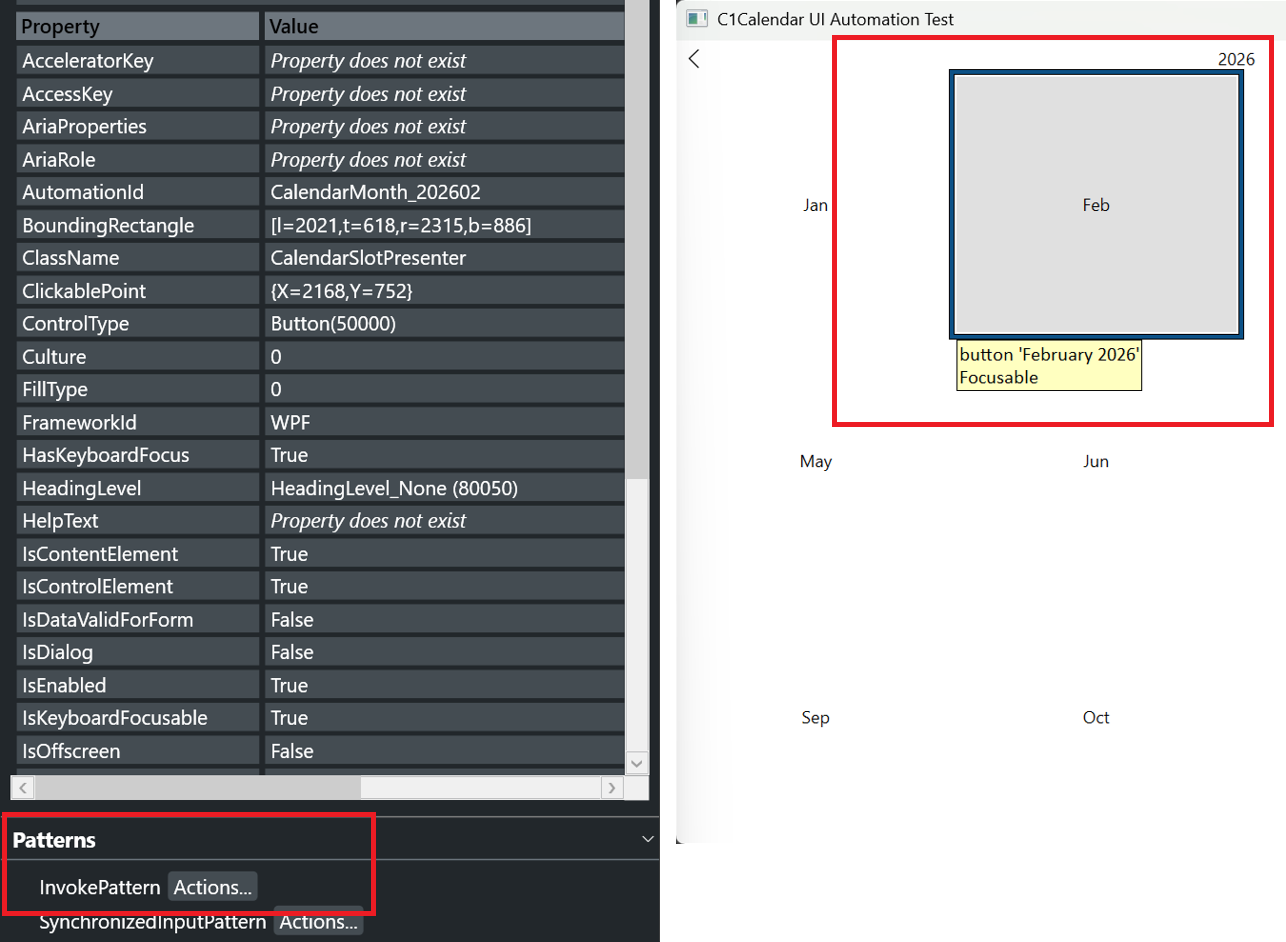
The header, month choices, and year choices expose the Invoke pattern:
Invoking the header cycles through Month, Year, and Decade views, then returns to Month view.
Invoking a month in Year view opens that month.
Invoking a year in Decade view opens that year’s month choices.
The following image shows a month choice in Accessibility Insights for Windows as a button with the InvokePattern.
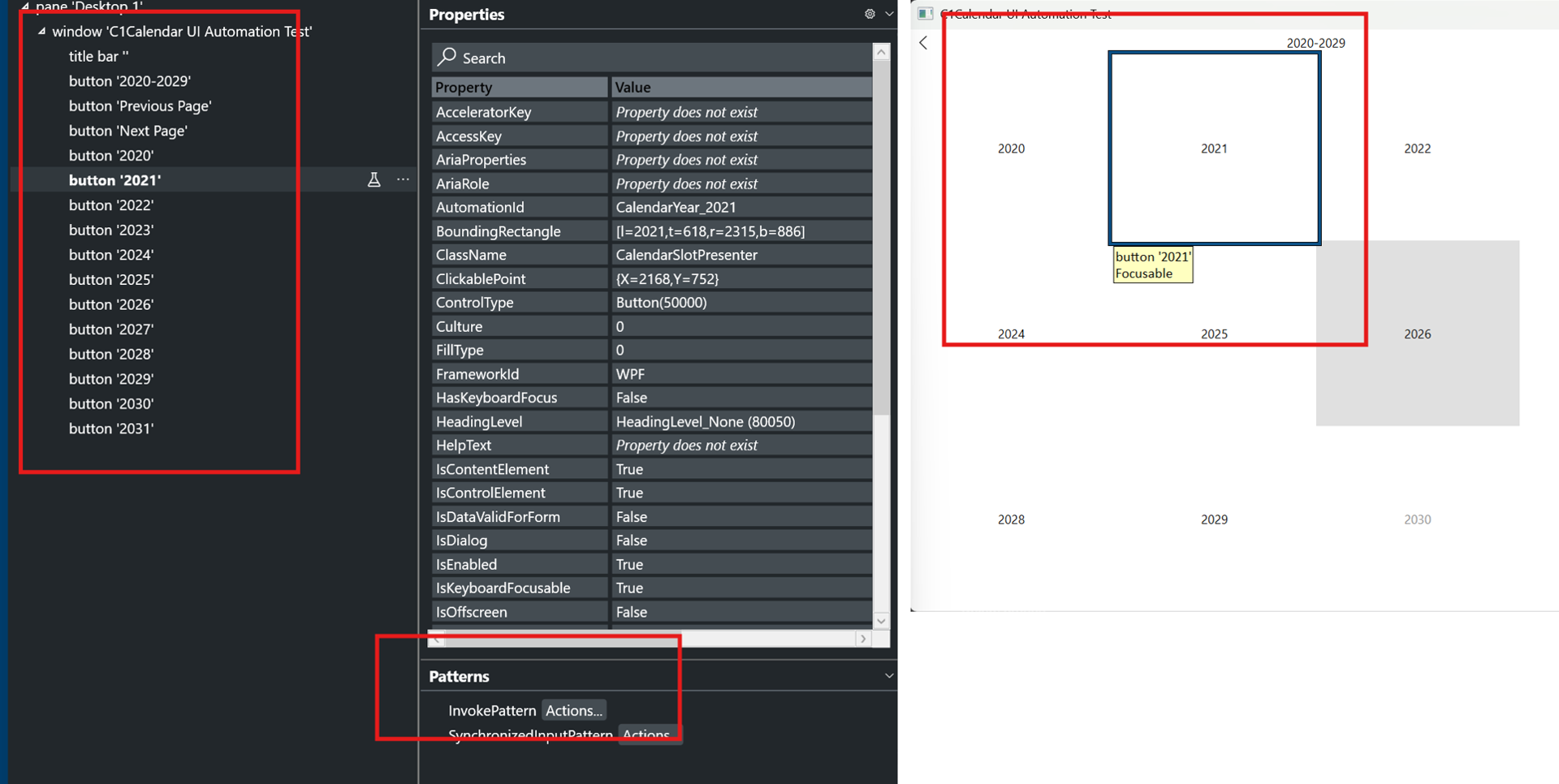
The following image shows a year choice in Decade view. Accessibility Insights for Windows displays its Button control type and InvokePattern.
For information about calendar views, see Display Modes. For general calendar navigation, see Navigation.
Focus Reporting
When keyboard focus is within the calendar, automation reports the selected date or current month or year as focused.