


Dialog Box
Spelling dialog box is available whenever a spelling error has been detected by the spell checker. It allow users to add, change or ignore the spelling suggestions for a word.
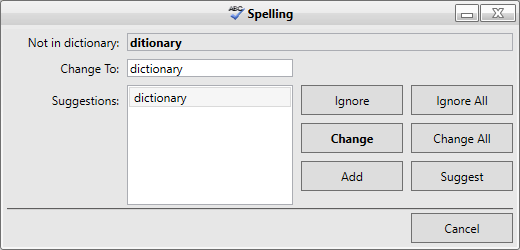
To enable the Spell Dialog, use the CheckControl method to link the SpellChecker component to a control derived from Windows.Forms.TextBoxBase. For example, the following code links the C1SpellChecker component to a RichTextBox control:
private void btnSpellCheck_Click(object sender, EventArgs e)
{
    c1SpellChecker1.CheckControl(richTextBox1);
}
Private Sub btnSpellCheck_Click(ByVal sender As System.Object, ByVal e As System.EventArgs) Handles btnSpellCheck.Click
C1SpellChecker1.CheckControl(RichTextBox1)
End SubWhile spell checking, the C1SpellChecker will automatically highlight misspelled words when the user interacts with the built-in Spell Dialog.
Custom Spelling Dialog
The Spell Dialog can be customized three different ways:
Create an instance of the C1SpellDialog class, attach event handlers, then pass the instance of the dialog to the CheckControl method. For example:
private void btnSpell_Click(object sender, EventArgs e)
{
     // Create a spell-checking dialog box
     using (C1SpellDialog dlg = new C1SpellDialog())
     {
          // Connect event
           dlg.ErrorDisplayed += new EventHandler(dlg_ErrorDisplayed);
           // Spell-check the RichTextBox
          c1SpellChecker1.CheckControl(this.richTextBox, false, dlg);
     }
}
void dlg_ErrorDisplayed(object sender, EventArgs e)
{
     // Get the C1SpellDialog that fired the event
     C1SpellDialog dlg = sender as C1SpellDialog;
      // Show information about the error currently displayed
     toolStripStatusLabel1.Text = string.Format("Error {0} of {1}: '{2}'",
     dlg.ErrorIndex + 1, dlg.ErrorCount, dlg.CurrentError.Text);
}
Private Sub btnSpell_Click(ByVal sender As System.Object, ByVal e As System.EventArgs) Handles btnSpell.Click ' Create a spell-checking dialog box Using dlg As New C1SpellDialog() ' Connect event handler AddHandler dlg.ErrorDisplayed, AddressOf dlg_ErrorDisplayed ' spell-check the RichTextBox control C1SpellChecker1.CheckControl(Me.RichTextBox, False, dlg) End Using End Sub Private Sub dlg_ErrorDisplayed(ByVal sender As Object, ByVal e As EventArgs) ' Get the C1SpellDialog that fired the event Dim dlg As C1SpellDialog = TryCast(sender, C1SpellDialog) ' Show information about the error currently displayed ToolStripStatusLabel1.Text = String.Format("Error {0} of {1}: '{2}'", dlg.ErrorIndex + 1, dlg.ErrorCount, dlg.CurrentError.Text) End SubNote that the code above assumes that you have added a Button control and a StatusStrip control with a ToolStripStatusLabel to your form at design time.
OR
Create a new spell-checking dialog class that implements the ISpellDialog interface. Then pass an instance of the new dialog to the CheckControl method.
OR
If you need more extensive customization, you can create your own spell dialog box and use that instead of the built-in one.
Note: The samples that ship with the C1SpellChecker include a CustomSpellDialog application that includes the source code for two dialogs that you can use as a base for creating your own spell dialog boxes.