


Auto-merge
FlexGrid enables automatic cell merging when the AllowMerging property is set to a value other than None. To enable merging for specific rows or columns, set the AllowMerging property to true. Cells merge only when adjacent cells contain the same non-empty string.
By default, FlexGrid merges adjacent matching cells horizontally first and then vertically. It does not automatically create merged regions that span multiple rows and columns simultaneously. Because merging is automatic and content-based, specific cells cannot be explicitly targeted for merging.
Automatic merging is useful for displaying sorted or grouped data that contains repeated adjacent values.
Free Auto-merge
Free auto-merge refers to merging of cells with just one pre-condition of having same values in adjacent cells. To automatically merge the cells in a row or a column, you simply need to set AllowMerging property of the C1FlexGrid class to Free and set AllowMerging property of the target row or column object to true.
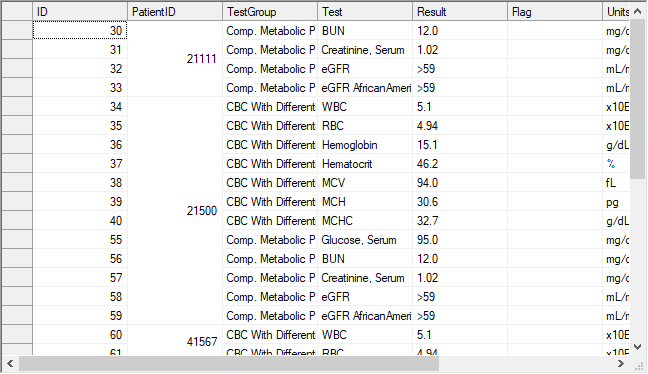
Below code shows how to apply free merging on a WinForms FlexGrid column.
// Specify the type of merging allowed
c1FlexGrid1.AllowMerging = C1.Win.C1FlexGrid.AllowMergingEnum.Free;
// Specify the column on which merging is allowed
c1FlexGrid1.Cols[2].AllowMerging = true;
' Specify the type of merging allowed
c1FlexGrid1.AllowMerging = C1.Win.C1FlexGrid.AllowMergingEnum.Free
' Specify the column on which merging is allowed
c1FlexGrid1.Cols(2).AllowMerging = True Restricted Auto-merge
In most of the scenarios, you would want the grid to merge the grid cells with same values only if cells above or in left direction are also merged. This behavior is called restricted auto-merge and can be achieved by setting the C1FlexGrid.AllowMerging property to RestrictAll, RestrictRows or RestrictCols. This is required in addition to setting the AllowMerging property of target row or column to true.
Use the code below to allow restricted auto-merging on a WinForms FlexGrid column.
// Specify the column on which merging is allowed
c1FlexGrid1.Cols[3].AllowMerging = true;
// Merge columns only if cells to left are merged
c1FlexGrid1.AllowMerging = C1.Win.C1FlexGrid.AllowMergingEnum.RestrictCols;
' Specify the column on which merging is allowed
c1FlexGrid1.Cols(3).AllowMerging = True
' Merge columns only if cells to left are merged
c1FlexGrid1.AllowMerging = C1.Win.C1FlexGrid.AllowMergingEnum.RestrictColsMerge Table Headers
Merging the header cells, specially in case of multi-row header is another very common scenario used in grids and tables. To merge the header cells, you must set the C1FlexGrid.AllowMerging property to FixedOnly. You must also set the AllowMerging property of designated row and columns to true. In this case, headers cells with same value merge together to give a simplified appearance.
Note: To create multi-row and multi-column merged regions, implement a custom merge.
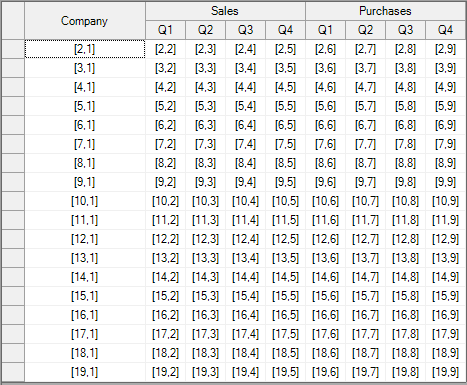
Following code demonstrates how to apply merging only on table headers of the WinForms FlexGrid.
// Allow merging the fixed rows and columns
c1FlexGrid1.AllowMerging = C1.Win.C1FlexGrid.AllowMergingEnum.FixedOnly;
' Allow merging the fixed rows and columns
c1FlexGrid1.AllowMerging = C1.Win.C1FlexGrid.AllowMergingEnum.FixedOnly Custom Auto-merge
FlexGrid also provides a Custom option through AllowMerging enumeration. In this case, auto-merge is performed on cell range collection provided using MergedRanges property of the C1FlexGrid class. The custom auto-merge is performed independent of cell content. For instance, below image shows the merging of two specified cell ranges despite of the different cell values.

Use the following code snippet to apply custom merge on the WinForms FlexGrid.
// Activate merge mode:
this.c1FlexGrid1.AllowMerging = C1.Win.C1FlexGrid.AllowMergingEnum.Custom;
// Define some merged ranges:
// two cells wide, one cell high:
this.c1FlexGrid1.MergedRanges.Add(2, 2, 2, 3);
// three cells wide, three cells high:
this.c1FlexGrid1.MergedRanges.Add(5, 2, 7, 4);
' Activate merge mode:
Me.c1FlexGrid1.AllowMerging = C1.Win.C1FlexGrid.AllowMergingEnum.Custom
' Define some merged ranges:
' two cells wide, one cell high:
Me.c1FlexGrid1.MergedRanges.Add(2, 2, 2, 3)
' three cells wide, three cells high:
Me.c1FlexGrid1.MergedRanges.Add(5, 2, 7, 4) See Also
Blog