


Types of Filters
FlexGrid, not only provides built-in filters such as Column filter, Value filter, and Condition Filter but also lets you create your own custom filter. The built-in filters are provided through AllowFiltering property of Column class which lets you set the type of filter to be applied on a particular column. On the other hand, the custom filters make use of the IC1ColumnFilter interface and the IC1ColumnFilterEditor interface. This topic discusses the implementation of built-in and custom filters in detail.
Column Filter
Column filter is the default filter that is applied to all the columns automatically when AllowFiltering property of the grid is set to true. The ColumnFilter is a combination of ValueFilter and ConditionFilter (discussed below) and gives user an option to choose either of them at runtime. While working with code, you can use its ValueFilter and ConditionFilter properties to access the two types of filters. The filter also provides Apply method to apply filter to a value and Reset method to reset the filter and hence making it inactive.
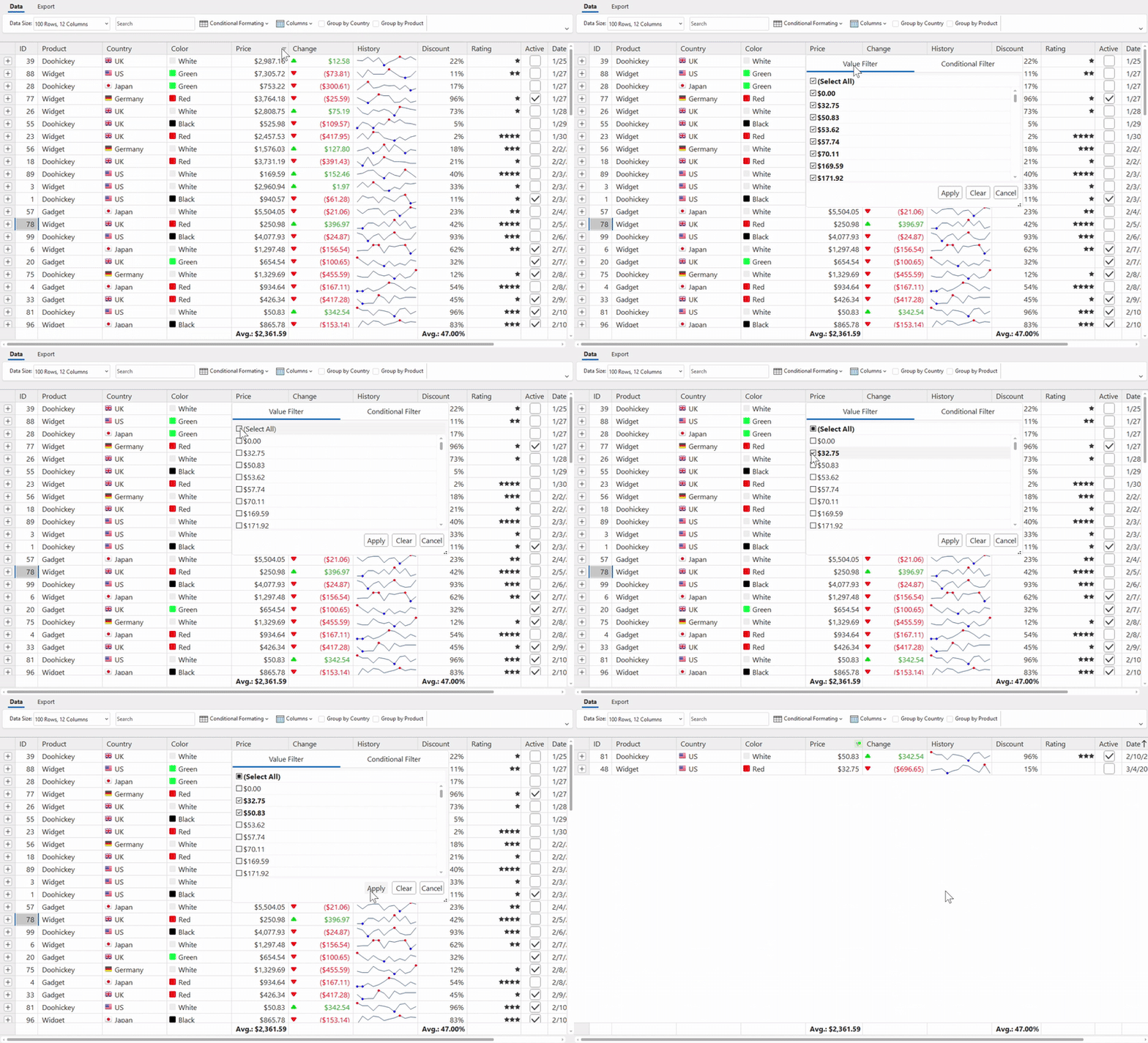
Use the below code to apply column filter on ProductName column of the WinForms FlexGrid.
// Column Filter(Filters products whose ProductName begins with 'C')
ColumnFilter colFilter = new ColumnFilter();
colFilter.ConditionFilter.Condition1.Parameter = "C";
colFilter.ConditionFilter.Condition1.Operator = ConditionOperator.BeginsWith;
c1FlexGrid1.Cols["ProductName"].Filter = colFilter;
' Column Filter(Filters products whose ProductName begins with 'C')
Dim colFilter As ColumnFilter = New ColumnFilter()
colFilter.ConditionFilter.Condition1.Parameter = "C"
colFilter.ConditionFilter.Condition1.[Operator] = ConditionOperator.BeginsWith
c1FlexGrid1.Cols("ProductName").Filter = colFilterValue Filter
Value filter refers to the value based filter which gets enabled on setting the AllowFiltering property of column to ByValue. The ValueFilter provides the dropdown list of all values with checkbox which lets the user select the values which are to be displayed in the output. These values can be get or set through the ShowValues property. You can also set a limit on number of values to be displayed in the dropdown list by setting the ValuesLimit property. Just like column filter, value filter also provides Apply method to apply filter to a value and Reset method to reset the filter.
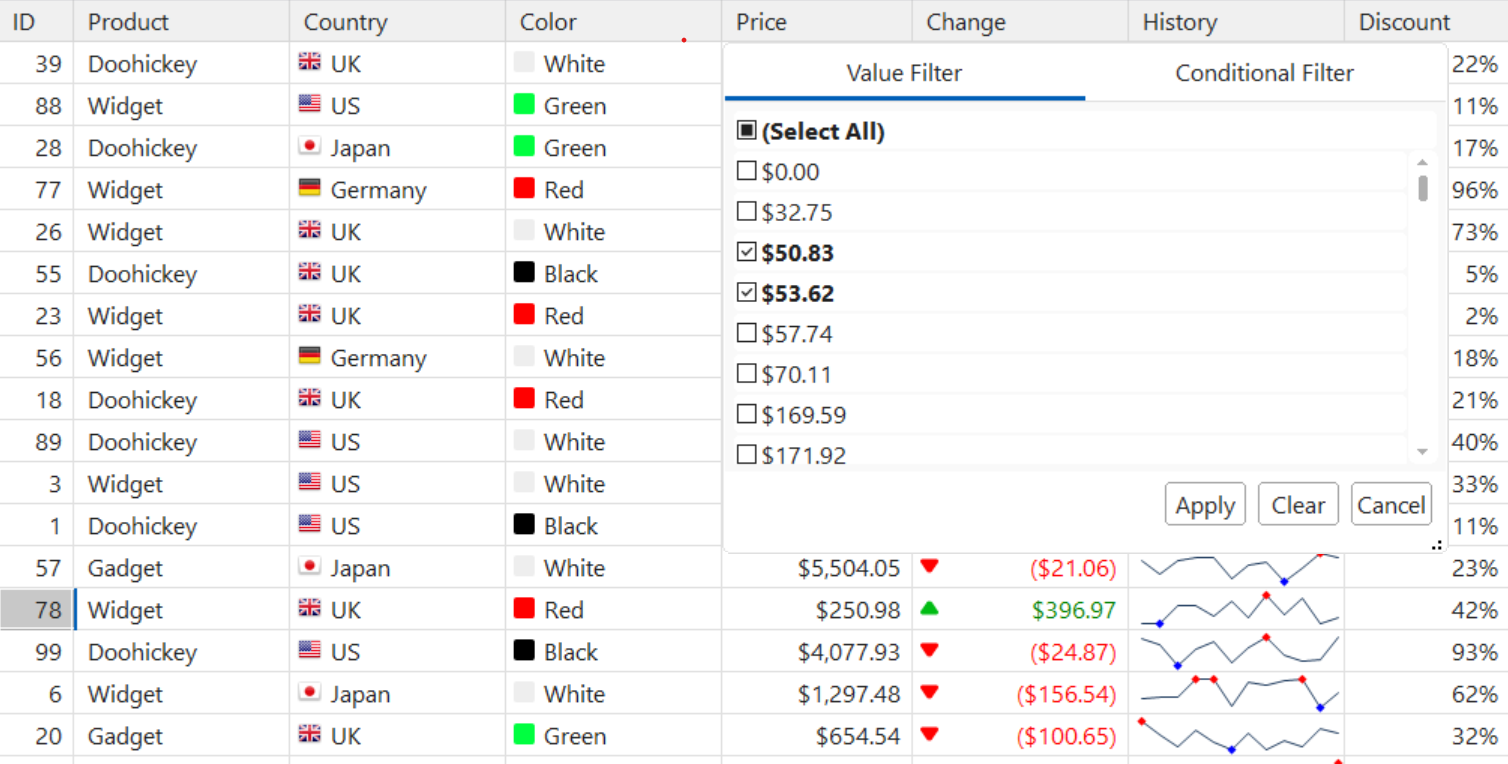
Below code shows how to apply ValueFilter on a column of the WinForms FlexGrid.
// Value Filter (Filters products whose CategoryId is 1,2,3,5,8)
ValueFilter valueFilter = new ValueFilter();
valueFilter.ShowValues = new object[] { 1, 2, 3, 5, 8 };
c1FlexGrid1.Cols["CategoryId"].Filter = valueFilter;
' Value Filter (Filters products whose CategoryId is 1,2,3,5,8)
Dim valueFilter As ValueFilter = New ValueFilter()
valueFilter.ShowValues = New Object() {1, 2, 3, 5, 8}
c1FlexGrid1.Cols("CategoryId").Filter = valueFilter Condition Filter
The Condition Filter provides filtering options that allow users to apply multiple conditions to filter data in a column. It supports cell-based operators such as
is Blank
is Distinct
is Duplicate
is Unique
Users can filter empty cells, display only unique values, show duplicates, or show all distinct values in a column using the Condition Filter. These operators can be combined with value-based condition operators, such as
Equal to
Does not equal to
is Greater than
is Less than
is Greater than or Equal to
is Less than or Equal to
Contains
Does not contain
Begins with
Ends with
Additionally, users can define multiple conditions in a column using the Add button and use And / Or logical operator. When using Condition Filters, it is important to understand that logical operations do not follow the standard precedence rules (where AND typically takes priority over OR). Instead, the conditions are evaluated strictly in the order they appear—from top to bottom or from the first to last in ConditionFilter.Conditions. This means that a chain of conditions like "A OR B AND C" will be evaluated as "(A OR B) AND C", not "A OR (B AND C)". Similarly, "A AND B OR C AND D" will be evaluated as "((A AND B) OR C) AND D", rather than "(A AND B) OR (C AND D)". Users should keep this sequential logic in mind and carefully order their conditions to ensure the intended behavior, as the filter engine applies each condition one after the other without considering traditional logical operator priority.
The Condition Filter Editor is designed to be user-friendly, featuring an auto-sizing and resizable interface to ensure all options are visible and accessible. It is compatible with all C1 themes and supports language localization for FlexGrid. Condition filter can be enabled by setting the AllowFiltering property to ByCondition.
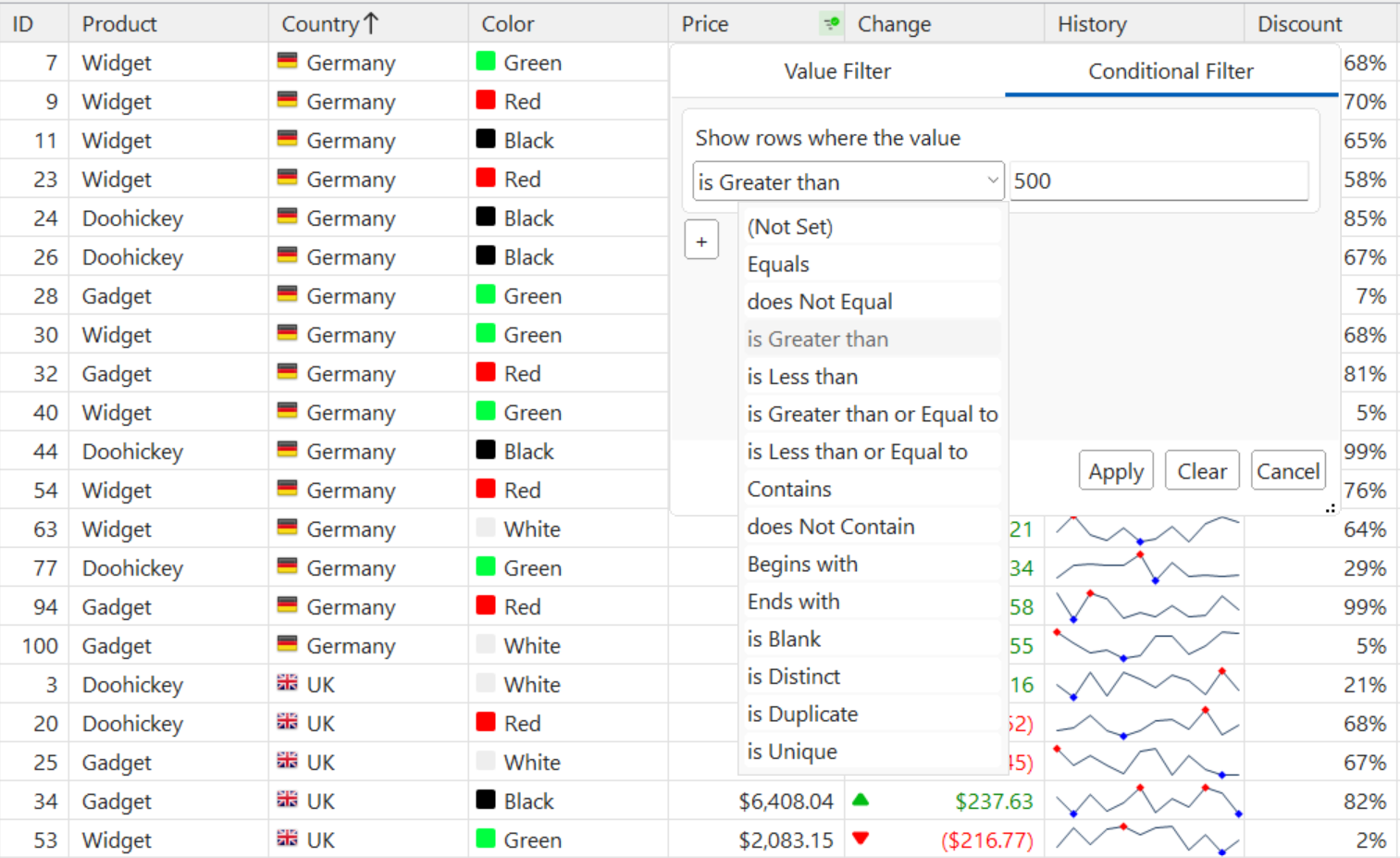
How to Apply Condition Filter during Runtime
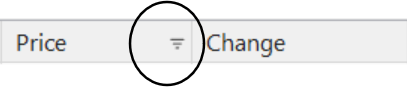
Click on the filter icon on a column header to open the Column Filter Editor.
Click Condition Filter to access condition filter editor. By default, only one condition is shown in the editor.
Click the “+” button on the bottom of the editor to add more conditions.
Click the trash icon to delete a condition.
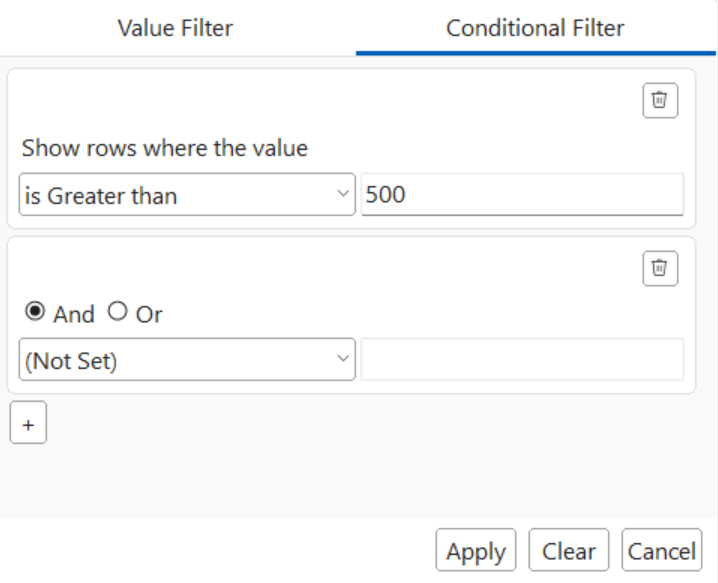
Click Apply Filter once the preferred conditions are selected. The header of the column to which a filter is applied will have a mark
Note: In the Condition Filter Editor, only active conditions—those with a defined condition operator and specified parameter—are retained and displayed when the editor is reopened. When the Apply button is used, the editor closes and saves only these active conditions. For example, in the image, the bottom condition is inactive because no operator is set. Similarly, setting a value-based operator without providing a parameter also results in an inactive condition.
How to Set Up Condition filter through code
Use the following code to set up condition filter with more than two options from XML
string filterXml = ""<ColumnFilters>\r\n<ConditionFilter ColumnIndex=\"0\" ColumnName=\"\" DataType=\"System.Int32\" ValueFilterEnabled=\"True\" ConditionFilterEnabled=\"True\"> \r\n <ConditionFilter><Condition ChainingWithAnd=\"True\" Operator=\"LessThan\" Parameter=\"6\" /><Condition ChainingWithAnd=\"True\" Operator=\"GreaterThan\" Parameter=\"2\" /><Condition ChainingWithAnd=\"False\" Operator=\"IsUnique\" /></ConditionFilter></ConditionFilter></ColumnFilters>";
flexGrid.Col = 1;
flexGrid.Cols[0].DataType = typeof(int);
flexGrid.Cols.Fixed = 0;
flexGrid.Rows.Count = 7;
flexGrid.Rows.Fixed = 0;
for (int i = 0; i < 8; i++)
    flexGrid[i, 0] = i % 8;
flexGrid.AllowFiltering = true;
flexGrid.FilterDefinition = filterXml;
Use the following code set up condition options
var filter = (ConditionFilter)_flexGrid.Cols[0].Filter;
// i should be greater or equal than 0 and less than filter.Conditions.Count here
filter.Conditions[i].Operator = ConditionOperator.GreaterThan;
filter.Conditions[i].Parameter = 2;
filter.Conditions[i].IsAnd = true;
Use the following code to add conditions from the code
var filter = (ConditionFilter)_flexGrid.Cols[0].Filter;
// add condition with default settings (Operator == ConditionOperator.None, isAnd = true, Parameter is null)
filter.Conditions.Add(new Condition(filter));
// add condition "and less than 5"
filter.Conditions.Add(new Condition(filter, ConditionOperator.LessThan, 5, true));
// add condition "or Is unique"
filter.Conditions.Add(new Condition(filter, conditionOperator: ConditionOperator.IsUnique, chainWithAnd: false));
filter.Conditions.Add(new Condition(filter, ConditionOperator.IsUnique, null, false));
// add condition with parameters from other condition
filter.Conditions.Add(new Condition(filter, filter.Conditions[0]));
Custom Filter
The abovementioned filters provide you enough flexibility to implement most common filtering scenarios efficiently. In addition, custom filter option also lets you create your own filter to meet any other specialized requirements of your application. To create a custom filter, you need to create a filter class that implements the IC1ColumnFilter interface, and an editor class that implements the IC1ColumnFilterEditor interface. By default, the default filters are also displayed along with the custom filter. However, you can choose to hide these default filters by setting ValueFilterEnabled and ConditionFilterEnabled properties to false. Additionally, you can easily export and import filter definitions using WriteXml and ReadXml methods, respectively. For proper implementation of custom column filters in FlexGrid, see Custom Column Filters.