


Quick Start
This quick start demonstrates how to create a WinForms application, add the DateRangeEdit control, and configure date range selection.
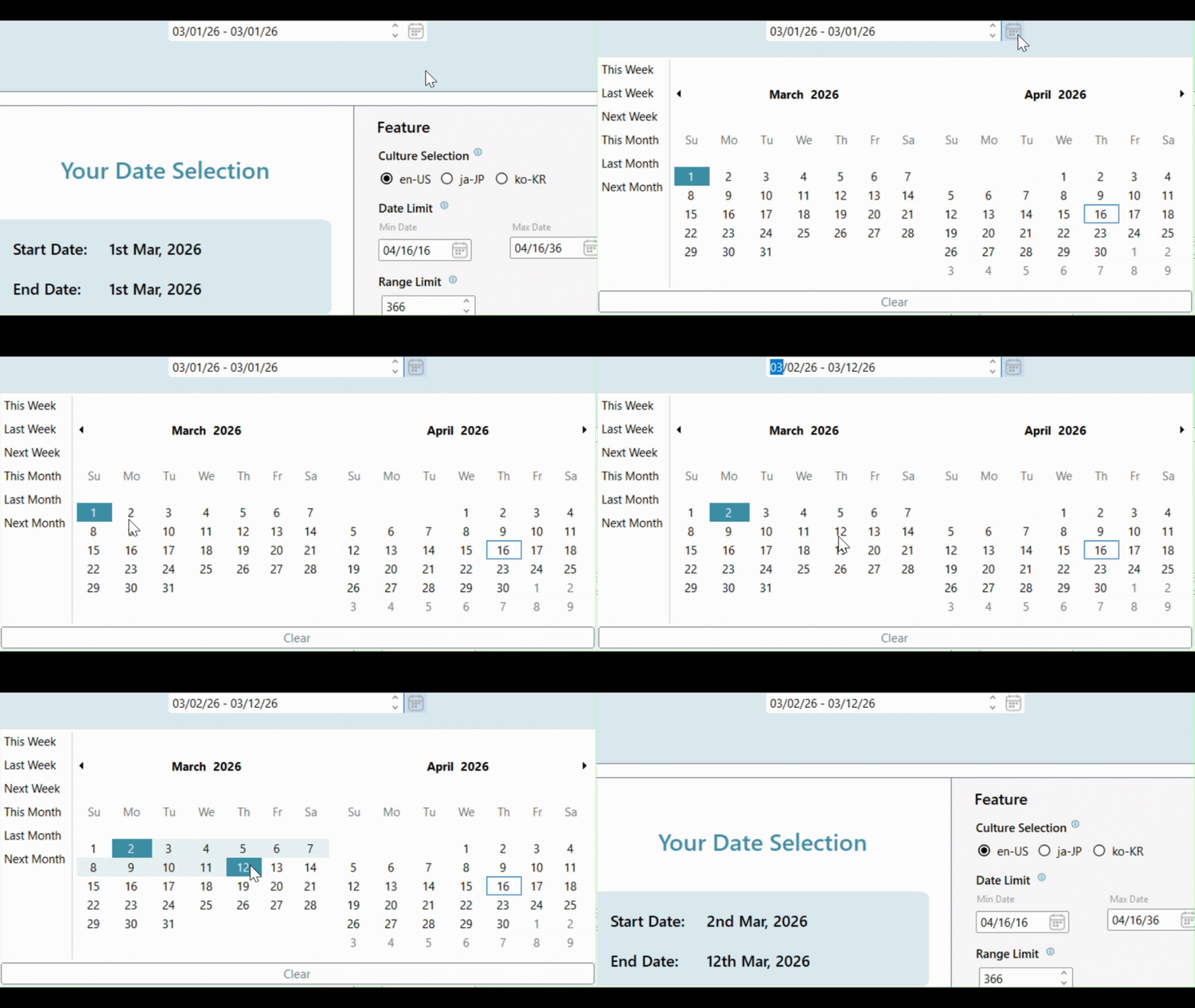
Add the DateRangeEdit Control
Create a Windows Forms application in Visual Studio.
Add the following assemblies to the project:
C1.Win.Calendar
C1.Win.Input
C1.Win
Drag the DateRangeEdit control from the Toolbox onto the form.
Set the control name to
dateRangeEdit, or initialize the control in code:
C1DateRangeEdit dateRangeEdit = new C1DateRangeEdit();Configure the Control
Set the Control Size and Location
/ Set DateRangeEdit size and location
dateRangeEdit.Size = new System.Drawing.Size(180, 21);
dateRangeEdit.Location = new System.Drawing.Point(330, 126);
Set Minimum and Maximum Selectable Dates
// Set minimum and maximum date range
dateRangeEdit.MinValue = new DateTime(2024, 01, 01);
dateRangeEdit.MaxValue = new DateTime(2024, 01, 31);
Enable Predefined Ranges
dateRangeEdit.CalendarRangeSettings.ShowPredefinedRanges = true;Limit the Selection Range
dateRangeEdit.Calendar.MaxSelectionCount = 7;Build and Run the Project
Select Build > Build Solution.
Press F5 to run the application.