


Working with Data Views
Adding a Data View
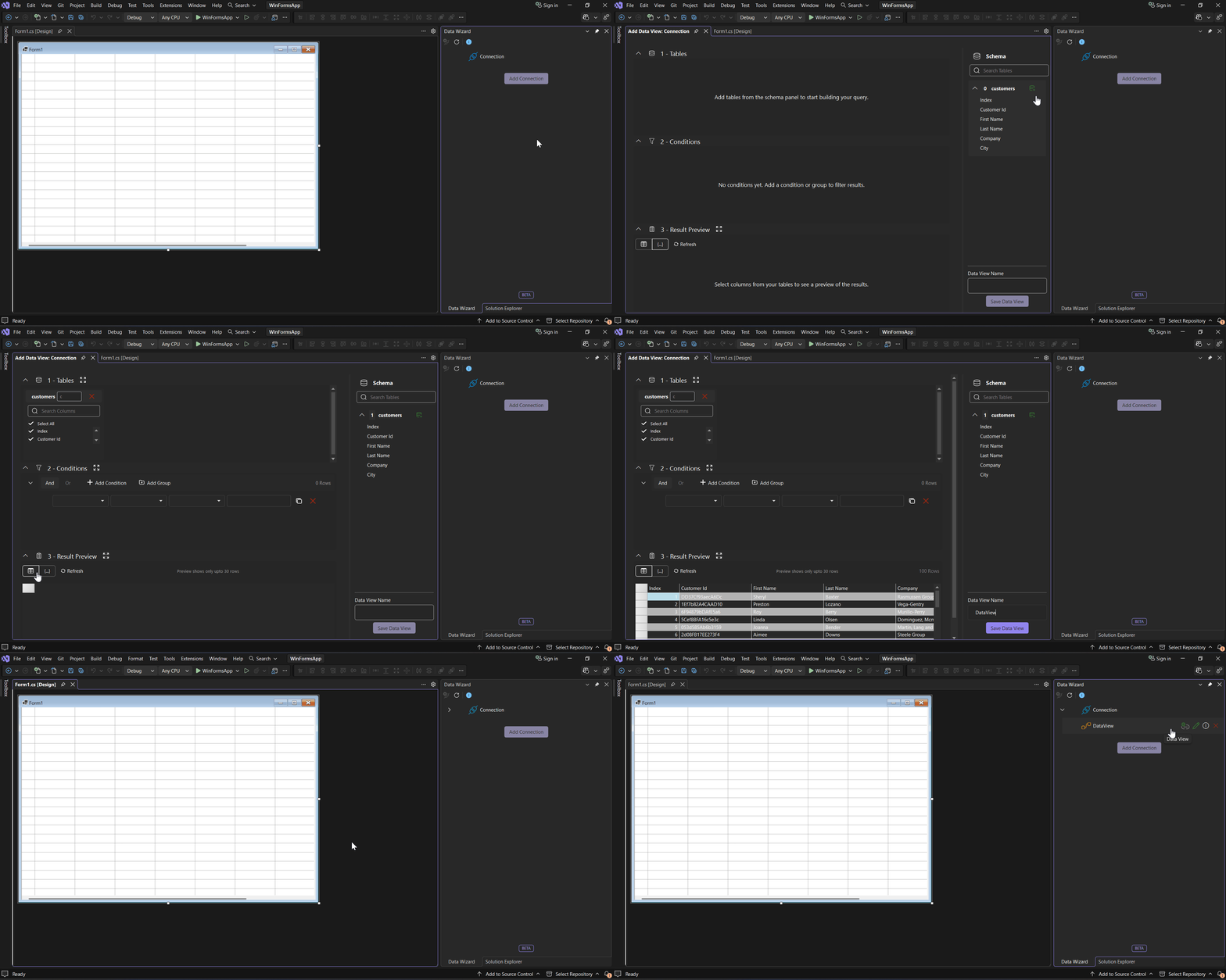
Open the form in the designer.
Hover over the connection in the tool window and click
 Add Data View. The Query Builder opens.
Compose the query. See Query Builder.
Enter a Data View name.
Click Save Data View.
Expand the connection in the tool window to display the new Data View.
Note: A Data View can be added only while the designer form is open. The Data View name cannot be changed after creation.
Editing a Data View
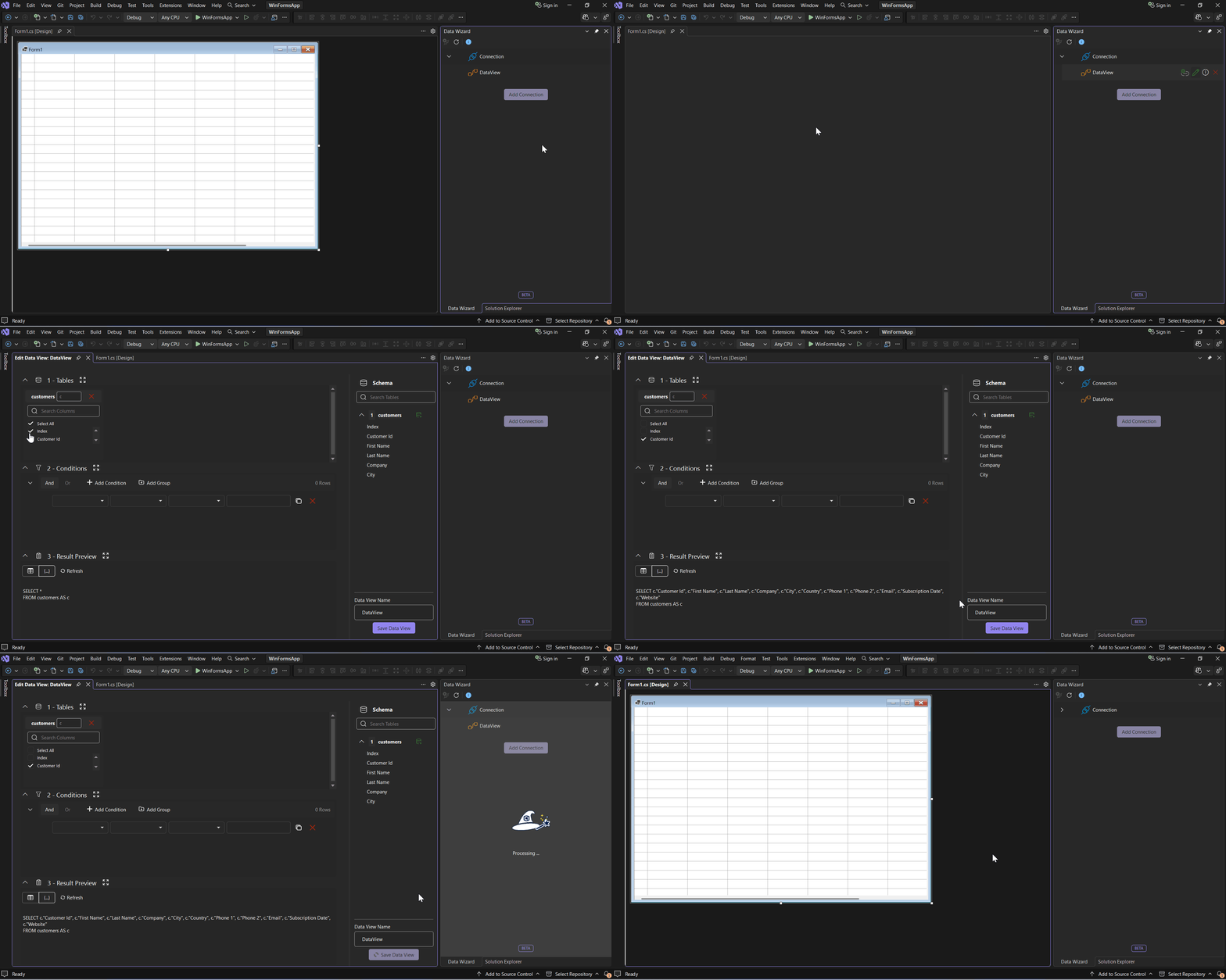
Hover over a Data View in the tool window and click  Edit Data View. The Query Builder opens with the existing query. Modify the query, then click Save Data View. The Data View name cannot be changed.
Viewing Data View Details
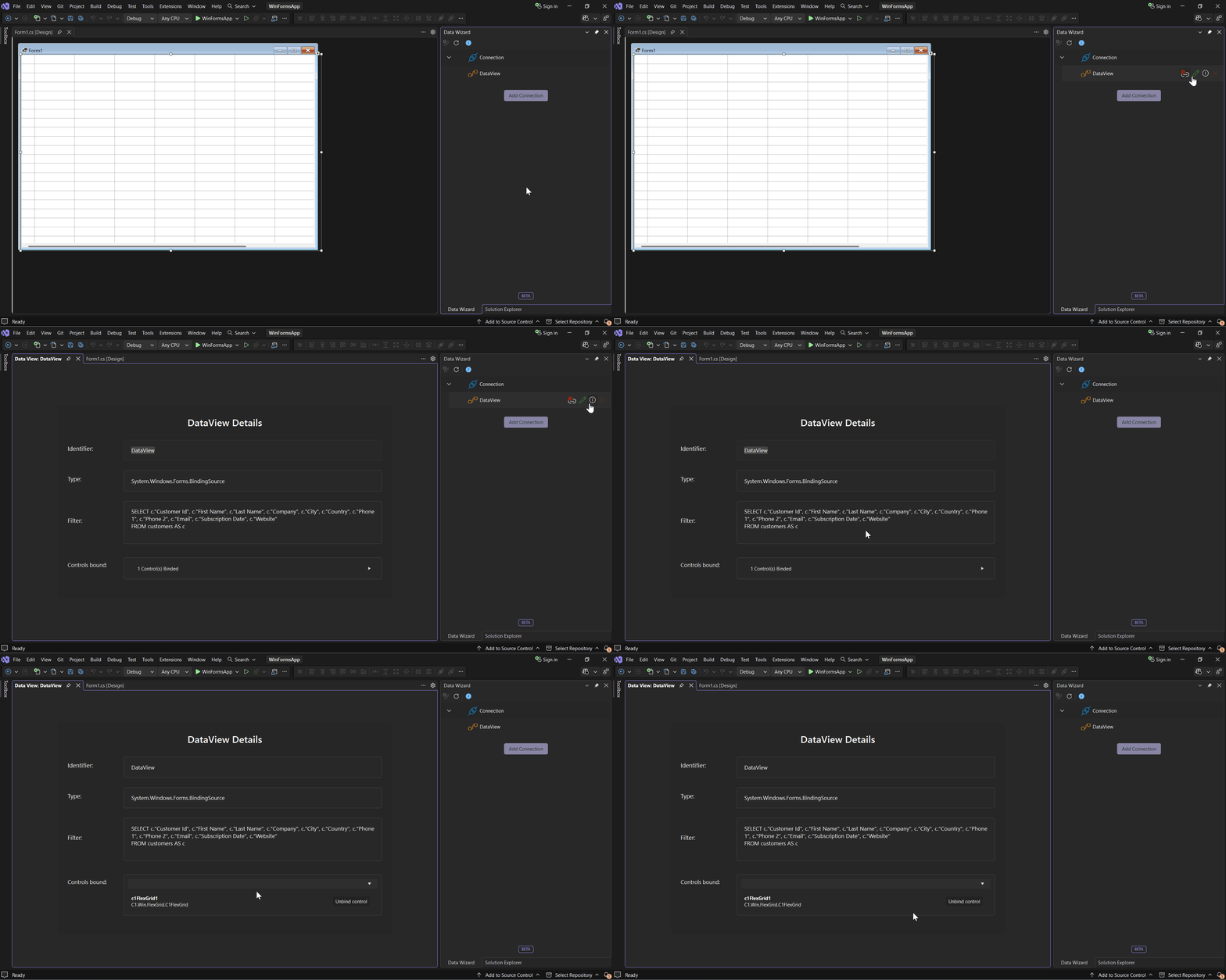
Hover over a Data View in the tool window and click  View Details. The details page displays the Data View identifier, type, filter, and bound controls. A control can be unbound from this page. See Unbinding a Data View.
Removing a Data View
Hover over a Data View in the tool window and click  Remove Data View.
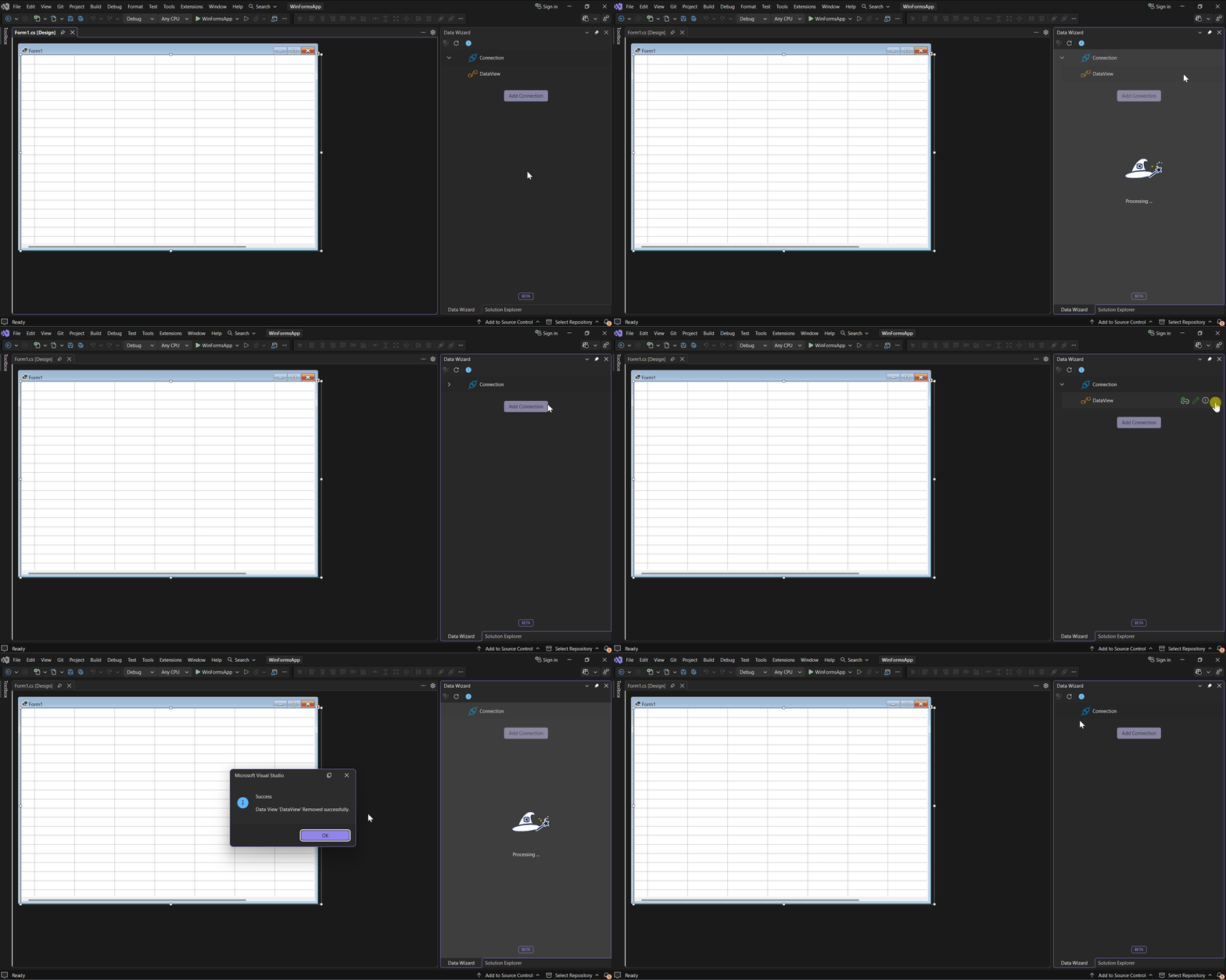
Note: A Data View cannot be removed while it is bound to a control. Unbind it from every control first.
Previewing Data and Queries
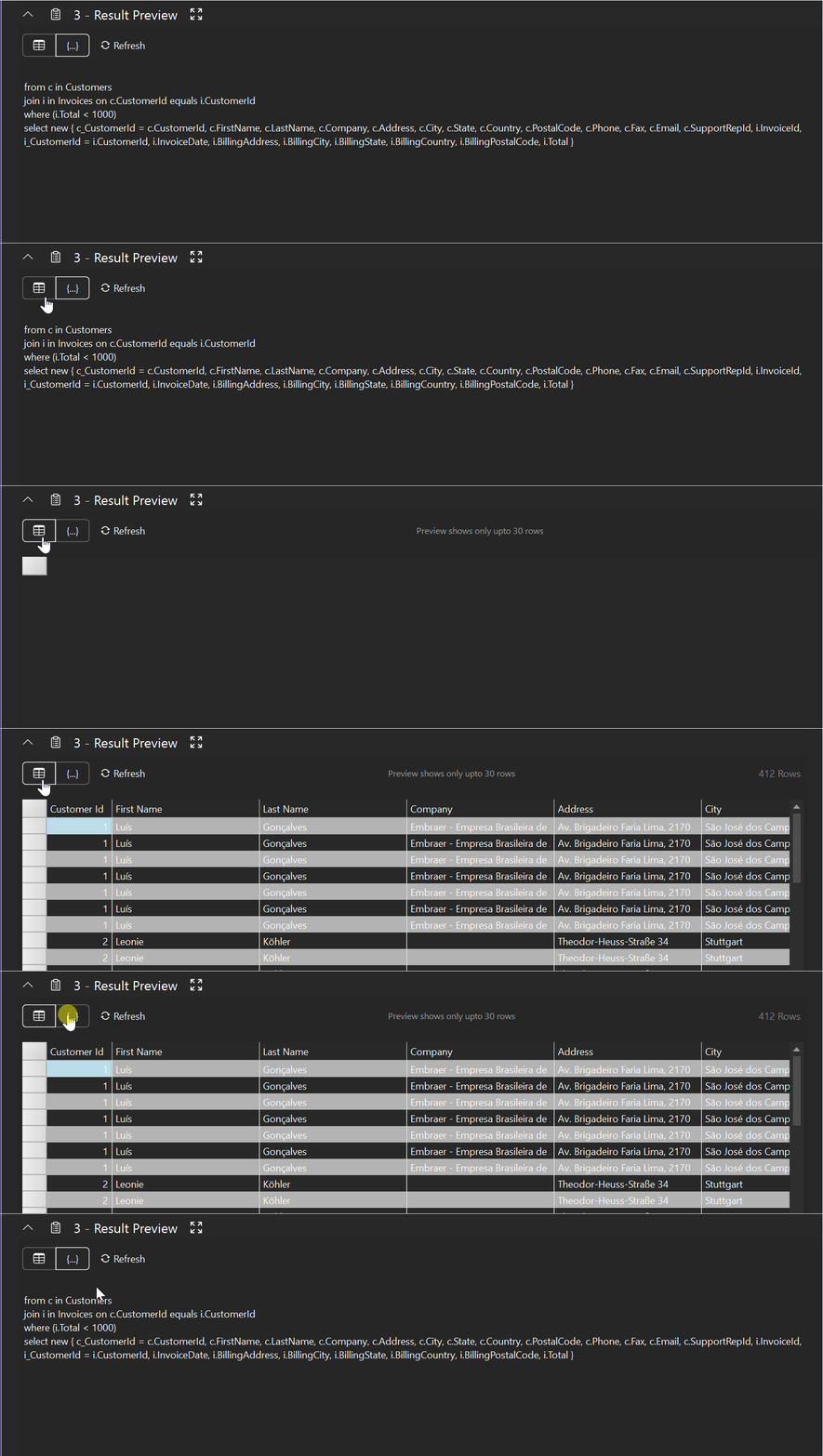
Result Preview in the Query Builder provides two views:
 Grid View: Displays the data returned by the query.
 Code View: Displays the generated query. For Entity Framework connections, it displays a LINQ query.
Click the corresponding icon button to switch views. The preview displays up to 30 rows and includes the total row count. Click Refresh to update the preview.
The total row count appears at the right of the Conditions and Result Preview headers. The preview updates automatically when a condition value changes.
Note: The preview is read-only. Modify the query through the Query Builder.