Binding Data Views to Controls
Data binding applies to DataGridView and C1FlexGrid controls on the designer form.
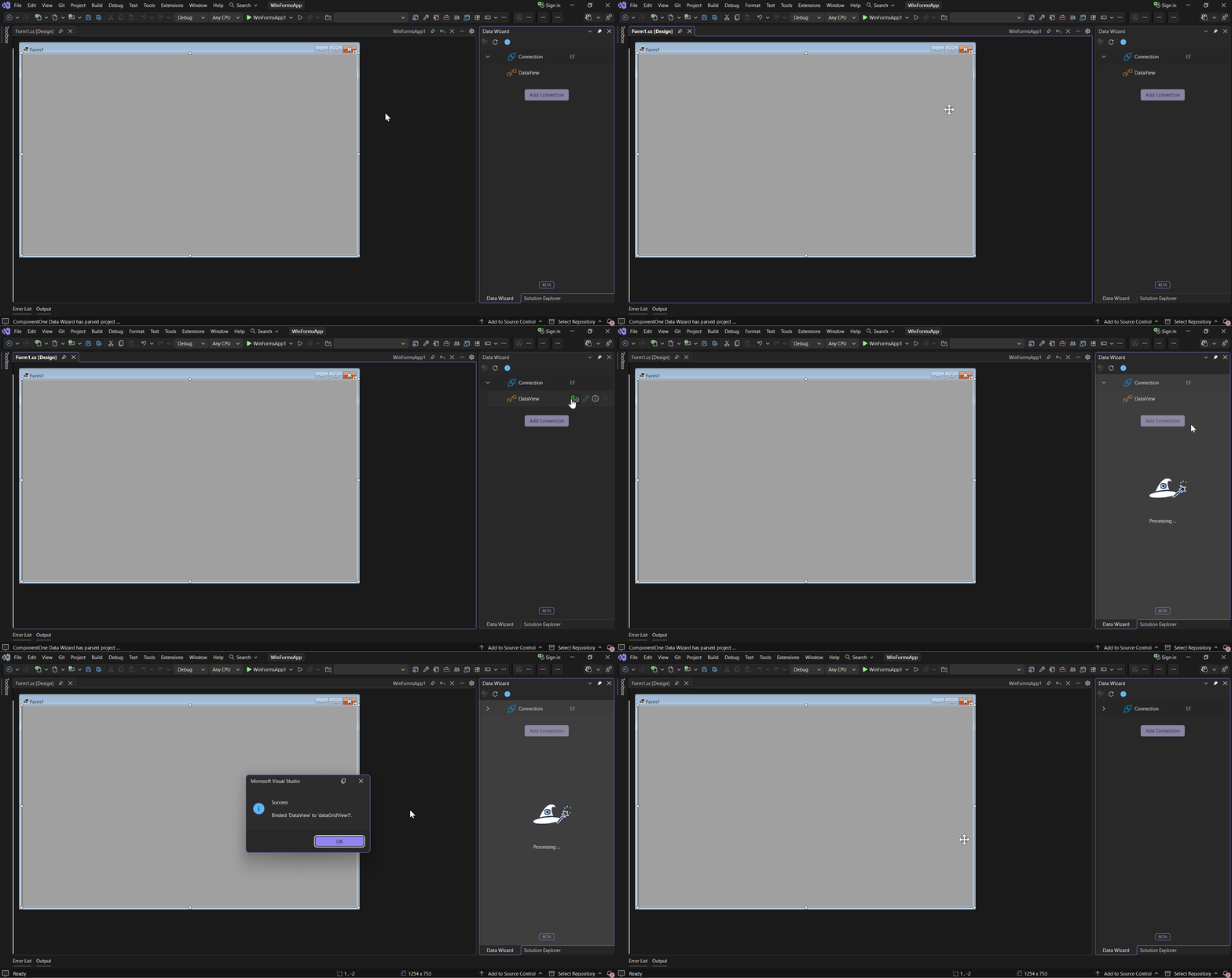
Binding a Data View to a Control
Select a
DataGridVieworC1FlexGridcontrol on the designer form.Save the form after the control is added.
Expand the connection in the tool window and hover over the Data View.
Click
 Bind to control.
Run the application.
Data Wizard generates the binding code, and the control displays the Data View data at run time.
Note: Bind is disabled when no supported control is selected on the designer form.
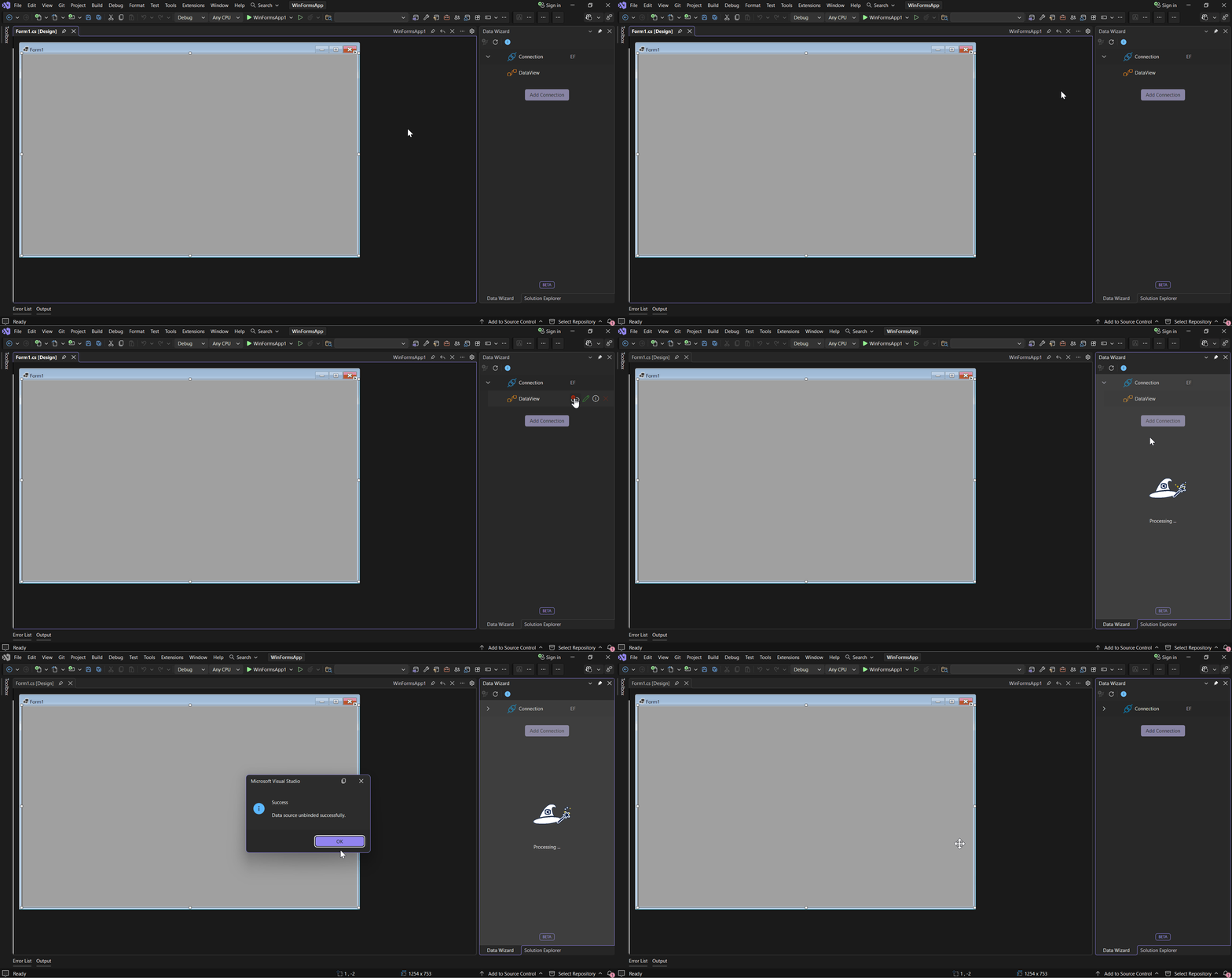
Unbinding a Data View
Data Wizard provides two methods for unbinding a Data View:
Tool window: Select the bound control on the designer form, hover over the Data View, and click
 Unbind. When the selected control is bound to the Data View, the hover action displays Unbind instead of Bind.
Data View details page: Open the Data View details, expand Controls bound, and click Unbind control beside the bound control. See Viewing Data View Details.
Important: Unbind a control from its Data View before removing the control from the form.