Query Builder
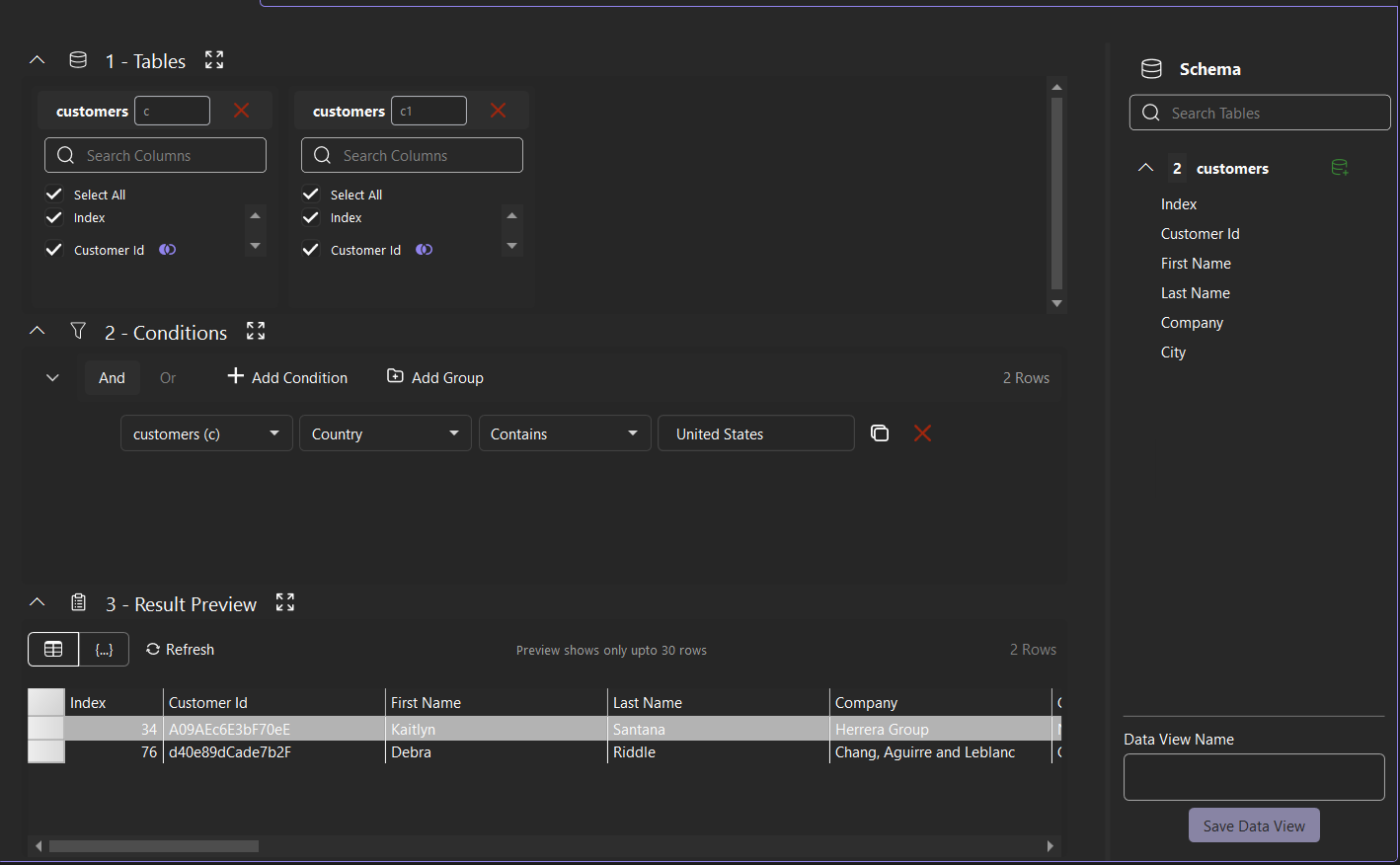
The Query Builder composes a query from tables, columns, joins, filter conditions, and aliases. It opens when a Data View is added or edited.
The layout contains three numbered, collapsible sections on the left: Tables, Conditions, and Result Preview. The Schema panel appears on the right, with the Data View Name text box and Save Data View button below it.
Selecting Tables and Columns
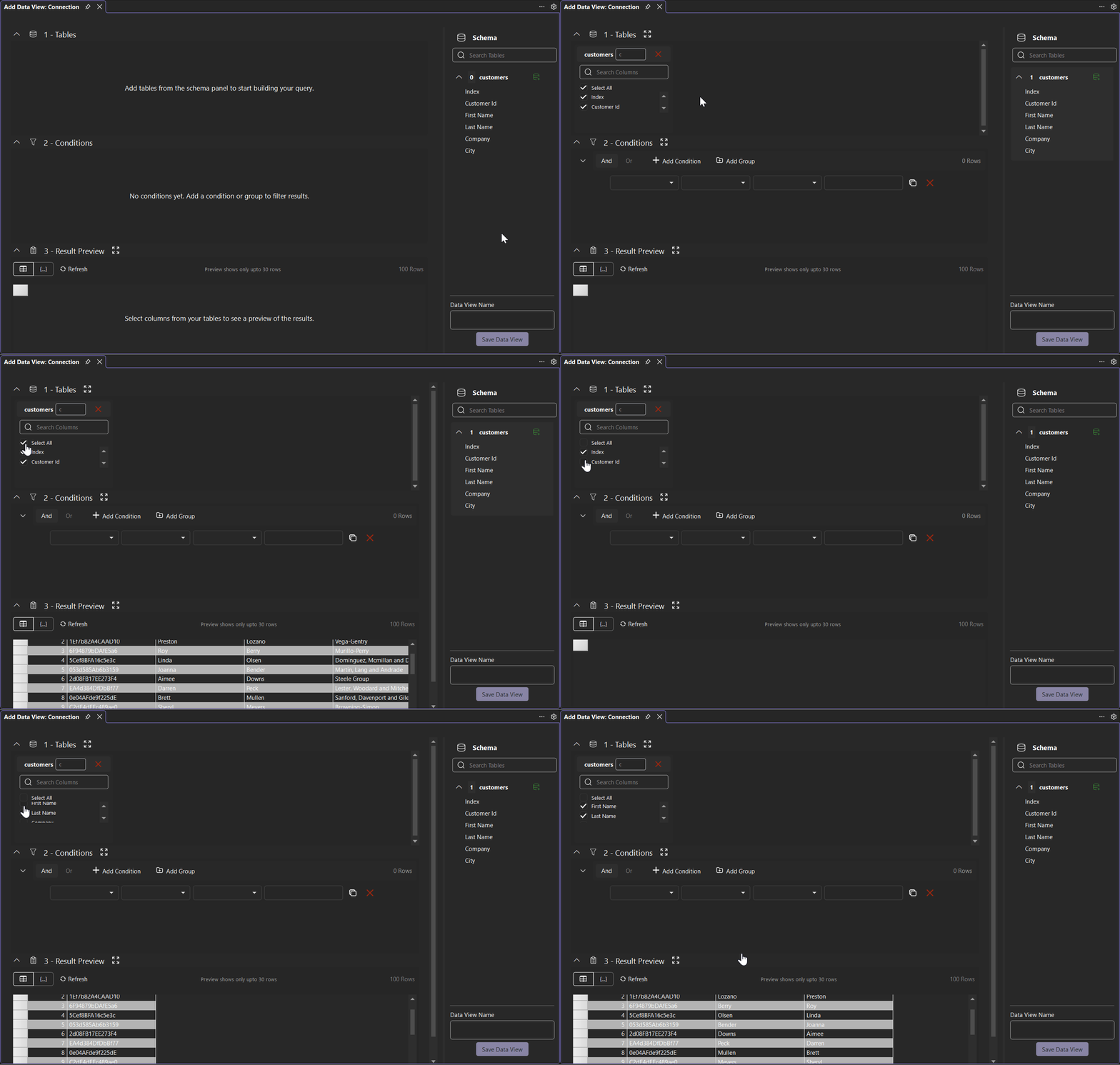
The Schema panel lists the tables in the data source and their columns. The Search Tables box filters the list.
In the Schema panel, click the
 Add Table to Query located next to a table. The table appears as a card in the Tables section.
Select the required column check boxes. Select All selects every column, and Search Columns filters the column list.
The selected columns define the columns of the generated query. Click  Remove on a table card to remove the table from the query.
The number beside each table in the Schema panel indicates its instances in the query
Creating Joins
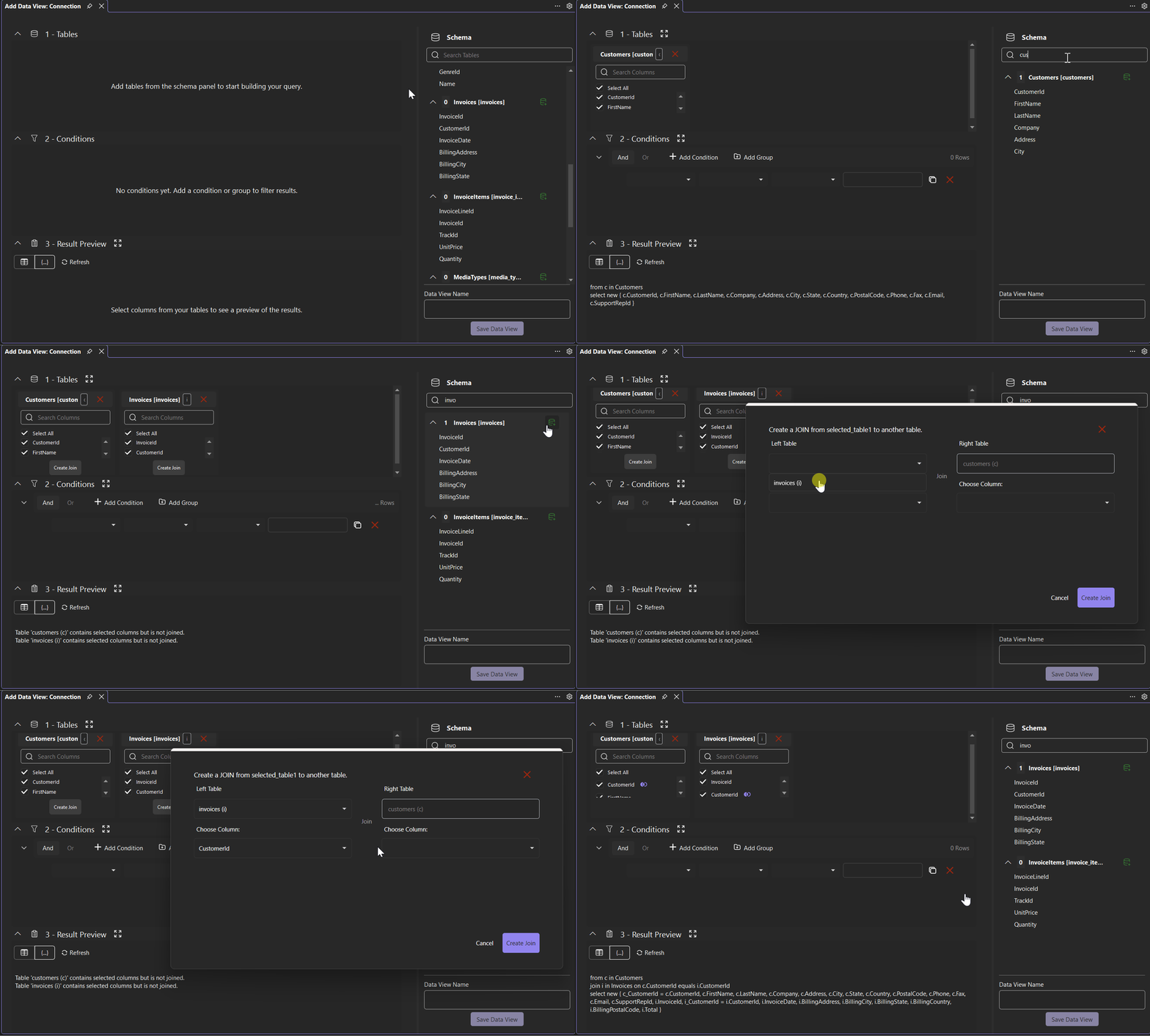
Add a second table from the Schema panel.
Click Create Join on the table that will be the right table of the join.
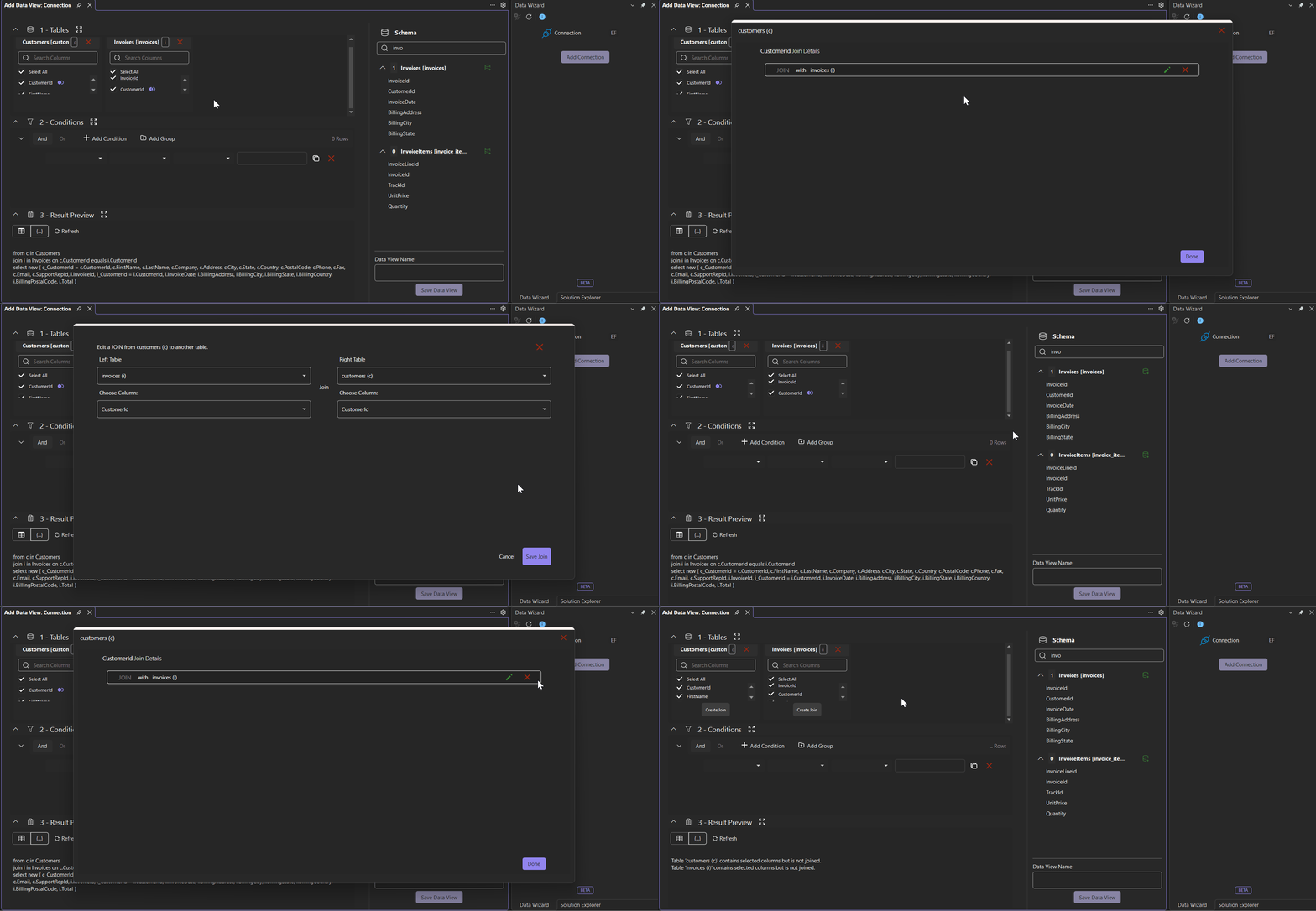
In the join dialog, select the other table from Left Table. Right Table displays the table on which Create Join was clicked.
Select a column for each table from its Choose Column list.
Click Create Join. A join icon appears beside each joined column.
The table on which Create Join is clicked becomes the right table of the join.
Note: Data Wizard supports INNER joins only.
Editing a Join
A join icon ( ) appears beside the joined column on each table.
Click
 Edit Join. The join details appear, with options to
  edit or
  remove the join.
Click
Edit to open the join editor.Modify the join and click Save Join.
Click Done to close the join details.
To remove the join, click Remove in the join details.
Filtering Data
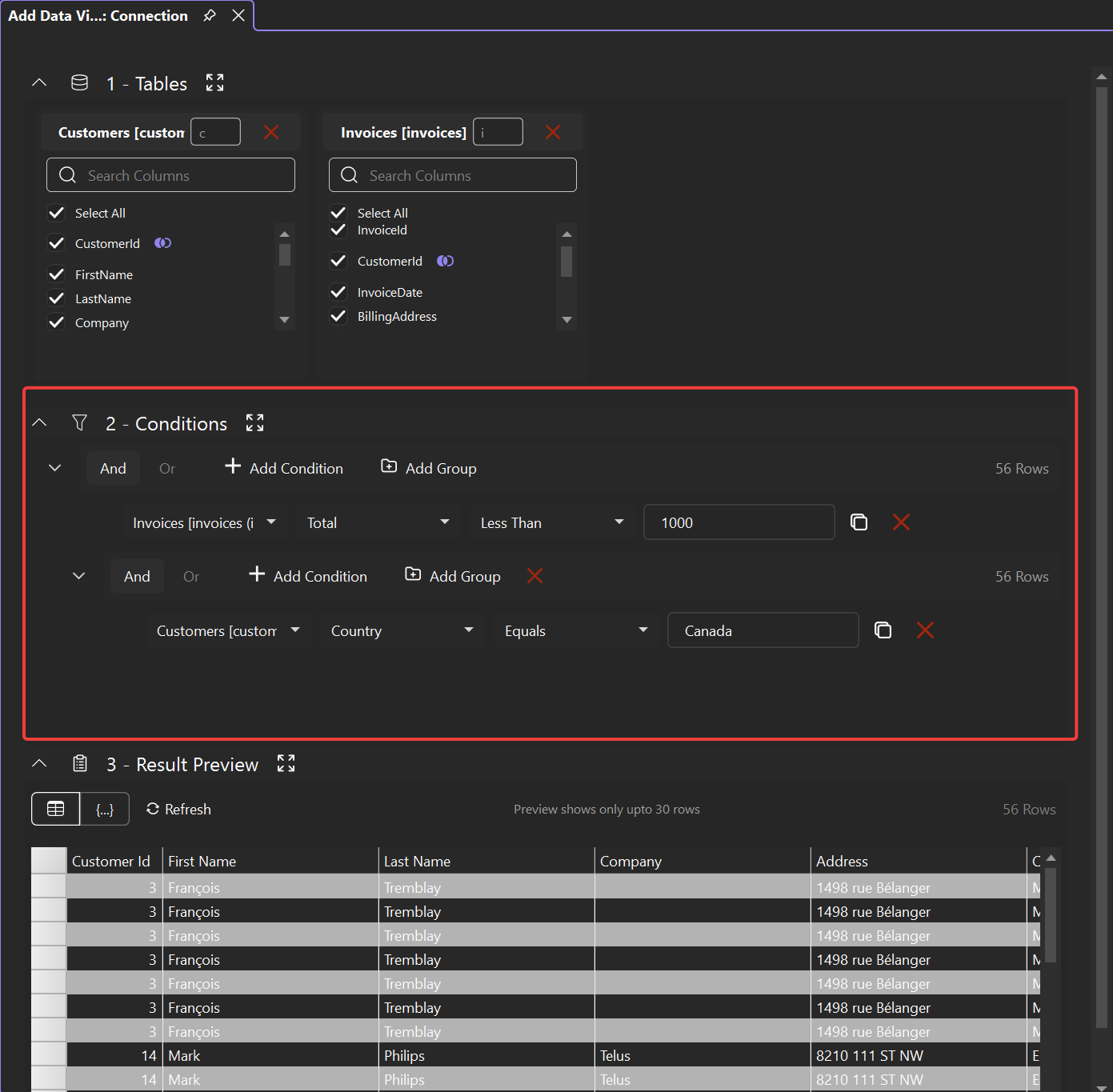
Filter conditions specify which rows the query returns. Define conditions in the Conditions section of the Query Builder.
Click Add Condition.
Select a table, a column, and an operator.
Enter a value. For a date column, select a date and enter a time. The Is Null and Is Not Null operators do not require a value.
Until the condition is complete, Result Preview displays a validation message instead of data, such as Please select an operator. or Please enter a value.
Available operators depend on the column data type:
Operator | Matches rows where the column | Numeric and date columns | Text columns |
|---|---|---|---|
Equals | Equals the value | Yes | Yes |
Not Equals | Does not equal the value | Yes | Yes |
Greater Than | Is greater than the value | Yes | No |
Greater Than Or Equal | Is greater than or equal to the value | Yes | No |
Less Than | Is less than the value | Yes | No |
Less Than Or Equal | Is less than or equal to the value | Yes | No |
Start With | Starts with the value | No | Yes |
End With | Ends with the value | No | Yes |
Contains | Contains the value | No | Yes |
Is Null | Contains no value | Yes | Yes |
Is Not Null | Contains a value | Yes | Yes |
Each condition row provides duplicate and remove actions. The duplicate action copies the condition; the remove action deletes it.
The And and Or options determine how conditions in a group are combined. Click Add Group to add a nested group with its own And or Or setting.
Working with Table Aliases
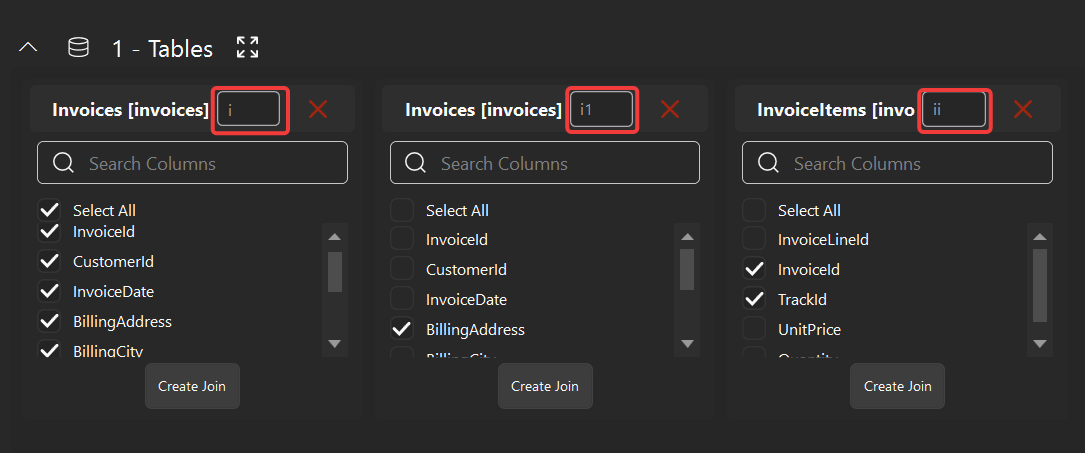
An alias names each table in the query. It appears in the Alias name box on the table card and in the generated query.
Data Wizard generates each default alias from the table name:
The first table receives the first letter of its name, such as
ifor Invoices.Further instances of the same table receive a numeric suffix:
i1,i2, and so on.A different table starting with the same letter receives a repeated letter. For example, InvoiceItems added after Invoices receives
ii. Further instances of InvoiceItems receiveii1,ii2, and so on.
To specify an alias manually, enter it in Alias name.