


Working with Connections
Adding a Connection
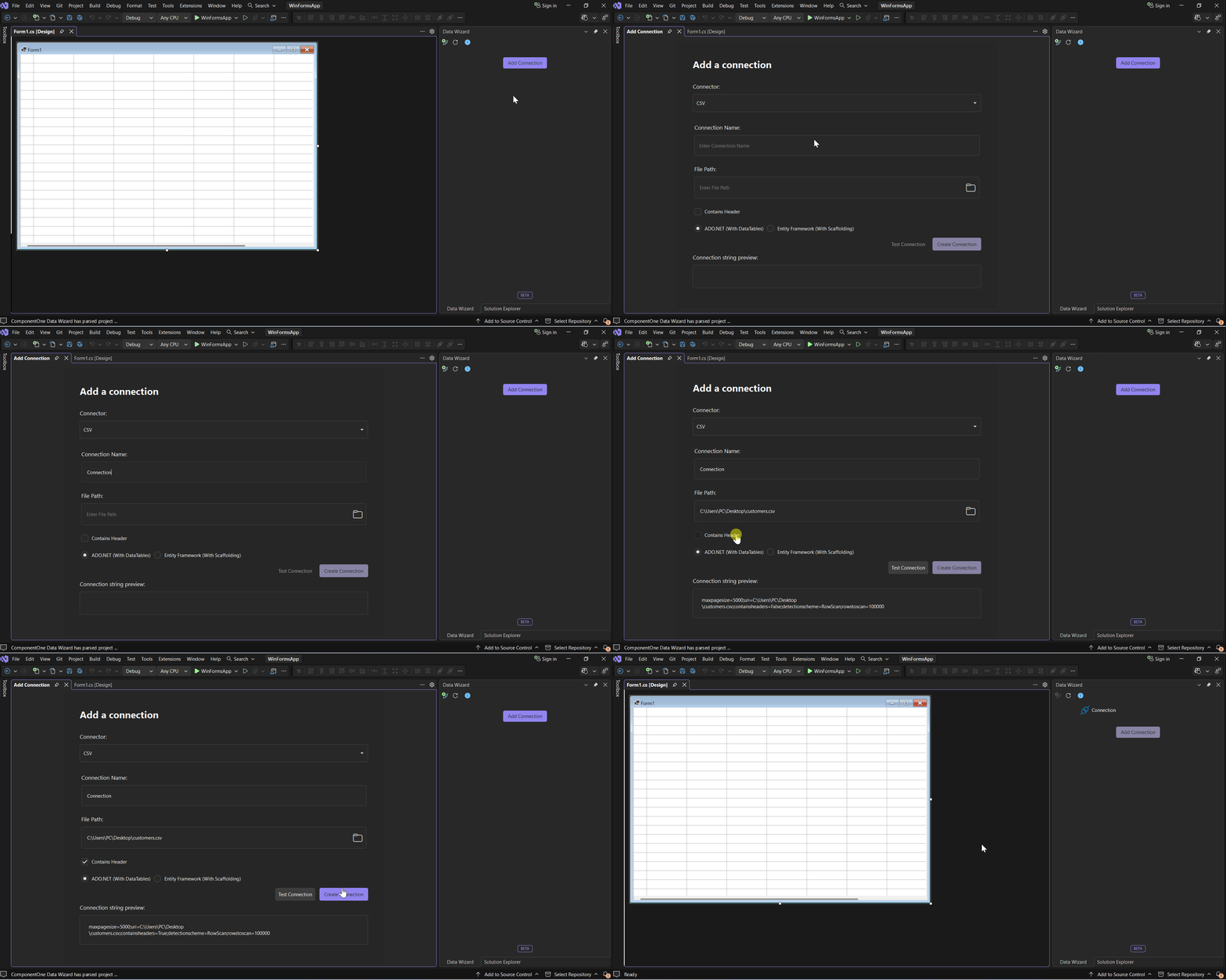
In the Data Wizard tool window, click Add Connection. The Add a connection form opens.
Select a connector in the Connector list.
Enter a Connection Name and the connector-specific fields. See Supported Connectors.
Select ADO.NET (With DataTables) or Entity Framework (With Scaffolding). Entity Framework scaffolding is not supported in .NET Framework projects.
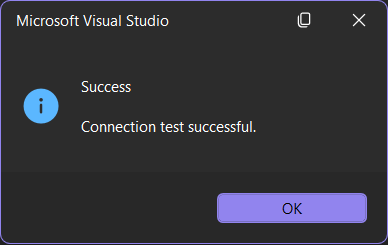
Click Test Connection. A message dialog reports the result.
After the test succeeds, click Add Connection.
Data Wizard adds the connection to the tool window and writes the connection string to App.config.
The connection form validates each field as it is edited and highlights invalid input. Test Connection is enabled when all required fields are valid, and Add Connection is enabled after a successful test.
Note: A project supports one connection. Add Connection is disabled once a connection exists.
Supported Connectors
Connector | Data source | Fields | License requirement |
|---|---|---|---|
CSV | File | CsvFilePath, CsvContainsHeaders | ComponentOne Studio Enterprise, Studio Perpetual, Data Service or WinForms Data Service Edition |
JSON | File | JsonFilePath, JsonPath, JsonDataModel | ComponentOne Studio Enterprise, Studio Perpetual, Data Service or WinForms Data Service Edition |
OData | Service | ODataUrl | ComponentOne Studio Enterprise, Studio Perpetual, Data Service or WinForms Data Service Edition |
SQLite | File (.db, .sqlite, or .sqlite3) | File Path | None |
SQL Server | Database server | Server, Database, Username, Password, UseWindowsAuth | None |
PostgreSQL | Database server | Host, Port, Database, Username, Password | None |
Every connector also takes a Connection Name.
Testing a Connection
Click Test Connection after entering the connection details. A message dialog reports whether Data Wizard connected to the data source. Add Connection is enabled only after a successful test.
Viewing Connection Details
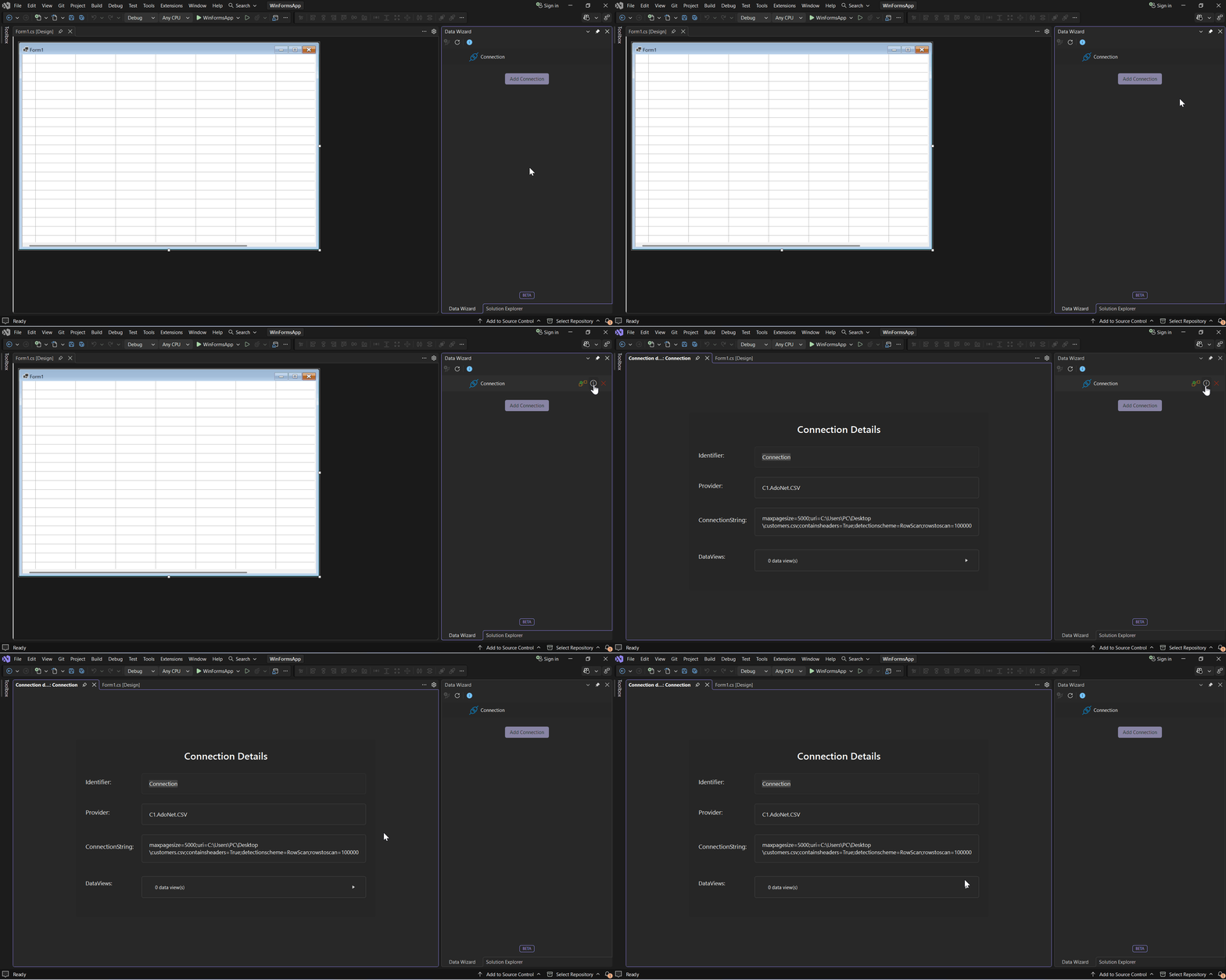
Hover over a connection in the tool window and click  View Connection Details . The details page displays the connection identifier, provider, connection string, and the Data Views created from the connection.
Removing a Connection
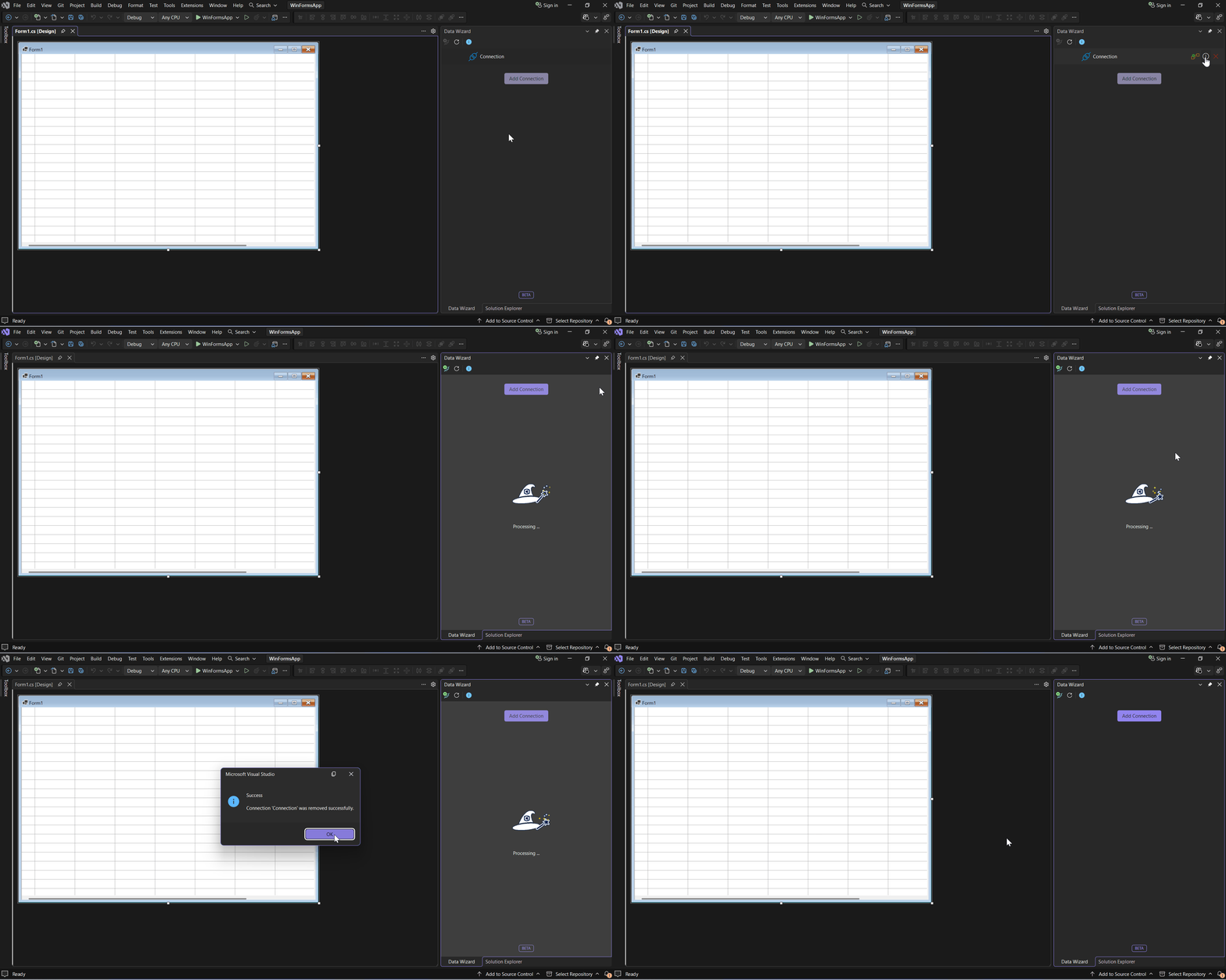
Hover over a connection in the tool window and click  Remove Connection. Data Wizard removes the connection and its connection string from App.config.
Note: A connection cannot be removed while it has Data Views. Remove its Data Views first. See Removing a Data View