


How to Design a Simple Report and Display it in Blazor Web Apps
This tutorial walks through building and displaying simple reports in Blazor web apps. Users will learn how to design reports in FlexReportDesigner, load .flxr files into FlexViewer, and render interactive, exportable reports without redeploying your app.
The FlexReport ecosystem is a high-performance reporting solution that separates report design from application logic, thereby streamlining the development lifecycle.
The process begins in the FlexReportDesigner, a standalone tool where users visually build layouts and define data sources, saving these configurations into a portable .flxr file. This file serves as a universal "blueprint" that is loaded into user's application via the FlexViewer control, which handles final rendering, user interaction, and document exporting. By using this cycle, users can update report designs independently without recompiling or redeploying your entire software project.
Download Blazor sample projects here.
Creating a FlexReport File with FlexReportDesigner
Open the FlexReportDesigner stand-alone app. It can be found at the following path within the respective version of .NET:
C:\Program Files (x86)\MESCIUS\ComponentOne\C1StartMenu\Apps
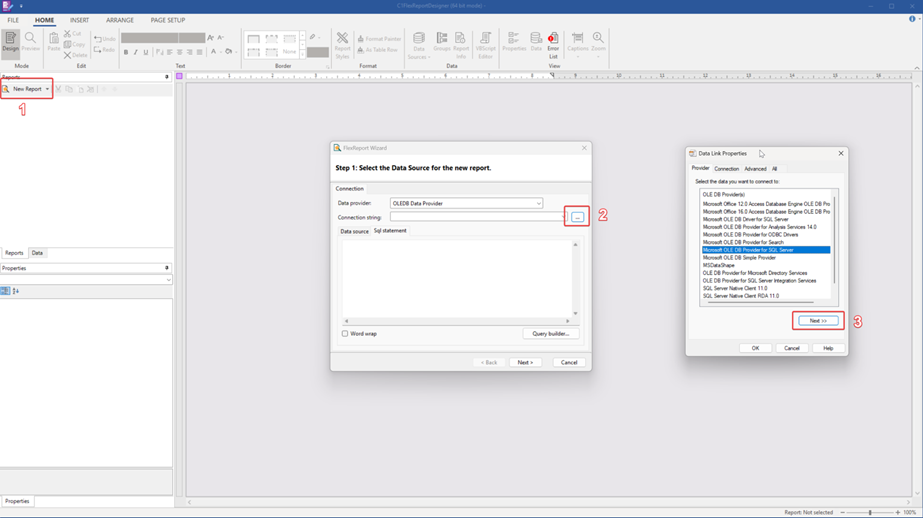
Create a New Report and set the connection string. This example uses SQL Express.
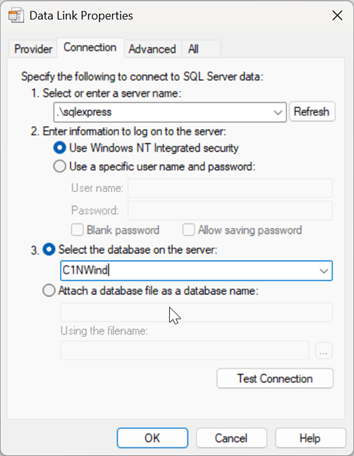
On the next page, declare the server name, enter the database login information, and select the database on the server you are targeting.
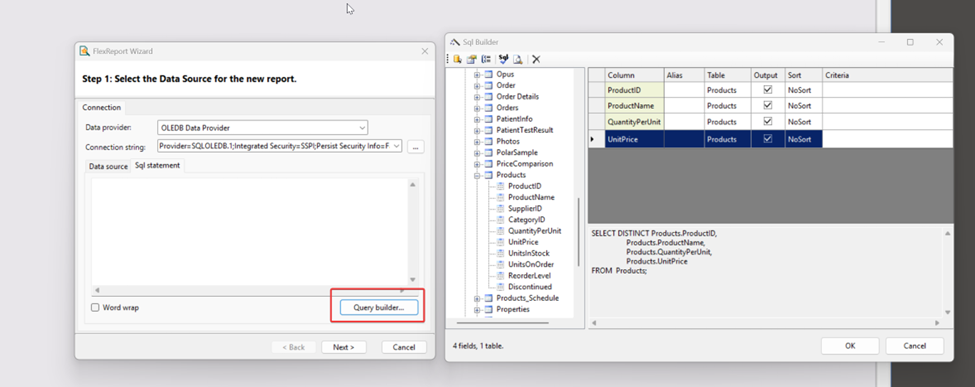
Use the Query Builder feature to structure the data using SQL. This example uses the Products table found in the C1NWind database. Users can choose to display the ProductID, ProductName, QuanitityPerUnit, and UnitPrice.
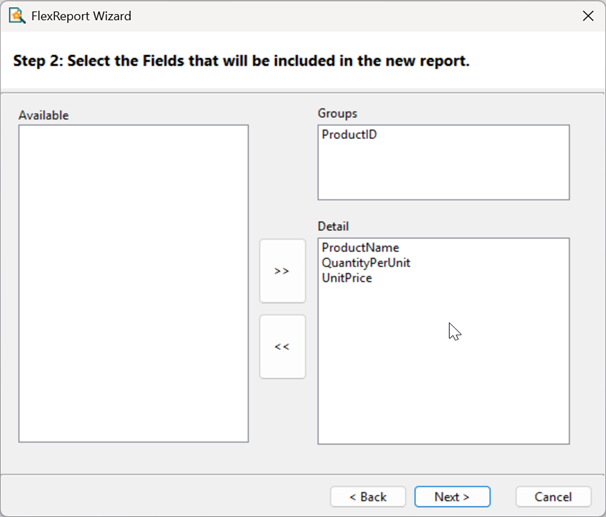
Click Next in the FlexReport Wizard, and on Step 2, users can select the Fields that will be included in the report, and determine the fields used to group the report. For example, users can group by ProductID and display the ProductName, QuantityPerUnit, and UnitPrice.
Click Next and view the report within the FlexReportDesigner.
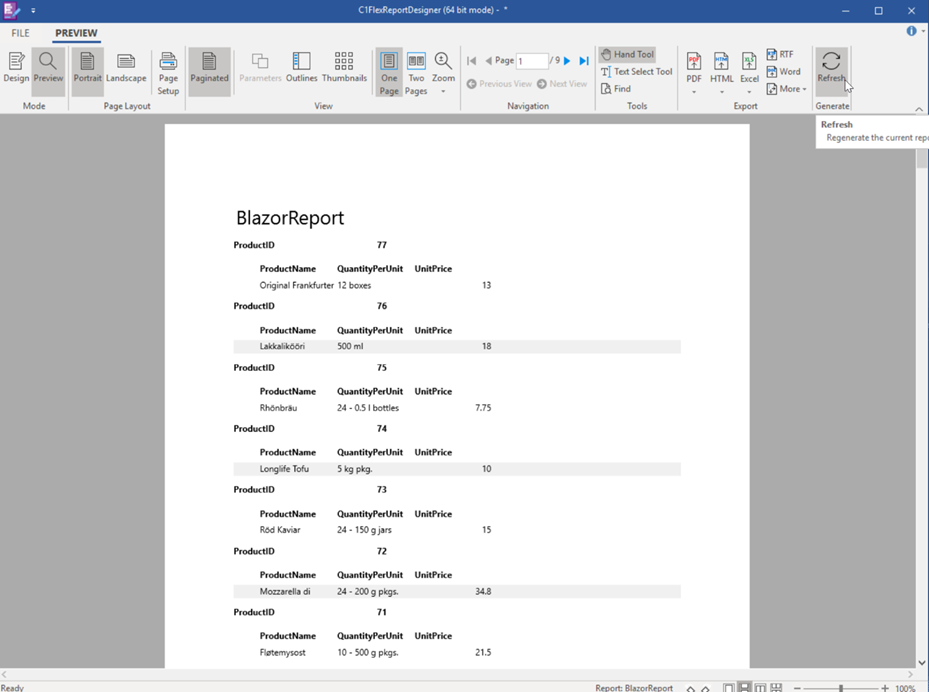
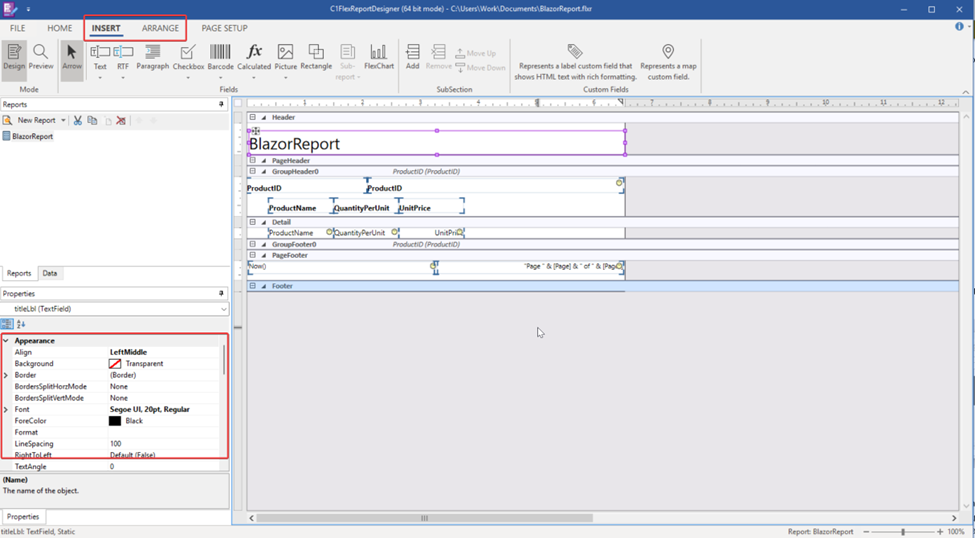
You can further customize and design the report layout through the FlexReportDesigner application. For example, you can add more fields and objects from the Insert tab, as well as rearrange and change the appearance of the fields by dragging them on the banded report surface.
Displaying FlexReport with FlexViewer
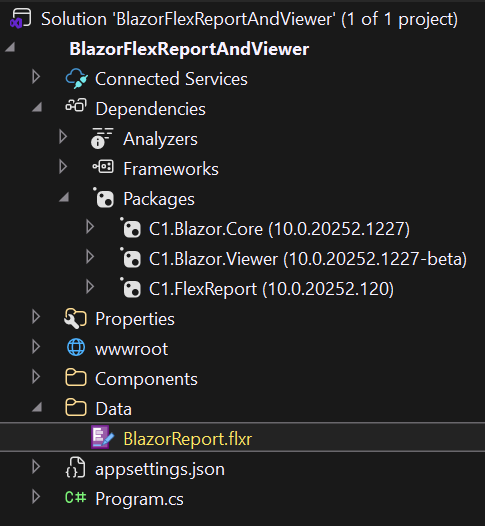
Open Visual Studio and create a new Blazor Web App; then, add the following packages through NuGet:
C1.Blazor.Core
C1.Blazor.Viewer
C1.FlexReport
Create a Data folder if needed, and place the FlexReport created using the FlexReportDesigner inside.
Add the following Razor and C# code to the page where the report is required:
@page "/"

@using C1.Blazor.Viewer
@using C1.Blazor.Viewer.Model;
@using C1.Report;
@using System.Data

@inject IJSRuntime Js

<FlexViewer DocumentSource=docSource />

@code {

    C1DocumentSource docSource = DocSources.GetReport();

    public class DocSources
    {
        public static C1DocumentSource GetReport()
        {
            var docSource = new C1.Report.FlexReport();
            docSource.Load("Data\\BlazorReport.flxr", "BlazorReport");
            return docSource;
        }
    }
}
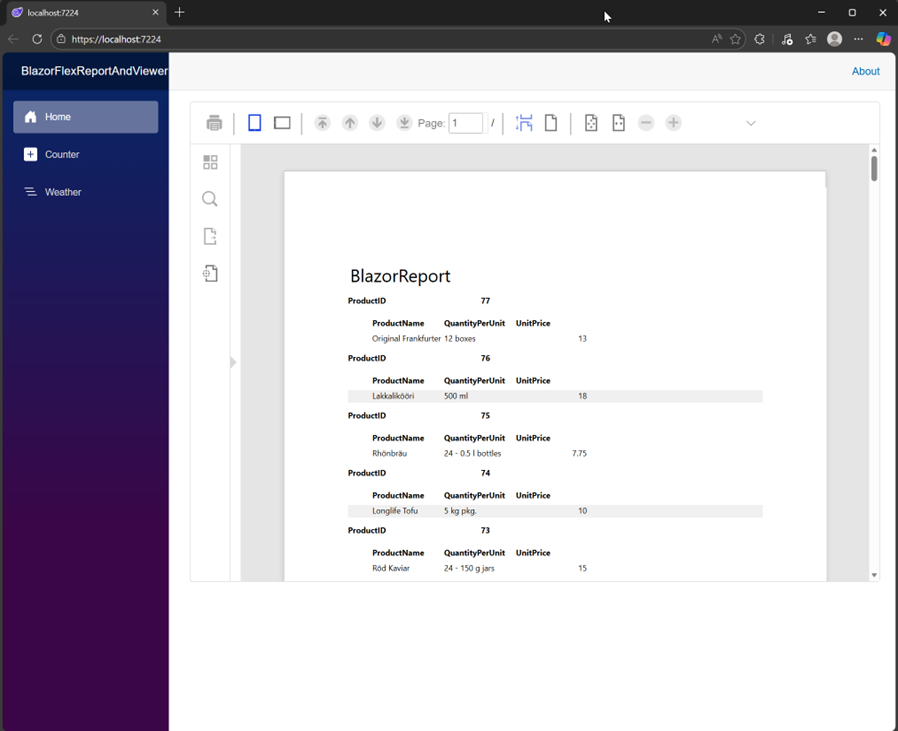
Run the project to view the FlexReport displayed in the FlexViewer.
FAQs
Q: How does FlexReport’s architecture support runtime report loading and versioning?
A: FlexReport uses a serialized report definition (.flxr) that is parsed and instantiated at runtime by the FlexReport engine. Because the report layout, data schema, and expressions are externalized, applications can load different report versions dynamically based on user role, environment, or configuration (without recompilation). This makes FlexReport well-suited for CI/CD pipelines and multi-tenant applications.
Q: How does FlexReport handle large datasets and performance-sensitive scenarios?
A: FlexReport is optimized for on-demand data processing and efficient rendering, minimizing memory overhead when working with large result sets. Combined with FlexViewer’s virtualized rendering and pagination, reports remain responsive during user interaction, previewing, and export operations. This makes FlexReport suitable for enterprise-scale reporting without requiring pre-generated documents.
Q: How extensible is FlexReport for custom logic and calculated fields?
A: FlexReport supports expressions, calculated fields, and event-driven customization through its API. Developers can define expressions using built-in functions or inject custom logic via events such as data loading and rendering phases. This enables advanced scenarios like conditional formatting, computed aggregates, and context-aware output without modifying the core report definition in the designer.
Q: How does FlexReport support export workflows and document generation?
A: Once rendered, FlexReport leverages the ComponentOne document model to export reports to formats such as PDF, Excel, and Word through FlexViewer or programmatic APIs. Exports are generated from the same document pipeline used for on-screen rendering, ensuring layout fidelity and consistency across formats. This allows developers to implement automated export workflows without maintaining separate reporting logic.