


Explicit Column Filtering
FullTextFilterBehavior provides developers with comprehensive control to enable filtering operations on preferred columns. Columns can be explicitly included or excluded by using the FilteredFields or MatchBooleans properties to provide a cleaner and more relevant filtering experience for end-users.
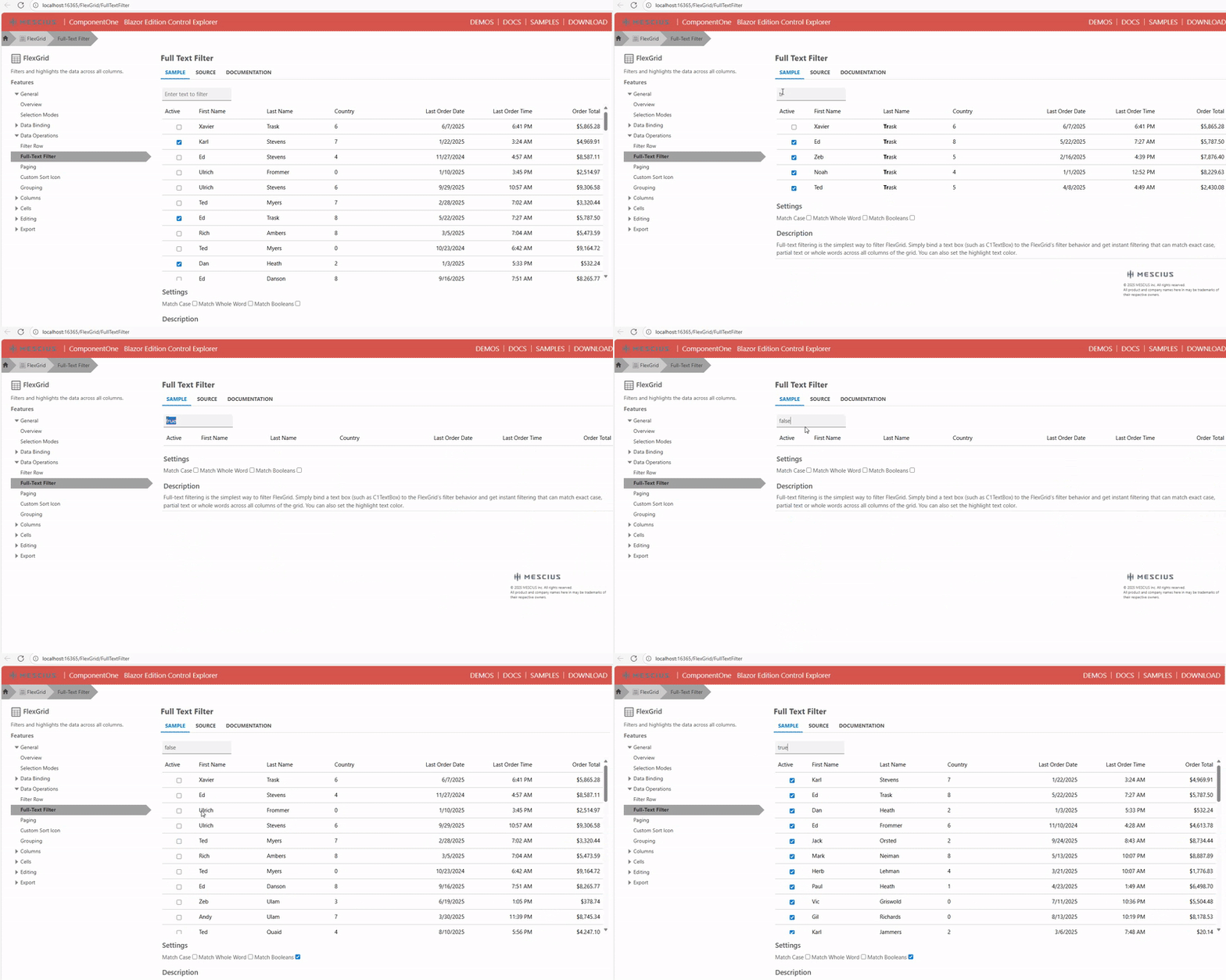
Key Capabilities
Explicit Column Inclusion by Field Name
Define which columns should be filterable by specifying a collection of field names using the FilteredFields property.
Dynamic Filtering UI
The filtering UI automatically adjusts to show the fields specified using the FilteredFields property or based on column types.
Default Behavior
All fields are filterable by default when no explicit configuration is specified.
Improved End-User Experience
Users see only meaningful fields in filter lists, which leads to faster and more accurate data filtering.
Error Handling
Excluding or including non-existent columns does not cause run-time errors, as the grid automatically ignores invalid configuration.
Configure Filtering Capabilities
Configure FullTextFilterBehavior to filter only the specified text, numeric or Boolean columns
1. Add a Search Box and Filtering Options in XAML
Include the necessary input controls and checkboxes for the filter options:
<input:C1TextBox x:Name="search" Placeholder="Enter text to search..." Margin="0,0,50,0"/>

<StackPanel Orientation="Horizontal" Grid.Row="1">
    <CheckBox x:Name="matchCaseCheckbox" Content="Match case" Margin="4"/>
    <CheckBox x:Name="matchWholeWordCheckBox" Content="Match whole word" Margin="4" />
    <CheckBox x:Name="treatSpacesAsAndOperator" Content="Treat Spaces As And Operator" Margin="4" IsChecked="True" />
    <CheckBox x:Name="matchNumbers" Content="Match Numbers" Margin="4" IsChecked="True"/>
    <CheckBox x:Name="matchBolleans" Content="Match Booleans" Margin="4" IsChecked="False"/>
</StackPanel>
2. Apply FullTextFilterBehavior to FlexGrid and Bind to Filter Options
Apply the behavior to the FlexGrid and bind the properties to the controls defined in the previous step:
<grid:FlexGrid x:Name="GridView" Grid.Row="2" Margin="0,10,0,0" ItemsSource="{StaticResource SampleDatas}">
    <i:Interaction.Behaviors>
        <grid:FullTextFilterBehavior
            FilterEntry="{Binding ElementName=search}"
            FilteredFields="{x:Bind FilteredFields}"
            MatchBooleans="{Binding IsChecked, ElementName=matchBolleans}"
    </i:Interaction.Behaviors>
</grid:FlexGrid>
3. Specify Columns for Filtering Using C#
In the code-behind file, define and populate the FilteredFields collection with the names of the columns that should support filtering:
public sealed partial class MainWindow : Window
{
    public IEnumerable<string> FilteredFields { get; }

    public MainWindow()
    {
        this.InitializeComponent();
        root.DataContext = new SampleData();

        // Include only relevant text/numeric columns
        FilteredFields = new[]
        {
            GridView.ColumnHeaders.Columns[0].ColumnName, // Name
            GridView.ColumnHeaders.Columns[1].ColumnName, // Country
            GridView.ColumnHeaders.Columns[2].ColumnName  // Optional numeric column
        };
    }
}
Enter search terms in the search box.
Verify that the data in preferred columns is filtered.