WebDesigner Report Parts
This sample demonstrates configuring and using the report parts in ActiveReports WebDesigner with an ASP.NET Core back-end.
Sample Location
https://github.com/activereports/WebSamples20/tree/main/WebDesigner_ReportParts
Details
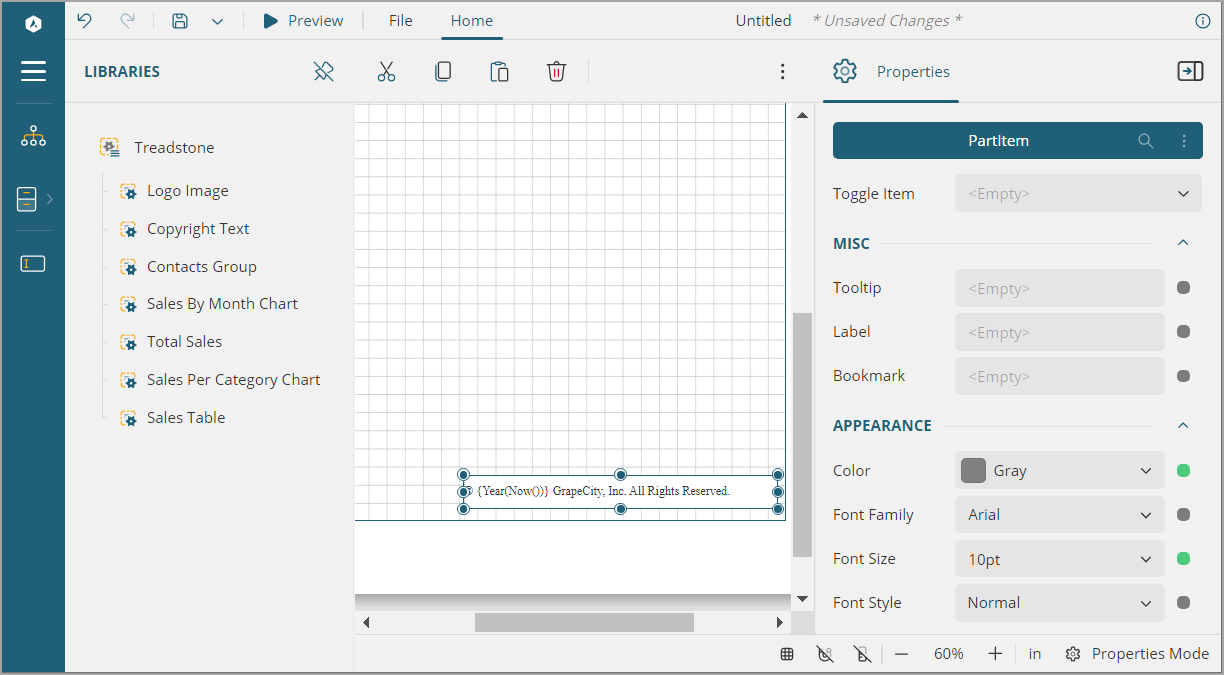
Upon running the sample, you can see a customized web designer with almost all standard UI removed and the report libraries panel available and opened by default.
To observe how a library is created, go to the File menu > libraries and open 'Treadstone.rdlx' report. This is a multi-section report with three sections Cards, Tables, and Charts. All report parts that are available in this library can be viewed from the Report Parts property of the report.
The following image shows a textbox configured as a report part with its properties visible in the Properties panel.
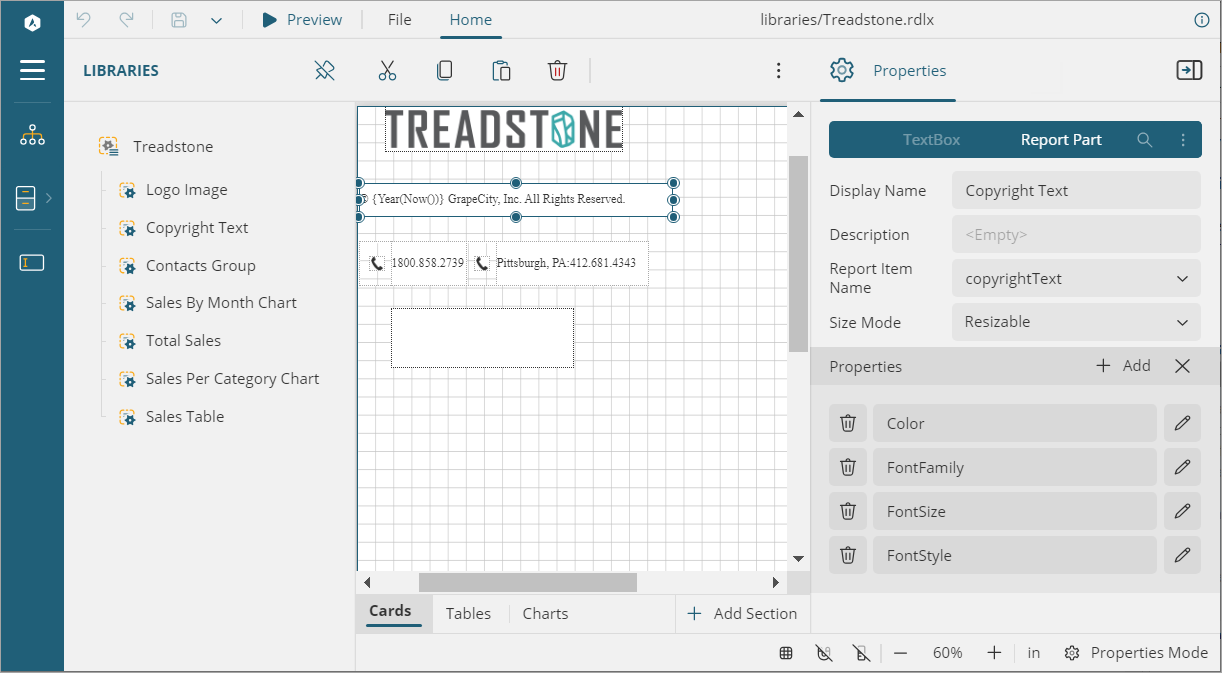
The 'Treadstone' library contains report parts as shown in the table below. The table describes the custom property of each report part, the original report item linked to the report part, and the expression used for referencing the report part properties into the report item's property.
Report Part | Custom properties of the Report Part* | Linked Original Report Item | Corresponding Report Item property and the Expression |
|---|---|---|---|
Logo | BorderColor | Image | Border > Color > Default {PartProperties!BorderColor.Value} |
BorderStyle | Border > Style > Default {PartProperties!BorderStyle.Value} | ||
BorderWidth | Border > Width > Default {PartProperties!BorderWidth.Value} | ||
Copyright | Color | TextBox | Text > Color {PartProperties!Color.Value} |
FontFamily | Text > Font Family {PartProperties!FontFamily.Value} | ||
FontSize | Text > Font Size {PartProperties!FontSize.Value} | ||
FontStyle | Text > Font Style {PartProperties!FontStyle.Value} | ||
Contacts | Color | Container. The properties are applied on the text boxes it contains. | Text > Color {PartProperties!Color.Value} |
FontFamily | Text > Font Family {PartProperties!FontFamily.Value} | ||
FontSize | Text > Font Size {PartProperties!FontSize.Value} | ||
FontStyle | Text > Font Style {PartProperties!FontStyle.Value} | ||
salesByMonth | Title | Chart | Select Chart's Header > Caption {PartProperties!Title.Value} |
BackgroundColor | Background >Color {PartProperties!BackgroundColor.Value} | ||
totalSales | Caption | FormattedText | The corresponding expressions are used in the 'Html' property as shown. |
ValueFont | |||
ValueFontSize | |||
ValueFontStyle | |||
salesPerCategoryChart | Title | Chart | Select Chart's Header > Caption {PartProperties!Title.Value} |
BackgroundColor | Background > Color {PartProperties!BackgroundColor.Value} | ||
SalesTable | HeaderTextColor | Tablix | Select Table Header's TextBox: Text > Color {PartProperties!HeaderTextColor.Value} |
HeaderBgColor | Background > Color {PartProperties!HeaderBgColor.Value} | ||
HeaderBorderColor | Border > Color > Default {PartProperties!HeaderBorderColor.Value} |
*For complete list of custom properties in each report part, check the sample.
Try drag-and-dropping report parts from the Libraries panel to the report body, and modifying the custom properties, and previewing the result.