


- Introduction
- Report Readers
-
Report Authors
- Standalone Designer
- WebDesigner
- Report Types
- Report Controls
- Report Wizard
- Data Binding
-
Design Reports
-
Design Page/RDLX Reports
-
Layout
- Set Margins, Page Size, Paper Orientation, and Size Source in Page Reports
- Set Margins, Page Size, Paper Orientation, and Size Source in RDLX Reports
- Set Size in RDLX Dashboard Reports
- Skip Page Generation in Page Reports
- Set Page Layout in Z- or N-Order
- Manage Blank Rows in a Table Data Region in Page Reports
- Hide or Show Sections in RDLX and RDLX Dashboard Reports
- Keep Groups Together in Data Regions
- Manage Page Breaks in Data Regions
- Report Dialog
- Master Report (RDLX Report)
- Layers
- Expressions
- Data Visualizers
- Filters
- Groups
- Interactivity
- Scripts
- Report Appearance
- Tutorials: Report Controls in Page/RDLX Reports
- Tutorials: Page/RDLX Report Scenarios
-
Layout
- Design Section Reports
-
Design Page/RDLX Reports
- DevOps
- Developers
- Samples
- Troubleshooting
Set Margins, Page Size, Paper Orientation, and Size Source in RDLX Reports
Page layout properties control how an RDLX report appears when previewed, printed, or exported. These properties define the printable area of the report and affect pagination, print output, and rendering.
In RDLX reports, page layout settings are defined for each report section. This allows different sections in the same report to use different page settings.
Page Layout Properties
The following properties are available for configuring page layout in an RDLX report section.
Margins
Page margin is a space between the edge of the page and the report content. You can set the page margins using the Margins property of the report section from the Properties panel.
By default, the value of page margins (left, right, top, and bottom) is set to 1 in.
Page Size
You can change the default page size using the PageSize property of the report section from the Properties panel and set it to the standard sizes such as Letter, Tabloid, Legal, Statement, Executive, A3, A4, A5, B4 (JIS), and B5 (JIS). You can also manually input the values in the Width and Height properties to customize the report section size.
Paper Orientation
The paper orientation is how the rectangular report section is oriented. While Portrait orientation is suitable for the text expanding in a vertical direction, Landscape orientation is suitable for horizontally expanding content like in Tablix data regions. You can specify the report page orientation using the PaperOrientation property of the section from the Properties panel.
By default, the PaperOrientation property is set to Portrait.
Size Source
Use the Size Source property in RDLX reports to select the source of paper sizes shown in the PageSize list. This setting is available only at design time.
The available options are:
Default Printer - Shows paper sizes supported by the system default printer. This is the default option.
Selected Printer - Lets you select a locally installed printer. The PageSize list displays the paper sizes supported by that printer.
Standard List - Shows the built-in standard paper sizes.
When you select a size source, the PageSize list updates automatically.
Configure Page Settings in New Report Wizard
When you create an RDLX report, you can set the page size options in the wizard.
In the New Report Wizard, choose the report type as RDLX - Continuous Page Layout.
In the New RDLX Report - Continuous Page Layout screen, specify the following settings as needed:
Size Source
Size
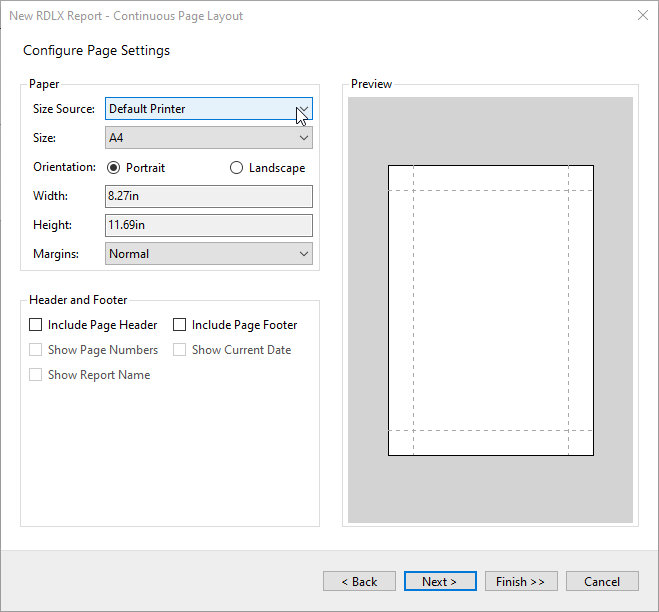
Complete the wizard.
After the report is created, you can configure additional page layout settings such as Margins, PaperOrientation, Width, and Height in the Properties panel.
Configure Page Settings in Properties Panel
Open the RDLX report in the designer.
Select the report section.
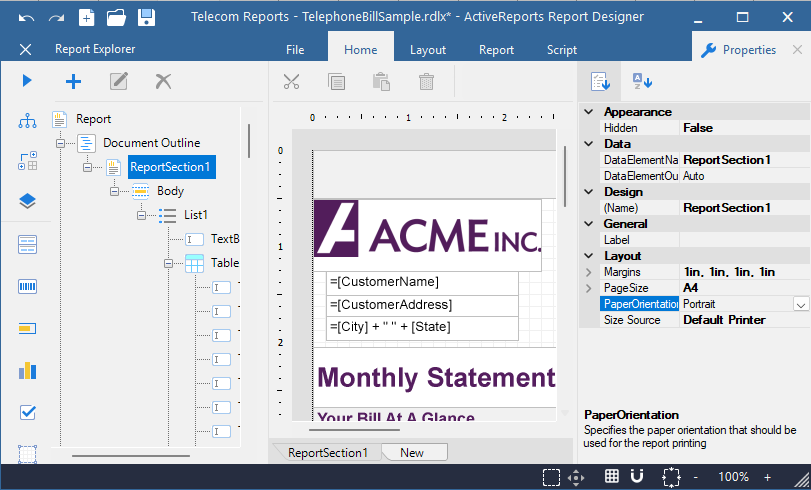
In the Properties panel, set the following properties as needed:
Margins
Specify the Left, Right, Top, and Bottom margin values.
SizeSource
Select the source for the paper sizes displayed in the PageSize list.
PageSize
Select a paper size from the available list.
Width and Height
Enter custom dimensions if you want to use a custom page size.
PaperOrientation
Select Portrait or Landscape.