-
Spread for ASP.NET Product Documentation
-
Developer's Guide
- Getting Started
- Understanding the Product
- Namespaces Overview
- Working with the Spread Designer
- Customizing User Interaction
- Customizing the Appearance
- Customizing with Cell Types
- Managing Data Binding
- Managing Data in the Component
- Managing Formulas
- Managing File Operations
- Using Sheet Models
- Maintaining State
- Working with the Chart Control
- Using Touch Support with the Component
- Assembly Reference
- Client-Side Scripting Reference
- Import and Export Reference
-
Developer's Guide
Setting Up the Rows and Columns of the Register
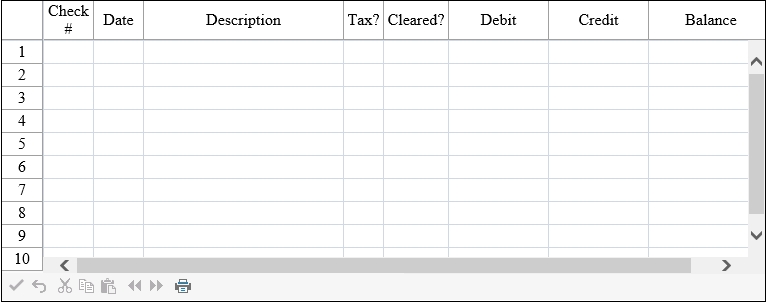
The Spread component on your form already has a sheet, ready for you to configure. In this step, you are going to set up the columns and cells in the sheet to resemble a checkbook register.
Double-click on the form in your project to open the code window.
Select the line of code
// Put user code to initialize the page here.'Put user code to initialize the page here.and type the following code to replace it:
if (this.IsPostBack) return;
// Set up component and rows and columns in sheet.
FpSpread1.Height = Unit.Pixel(300);
FpSpread1.Width = Unit.Pixel(763);
FpSpread1.Sheets[0].ColumnCount = 8;
FpSpread1.Sheets[0].RowCount = 100;
If (IsPostBack) Then Return End If ' Set up component and rows and columns in sheet. FpSpread1.Height = Unit.Pixel(300) FpSpread1.Width = Unit.Pixel(763) FpSpread1.Sheets(0).ColumnCount = 8 FpSpread1.Sheets(0).RowCount = 100This code sets up the component to be 300 pixels high and 763 pixels wide, and the sheet to have 8 columns and 100 rows.
Now we need to set up the columns to have custom headings. Add the following code below the code you added in Step 2:
// Add text to column heading.
FpSpread1.ColumnHeader.Cells[0, 0].Text = "Check #";
FpSpread1.ColumnHeader.Cells[0, 1].Text = "Date";
FpSpread1.ColumnHeader.Cells[0, 2].Text = "Description";
FpSpread1.ColumnHeader.Cells[0, 3].Text = "Tax?";
FpSpread1.ColumnHeader.Cells[0, 4].Text = "Cleared?";
FpSpread1.ColumnHeader.Cells[0, 5].Text = "Debit";
FpSpread1.ColumnHeader.Cells[0, 6].Text = "Credit";
FpSpread1.ColumnHeader.Cells[0, 7].Text = "Balance";
' Add text to column heading. FpSpread1.ColumnHeader.Cells(0, 0).Text = "Check #" FpSpread1.ColumnHeader.Cells(0, 1).Text = "Date" FpSpread1.ColumnHeader.Cells(0, 2).Text = "Description" FpSpread1.ColumnHeader.Cells(0, 3).Text = "Tax?" FpSpread1.ColumnHeader.Cells(0, 4).Text = "Cleared?" FpSpread1.ColumnHeader.Cells(0, 5).Text = "Debit" FpSpread1.ColumnHeader.Cells(0, 6).Text = "Credit" FpSpread1.ColumnHeader.Cells(0, 7).Text = "Balance"Now set up the column widths to properly display our headings and the data you will add. Add the following code below the code you added in Step 3:
// Set column widths.
FpSpread1.Sheets[0].Columns[0].Width = 50;
FpSpread1.Sheets[0].Columns[1].Width = 50;
FpSpread1.Sheets[0].Columns[2].Width = 200;
FpSpread1.Sheets[0].Columns[3].Width = 40;
FpSpread1.Sheets[0].Columns[4].Width = 65;
FpSpread1.Sheets[0].Columns[5].Width = 100;
FpSpread1.Sheets[0].Columns[6].Width = 100;
FpSpread1.Sheets[0].Columns[7].Width = 125;
' Set column widths. FpSpread1.Sheets(0).Columns(0).Width = 50 FpSpread1.Sheets(0).Columns(1).Width = 50 FpSpread1.Sheets(0).Columns(2).Width = 200 FpSpread1.Sheets(0).Columns(3).Width = 40 FpSpread1.Sheets(0).Columns(4).Width = 65 FpSpread1.Sheets(0).Columns(5).Width = 100 FpSpread1.Sheets(0).Columns(6).Width = 100 FpSpread1.Sheets(0).Columns(7).Width = 125Save your project, then from the Debug menu choose Start to run your project.
Your ASP.NET page should look similar to the following picture.