


Touch Selections
This topic describes selection behavior in touch-enabled environments.
In mouse-based interaction, selections use a fill handle in the bottom-right corner of the active cell. In touch-enabled environments, circular selection indicators (also called selection grippers) appear at the corners of the selected range and are used to resize the selection.
Selection Indicators
Selection indicators appear at the top-left and bottom-right corners of a selected range.
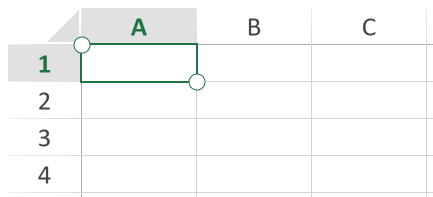
These indicators allow you to adjust the selection by dragging.
Select a Cell or Cell Range
Tap a cell to select it. Selection indicators appear at the corners of the cell.
Press and drag a selection indicator.
Release to complete the selection.
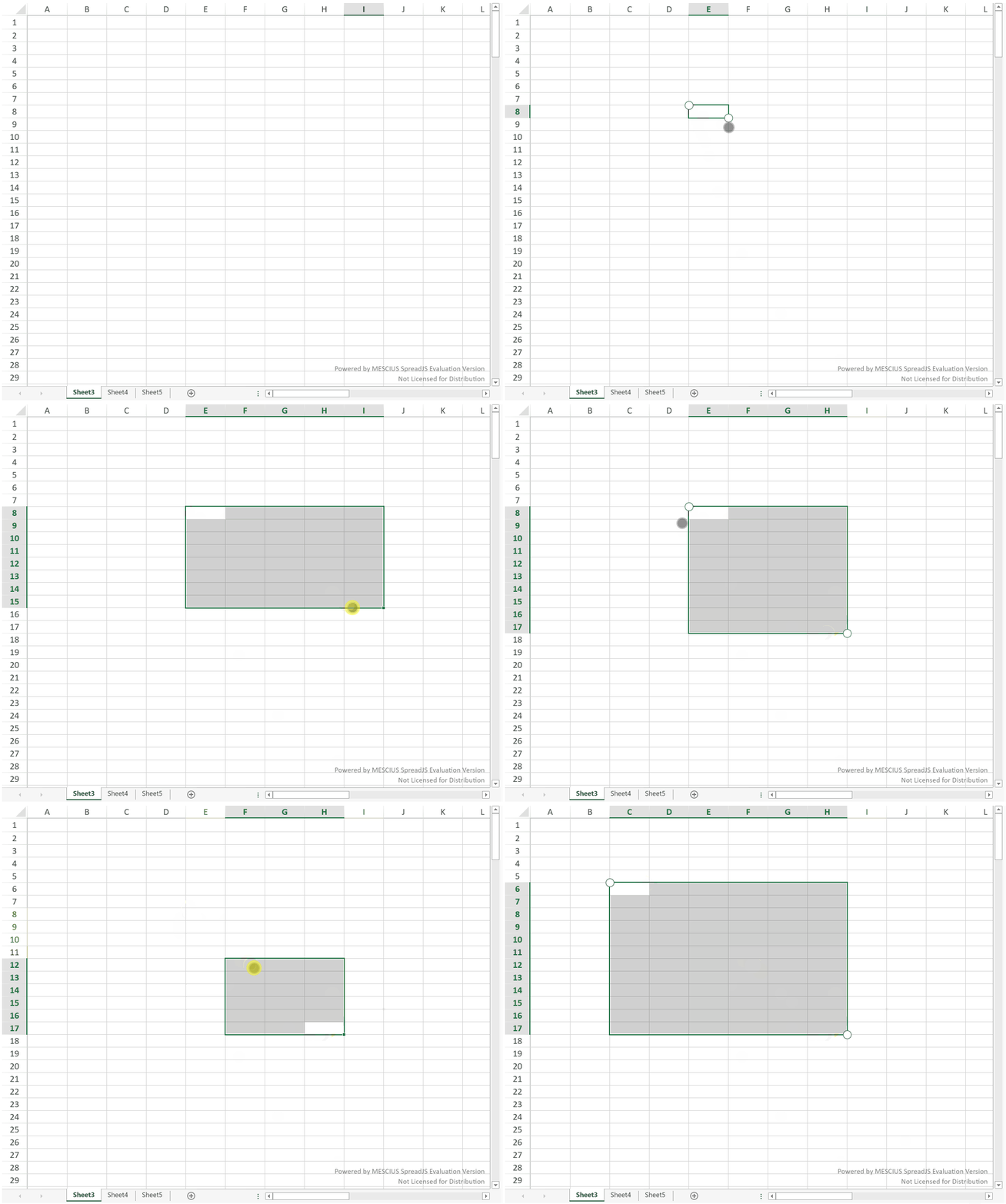
The selected range expands based on the drag direction.
Select a Row or Column
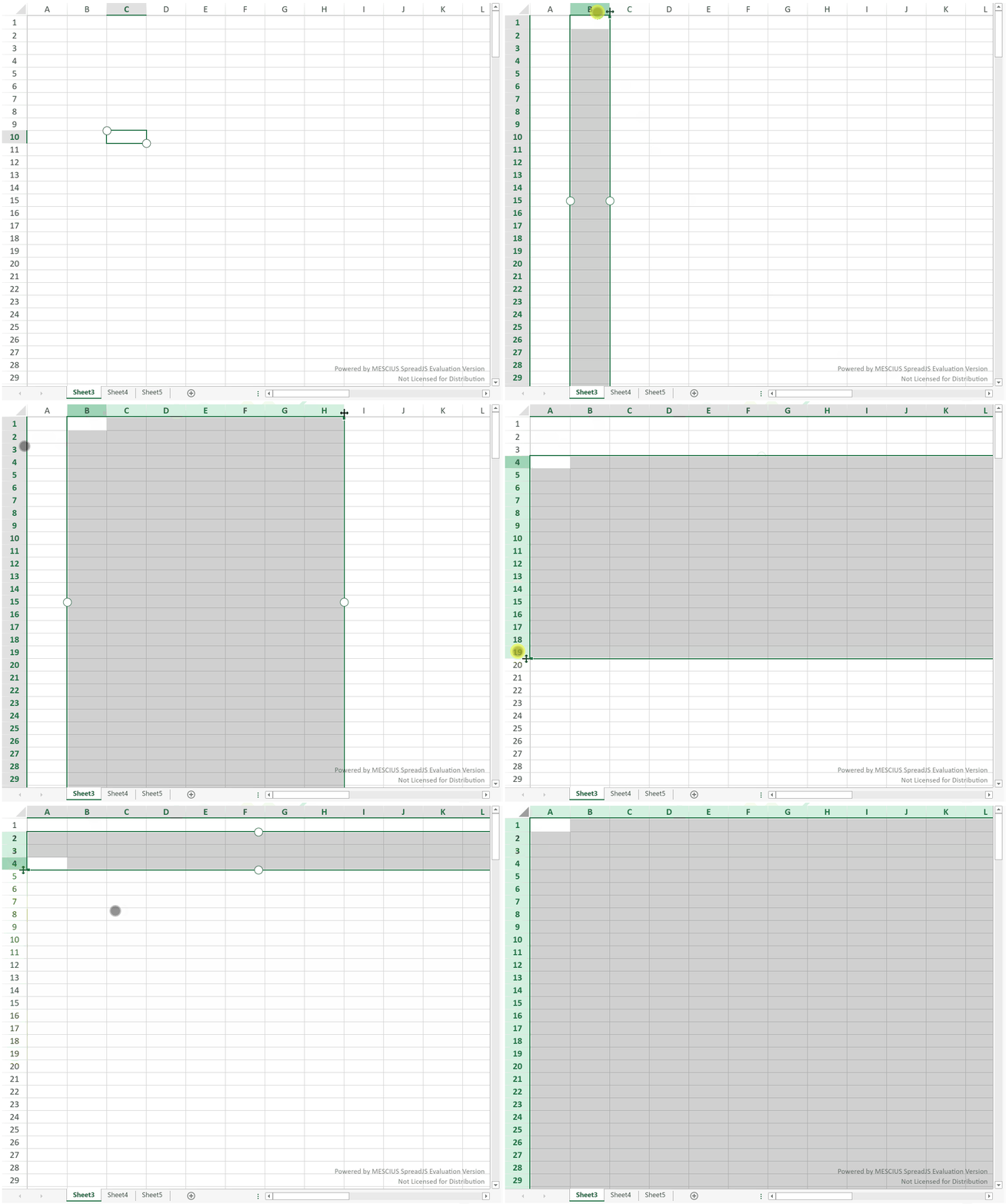
Tap a row header to select an entire row.
Tap a column header to select an entire column.
After selecting a row or column, you can drag a selection indicator to extend the selection across multiple rows or columns.
To select the entire worksheet, tap the corner header.
Select Multiple Ranges
Multiple range selection follows the standard keyboard interaction model and requires a keyboard.
In environments where a keyboard is available:
Select a range.
Press and hold the Ctrl key.
Tap a new cell to start another selection.
Release the Ctrl key.
Drag a selection indicator to adjust the new range if needed.
In touch-only environments without a keyboard, multiple range selection is not available.
Customize the Selection Indicator
You can customize the size of the touch selection indicator using CSS.
Define the width property of the .sjs-touch-selection-indicator class:
.sjs-touch-selection-indicator {
  width: 16px;
}
The default size is 16px.
The supported range is 8px to 32px.
If the class or width property is not defined, the default size is used.
The interactive hit area of the indicator is automatically adjusted to improve touch usability.