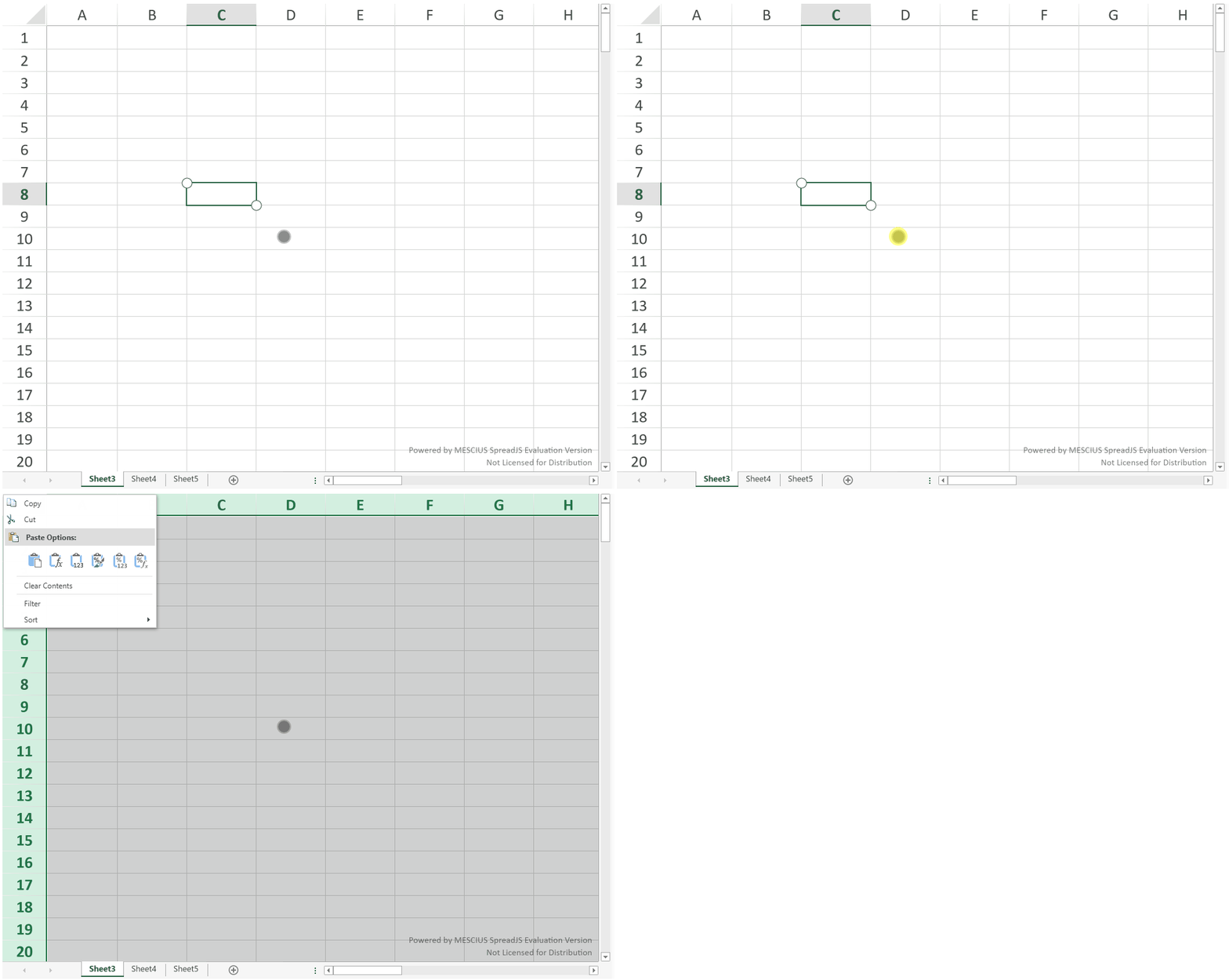
Touch Interactions
Touch-enabled environments provide visual and interaction differences compared to mouse-based input. The following sections summarize how common spreadsheet operations behave when using touch input.
Touch Selection
In touch-enabled environments, selection indicators (circular handles) appear at the corners of the selected range instead of the mouse fill handle.
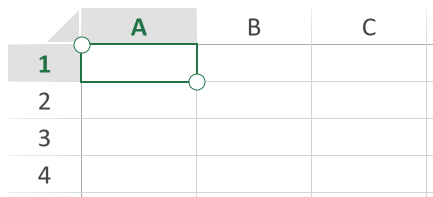
See Touch Selections for detailed behavior.
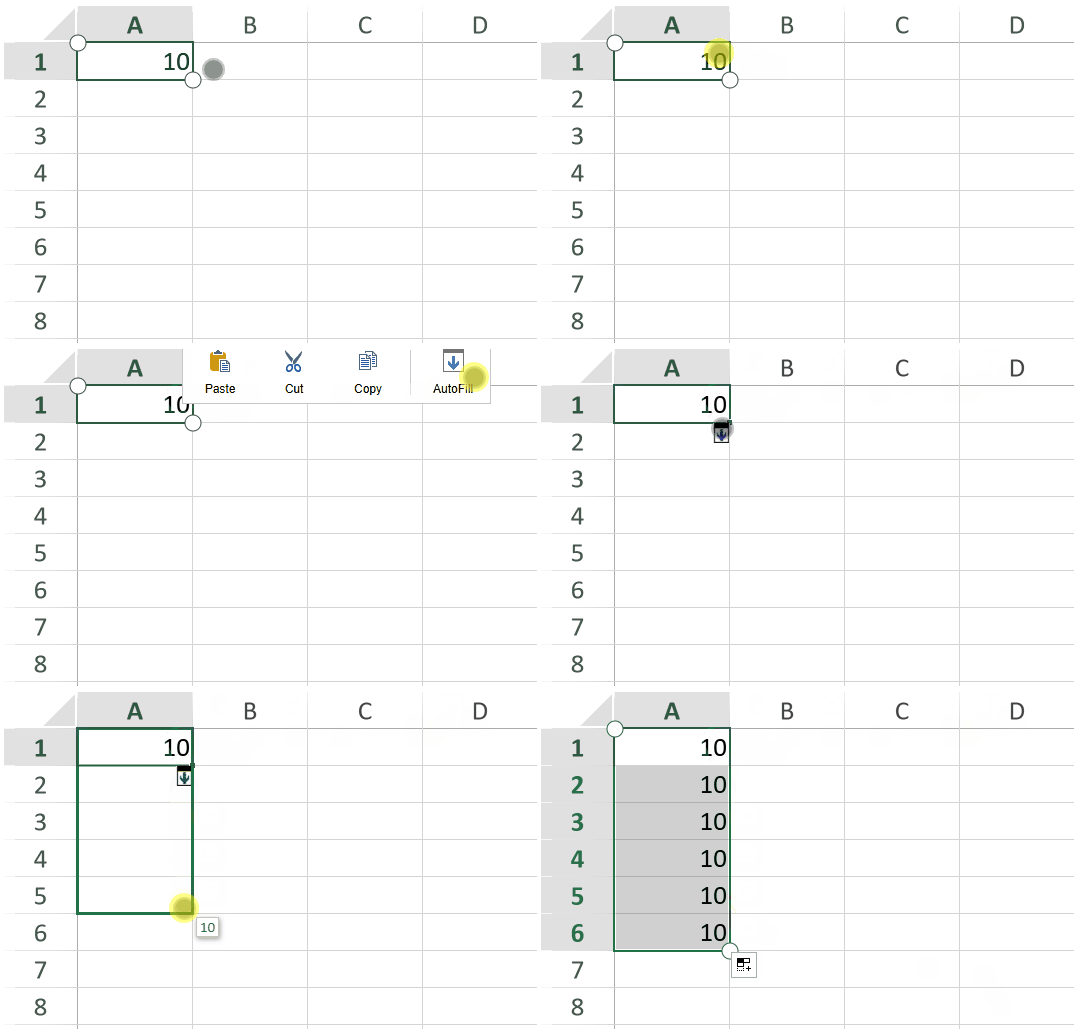
Touch Drag Fill
Drag fill is initiated from the Touch Toolbar. When AutoFill is selected, a drag fill indicator appears at the bottom-right corner of the selection.
Touch Resizing
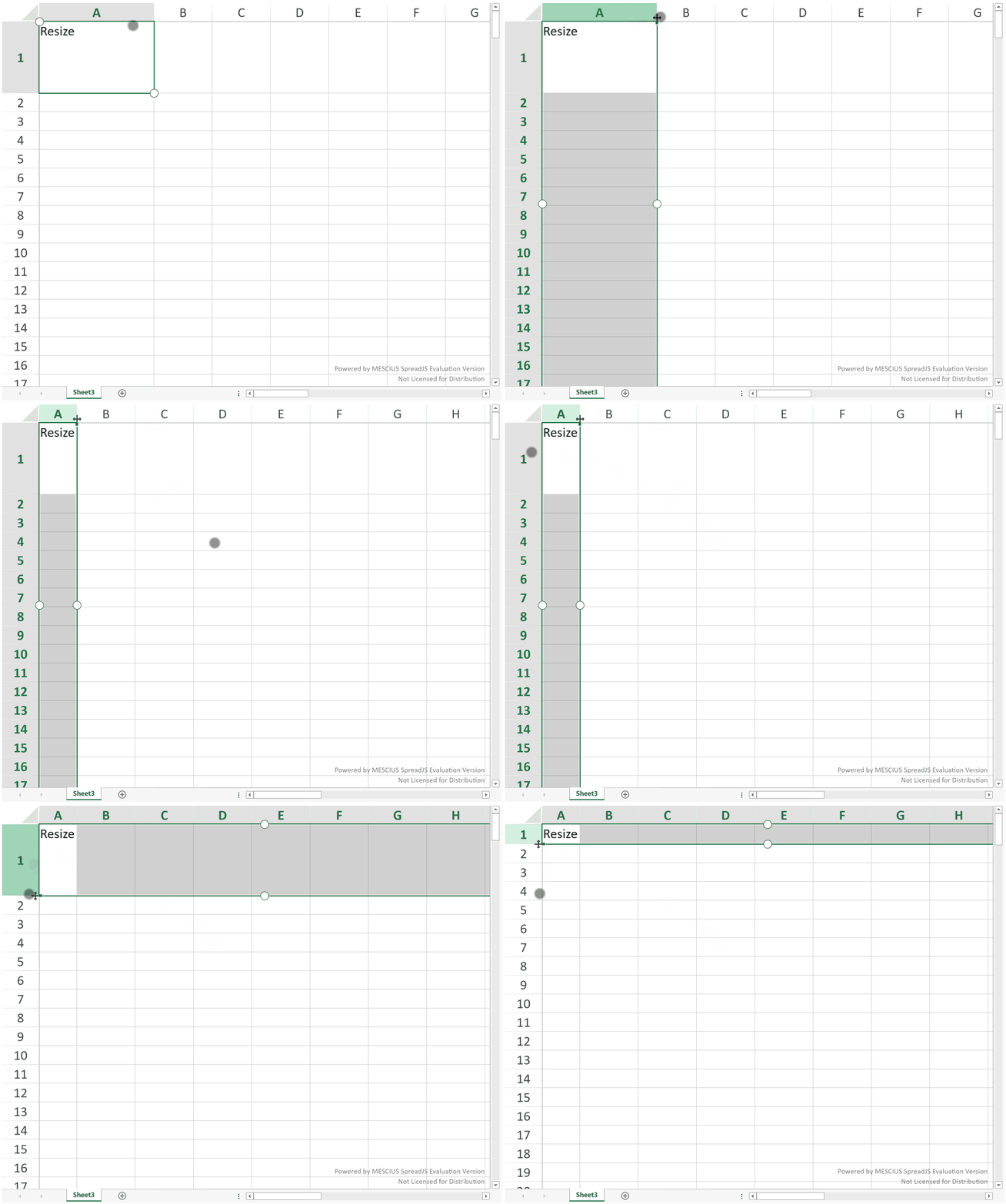
Columns and rows can be resized by dragging the resize handle .
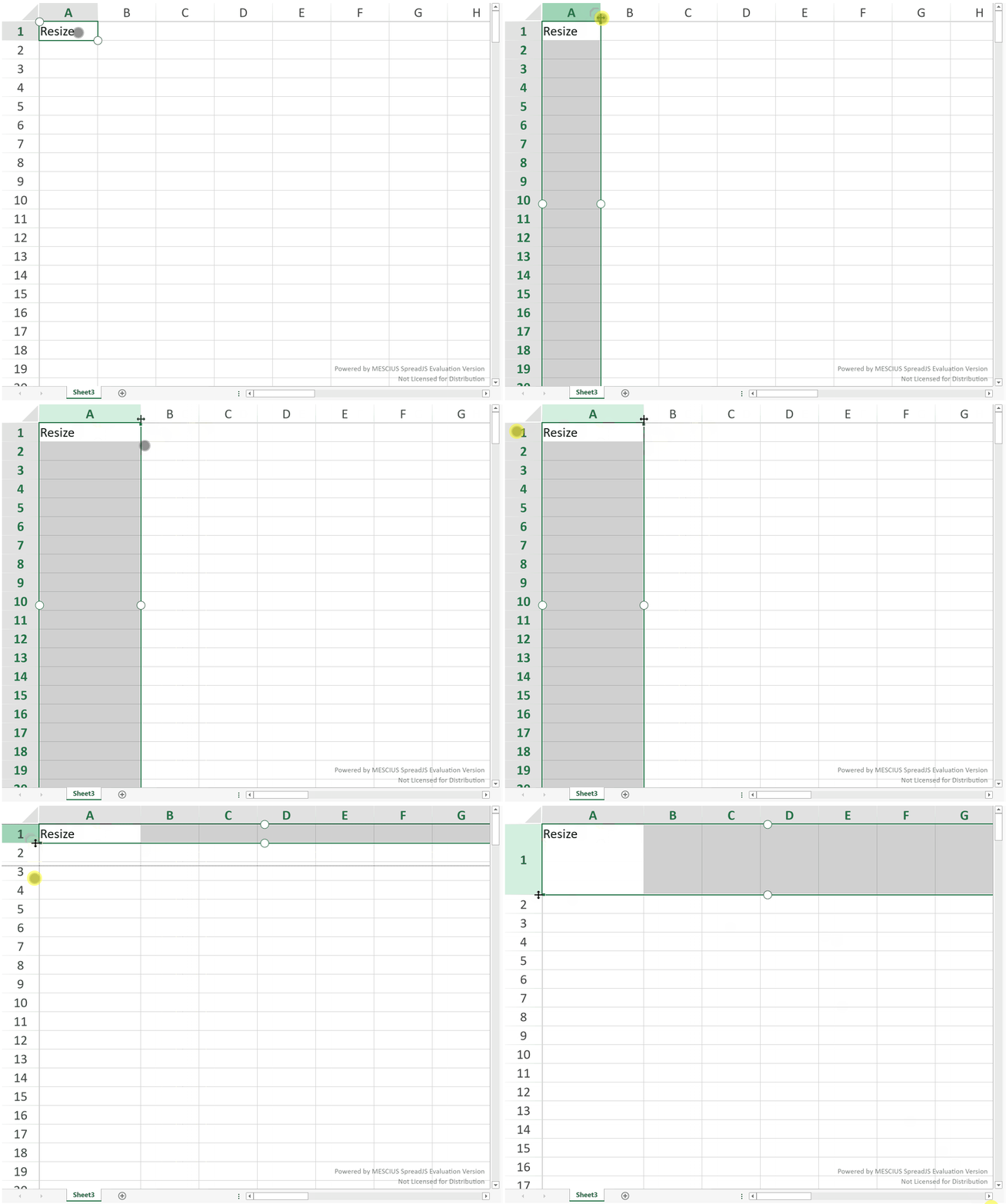
Double-tap the resize handle to automatically fit the content.
Touch Scrolling
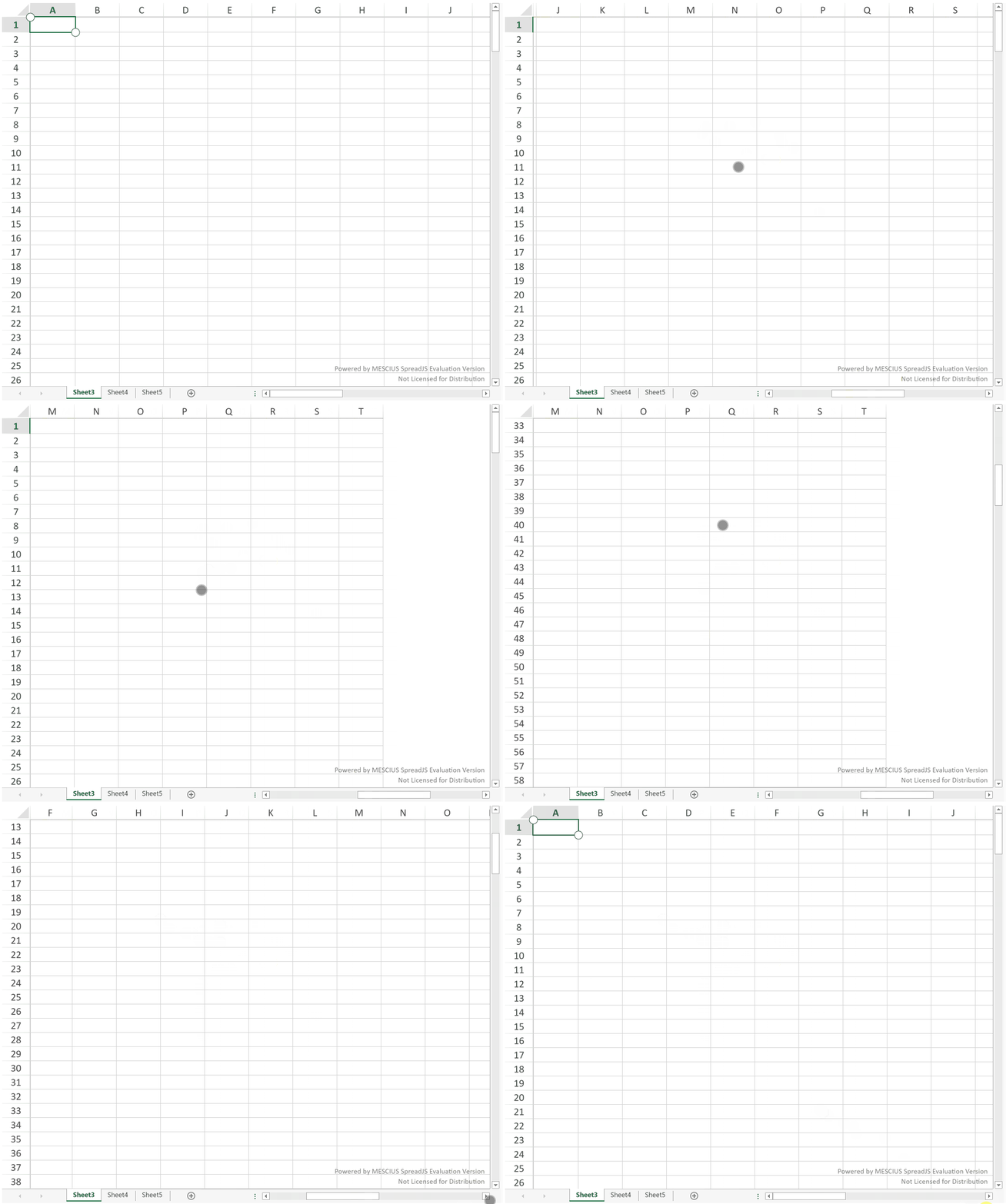
Scrolling supports vertical, horizontal, and diagonal movement with inertia. Flick gestures continue scrolling after release.
Touch Zooming
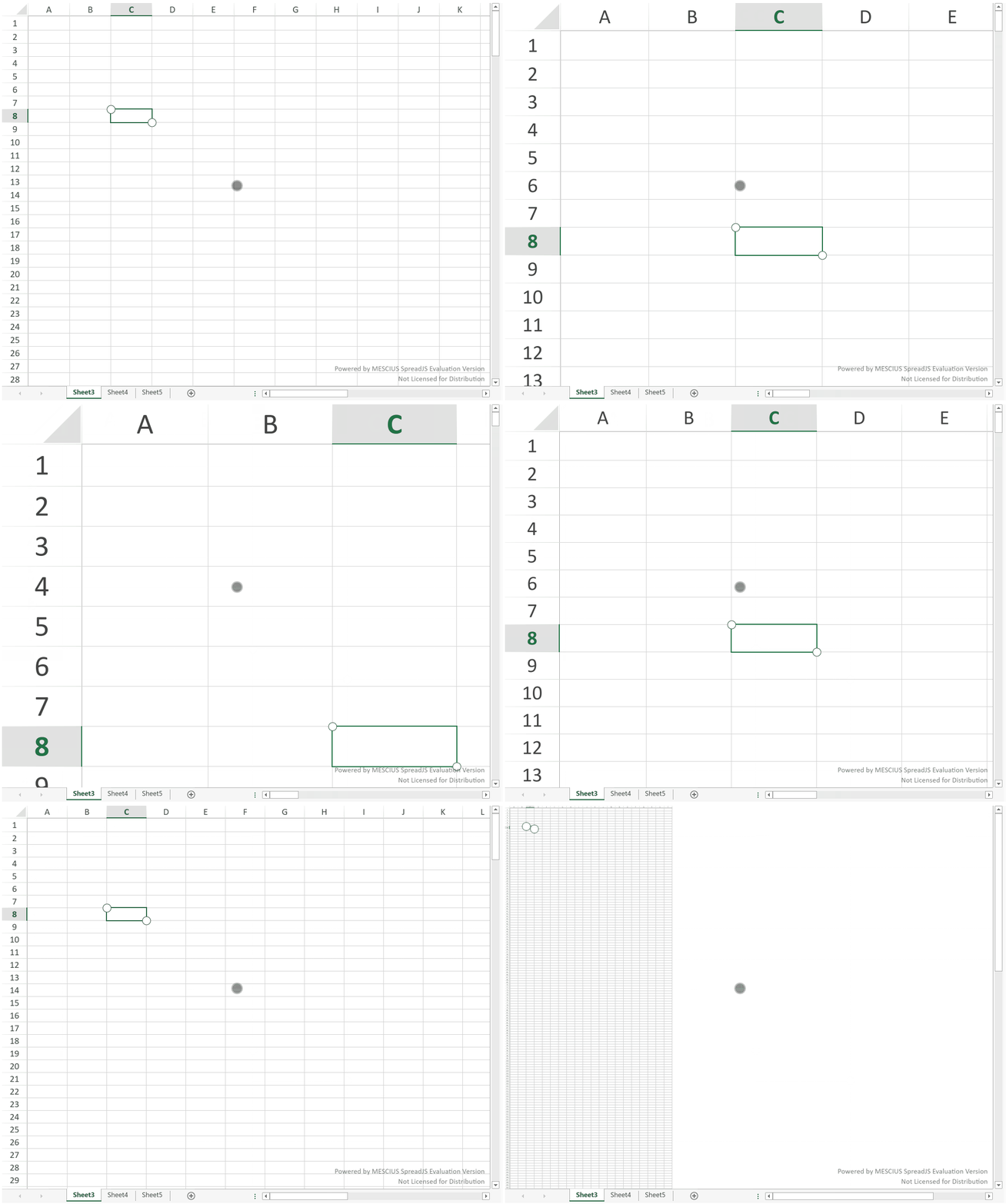
Zooming is performed using pinch gestures
Touch Tab Strip
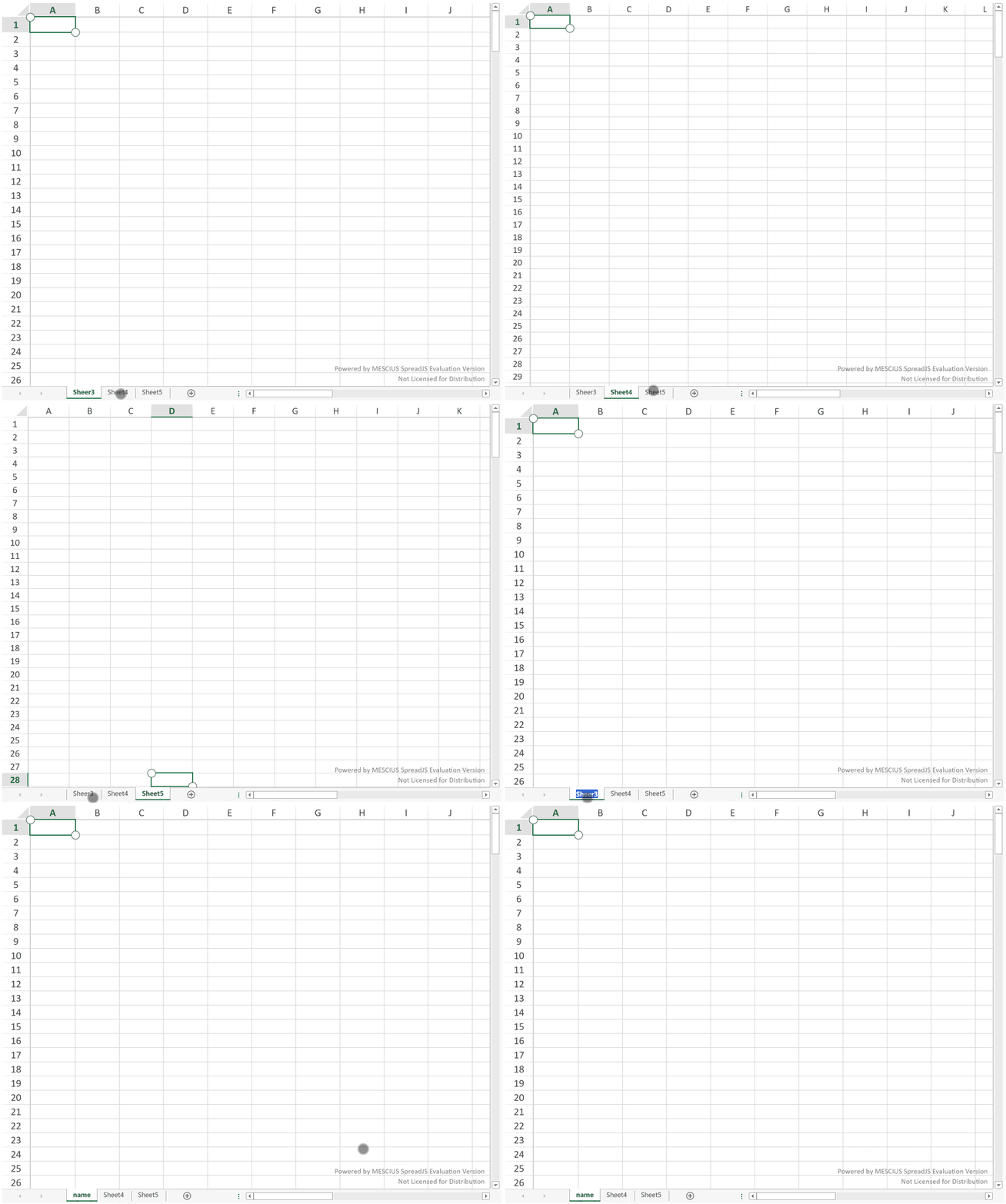
Tap a sheet tab to switch sheets. Double-tap to edit the sheet name when editing is enabled.
Touch Context Menu
A two-finger tap opens the context menu, similar to a right-click in mouse-based interaction.
The context menu displays available commands based on the current selection and worksheet state.