


How to Import and Export Excel XLSX Using Node.js
This tutorial shows how to import and export Excel (.xlsx) files using SpreadJS, a JavaScript spreadsheet component, in a Node.js + Express app. The server does the import/export work and the client displays the result in a SpreadJS workbook.
Workflow:
Client: Excel file is requested from server via api endpoint
Server: Excel file is imported using SpreadJS in Node.js service
Server: Excel file is hydrated and sent to client via API endpoint
Client: Excel file is loaded in SpreadJS to be displayed in browser
You can download the full sample to run locally.
Set up the Node.js project
We will start with an empty project and add a ‘server’ and ‘client’ directory for hosting each part.
Install the required packages:
cd server
npm install express cors @mescius/spread-sheets @mescius/spread-sheets-io @mescius/spread-sheets-shapes @mescius/spread-sheets-charts jsdom canvas filereader
For this example, the server is a single file: server/index.js.
The server will expose a single route (/api/file) that reads the spreadsheet, updates it, and returns it as a response.
Add Imports and Shims to Server
In order to use SpreadJS in Node.js, we need to include and setup some shims, including jsdom and canvas (as a mock browser in memory).
import express from 'express';
import cors from 'cors';
import * as jsdom from 'jsdom';
import * as canvas from 'canvas';
import FileReader from 'filereader';

// minimal DOM/FileReader shims for SpreadJS in Node
const { window } = new jsdom.JSDOM();

globalThis.FileReader = FileReader;
globalThis.window = window;
globalThis.document = window.document;
const oldCreateElement = window.document.createElement;
window.document.createElement = function (eleStr) {
  if (eleStr === 'canvas') {
    return canvas.createCanvas(200, 200);
  }
  return oldCreateElement.apply(this, arguments);
};
window.document.dispatchEvent = function () { return true; };
if (!globalThis.navigator) {
  globalThis.navigator = window.navigator;
}

globalThis.HTMLElement = window.HTMLElement;
globalThis.HTMLCollection = window.HTMLCollection;
globalThis.NodeList = window.NodeList;
globalThis.getComputedStyle = window.getComputedStyle;
globalThis.self = globalThis;
Excel File Stored on Server
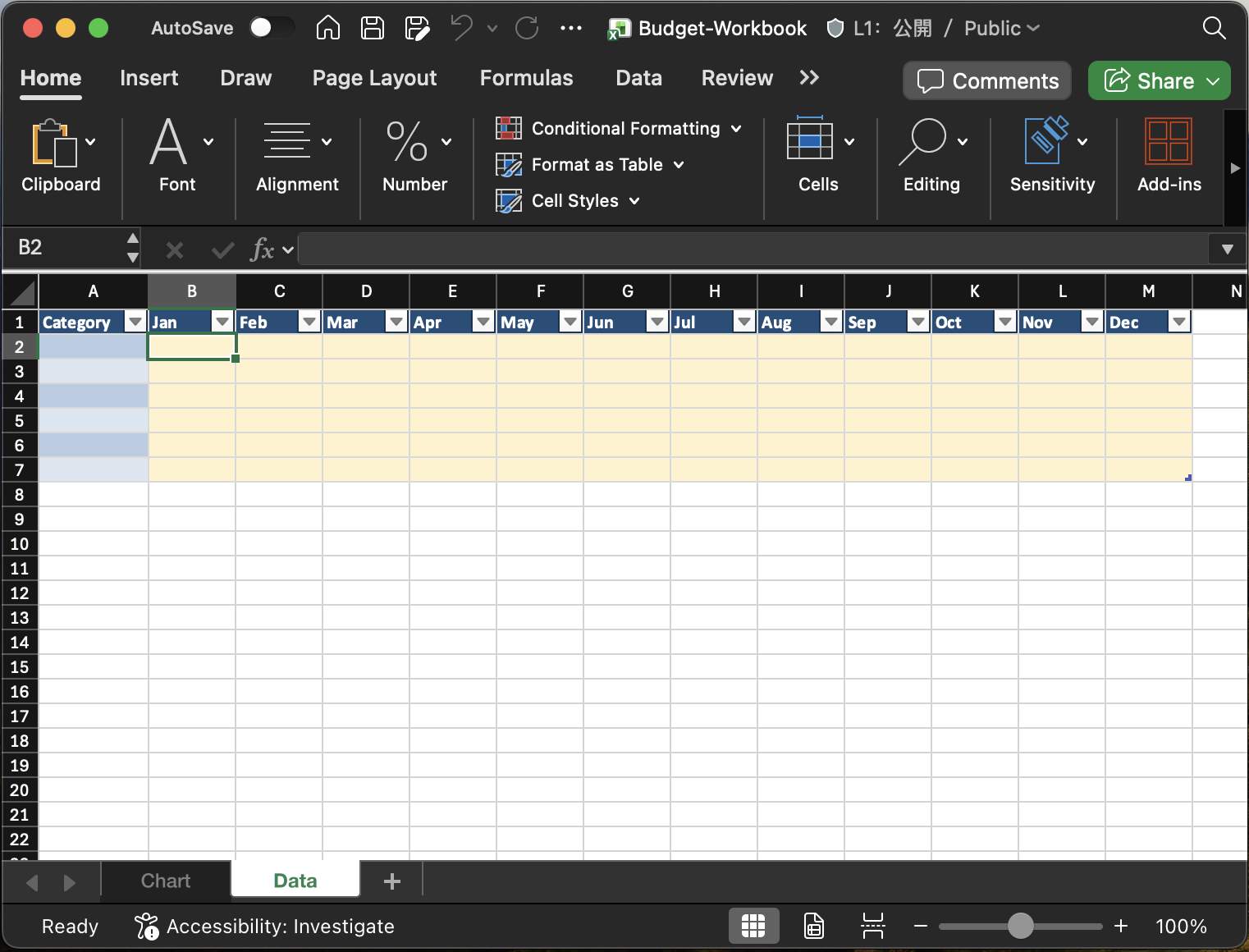
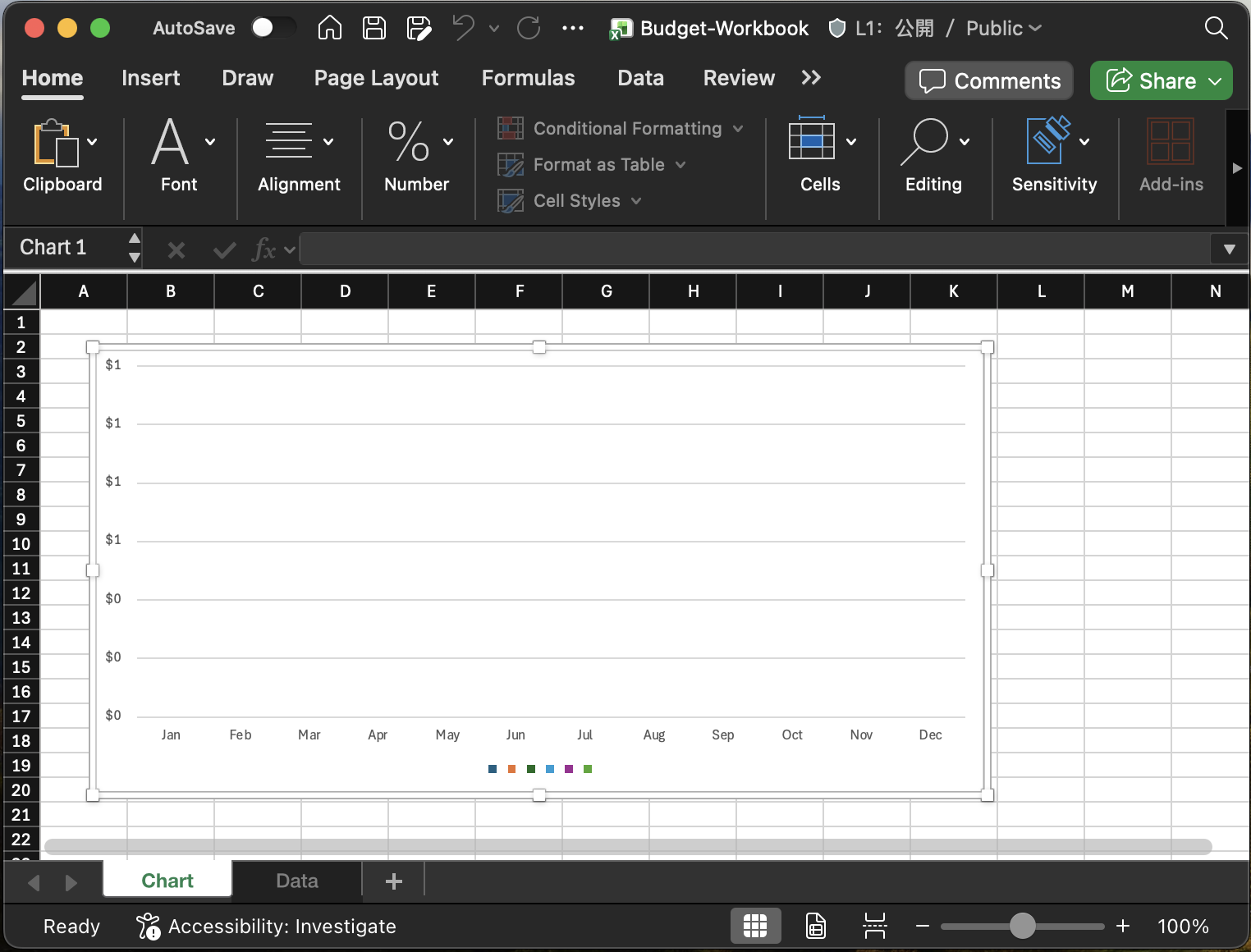
This Excel file is an empty Budget workbook and is meant to be hydrated with data. It contains 2 sheets.
It has a ‘Data’ sheet that has an empty table in it. This table will be populated when we hydrate the workbook.
It also has a ‘Chart’ sheet that is bound to the table in the Data sheet. So when the Workbook is hydrated, the chart will display the data.
Put this file in the 'server/assets' directory.
Add Server-side Code to Import, Hydrate and Return XLSX File
Now, we can fully utilize SpreadJS in the server to import, then hydrate and finally return the Excel file to the client.
This code:
loads SpreadJS and the IO module
reads ‘
assets/Budget-Workbook.xlsx’ from diskimports it into a SpreadJS Workbook instance
hydrates the workbook (for example, binds data to the table in the ‘Data’ sheet)
exports the workbook to XLSX and returns it as a response
async function main() {
  const GC = await import('@mescius/spread-sheets');
  await import('@mescius/spread-sheets-io');
  await import('@mescius/spread-sheets-shapes');
  await import('@mescius/spread-sheets-charts');

  // license key (required for SpreadJS import/export)
  GC.Spread.Sheets.LicenseKey = '<your license key>';

  const app = express();
  app.use(cors());

  app.get('/api/file', async function (req, res, next) {
    try {
      const fs = await import('fs/promises');
      const buffer = await fs.readFile(new URL('./assets/Budget-Workbook.xlsx', import.meta.url));

      const fileBlob = {
        name: 'Budget-Workbook.xlsx',
        type: 'application/vnd.openxmlformats-officedocument.spreadsheetml.sheet',
        size: buffer.length,
        buffer
      };

      const workbook = new GC.Spread.Sheets.Workbook();
      workbook.import(fileBlob, function () {
        const sheet = workbook.getSheetFromName('Data');
        // make any changes to the workbook here
        let monthlyData = {
           data: [
             {
               "Category": "Headcount",
               "Jan": 6998,
               "Feb": 8184,
               "Mar": 6298,
               "Apr": 9882,
               "May": 7582,
               "Jun": 9463,
               "Jul": 8118,
               "Aug": 6592,
               "Sep": 8215,
               "Oct": 5068,
               "Nov": 6625,
               "Dec": 8437
             },
             {
               "Category": "Travel",
               "Jan": 5088,
               "Feb": 6840,
               "Mar": 8943,
               "Apr": 9919,
               "May": 6631,
               "Jun": 8132,
               "Jul": 9776,
               "Aug": 5921,
               "Sep": 7085,
               "Oct": 9303,
               "Nov": 9541,
               "Dec": 9387
             },
             {
               "Category": "Software",
               "Jan": 8980,
               "Feb": 7643,
               "Mar": 9043,
               "Apr": 7600,
               "May": 5890,
               "Jun": 5140,
               "Jul": 5056,
               "Aug": 8994,
               "Sep": 5881,
               "Oct": 9082,
               "Nov": 6967,
               "Dec": 5002
             },
             {
               "Category": "Contractors",
               "Jan": 7642,
               "Feb": 7375,
               "Mar": 7327,
               "Apr": 9159,
               "May": 5646,
               "Jun": 7064,
               "Jul": 5426,
               "Aug": 8454,
               "Sep": 7804,
               "Oct": 5837,
               "Nov": 6742,
               "Dec": 8369
             },
             {
               "Category": "Facilities",
               "Jan": 8312,
               "Feb": 5768,
               "Mar": 7567,
               "Apr": 7408,
               "May": 7408,
               "Jun": 6224,
               "Jul": 7026,
               "Aug": 6134,
               "Sep": 9227,
               "Oct": 7666,
               "Nov": 7218,
               "Dec": 6893
             },
             {
               "Category": "Other",
               "Jan": 9780,
               "Feb": 6768,
               "Mar": 8204,
               "Apr": 7396,
               "May": 8370,
               "Jun": 9756,
               "Jul": 8887,
               "Aug": 6123,
               "Sep": 8398,
               "Oct": 5325,
               "Nov": 7759,
               "Dec": 7893
             }
           ]
         };
         if (sheet) {
           const tbl = sheet.tables.findByName('TableMonthlyData');
           if (tbl) {
             sheet.suspendPaint();
             tbl.autoGenerateColumns(true);
             tbl.bind([], 'data', monthlyData);
             sheet.resumePaint();
           }
         }
        workbook.export(async function (blob) {
          const arrayBuffer = await blob.arrayBuffer();
          const out = Buffer.from(arrayBuffer);
          res.set({
            'Content-Type': 'application/vnd.openxmlformats-officedocument.spreadsheetml.sheet',
            'Content-Disposition': 'attachment; filename="Budget-Workbook.xlsx"',
            'Content-Length': out.length
          });
          res.send(out);
        }, function (err) {
          next(err);
        }, { fileType: GC.Spread.Sheets.FileType.excel, includeBindingSource: true });

      }, function (err) {
        next(err);
      }, { fileType: GC.Spread.Sheets.FileType.excel, dynamicReferences: false });

    } catch (err) {
      next(err);
    }
  });

  const port = process.env.PORT || 3038;
  app.listen(port, function () {
    console.log(`Server listening on ${port}`);
  });
}

main().catch((err) => {
  console.error(err);
});
The client displays the imported workbook and can export it back to a file from the client.
Run the Client
To run the client, in terminal run:
npm run devNote: Make sure to run both the server AND client projects locally
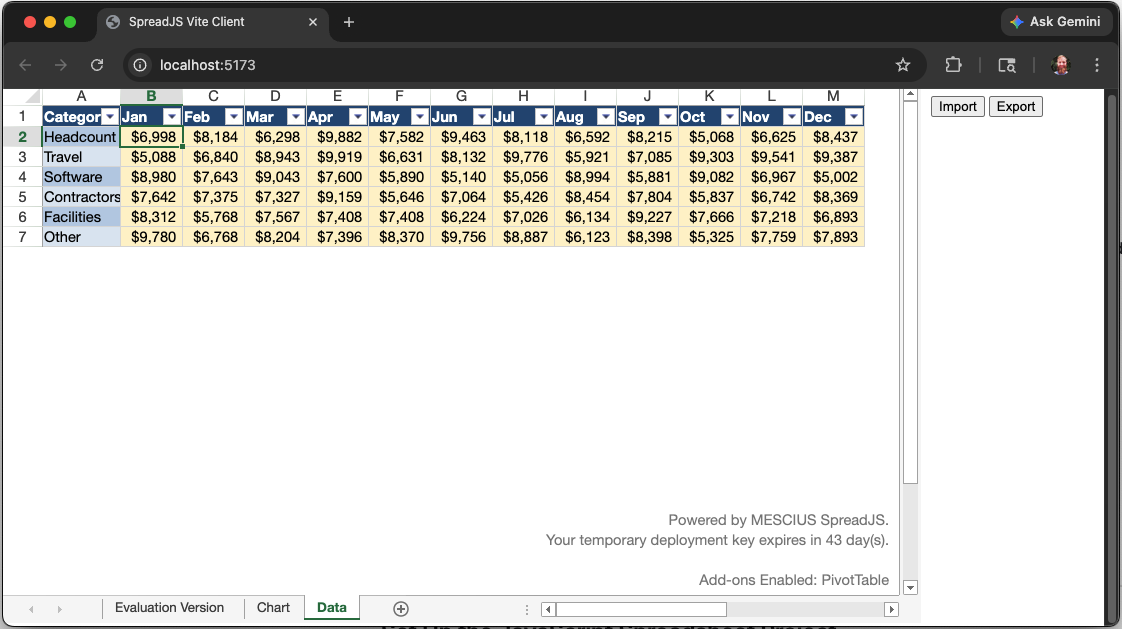
The Hydrated workbook can now be used on the client just like it would be in Excel.
See the ‘Data’ sheet’s table populated with data from the server.
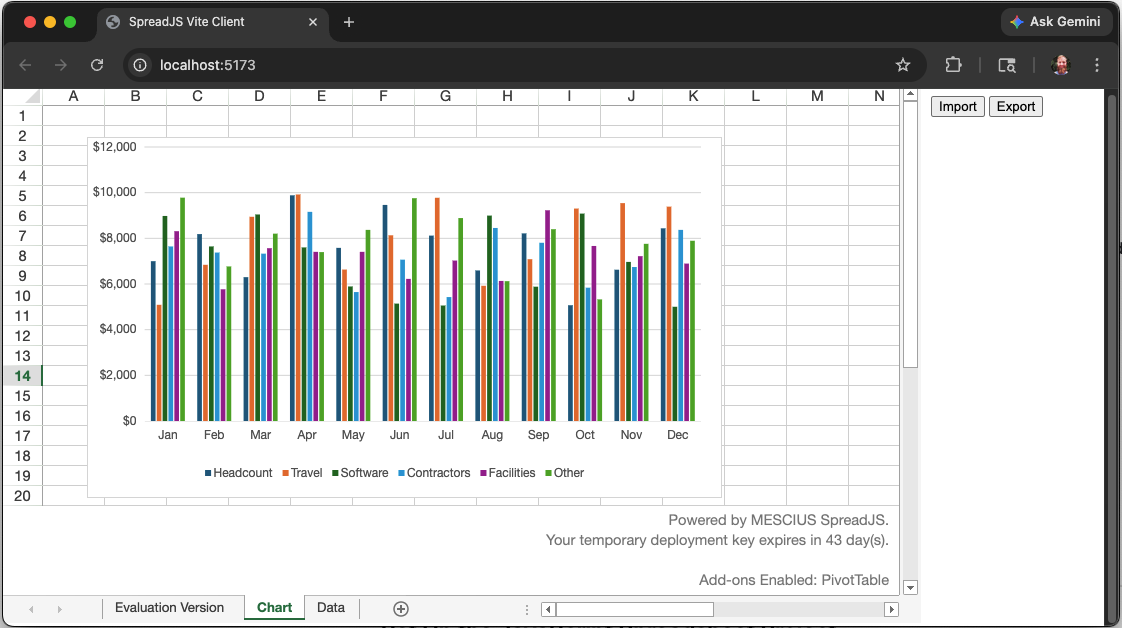
And now the ‘Chart’ sheet displays the data in the chart.
Include Extra Features
If you want to import and export Excel files with PivotTables, make sure to include the optional add-on module for SpreadJS (@mescius/spread-sheets-pivot-addon).
Import and Export FAQs
Do I need to have Excel installed for this import or export in JavaScript to work?
No! SpreadJS is a stand-alone JavaScript component that can import and export Excel files without depending on Excel at all.
Can my end users changes be included in the export?
Yes! SpreadJS allows users to modify spreadsheets in an Excel-like experience. Those changes will be included when the spreadsheet is exported.
What types of files can be imported or exported?
SpreadJS supports import and export of .xlsx, .xlsm, .xltm file types. It can even import .csv files and has a custom SpreadJS (.sjs)file format for optimized performance and app development.
Do you support Excel files with macros?
The macros will not run, but Excel files with macros can be imported and exported without losing the macros. The macros simply will be ignored when the spreadsheet runs in SpreadJS. Note: most macro use cases can be replicated in custom JavaScript code using SpreadJS