


Touch Toolbar
The Touch Toolbar provides quick access to common commands in touch-enabled environments.
In mouse-based interaction, users typically access context actions using the right mouse button. In touch-enabled environments, the Touch Toolbar provides similar functionality without requiring a right-click.
Display the Touch Toolbar
To display the Touch Toolbar:
Tap a cell or range to select it.
Tap the selected cell or range again.
The Touch Toolbar appears near the selection and provides quick access to common actions.
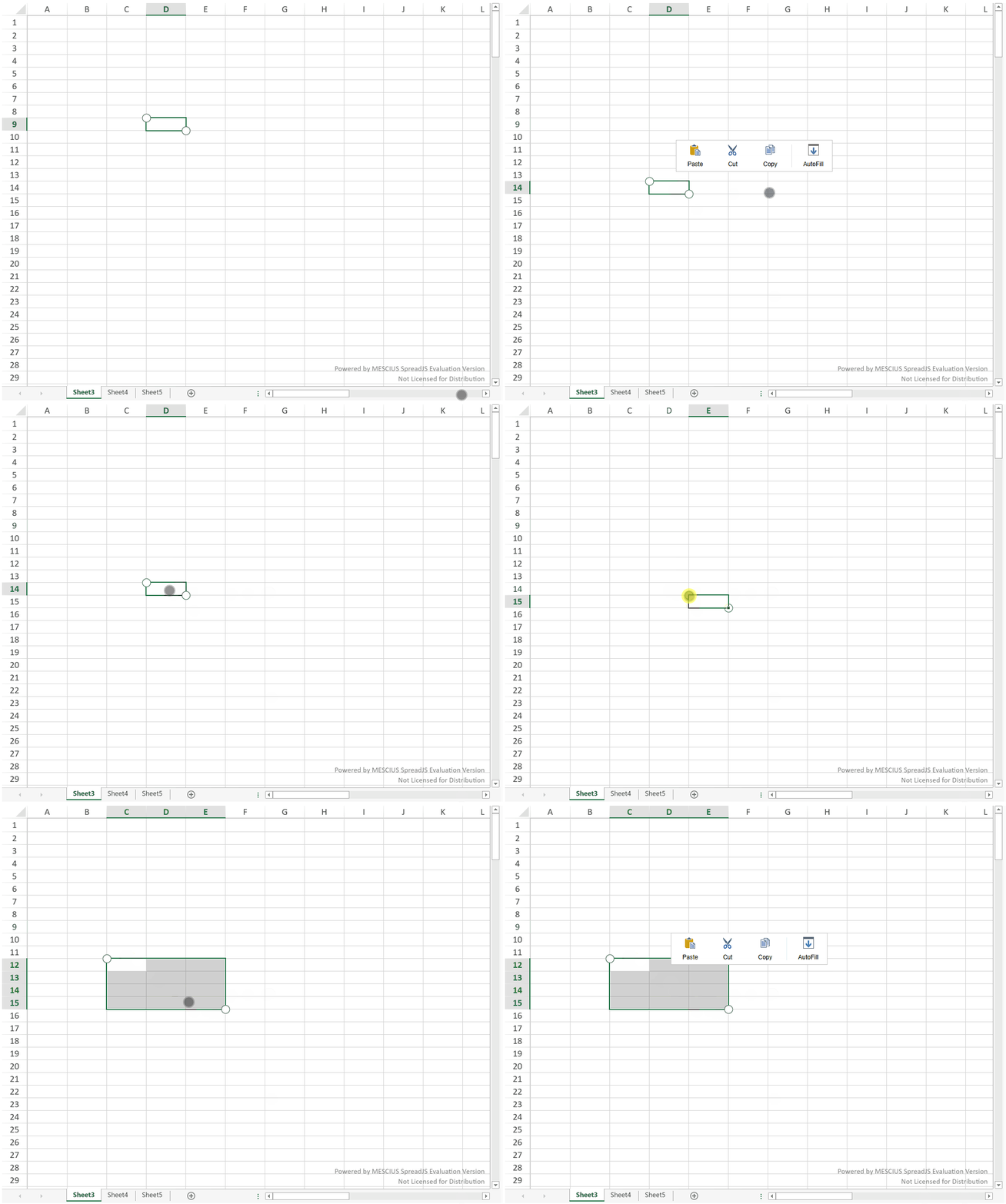
Double-tapping a cell enters edit mode and does not display the Touch Toolbar.
Default Behavior
By default, the Touch Toolbar includes common editing commands such as:
Cut
Copy
Paste
AutoFill
The available commands depend on the current selection and context.

Customize the Touch Toolbar
You can customize the Touch Toolbar by adding, removing, or modifying toolbar items using the TouchToolStrip API.
For example:
spread.touchToolStrip.add(
  new GC.Spread.Sheets.Touch.TouchToolStripItem(
    "Custom",
    "Custom Action",
    function () {
      // custom logic
    }
  )
);
You can also:
Remove existing items
Adjust item size
Modify text and images
Add separators
For complete API details, see:
GC.Spread.Sheets.Touch.TouchToolStripTouchToolStripItemTouchToolStripSeparator