


- Document Solutions for Excel .NET Overview
- Key Features
- Getting Started
- Features
- Templates
- Formula Reference
- File Operations
- Tutorials
- Document Solutions Data Viewer
- API Reference
- Release Notes
Export Barcodes
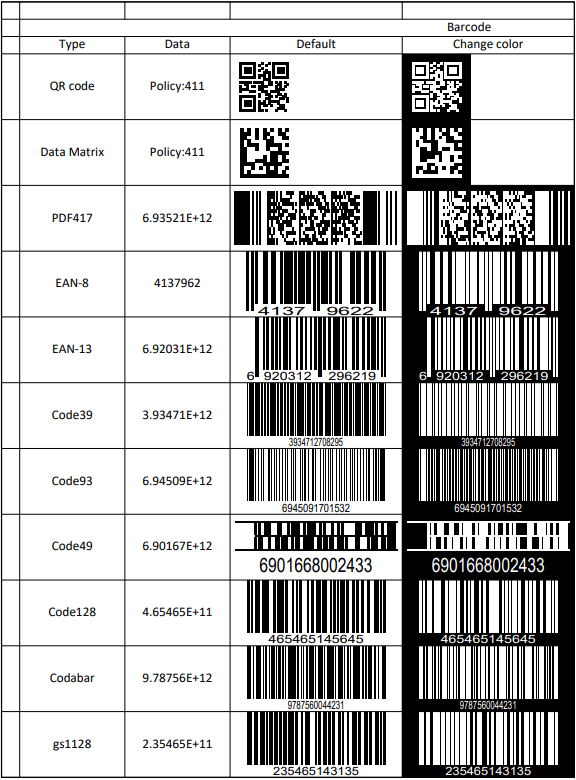
DsExcel can render barcode formulas in a worksheet when exporting the workbook to a PDF document.
Supported Barcode Types
DsExcel supports exporting the following barcode types to PDF:
Export Barcodes to PDF
To export barcodes, add the required barcode formulas to worksheet cells and save the workbook to a PDF file. DsExcel calculates and renders the formulas in the PDF output.
Refer to the following example code to export barcodes to PDF document.
// Create a new workbook.
var workbook = new GrapeCity.Documents.Excel.Workbook();

// Set worksheet layout and data.
IWorksheet worksheet = workbook.Worksheets[0];
worksheet.Range["A:A"].ColumnWidth = 2;
worksheet.Range["B:C"].ColumnWidth = 15;
worksheet.Range["D:G"].ColumnWidth = 25;
worksheet.Range["4:14"].RowHeight = 57;
worksheet.Range["B3"].Value = "Type";
worksheet.Range["C3"].Value = "Data";
worksheet.Range["B2"].Value = "Barcode";
worksheet.Range["B2:G2"].Merge(true);
worksheet.Range["D3:G3"].Value = new object[,]{
    {"Default", "Change color", "Change showLable", "Change lablePosition"}
};
worksheet.PageSetup.PrintTitleColumns = "$A:$C";
worksheet.Range["B4:C14"].HorizontalAlignment = HorizontalAlignment.Center;
worksheet.Range["B4:C14"].VerticalAlignment = VerticalAlignment.Center;
worksheet.Range["B2:G3"].HorizontalAlignment = HorizontalAlignment.Center;
worksheet.Range["B2:G3"].VerticalAlignment = VerticalAlignment.Center;
worksheet.Range["B4:C14"].Value = new object[,]
{
    {"QR code", "Policy:411"},
    {"Data Matrix", "Policy:411"},
    {"PDF417", 6935205311092},
    {"EAN-8", 4137962},
    {"EAN-13", 6920312296219},
    {"Code39", 3934712708295},
    {"Code93", 6945091701532},
    {"Code49", 6901668002433},
    {"Code128", 465465145645},
    {"Codabar", 9787560044231},
    {"gs1128", 235465143135}
};
string[] types = {
    "BC_QRCODE",
    "BC_DataMatrix",
    "BC_PDF417",
    "BC_EAN8",
    "BC_EAN13",
    "BC_CODE39",
    "BC_CODE93",
    "BC_CODE49",
    "BC_CODE128",
    "BC_CODABAR",
    "BC_GS1_128"
};
worksheet.PageSetup.PrintGridlines = true;

// Use formula to add barcode.
for (var i = 0; i < types.Length; i++)
{
    string columnD = "D" + (i + 4);
    string columnE = "E" + (i + 4);
    worksheet.Range[columnD].Formula = "=" + types[i] + "(C" + (i + 4) + ")";
    worksheet.Range[columnE].Formula = "=" + types[i] + "(C" + (i + 4) + ",\"#fff\",\"#000\")";
}

for (var i = 3; i < types.Length; i++)
{
    string columnD = "F" + (i + 4);
    string columnE = "G" + (i + 4);
    worksheet.Range[columnD].Formula = "=" + types[i] + "(C" + (i + 4) + ",,,0)";
    worksheet.Range[columnE].Formula = "=" + types[i] + "(C" + (i + 4) + ",,,,\"top\")";
}

// Save to a pdf file.
workbook.Save("ExportExcelBarcodesToPDF.pdf");
The output is shown in the figure below.
Limitations
The following parameters in different barcode types have limited or no support while exporting to PDF documents, as is elaborated in the below table:
Barcode Type | Parameter | PDF Export |
|---|---|---|
QRcode | charCode | Not Supported |
PDF417 | compact | Not Supported |
EAN-13 | addOn addOnLabelPosition | Not Supported |
codabar | checkDigit | Not Supported |
code39 | labelWithStartAndStopCharacter checkDigit fullASCII | Not Supported |
code93 | checkDigit fullASCII | Not Supported |
Some barcode types support various font options like fontFamily, fontWeight, fontStyle etc. The following font options have limited support as mentioned:
Font Options | PDF Export |
|---|---|
fontStyle | 'normal' and 'italic' |
fontTextDecoration | 'normal' and 'underline' |