


Step 3 of 3: Running the DropDown Application
Now that you've created a WPF application or a Silverlight application and customized the application's appearance, the only thing left to do is run your application. To run your application and observe C1DropDown's run-time behavior, and then further customize the control, complete the following steps:
From the Debug menu, select Start Debugging to view how your application will appear at run time.
The application will appear similar to the following:
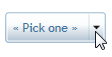
The C1DropDown control appears as a simple drop-down box. Notice the text that you specified appears in the header of the control.
Click the C1DropDown control’s drop-down arrow. Notice that the TreeView control is now visible:
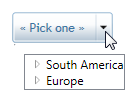
Expand an item in the drop-down box – notice that you can interact with the TreeView control as you might normally.
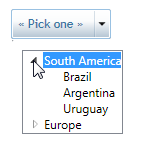
Click the C1DropDown control’s drop-down arrow again:
Observe that the drop-down box closes.
Congratulations!
You've completed the DropDown for WPF and Silverlight quick start and created a simple WPF or Silverlight application, added and customized a DropDown for WPF or Silverlight control, and viewed some of the run-time capabilities of the control.