


TextBox
C1TextBox is an input control that allows users to enter text values. It shares the common properties with other Input controls.

The PlaceHolder property of C1TextBoxBase class specifies placeholder text that is displayed by C1TextBox to prompt for input. The Multiline property allows the TextBox to display and accept multiple lines of text, as shown in the snapshot.
// Configuring a textbox
            c1TextBox1.Location = new Point(10, 170);
            c1TextBox1.Size = new Size(138, 104);
            c1TextBox1.Text = "12";
            c1TextBox1.Placeholder = "Multiline";
            c1TextBox1.Multiline = true;
            c1TextBox1.TabIndex = 8;
            c1TextBox1.Text = "1 line\r\n2 line\r\n3 line\r\n4 line\r\n5 line\r\n6 line";
            c1TextBox1.PreValidation.ErrorMessage = "";
            c1TextBox1.PreValidation.Inherit = ((C1.Win.Input.PreValidationInheritProperties)((((C1.Win.Input.PreValidationInheritProperties.CaseSensitive | C1.Win.Input.PreValidationInheritProperties.ErrorMessage)
            | C1.Win.Input.PreValidationInheritProperties.TrimStart)
            | C1.Win.Input.PreValidationInheritProperties.TrimEnd)));
Auto-Complete
The auto-complete feature in C1TextBox predicts a word or phrase based on partial input, which allows selection of suggestions without typing the full text.
This feature activates through the AutoCompleteMode and AutoCompleteSource properties. A fixed list of suggestions can connect to sources such as a DataTable.
AutoCompleteMode Options
The AutoCompleteMode property determines how suggestions are presented while the user types.
Mode | Description | Typical Usage |
|---|---|---|
None | Disables the auto-complete behavior. No suggestions or appended text are displayed. | When auto-complete is not required or must be disabled at runtime. |
Suggest | Displays a drop-down list of matching suggestions. | When browsing or selecting from multiple values. |
Append | Automatically appends the closest matching value to the typed text without displaying a list. | When input values are predictable and rapid completion is preferred. |
SuggestAppend | Displays a suggestion list and appends the closest match simultaneously. | Recommended for large or dynamic datasets requiring guided input. |
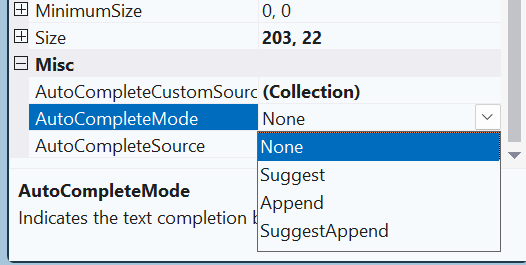
Use None to disable auto-complete, Suggest for discoverability, Append for fast completion, and SuggestAppend for the most guided input experience.
API Reference:
AutoCompleteSource Options
The AutoCompleteSource property specifies where suggestion values originate.
Source | Description |
|---|---|
None | Specifies that no auto-complete source is in use. This is the default value. |
CustomSource | Uses values from the AutoCompleteCustomSource collection. |
FileSystem | Suggests file and directory paths. |
FileSystemDirectories | Suggests directory paths only, excluding file names. |
HistoryList | Includes Uniform Resource Locators (URLs) from the system history list. |
RecentlyUsedList | Includes items from the list of most recently used resources. |
AllUrl | Combines values from HistoryList and RecentlyUsedList |
AllSystemResources | Combines FileSystem and AllUrl sources. This is the default when AutoCompleteMode is set to a non-default value. |
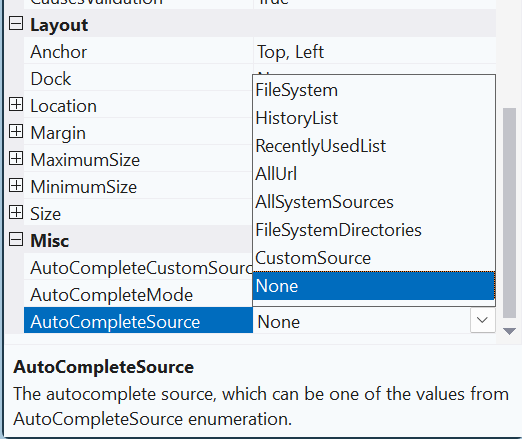
Use CustomSource for fixed or dynamic lookup scenarios, FileSystem options for path-based input, and URL-related sources for browser-style completion. AllSystemResources provides a combined system-driven source.
API Reference:
Dynamic Auto-Complete
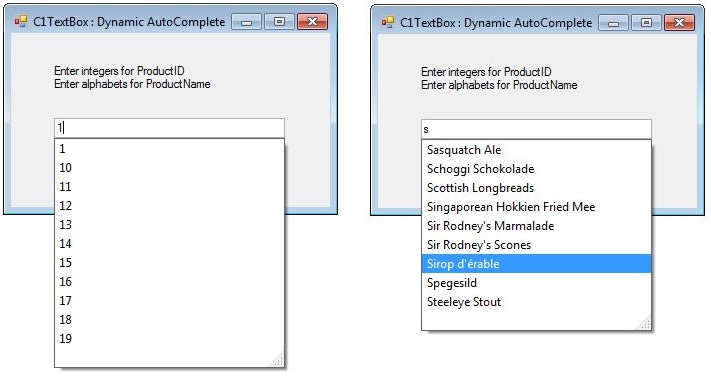
Certain scenarios require dynamic lookup, where the suggestion list updates based on the current text in the control. This approach uses a custom source instead of a fixed list. The AutoCompleteCustomSource property updates dynamically according to the entered text.
The following example demonstrates dynamic suggestions from the Products table. Numeric input displays ProductID values; alphabetic input displays ProductName values. This logic can be adapted to other scenarios.
Setting Up Auto-Complete
1. Enable Auto-Complete
Set AutoCompleteMode to Suggest and AutoCompleteSource to CustomSource. An AutoCompleteStringCollection object stores the suggestions and updates as text changes.
AutoCompleteStringCollection list;
string[] arr;
private void Form1_Load(object sender, EventArgs e)
{
     list = c1TextBox1.AutoCompleteCustomSource;
     c1TextBox1.AutoCompleteSource = AutoCompleteSource.CustomSource;
     c1TextBox1.AutoCompleteMode = AutoCompleteMode.Suggest;
}
2. Implement Dynamic List Generation
A custom method, such as GetList(), returns a string array based on the current text. The example retrieves data from the Products table in the C1NWind.mdb sample database. ProductID values appear when the text parses as an integer; otherwise, ProductName values appear. This logic can be adapted to specific requirements.
String[] GetList(string s)
{
     string connstr = @"Provider=Microsoft.Jet.OLEDB.4.0;Data Source=" + Environment.GetFolderPath(Environment.SpecialFolder.Personal) + "\\\ComponentOne Samples\\\Common\\\C1Nwind.mdb;";
     OleDbConnection conn = new OleDbConnection(connstr);
     string cmd = "SELECT ProductID, ProductName FROM Products";
     OleDbDataAdapter da = new OleDbDataAdapter(cmd, conn);
     DataSet ds = new DataSet();
     da.Fill(ds);
     int count = ds.Tables[0].Rows.Count;
     arr = new string[count ];

     try
     {
        int check = int.Parse(s);
        for (int i = 0; i < count; i++)
        {
           arr[ i ] = ds.Tables[0].Rows[ i ]["ProductID"].ToString();
        }
     }
     catch
     {
        for (int i = 0; i < count; i++)
        {
           arr[ i ] = ds.Tables[0].Rows[ i ]["ProductName"].ToString();
        }
     }
     return arr;
}
3. Update the Custom source in the TextChanged Event
The TextChanged event handler calls the custom method to refresh the suggestion list.
//Dynamic AutoCompleteCustomSource
private void c1TextBox2_TextChanged(object sender, EventArgs e)
{
    if( GetList(c1TextBox1.Text).Length >0)
    {
       list.Clear();
       list.AddRange(arr);
    }
    c1TextBox1.AutoCompleteCustomSource = list;
}
4. Handle Navigation Keys
The PreviewKeyDown event can manage behavior for Up and Down keys during navigation of the suggestion list.
private void c1TextBox2_PreviewKeyDown(object sender, PreviewKeyDownEventArgs e)
{
    if((e.KeyCode == Keys.Up )||(e.KeyCode == Keys.Down))
        check = false;
    else
        check =true;
}
This implementation provides dynamic auto-complete based on entered text. The sample connects to the NorthWind database using OLEDB; alternative data access methods may suit modern applications.
Data Binding
In addition to auto-complete functionally, C1TextBox supports data binding and formatting features. Binding a control to a data source allows communication with, and updates to, the underlying data. C1TextBox can be bound to an array, enumeration, or a binding source as well using the DataSource and DataMember properties of C1TextBoxBase.
c1TextBox1.DataSource = _data;
c1TextBox1.DataMember = "FirstName";
Display and Edit Format
C1TextBox supports two formatting modes: one for display, when the control is read-only or is not in the edit mode, and another for edit mode. These formatting modes are governed by the DisplayFormat and EditFormat properties. By default, both modes inherit their settings from the TextBox control.
To assign a specific format type, custom format or other formatting property (see FormatInfo class) for a specific mode, change the (Inherit) flags and set the FormatType and CustomFormat properties. This breaks the inheritance from the control for the FormatType property and allows the format to be changed independently.
You can see the change in the format of the BirthDate TextBox in display and edit mode in the following GIF:
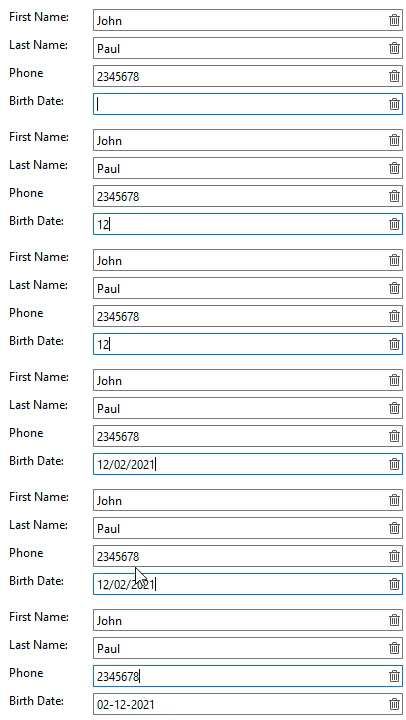
The following example shows how to configure display and edit formats for a TextBox named birthDateText that displays "Birth Date".
C1TextBox birthDateText = new C1TextBox();
this.Controls.Add(birthDateText);
birthDateText.Location = new System.Drawing.Point(283, 115);
birthDateText.TabIndex = 4;
// Set custom format in display mode
birthDateText.DisplayFormat.CustomFormat = "MM/dd/yyyy";
birthDateText.DisplayFormat.FormatType = FormatType.CustomFormat;
//set custom format in edit format
birthDateText.EditFormat.CustomFormat = "MM-dd-yyyy";
birthDateText.EditFormat.FormatType = FormatType.CustomFormat;