


Data Slicing
FlexPivotSlicer includes a header area with a caption and buttons that support sorting, multi‑selection, and filtering of FlexPivotGrid and FlexPivotChart data.
The following image illustrates the appearance of FlexPivotSlicer.
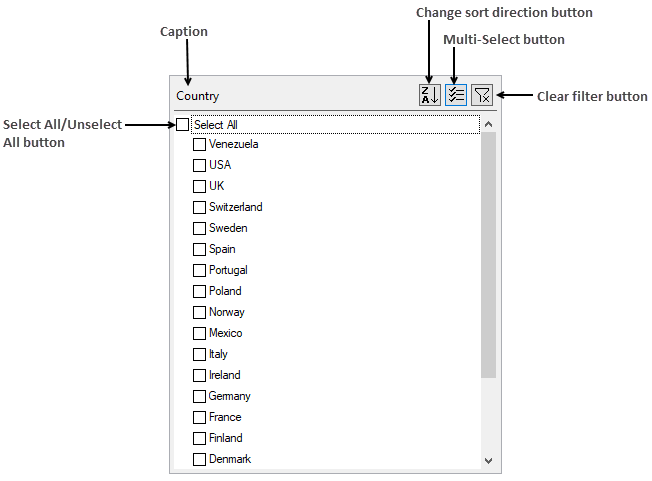
The FlexPivotSlicer control includes the following elements:
Header: The Header displays a caption that corresponds to the field being filtered (for example, Country). The header can also include Change sort direction, Multi‑Select, and Clear filter buttons. The visibility of the header is controlled by the ShowHeader property of the C1FlexPivotSlicer class.
The purpose of all the header buttons is elaborated as given below:
Change sort direction: Modifies the sort order (ascending or descending) of list items at run time. The button is hidden by default and can be enabled using the ShowSort property of the C1FlexPivotSlicer class. For more information on sorting, see Sorting.
Multi‑Select: Modifies the selection mode of the list at run time. When enabled, multiple items can be selected and a Select All/Unselect All checkbox appears at the top of the list. Use the ShowMultiSelect property to control the visibility of the button.
Clear filter: Removes filters applied to FlexPivotGrid or FlexPivotChart data. The button is disabled when the Select All checkbox is active. Use the ShowClear property to control its visibility.
CheckList Area: Displays the unique values of the bound field. Selecting values in the list filters the data displayed in FlexPivotGrid or FlexPivotChart.
Design Time Support
The C1FlexPivotSlicer control includes a smart tag that provides access to commonly used tasks and properties.
To access the FlexPivotSlicer Tasks, click the smart tag icon in the upper‑right corner of the control to open the task panel.
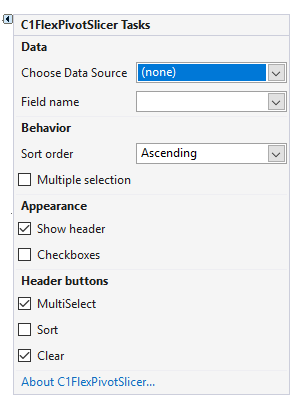
The FlexPivotSlicer Tasks panel includes the following options.
Choose Data Source
Select a data source from the Choose Data Source drop‑down list to bind the slicer.
Field name
Enter the field name to specify the data field used for filtering.
Sort order
Select the sorting order from the Sort order drop‑down list (Ascending, Descending, or Unspecified).
Multiple selection
Enable or disable Multiple selection to display or hide the Select All option at the top of the list.
Show header
Enable Show header to display the slicer header, which contains the Caption, Multi‑Select, Clear filter, and Change sort direction buttons. Disable this option to hide the header.
Checkboxes
Enable Checkboxes to display a checkbox next to each list item.
MultiSelect
Enable MultiSelect to display the Multi‑Select button in the header, which allows switching between single and multiple item selection at run time.
Sort
Enable Sort to display the Change sort direction button in the header, which switches the list order at run time.
Clear
Enable Clear to display the Clear filter button in the header, which removes the applied filters at run time.
About C1FlexPivotSlicer
Select About C1FlexPivotSlicer to open a dialog box that displays the product version and related information.
Note: Rich design‑time support is currently available only for .NET Framework.