


Collapsible Nodes
Collapsible nodes enable hierarchical interaction in a FlexDiagram by allowing parent nodes to expand or collapse their child nodes. This helps improve readability in complex diagrams by displaying only the required portions of the hierarchy.
When a parent node is selected, the visibility of its child nodes can be toggled dynamically. The diagram layout updates automatically based on the current visibility state.
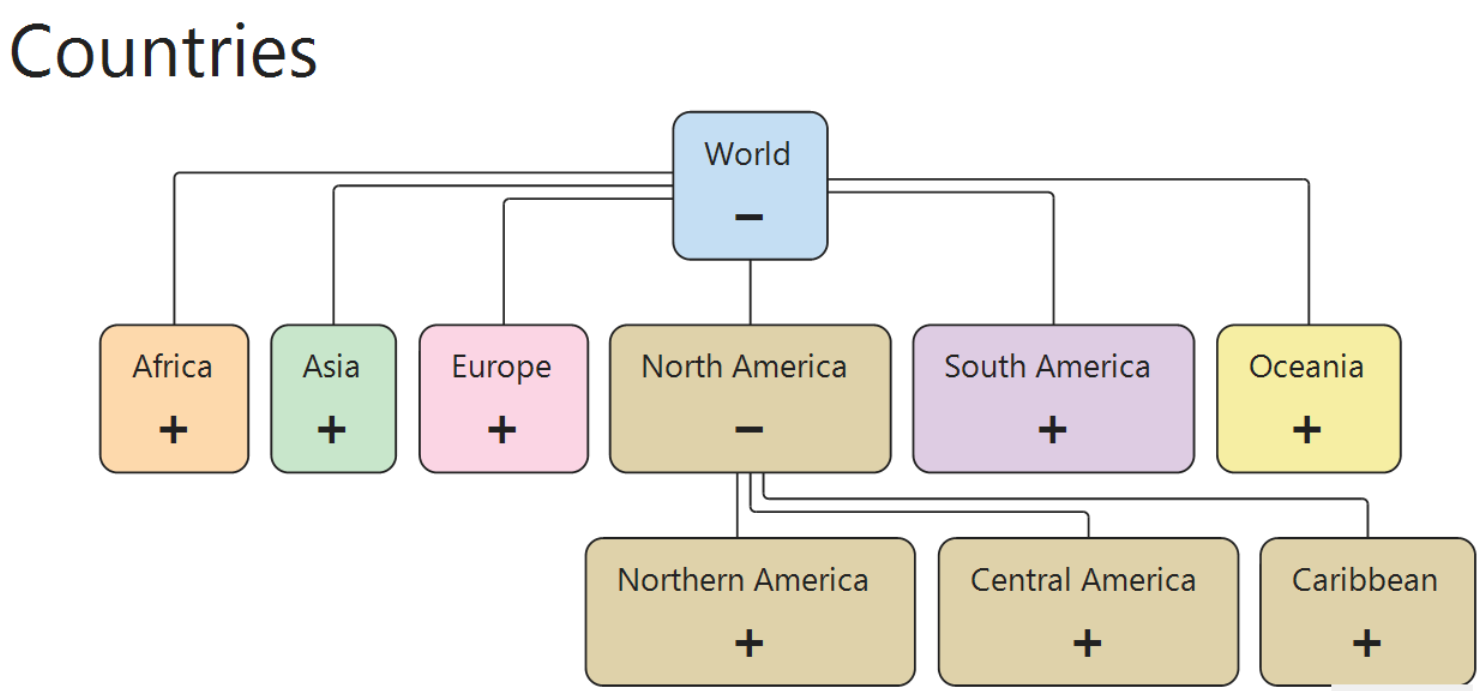
Node Visibility
FlexDiagram uses the NodeAppearance property to control how nodes are displayed and how they participate in layout calculations.
The following NodeAppearance values are commonly used in collapsible node scenarios:
Value | Description |
|---|---|
| Displays the node normally in the layout. |
| Hides the node and removes it from the layout flow. |
| Displays only the node title. |
| Hides the node but preserves its layout space. |
Depending on the scenario, collapsible nodes can use NodeAppearance.None to completely hide child nodes or NodeAppearance.Title to display only node titles while minimizing visual complexity.
Create Collapsible Nodes
This example demonstrates how to create a collapsible node structure in FlexDiagram.
Step 1: Create the Diagram Structure
Initialize the FlexDiagram control, create a parent node and child nodes, and connect them using edges.
var diagram = new FlexDiagram() { Dock = DockStyle.Fill };
var root   = new Node() { Content = "Root" };
var child1 = new Node() { Content = "Child 1" };
var child2 = new Node() { Content = "Child 2" };
diagram.Nodes.Add(root);
diagram.Nodes.Add(child1);
diagram.Nodes.Add(child2);
diagram.Edges.Add(new Edge() { Source = root, Target = child1 });
diagram.Edges.Add(new Edge() { Source = root, Target = child2 });
Step 2: Set the Initial Collapsed State
Hide the child nodes when the diagram loads by setting their appearance to NodeAppearance.None.
child1.Appearance = NodeAppearance.None;
child2.Appearance = NodeAppearance.None;
Step 3: Toggle Child Node Visibility
Handle the MouseClick event to expand or collapse child nodes dynamically.
Use the HitTest method to determine whether the parent node was clicked. When the parent node is selected, update the Appearance property of each child node.
var children = new List<INode> { child1, child2 };
diagram.MouseClick += (s, e) =>
{
    var hit = diagram.HitTest(e.X, e.Y);
    if (hit?.Element is INode node && node == root)
    {
        bool collapsed = children[0].Appearance != NodeAppearance.Visible;
        diagram.BeginUpdate();
        foreach (var child in children)
        {
            child.Appearance = collapsed
                ? NodeAppearance.Visible
                : NodeAppearance.None;
        }
        diagram.EndUpdate();
    }
};
Complete Example
The following example demonstrates a full implementation of collapsible nodes in a FlexDiagram.
private void CreateDiagram()
{
    var diagram = new FlexDiagram() { Dock = DockStyle.Fill };
    this.Controls.Add(diagram);
    var root = new Node() { Content = "Root" };
    var child1 = new Node() { Content = "Child 1" };
    var child2 = new Node() { Content = "Child 2" };
    diagram.Nodes.Add(root);
    diagram.Nodes.Add(child1);
    diagram.Nodes.Add(child2);
    diagram.Edges.Add(new Edge() { Source = root, Target = child1 });
    diagram.Edges.Add(new Edge() { Source = root, Target = child2 });
    // Initial collapsed state
    child1.Appearance = NodeAppearance.None;
    child2.Appearance = NodeAppearance.None;
    var children = new List<INode> { child1, child2 };
    diagram.MouseClick += (s, e) =>
    {
        var hit = diagram.HitTest(e.X, e.Y);
        if (hit?.Element is INode node && node == root)
        {
            bool collapsed = children[0].Appearance != NodeAppearance.Visible;
            diagram.BeginUpdate();
            foreach (var child in children)
            {
                child.Appearance = collapsed
                    ? NodeAppearance.Visible
                    : NodeAppearance.None;
            }
            diagram.EndUpdate();
        }
    };
}