


Using DataFilter with FlexChart
DataFilter allows you to add different controls as custom filters. The custom filters can be added to DataFilter for filtering data using complex data visualization controls, such as FlexChart and Maps. This tutorial uses FlexChart as a custom filter in DataFilter to filter FlexGrid data.
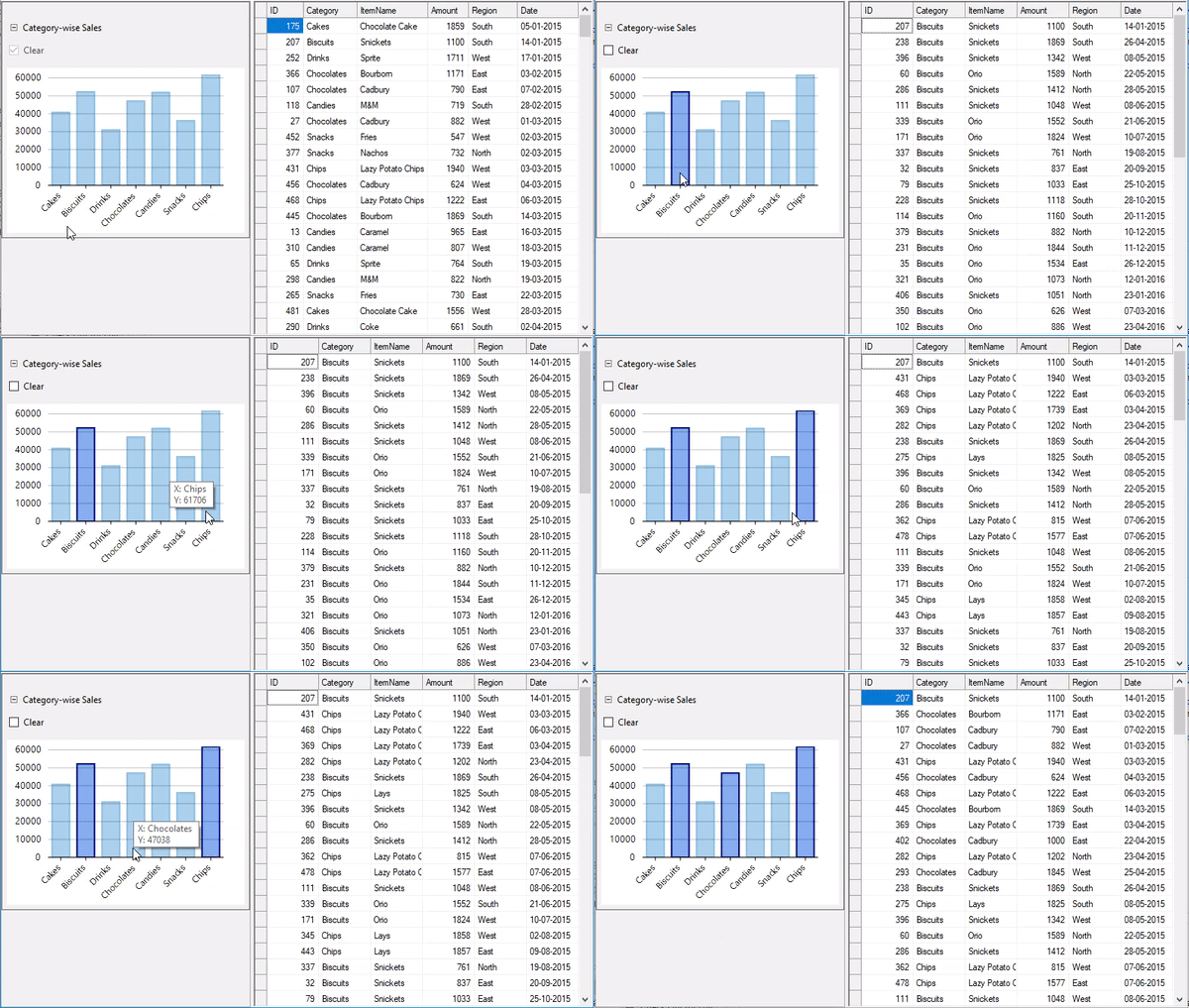
The following GIF shows FlexGrid data getting filtered based on the category selection in the custom filter "Category-wise Sales" from the DataFilter UI:
.NET Framework
To create a custom filter using FlexChart, complete the following steps:
Step 1: Setting up the Application UI
Create a new Windows Forms App.
Drag and drop the MS SplitContainer from the Toolbox onto your form to create separate panels for placing controls.
Drag and drop the DataFilter control from the Toolbox onto Panel1 of the SplitContainer control to display the custom filter. Set its Dock property to Fill.
Drag and drop the FlexGrid control from the Toolbox onto Panel2 of the SplitContainer control to display sales data. Set its Dock property to Fill.
Step 2: Create the View
Create a class named FlexChartFilterView to be used as a View for using FlexChart as a Filter and update the class constructor using the following code.
Private _selectedIndices As List(Of Integer)
Private _items As IEnumerable(Of Object)
Private _chbClear As CheckBox
Protected FlowLayoutPanel _pnlControlOptions
Public ReadOnly Property Chart As FlexChart
    Get
        Return _chart
    End Get
End Property
Public ReadOnly Property IsFilterApplied As Boolean
    Get
        Return Not _chbClear.Checked
    End Get
End Property
Public Event SelectionChanged As EventHandler
Public Sub FlexChartFilterView(ByVal items As IEnumerable(Of Object), ByVal bindingX As String, ByVal binding As String, ByVal Optional chartType As ChartType = ChartType.Column)
    InitializeComponent()
    _selectedIndices = New List(Of Integer)()
    Me._items = items
    _chart = New FlexChart() With {
        .ChartType = chartType,
        .DataSource = items,
        .BindingX = bindingX,
        .Binding = binding,
        .BackColor = Color.White,
        .Dock = DockStyle.Fill,
        .Margin = New Padding(0, 30, 0, 0)
    }
    Dim ser = New Series()
    Me.Chart.Series.Add(ser)
    Me.Chart.SelectionStyle.Stroke = Brushes.DarkBlue
    Me.Chart.SelectionStyle.StrokeWidth = 2
    Me.Chart.SelectionStyle.Fill = New SolidBrush(Color.FromArgb(200, Color.CornflowerBlue))
    Me.Chart.ToolTip.Content = "X: {x} " & vbLf & "Y: {y}"
    Me.Chart.AxisX.LabelMax = CSharpImpl.__Assign(Me.Chart.AxisX.LabelMin, True)
    Me.Chart.MouseClick += OnChartMouseClick
    ser.SymbolRendering += OnSeriesSymbolRendering
    _pnlControlOptions = New FlowLayoutPanel() With {
        .FlowDirection = FlowDirection.LeftToRight,
        .Dock = DockStyle.Top,
        .Height = 30,
        .AutoScroll = True
    }
    _chbClear = New CheckBox() With {
        .Text = "Clear",
        .Checked = True,
        .Enabled = False,
        .AutoSize = True
    }
    _chbClear.CheckedChanged += Function(s, e) OnClearChanged()
    _pnlControlOptions.Controls.Add(_chbClear)
    Controls.Add(_pnlControlOptions)
    Controls.Add(Chart)
End Sub
private List<int> _selectedIndices; private IEnumerable<object> _items; private CheckBox _chbClear; private FlexChart _chart; protected FlowLayoutPanel _pnlControlOptions; public FlexChart Chart { get { return _chart; } } public bool IsFilterApplied { get { return !_chbClear.Checked; } } /// <p>DOC-SUMMARY-TAG-OPEN</p> /// Raised when the selection changes by mouse click. /// <p>DOC-SUMMARY-TAG-CLOSE</p> public event EventHandler SelectionChanged; public FlexChartFilterView(IEnumerable<object> items, string bindingX, string binding, ChartType chartType = ChartType.Column) { InitializeComponent(); _selectedIndices = new List<int>(); this._items = items; // Initialize Chart _chart = new FlexChart() { ChartType = chartType, DataSource = items, BindingX = bindingX, Binding = binding, BackColor = Color.White, Dock = DockStyle.Fill, Margin = new Padding(0, 30, 0, 0) }; var ser = new Series(); this.Chart.Series.Add(ser); this.Chart.SelectionStyle.Stroke = Brushes.DarkBlue; this.Chart.SelectionStyle.StrokeWidth = 2; this.Chart.SelectionStyle.Fill = new SolidBrush(Color.FromArgb(200, Color.CornflowerBlue)); this.Chart.ToolTip.Content = "X: {x} \nY: {y}"; this.Chart.AxisX.LabelMax = this.Chart.AxisX.LabelMin = true; // Use MouseClick event on chart to update the Selected/Filtered items this.Chart.MouseClick += OnChartMouseClick; // Use SymbolRendering event on series for rendering Selected/Filtered items(data-points) with the SelectionStyle ser.SymbolRendering += OnSeriesSymbolRendering; _pnlControlOptions = new FlowLayoutPanel() { FlowDirection = FlowDirection.LeftToRight, Dock = DockStyle.Top, Height = 30, AutoScroll = true, }; _chbClear = new CheckBox() { Text = "Clear", Checked = true, Enabled = false, AutoSize = true, }; _chbClear.CheckedChanged += (s, e) => OnClearChanged(); _pnlControlOptions.Controls.Add(_chbClear); Controls.Add(_pnlControlOptions); Controls.Add(Chart); }Use the MouseClick event on FlexChart for allowing user to filter the rendered data by the clicked items, i.e, data-points.
Private Sub OnChartMouseClick(ByVal sender As Object, ByVal e As MouseEventArgs)
    Dim hitTest = Chart.HitTest(e.Location)
    If hitTest.Item IsNot Nothing AndAlso hitTest.Distance = 0 Then
        Dim currentSelected = hitTest.PointIndex
        If Not _selectedIndices.Contains(currentSelected) Then
            _selectedIndices.Add(currentSelected)
        Else
            _selectedIndices.Remove(currentSelected)
        End If
        OnSelectedPointsChanged()
    End If
End Sub
private void OnChartMouseClick(object sender, MouseEventArgs e) { //Check for the item/data-point at the location of click and change the selection accordingly. var hitTest = Chart.HitTest(e.Location); if (hitTest.Item != null && hitTest.Distance == 0) { var currentSelected = hitTest.PointIndex; if (!_selectedIndices.Contains(currentSelected)) _selectedIndices.Add(currentSelected); else _selectedIndices.Remove(currentSelected); OnSelectedPointsChanged(); } }Use SymbolRendering event on the series for rendering the selected or filtered items as highlighted.
Private Sub OnSeriesSymbolRendering(ByVal sender As Object, ByVal e As RenderSymbolEventArgs) If _selectedIndices.Contains(e.Index) Then If Chart.SelectionStyle.Stroke IsNot Nothing Then e.Engine.SetStroke(Chart.SelectionStyle.Stroke) If Chart.SelectionStyle.StrokeWidth > 0 Then e.Engine.SetStrokeThickness(Chart.SelectionStyle.StrokeWidth) If Chart.SelectionStyle.Fill IsNot Nothing Then e.Engine.SetFill(Chart.SelectionStyle.Fill) End If End Subprivate void OnSeriesSymbolRendering(object sender, RenderSymbolEventArgs e) { if (_selectedIndices.Contains(e.Index)) { if (Chart.SelectionStyle.Stroke != null) e.Engine.SetStroke(Chart.SelectionStyle.Stroke); if (Chart.SelectionStyle.StrokeWidth > 0) e.Engine.SetStrokeThickness(Chart.SelectionStyle.StrokeWidth); if (Chart.SelectionStyle.Fill != null) e.Engine.SetFill(Chart.SelectionStyle.Fill); } }Raise the SelectionChanged event on this view whenever selected or filtered items change.
Private Sub OnSelectedPointsChanged() _chbClear.Checked = If(_selectedIndices.Count = 0, True, False) Chart.Refresh() RaiseEvent SelectionChanged(Me, Nothing) End Subprivate void OnSelectedPointsChanged() { _chbClear.Checked = _selectedIndices.Count == 0 ? true : false; Chart.Refresh(); if (SelectionChanged != null) SelectionChanged(this, null); }
Step 3: Create a Custom Filter
Create a class named FlexChartFilter, inheriting CustomFilter class, to be used as a custom filter, initialize FlexChartFilterView and use a control for FlexChartFilter.
Public Sub New(ByVal items As IEnumerable(Of Object), ByVal xProperty As String, ByVal yProperty As String, ByVal Optional chartType As ChartType = ChartType.Column, ByVal Optional filterUsingXY As Boolean = False) filterView = New FlexChartFilterView(items, xProperty, yProperty, chartType) With { .Height = 250 } Control = filterView propertyX = xProperty propertyY = yProperty Me.filterUsingXY = filterUsingXY End Subpublic FlexChartFilter(IEnumerable<object> items, string xProperty, string yProperty, ChartType chartType = ChartType.Column, bool filterUsingXY = false) { // Create FlexChartFilterView instance which provides the UI for this filter. filterView = new FlexChartFilterView(items, xProperty, yProperty, chartType) { Height = 250 }; // Set the FlexChartFilterView as the control to be used for filtering. Control = filterView; propertyX = xProperty; propertyY = yProperty; this.filterUsingXY = filterUsingXY; }Subscribe the SelectionChanged event on the view to create/update the FilterExpression.
'Subscribe SelectionChanged event on filter view for creating the new filter expression when the selected items changes Dim args As ValueChangedEventArgs = New ValueChangedEventArgs() args.ApplyFilter = True filterView.SelectionChanged += Function(s, e) OnValueChanged(args)//Subscribe SelectionChanged event on filter view for creating the new filter expression when the selected items changes ValueChangedEventArgs args = new ValueChangedEventArgs(); args.ApplyFilter = true; filterView.SelectionChanged += (s, e) => OnValueChanged(args);Use the selected items provided by the view for creating the FilterExpression.
Class SurroundingClass Protected Overrides Function GetExpression() As Expression Dim selectedItems = filterView.GetSelectedValues() Return CreateExpression(selectedItems) End Function Protected Overrides Sub SetExpression(ByVal expression As Expression) Throw New NotImplementedException() End Sub Public Overrides ReadOnly Property IsApplied As Boolean Get Return filterView.IsFilterApplied End Get End Property Private Function CreateExpression(ByVal selectedItems As IEnumerable(Of Object)) As Expression Dim exp As CombinationExpression = New CombinationExpression() exp.FilterCombination = C1.DataCollection.FilterCombination.[Or] For Each item In selectedItems Dim comboExp = New CombinationExpression() With { .FilterCombination = C1.DataCollection.FilterCombination.[And] } comboExp.Expressions.Add(New OperationExpression With { .PropertyName = propertyX, .Value = GetPropertyValue(propertyX, item), .FilterOperation = C1.DataCollection.FilterOperation.Equal }) If filterUsingXY Then For Each [property] In propertyY.Split(","c) comboExp.Expressions.Add(New OperationExpression With { .PropertyName = [property].Trim(), .Value = GetPropertyValue([property].Trim(), item), .FilterOperation = C1.DataCollection.FilterOperation.Equal }) Next End If exp.Expressions.Add(comboExp) Next Return exp End Function Protected Function GetPropertyValue(ByVal name As String, ByVal obj As Object) As Object Dim propInfo = obj.[GetType](gcdocsite__documentlink?toc-item-id=9dc0ffb6-d9d2-413b-b084-bc8a8f233ddc).GetProperty(name) Return propInfo.GetValue(obj) End Function End Classprotected override Expression GetExpression() { var selectedItems = filterView.GetSelectedValues(); return CreateExpression(selectedItems); } protected override void SetExpression(Expression expression) { throw new NotImplementedException(); } public override bool IsApplied { get { return filterView.IsFilterApplied; } } private Expression CreateExpression(IEnumerable<object> selectedItems) { CombinationExpression exp = new CombinationExpression(); exp.FilterCombination = C1.DataCollection.FilterCombination.Or; //Create Expressions for each selected item foreach (var item in selectedItems) { var comboExp = new CombinationExpression() { FilterCombination = C1.DataCollection.FilterCombination.And }; //Expression to match X-Value. comboExp.Expressions.Add(new OperationExpression { PropertyName = propertyX, Value = GetPropertyValue(propertyX, item), FilterOperation = C1.DataCollection.FilterOperation.Equal, }); if (filterUsingXY) { //Expressions to match corresponding Y-Values foreach (var property in propertyY.Split(',')) { comboExp.Expressions.Add(new OperationExpression { PropertyName = property.Trim(), Value = GetPropertyValue(property.Trim(), item), FilterOperation = C1.DataCollection.FilterOperation.Equal, }); } } exp.Expressions.Add(comboExp); } return exp; } protected object GetPropertyValue(string name, object obj) { var propInfo = obj.GetType().GetProperty(name); return propInfo.GetValue(obj); }
Step 4: Use the Custom Filter with DataFilter
Bind the FlexGrid control to a data source and update data source when filter condition or expression gets changed.
Private Sub Form1_Load(ByVal sender As Object, ByVal e As EventArgs) Me.WindowState = FormWindowState.Maximized salesData = New ObservableCollection(Of Sales)(DataService.GetSalesData(500)) ' FlexGrid Settings c1FlexGrid1.DataSourceChanged += AddressOf C1FlexGrid1_DataSourceChanged c1FlexGrid1.DataSource = salesData ' Set source for DataFilter c1DataFilter1.DataSource = salesData c1DataFilter1.FilterChanged += Function(s, args) c1FlexGrid1.DataSource = c1DataFilter1.View.ToList() End Function ' Initialize Custom Filters InitFilters() End Sub Private Sub C1FlexGrid1_DataSourceChanged(ByVal sender As Object, ByVal e As EventArgs) For i As Integer = 1 To c1FlexGrid1.Cols.Count - 1 c1FlexGrid1.Cols(i).StarWidth = "*" Next End Subprivate void Form1_Load(object sender, EventArgs e) { this.WindowState = FormWindowState.Maximized; salesData = new ObservableCollection<Sales>(DataService.GetSalesData(500)); //FlexGrid Settings c1FlexGrid1.DataSourceChanged += C1FlexGrid1_DataSourceChanged; c1FlexGrid1.DataSource = salesData; // Set source for DataFilter c1DataFilter1.DataSource = salesData; c1DataFilter1.FilterChanged += (s, args) => { //Reset FlexGrid's DataSource whenever there is change in filter condition/expression. c1FlexGrid1.DataSource = c1DataFilter1.View.ToList(); }; // Initialize Custom Filters InitFilters(); } private void C1FlexGrid1_DataSourceChanged(object sender, EventArgs e) { for (int i = 1; i < c1FlexGrid1.Cols.Count; i++) c1FlexGrid1.Cols[i].StarWidth = "*"; }Set the AutoGenerateFilters property of DataFilter to false in the Form Load event handler for using custom filters.
c1DataFilter1.AutoGenerateFilters = falsec1DataFilter1.AutoGenerateFilters = false;Create an instance of the FlexChartFilter and add it to the Filters collection of DataFilter.
'Initialize Custom Filters : Create and Add the FlexChartFilter to the Filters collection of DataFilter Dim categoryWiseSales = salesData.GroupBy(Function(s) s.Category).[Select](Function(grp) New With {Key .Category = grp.Key, Key .Amount = grp.Sum(Function(item) item.Amount) }) Dim categoryFilter = New FlexChartFilter(categoryWiseSales, "Category", "Amount") categoryFilter.HeaderText = "Category-wise Sales" categoryFilter.FlexChart.AxisX.LabelAngle = 45 c1DataFilter1.Filters.Add(categoryFilter)// Create and Add the FlexChartFilter to the Filters collection of DataFilter var categoryWiseSales = salesData.GroupBy(s => s.Category).Select(grp => new { Category = grp.Key, Amount = grp.Sum(item => item.Amount) }); var categoryFilter = new FlexChartFilter(categoryWiseSales, "Category", "Amount"); categoryFilter.HeaderText = "Category-wise Sales"; categoryFilter.FlexChart.AxisX.LabelAngle = 45; c1DataFilter1.Filters.Add(categoryFilter);
Run the application and observe how the data appearing in FlexGrid gets filtered based on the categories selected from the custom filter used in the DataFilter control.
Now, you can change the filter values in the DataFilter UI and see how the FlexGrid renders the filtered data.
.NET
To create a custom filter using FlexChart, complete the following steps:
Step 1: Setting up the Application UI
Create a new Windows Forms App.
Drag and drop the MS SplitContainer from the Toolbox onto your form to create separate panels for placing controls.
Drag and drop the DataFilter control from the Toolbox onto Panel1 of the SplitContainer control to display the custom filter. Set its Dock property to Fill.
Drag and drop the FlexGrid control from the Toolbox onto Panel2 of the SplitContainer control to display sales data. Set its Dock property to Fill.
Step 2: Create the View
Create a class named FlexChartFilterView to be used as a View for using FlexChart as a Filter and update the class constructor using the following code.
private List <int> _selectedIndices; private IEnumerable <object> _items; private CheckBox _chbClear; protected FlowLayoutPanel _pnlControlOptions; public FlexChart Chart { get { return _chart; } } public bool IsFilterApplied { get { return !_chbClear.Checked; } } public event EventHandler SelectionChanged; public FlexChartFilterView(IEnumerable>object< items, string bindingX, string binding, ChartType chartType = ChartType.Column) { InitializeComponent(); _selectedIndices = new List>int<(); this._items = items; //Initialize Chart _chart = new FlexChart() { ChartType = chartType, DataSource = items, BindingX = bindingX, Binding = binding, BackColor = Color.White, Dock = DockStyle.Fill, Margin = new Padding(0, 30, 0, 0) }; var ser = new Series(); this.Chart.Series.Add(ser); this.Chart.SelectionStyle.Stroke = Brushes.DarkBlue; this.Chart.SelectionStyle.StrokeWidth = 2; this.Chart.SelectionStyle.Fill = new SolidBrush(Color.FromArgb(200, Color.CornflowerBlue)); this.Chart.ToolTip.Content = "X: {x} \nY: {y}"; this.Chart.AxisX.LabelMax = this.Chart.AxisX.LabelMin = true; //Subscribe to MouseClick event on chart to update the Selected/Filtered items this.Chart.MouseClick += OnChartMouseClick; //Subscribe to SymbolRendering event on series for rendering Selected/Filtered items(data-points) with the SelectionStyle ser.SymbolRendering += OnSeriesSymbolRendering; _pnlControlOptions = new FlowLayoutPanel() { FlowDirection = FlowDirection.LeftToRight, Dock = DockStyle.Top, Height = 30, AutoScroll = true, }; _chbClear = new CheckBox() { Text = "Clear", Checked = true, Enabled = false, AutoSize = true, }; _chbClear.CheckedChanged += (s, e) =< OnClearChanged(); _pnlControlOptions.Controls.Add(_chbClear); Controls.Add(_pnlControlOptions); Controls.Add(Chart); }Use the MouseClick event on FlexChart for allowing user to filter the rendered data by the clicked items, i.e, data-points.
private void OnChartMouseClick(object sender, MouseEventArgs e) {
 //Check for the item/data-point at the location of click and change the selection accordingly.
 var hitTest = Chart.HitTest(e.Location);
 if (hitTest.Item != null && hitTest.Distance == 0) {
  var currentSelected = hitTest.PointIndex;
  if (!_selectedIndices.Contains(currentSelected))
   _selectedIndices.Add(currentSelected);
  else
   _selectedIndices.Remove(currentSelected);
  OnSelectedPointsChanged();
 }
}
Use SymbolRendering event on the series for rendering the selected or filtered items as highlighted.
private void OnSeriesSymbolRendering(object sender, RenderSymbolEventArgs e) {
 if (_selectedIndices.Contains(e.Index)) {
  if (Chart.SelectionStyle.Stroke != null)
   e.Engine.SetStroke(Chart.SelectionStyle.Stroke);
  if (Chart.SelectionStyle.StrokeWidth > 0)
   e.Engine.SetStrokeThickness(Chart.SelectionStyle.StrokeWidth);
  if (Chart.SelectionStyle.Fill != null)
   e.Engine.SetFill(Chart.SelectionStyle.Fill);
 }
}
Raise the SelectionChanged event on this view whenever selected or filtered items change.
private void OnSelectedPointsChanged()
{
    _chbClear.Checked = _selectedIndices.Count == 0 ? true : false;
    Chart.Refresh();
    if (SelectionChanged != null)
        SelectionChanged(this, null);
}
Step 3: Create a Custom Filter
Create a class named FlexChartFilter, inheriting CustomFilter class, to be used as a custom filter, initialize FlexChartFilterView and use a control for FlexChartFilter.
public FlexChartFilter(IEnumerable <object> items, string xProperty, string yProperty, ChartType chartType = ChartType.Column, bool filterUsingXY = false) { //Create FlexChartFilterView instance which provides the UI for this filter filterView = new FlexChartFilterView(items, xProperty, yProperty, chartType) { Height = 250 }; //Set the FlexChartFilterView as the control to be used for filtering Control = filterView; propertyX = xProperty; propertyY = yProperty; this.filterUsingXY = filterUsingXY; }Subscribe the SelectionChanged event on the view to create/update the FilterExpression.
//Subscribe SelectionChanged event on filter view for creating the new filter expression when the selected items changes
ValueChangedEventArgs args = new ValueChangedEventArgs();
args.ApplyFilter = true;
filterView.SelectionChanged += (s, e) => OnValueChanged(args);
Use the selected items provided by the view for creating the FilterExpression.
protected override Expression GetExpression() {
 var selectedItems = filterView.GetSelectedValues();
 return CreateExpression(selectedItems);
}
public override bool IsApplied {
 get {
  return filterView.IsFilterApplied;
 }
}
private Expression CreateExpression(IEnumerable < object > selectedItems) {
 CombinationExpression exp = new CombinationExpression();
 exp.FilterCombination = C1.DataCollection.FilterCombination.Or;
 //Create Expressions for each selected item
 foreach(var item in selectedItems) {
  var comboExp = new CombinationExpression() { FilterCombination = C1.DataCollection.FilterCombination.And };
  //Expression to match X-Value.
  comboExp.Expressions.Add(new OperationExpression {
   PropertyName = propertyX,
    Value = GetPropertyValue(propertyX, item),
    FilterOperation = C1.DataCollection.FilterOperation.Equal,
  });
  if (filterUsingXY) {
   //Expressions to match corresponding Y-Values
   foreach(var property in propertyY.Split(',')) {
    comboExp.Expressions.Add(new OperationExpression {
     PropertyName = property.Trim(),
      Value = GetPropertyValue(property.Trim(), item),
      FilterOperation = C1.DataCollection.FilterOperation.Equal,
    });
   }
  }
  exp.Expressions.Add(comboExp);
 }
 return exp;
}
protected object GetPropertyValue(string name, object obj) {
 var propInfo = obj.GetType().GetProperty(name);
 return propInfo.GetValue(obj);
}
Step 4: Use the Custom Filter with DataFilter
Bind the FlexGrid control to a data source and update data source when filter condition or expression gets changed.
private ObservableCollection <Sales> salesData;
private void Form1_Load(object sender, EventArgs e) {
 salesData = new ObservableCollection <Sales> (DataService.GetSalesData(500));
 //FlexGrid Settings
 c1FlexGrid1.DataSourceChanged += C1FlexGrid1_DataSourceChanged;
 c1FlexGrid1.DataSource = salesData;
//Set source for DataFilter
c1DataFilter1.DataSource = salesData;
c1DataFilter1.FilterChanged += (s, args) =>
{
 //Reset FlexGrid's DataSource whenever there is change in filter condition/expression
 c1FlexGrid1.DataSource = c1DataFilter1.View.ToList();
};
}
private void C1FlexGrid1_DataSourceChanged(object sender, EventArgs e) {
 for (int i = 1; i < c1FlexGrid1.Cols.Count; i++)
  c1FlexGrid1.Cols[i].StarWidth = "*";
}
Set the AutoGenerateFilters property of DataFilter to false in the Form Load event handler for using custom filters.
c1DataFilter1.AutoGenerateFilters = false;Create an instance of the FlexChartFilter and add it to the Filters collection of DataFilter.
//Initialize Custom Filters : Create and Add the FlexChartFilter to the Filters collection of DataFilter
var categoryWiseSales = salesData.GroupBy(s => s.Category).Select(grp => new {
 Category = grp.Key, Amount = grp.Sum(item => item.Amount)});
var categoryFilter = new FlexChartFilter(categoryWiseSales, "Category", "Amount");
categoryFilter.HeaderText = "Category-wise Sales";
categoryFilter.FlexChart.AxisX.LabelAngle = 45;
c1DataFilter1.Filters.Add(categoryFilter);
Run the application and observe how the data appearing in FlexGrid gets filtered based on the categories selected from the custom filter used in the DataFilter control.
Now, you can change the filter values in the DataFilter UI and see how the FlexGrid renders the filtered data.