


Visual Studio Integration
Data Wizard provides a tool window and toolbar, displays status and information bar messages, and includes settings in the Visual Studio Options dialog. Its interface adapts to the Visual Studio theme and environment font settings.
Toolbar
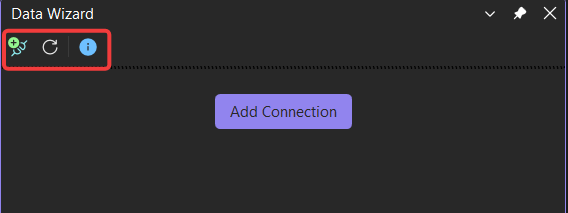
The Data Wizard toolbar provides three commands:
 Add Connection: Opens the connection form.
 Refresh Project: Reloads the connection and Data Views.
 Show Welcome Page: Opens the Data Wizard welcome page.
Status Bar
Data Wizard displays operation progress, completion, and error messages in the Visual Studio status bar.
Animated indicators identify operations in progress:
 Data Wizard is parsing the active project.
 Data Wizard is refreshing the project.
Each animation stops when its operation ends.
Information Bar
On first launch, Data Wizard displays an information bar with three actions:
Launch: Opens the Data Wizard tool window.
Learn More: Opens Documentation Page.
Don't Show Again: Hides the information bar on subsequent launches.
The information bar setting is also available on the Options page.

Options Page
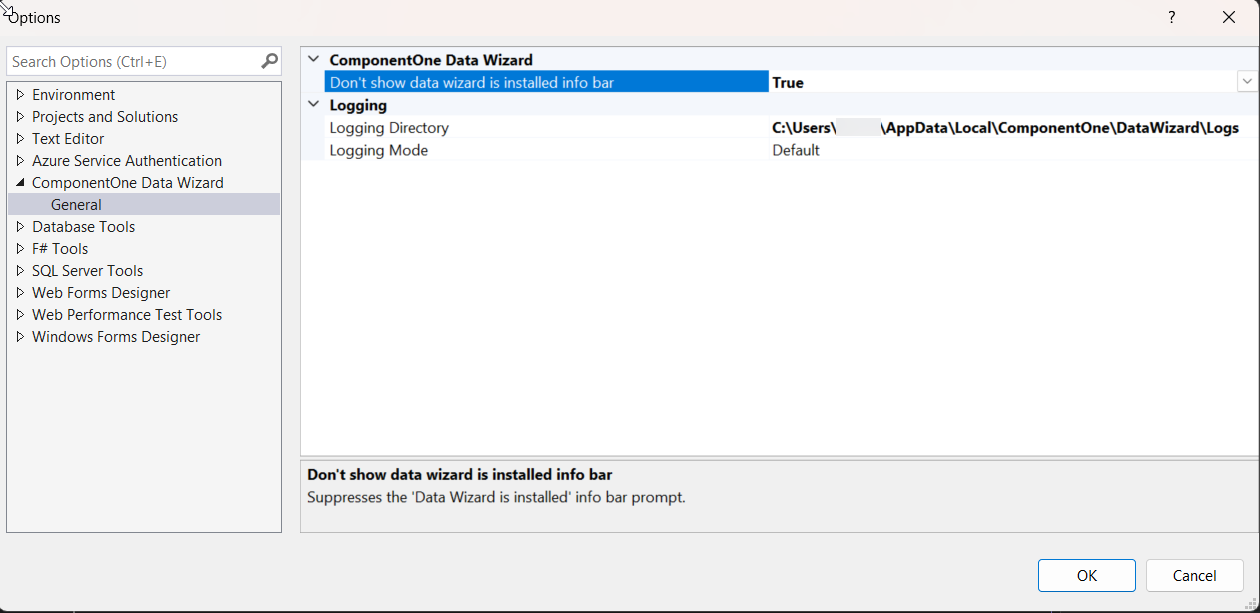
Data Wizard settings are located at Tools > Options > ComponentOne Data Wizard > General.
The options page includes Don't show data wizard is installed info bar and a Logging category with Logging Mode and Logging Directory settings. See Logging.
Theme and Fonts
Data Wizard adapts its interface to the active Visual Studio theme and to the environment font family and font size.
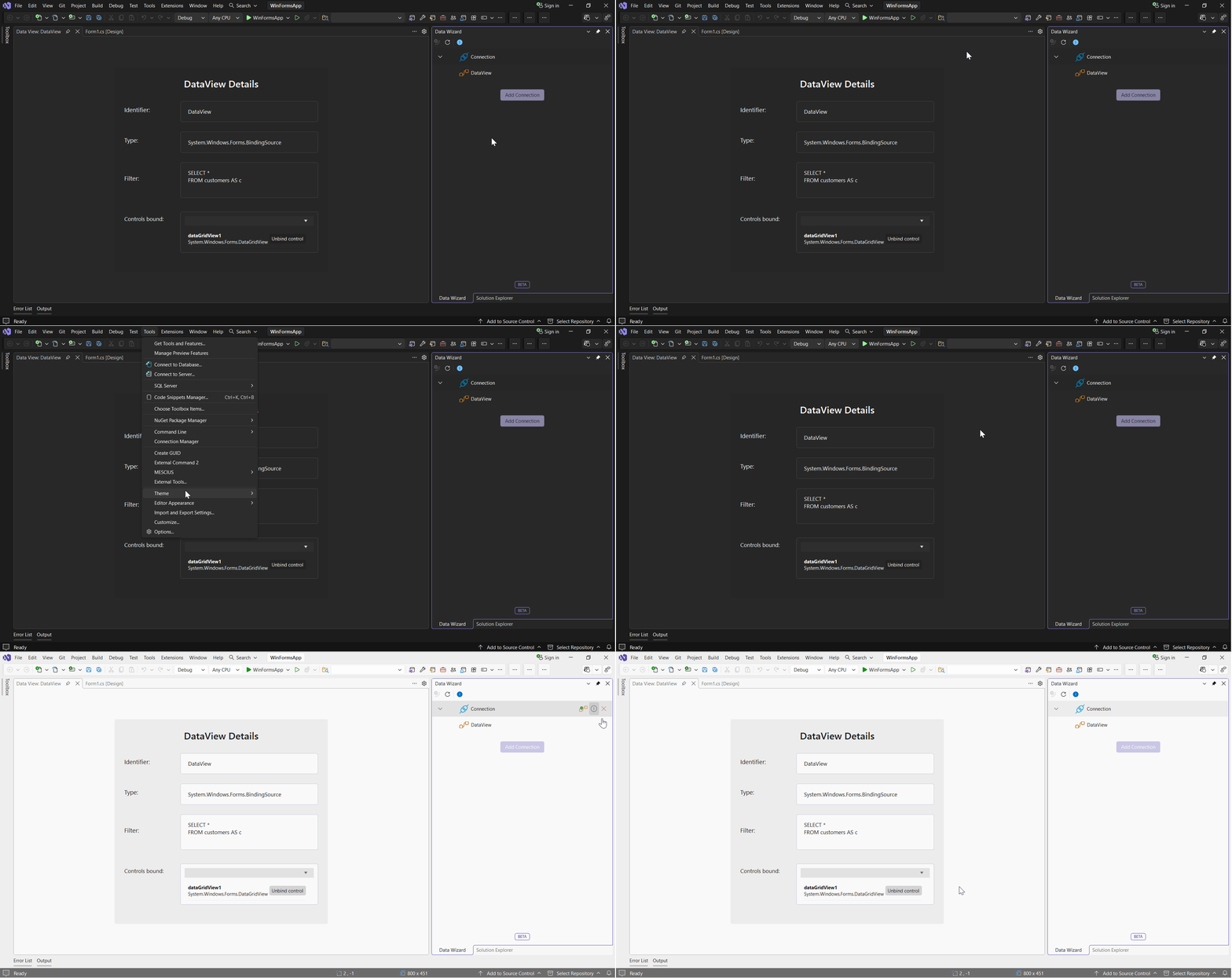
Note: Data Wizard is tested and supported with the built-in Visual Studio themes only.