


Logging
Data Wizard records diagnostic information in a daily log file. The default logging mode records Warning, Error, and Fatal entries.
Log files are stored at:
%LOCALAPPDATA%\ComponentOne\DataWizard\LogsEach file is named datawizard-YYYYMMDD.log. Data Wizard retains the 14 most recent log files and deletes older files automatically.
Configuring Logging
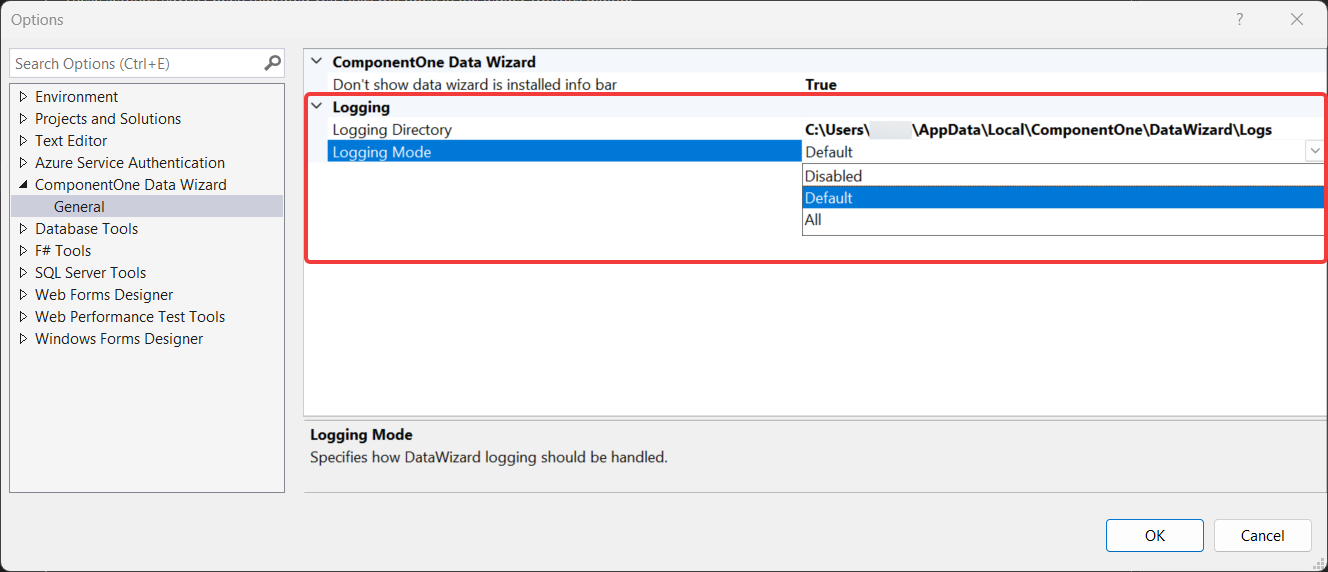
Open Tools > Options > ComponentOne Data Wizard > General. The Logging category provides two settings:
Logging Mode: Specifies the diagnostic information recorded in the log.
Logging Directory: Specifies the folder for log files.
The following logging modes are available:
Mode | Information recorded |
|---|---|
Disabled | Logging is disabled. |
Default | Warning, Error, and Fatal entries. |
All | All log levels, including Information and Debug, and startup environment details. |
Logging Levels:
Level | Meaning |
|---|---|
Fatal | Data Wizard cannot continue. |
Error | An operation failed, such as a connection test, binding, or toolbar command. |
Warning | Data Wizard encountered an unexpected condition and recovered or skipped the action. |
Information | A lifecycle event occurred, such as adding or removing a connection or Data View, or binding or unbinding a control. |
Debug | Diagnostic detail, such as query execution or the start and finish of a command. |
Select the required settings and click OK to apply the changes.
Collecting Diagnostic Logs
Collect diagnostic logs to provide additional information when investigating an issue.
Open Tools > Options > ComponentOne Data Wizard > General.
Set Logging Mode to All and click OK.
Reproduce the issue.
Open the folder specified by Logging Directory and locate the current day's
datawizard-YYYYMMDD.logfile.Save a copy of the log file for investigation or support.
Set Logging Mode back to Default and click OK.
Caution: Review log files for sensitive information before sharing them.