


- ASP.NET Core
- Getting Started
- Configuring your MVC Application
- Adding NuGet Packages to your App
- Adding Controls
- Client-Side Support
- Working with Controls
- Globalization
- Styling
- ASP.NET MVC Samples
- Release History
AutoExpandSelection
You can use the AutoExpandSelection property to specify whether DropDown control automatically fills the text box portion of a combo box with a value from the combo box list that matches the characters you enter as you type in the combo box.
Note: In case of InputColor and InputDate control, the default value of AutoExpandSelection property is set to True. For all the other Input controls the default value is False.
AutoExpandSelection property is available in the following Input DropDown controls;
InputColor
InputDate
AutoComplete, ComboBox
InputTime
The following code example demonstrates how to use AutoExpandSelection in the Input control.
IndexController.cs
public ActionResult Index()
  {
ViewBag.Cities = Models.Cities.GetCities();
return View();
   }
Index.cshtml
@{
        List<string> cities = ViewBag.Cities;
<div>
    <c1-combo-box selected-index=0 auto-expand-selection="true">
        <c1-items-source source-collection=@cities></c1-items-source>
    </c1-combo-box>
</div>
CustomFilter
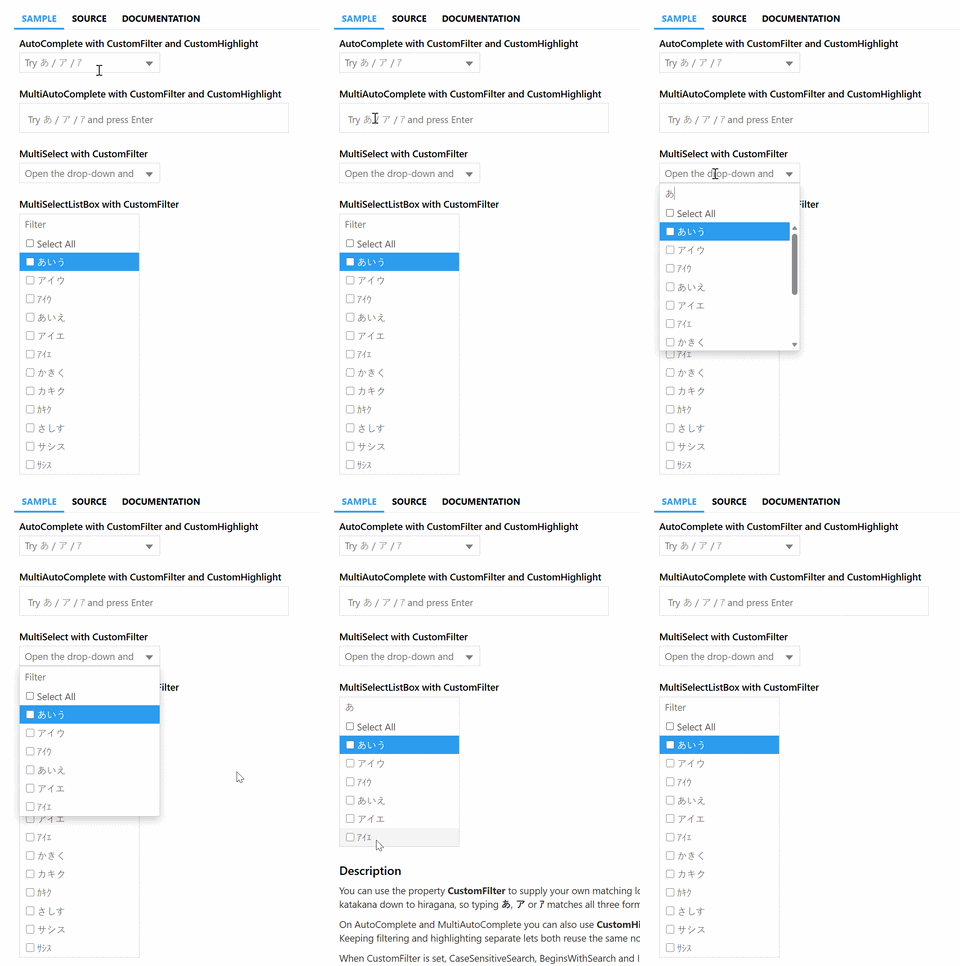
The CustomFilter property specifies a JavaScript callback that defines custom matching logic between user input and drop-down items.
This functionality supports non-literal matching scenarios, such as treating Hiragana, full-width Katakana, and half-width Katakana variations as equivalent.
CustomFilter is available for the following Input controls:
For MultiSelect and MultiSelectListBox, enable search filtering by setting the ShowFilterInput property to true.
Code Snippets
Controllers
Add the following action method to supply the list of words. In ASP.NET Core, the action returns IActionResult:
private static readonly List<string> _kanaWords = new List<string>
{
    "あいう", "アイウ", "アイウ",
    "あいえ", "アイエ", "アイエ",
    "かきく", "カキク", "カキク",
    "さしす", "サシス", "サシス"
};

public ActionResult Index()
{
    ViewBag.KanaWords = _kanaWords;
    return View();
}
ASP.NET Core View
Define the client-side script and set the custom-filter attribute on the Tag Helper:
<c1-auto-complete min-length="1" custom-filter="kanaFilter">
    <c1-items-source source-collection="@kanaWords"></c1-items-source>
</c1-auto-complete>
CustomHighlight
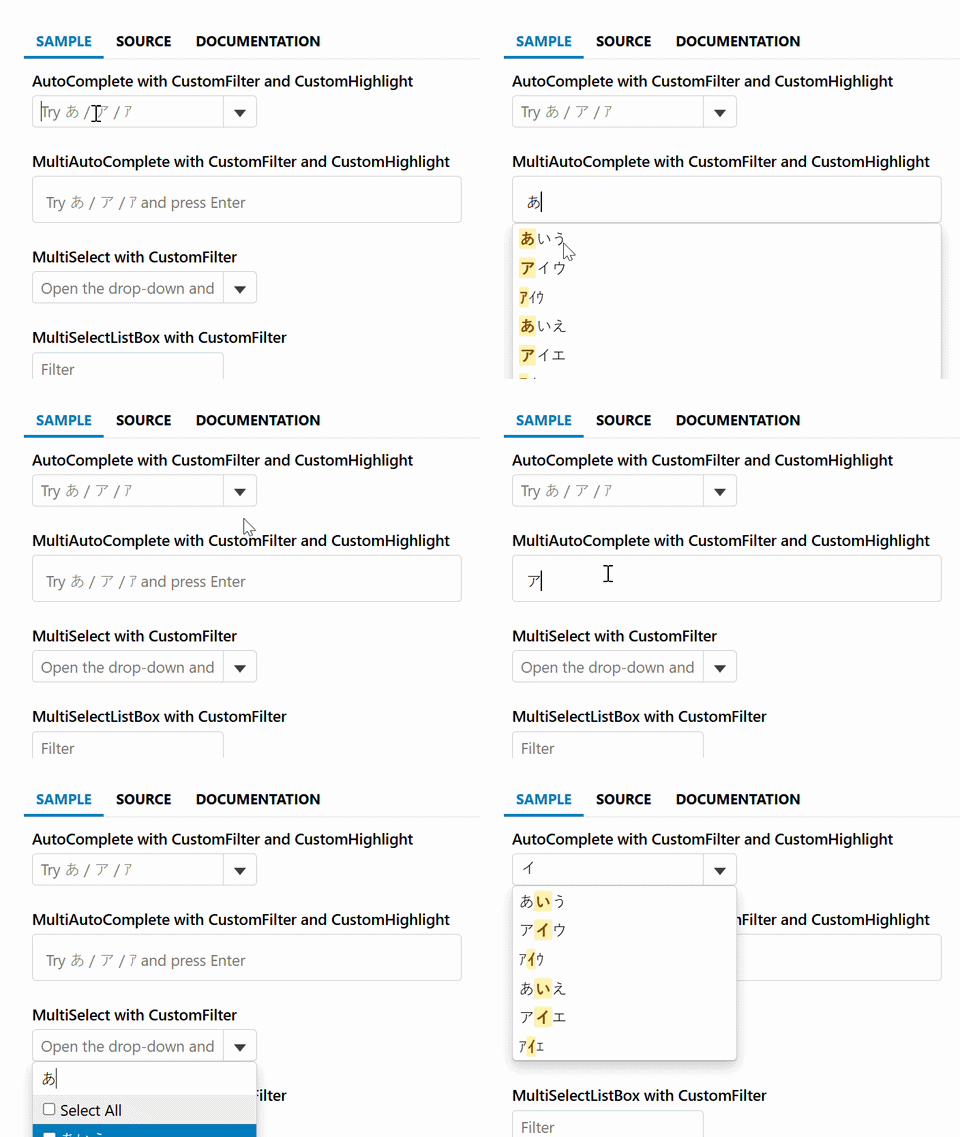
The CustomHighlight property specifies a JavaScript callback that customizes the HTML markup used to highlight matched items in an AutoComplete drop-down list.
Use CustomHighlight when the displayed match differs from the user-entered text, such as when the matching logic uses character normalization, phonetic matching, or alternate character forms.
CustomHighlight affects item rendering only. It does not change the filtering or matching logic.
The property is available in the following controls:
The following image shows how AutoComplete appears after applying the CustomHighlight property:
Code Snippets
Controllers
The following controller provides a list of Japanese Kana values.
private static readonly List<string> _kanaWords = new List<string>
{
    "あいう", "アイウ", "アイウ",
    "あいえ", "アイエ", "アイエ",
    "かきく", "カキク", "カキク",
    "さしす", "サシス", "サシス"
};
public ActionResult Index()
{
    ViewBag.KanaWords = _kanaWords;
    return View();
}
ASP.NET Core View
For ASP.NET Core, define the JavaScript callback and set the custom-highlight attribute on the AutoComplete Tag Helper.
<c1-auto-complete min-length="1" custom-filter="kanaFilter" custom-highlight="kanaHighlight">
    <c1-items-source source-collection="@kanaWords"></c1-items-source>
</c1-auto-complete>