What's New in ActiveReports.NET v20.2
Report Designer Enhancements
AI Assistance in the Web Designer
The ActiveReports Web Designer hosted in your application can now suggest visualizations with AI through the new Explore option.
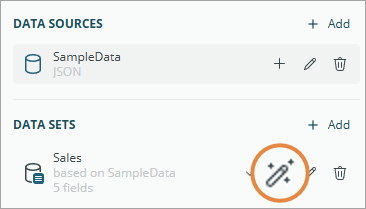
Select a dataset, or just a few of its fields, and choose Explore. The designer sends the field names and types — never the data itself — to your configured AI provider, which returns ready-to-use table, tablix, and chart visualizations. Each suggestion comes with a plain-language description and a color theme you can switch on the generated items.
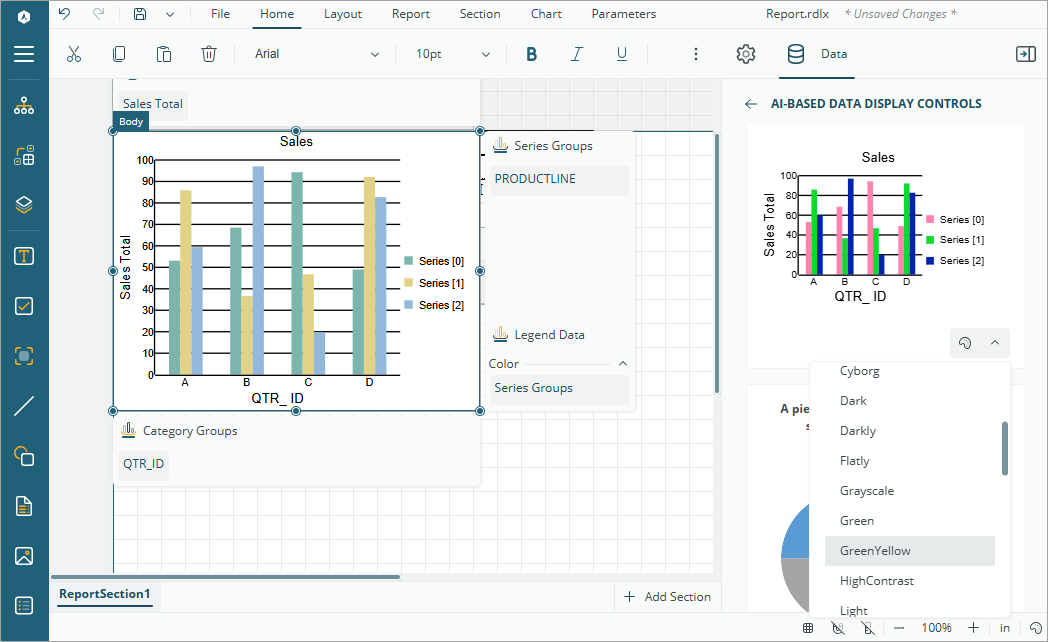
Connect the provider that fits your environment: OpenAI, Azure OpenAI, Google Gemini, or a fully local Ollama model.
For setup instructions, see Web AI Assistant Setup. To learn how report authors use this feature, see AI Assistant in Web Designer.
Size Source for Paper Size Selection
The report designer adds a Size Source option that controls where the entries in the Size list come from. Point it at a specific printer to offer the paper sizes that printer supports, or keep the default list of standard sizes. This makes it easier to match a report's page setup to the device it will be printed on.
Size Source is available for all report types. You can set it in the following locations:
Report Wizard: the Configure Page Settings step
Report Settings dialog for Section Reports
Property Grid: RDLX - Continious Page Layout and RDLX - Fixed Page Layout report types
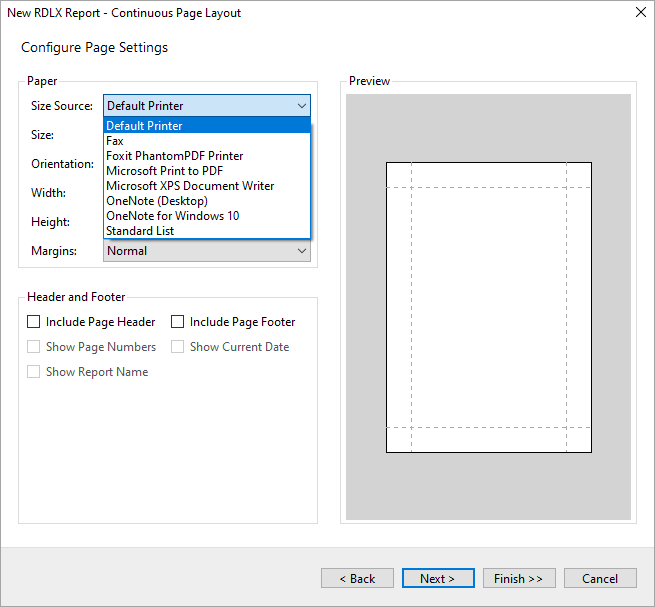
When you change the source, the Size list refreshes automatically to show the paper sizes available from it. The size source is a design-time setting only and isn't saved in the report layout.
Report Viewer Enhancements
Optional Automatic Execution for Reports with Default Parameters
Until now, a report whose parameters all had default values ran as soon as it opened in the viewer, giving readers no chance to check the values first. The new AutoExecuteWithDefaultParams setting lets you turn that automatic execution off, so readers can review the default parameter values — and change them if needed — before selecting Preview to run the report.
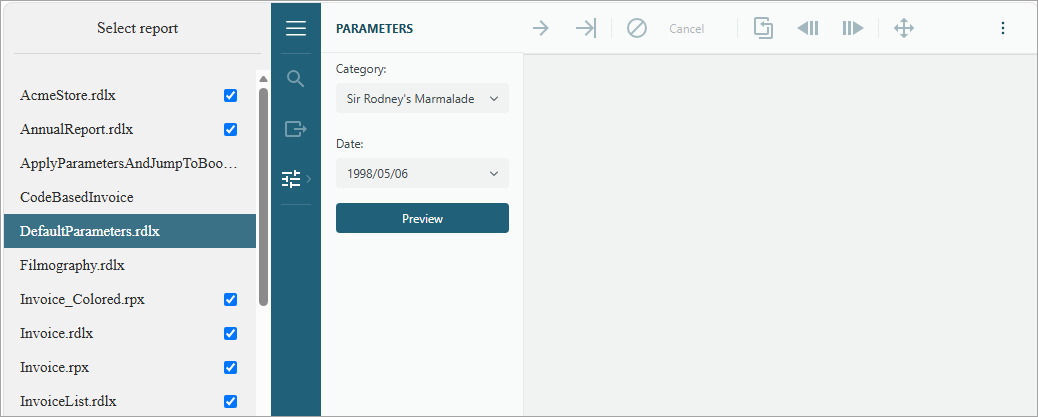
The setting is available in WinForms, WPF, ASP.NET Web Viewer, Blazor Viewer, and JS Viewer. It stays enabled by default, so existing behavior does not change unless you opt out. Disabling it is especially useful in web applications, where it avoids running a report before the reader is ready.
Report Export Enhancements
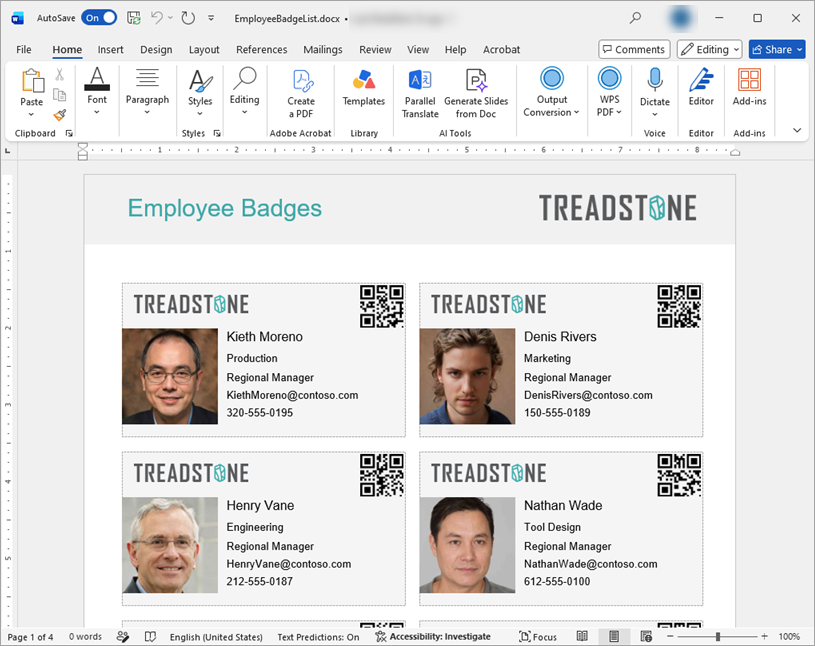
Multi-Column List Support in Word Export
Word export now supports multi-column layouts for the List report item. When a list defines multiple columns through its RowsOrColumnsCount property, the exported DOCX keeps that column layout, so the Word output matches the on-screen preview. See the Multi-Column List sample report for a working example.
Background Image Support in Word Export
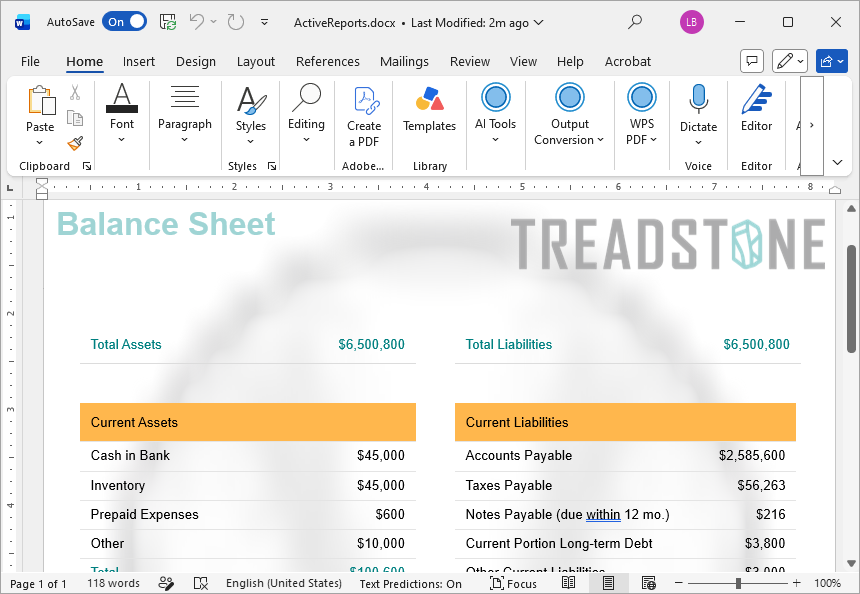
Word export now exports the Background Image with BackgroundRepeat is set to NoRepeat as a Word Document Watermark.