


Excel
The migration from Microsoft Excel file to ActiveReports can now be accomplished by using the ActiveReports Import Wizard. The ActiveReports Import Wizard is particularly useful when you want to convert multiple sheets of an Excel file to ActiveReports. It saves the time and effort of a developer to manually replicate the layout of each sheet of an Excel file in ActiveReports.
You can import a single sheet or multiple sheets of an Excel file to a Page or an RDLX report with just a few clicks. A single Excel sheet is imported as a report file, and the report name is the name of the sheet. An Excel file with multiple sheets is by default imported as separate report files, and the report names are the name of the corresponding sheets in the Excel file. You can also set Merge all sheets into a single report file option in the ActiveReports Import Wizard to import multiple sheets of the Excel file as different pages of the report.
Note: The import formats that are not supported are .xls (Excel 97-2003) and .xlsm (Open XML with macro).
Importing Excel files in the ActiveReports Import Wizard
Run the ActiveReports Import Wizard. The wizard can be run from the start menu or by executing ActiveReports.Imports.Win.exe from C:\Program Files (x86)\MESCIUS\ActiveReports 20\Tools location.
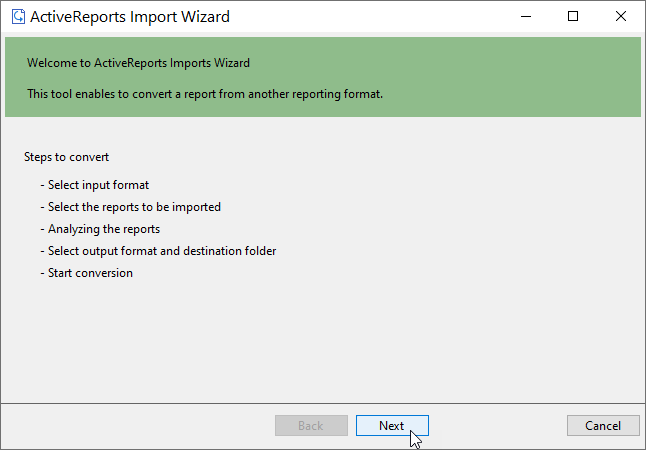
In the ActiveReports Import Wizard that appears, click Next.
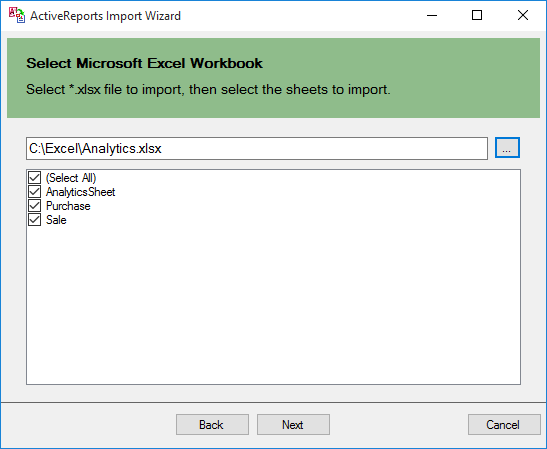
Choose Microsoft Excel (xlsx) as the input format and click Next.
Click the ellipsis button to browse to the location that contains the files that you want to import. A list of files that you can import appears.
Select the sheets to import, click Open, and then click Next to analyze them.
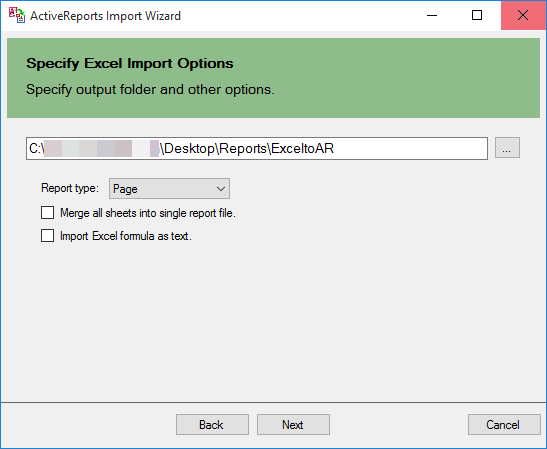
Use the ellipsis button to select a destination folder to store the converted reports. You can set the following options:
Report Type: Choose from Page report or RDLX report formats to import the Excel file. Note that Page report does not support multiple data sources. You should select RDLX report type if you want to add multiple data sources to the report.
Merge all sheets into single report file: Choose this option to import sheets of the Excel file as separate pages of a Page report. The report name is the name of the first sheet of the Excel file.
Import Excel formula as text: Choose this option to import Excel formula as text. If you keep the option unchecked, the Excel formula is imported as a calculated result.
Click Next to start the conversion.
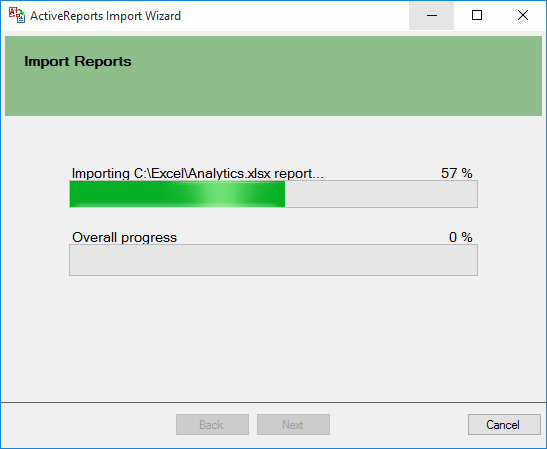
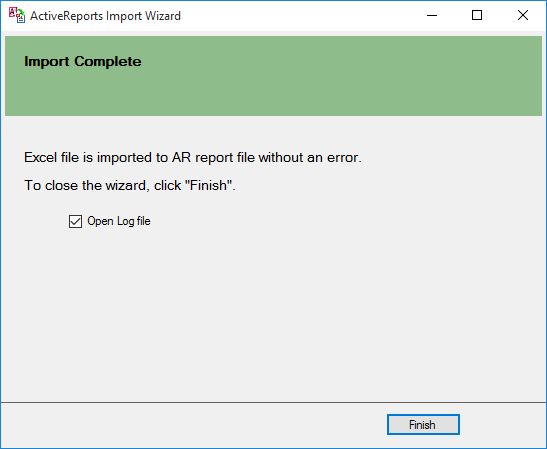
Once the conversion process is complete, click Finish to close the wizard and go the destination folder to view the converted reports. You may optionally leave the check on for the Open Log file checkbox to see the results log.
Defining Table area in an Excel file
Table area in Excel is the range of cells representing a Tabular data in the Excel.
If an Excel file has the table area that you want to import into ActiveReports as the Table data region, you must define the Table area first and then run the ActiveReports Import Wizard. Otherwise, defining the table area is not required.
Open the Excel file and select the table area.
Right-click to view the context menu.
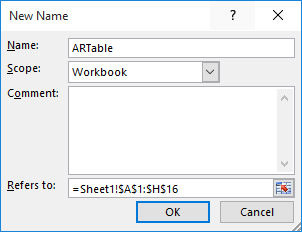
Select the Define Name option.2. In the New Name dialog box, define the table area and the rows based on Naming Rules. These naming rules must be followed for defining table areas in Excel.
Click OK.
Naming Rules for defining a Table area in Excel
To obtain the required table sections in ActiveReports' Table data region, you need to define the table area and its rows in the Excel file. In general, the table area is defined as ARTable#.******, where:
# is used to define more than one table areas. It can be any character, except symbol or character restricted by Excel. For example, ARTable, ARTable_1, or ARTableAbc.
****** is the name of the row (section): Detail, TableHeader, TableFooter, GroupHeader, or GroupFooter.
In case of multiple rows (Table Header/Footer, Detail, Group Header/Footer), you need to set "#" for each row as well (for example, GroupHeader1, GroupHeader2, etc.)
Example 1: To define a single table area
Action | Naming Rule |
|---|---|
Define whole table area | ARTable |
Define each row | ARTable.Detail ARTable.TableHeader ARTable.TableFooter ARTable.GroupHeader1 ARTable.GroupFooter1 |
Example 2: To define a multiple table area
Action | Naming Rule |
|---|---|
Define whole table area | ARTable1 ARTable2 |
Define each row | ARTable1.Detail ARTable1.TableHeader ARTable1.TableFooter ARTable2.Detail ARTable2.TableHeader ARTable2.TableFooter |
Conversion Rules for Table area in Excel
The table area of Excel is imported as a Table data region in ActiveReports based on the following conversion rules.
If the defined table area of Excel has three or more rows, the file data is converted to Table Header, Detail, and Table Footer as:
Excel Table
ActiveReports Table
Top Row
Table Header
Bottom Row
Table Footer
Other Rows
Detail
Note: For the Table Detail row, values for properties such as Value, Location, Size, etc. are imported from the cells of the first row.
If the defined table area of Excel has two rows, the file data is converted as follows.
Excel Table
ActiveReports Table
First Row
Table Header
Second Row
Detail
If the defined table area of Excel has only one row, the file data is converted as follows.
Excel Table
ActiveReports Table
First Row
Detail
Supported Objects and Properties
Excel | Page/RDLX report | ||
|---|---|---|---|
Item | Property | Item | Property |
Page | Page setting | Report | - |
Size | PaperSize | ||
Orientation: Portrait | PaperOrientation: Portrait | ||
Orientation: Landscape | PaperOrientation: Landscape | ||
Margins (Top, Bottom, Left, Right) | Margins (Top, Bottom, Left, Right) | ||
Cell | Value | TextBox | Value |
Location | Location (Left, Top) | ||
Size | Size (Width, Height) | ||
Alignment | - | ||
Horizontal alignment: General | TextAlign: General | ||
Horizontal alignment: Left (Indent) | TextAlign: Left | ||
Horizontal alignment: Center | TextAlign: Center | ||
Horizontal alignment: Right (Indent) | TextAlign: Right | ||
Horizontal alignment: Justify | TextAlign: Justify | ||
Horizontal alignment: Distributed (Indent) | TextJustify: DistributeAllLines | ||
Vertical alignment: Top | VerticalAlign: Top | ||
Vertical alignment: Center | VerticalAlign: Middle | ||
Vertical alignment: Bottom | VerticalAlign: Bottom | ||
Text control: Wrap text | WrapMode: WordWrap | ||
Text control: Shrink to fit | ShrinkToFit: True | ||
Text direction: Left-to-Right | Direction: LTR | ||
Text direction: Right-to-Left | Direction: RTL | ||
Font | - | ||
Name | FontFamily | ||
Style: Regular | FontStyle: Normal | ||
Style: Italic | FontStyle: Italic | ||
Style: Bold | FontWeight: Bold | ||
Style: Bold Italic | FontWeight: Bold | ||
Size | FontSize | ||
Color | Color | ||
Underline: None | TextDecoration: None | ||
Underline: Single | TextDecoration: Single | ||
Border | - | ||
Line style (Top, Bottom, Left, Right): xlLineStyleNone | BorderStyle: None | ||
Line style (Top, Bottom, Left, Right): xlContinuous | BorderStyle: Solid | ||
Line style (Top, Bottom, Left, Right): xlDot | BorderStyle: Dotted | ||
Line style (Top, Bottom, Left, Right): xlDash | BorderStyle: Dashed | ||
Line style (Top, Bottom, Left, Right): xlDouble | BorderStyle: Double | ||
Line color | BorderColor | ||
Line weight: xlThin | BorderWidth: 1pt | ||
Line weight: xlMedium | BorderWidth: 2pt | ||
Line weight: xlThick | BorderWidth: 3pt | ||
Fill | - | ||
Background color | BackgroundColor | ||
Table area | Each cell in a table area is converted to TextBox report item.
> !type=note > > Note: Whole table area is imported in ActiveReports even if table data is filtered. | Table | Location (Left, Top) Size (Width, Height) FixedSize (Width, Height) |
Picture | Picture object is converted to Image report item. | Image | Value Source: Embedded Sizing: FitProportional Location (Left, Top) Size (Width, Height) |
Limitations
An Excel file that contains merged cells and table areas that are partially out of bounds, is not imported.
Merged cell - If merged cell starts within the page bounds and ends outside of them, the cell is not imported.
Table area - If table area starts within the page bounds and ends outside of them, the table area is not imported.
ActiveReports Import Wizard does not support conversion of a password protected Excel file.
The layout of only the first page of an Excel, as shown in the Page Break Preview option, is imported.
The following Excel items are not imported to ActiveReports.
Page
Header/Footer
Cell
Number format (all categories, like Number, Date, Currency, etc.)
Strikethrough
Border (diagonal)
Fill effect
Fill pattern
Comment
Hyperlink
Table styles
Conditional formatting
Object
Table
Shape
Chart
Pivot Table
WordArt
ClipArt