


Crystal
Importing Crystal reports in the ActiveReports Import Wizard
Run the ActiveReports Import Wizard. The wizard can be run from the start menu or by executing ActiveReports.Imports.Win.exe from C:\Program Files (x86)\MESCIUS\ActiveReports 20\Tools location.
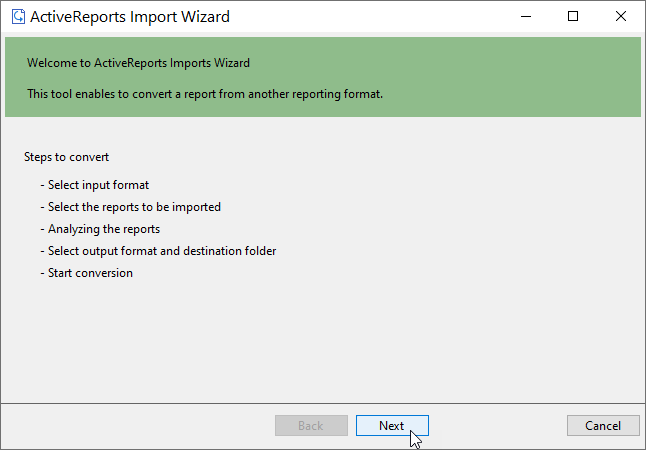
In the ActiveReports Import Wizard that appears, click Next.
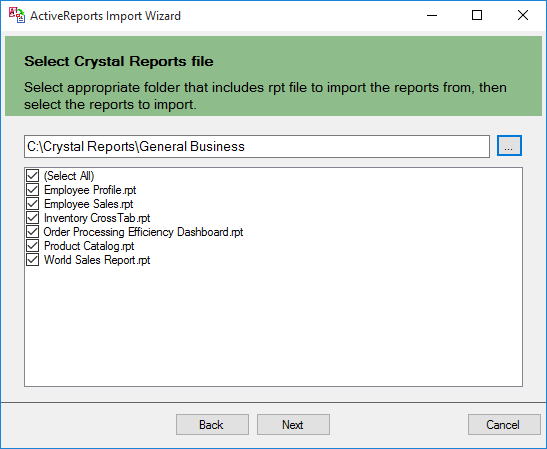
Choose Crystal Reports (rpt) as the input format and click Next.
Click the ellipsis button to browse to the location that contains the files that you want to import. A list of files that you can import appears.
Select the reports to import, click Open, and then click Next to analyze them.
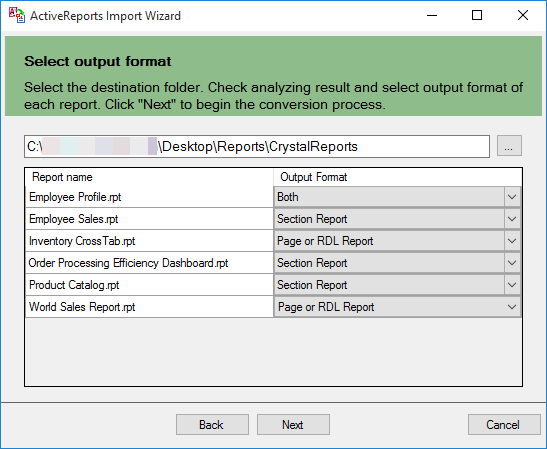
Use the ellipsis button to select a destination folder to store the converted reports. Also select an output format (Section Report, Page report or RDLX report or Both) for each report in the Output Format column.
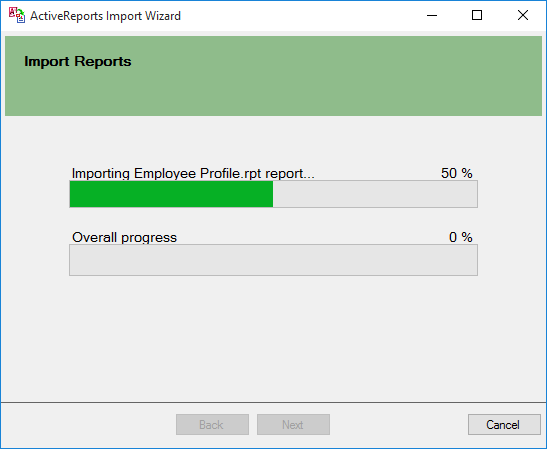
Click Next to start the conversion.
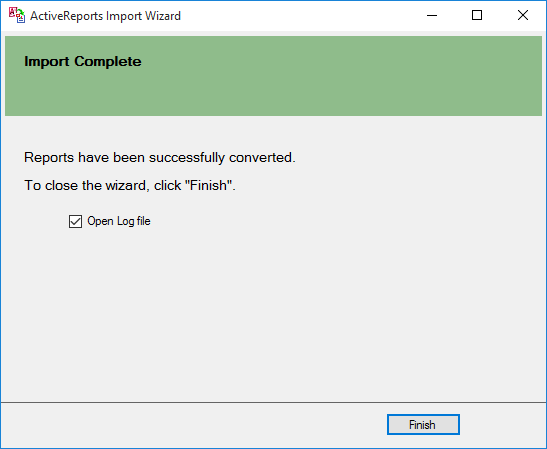
Once the conversion process is complete, click Finish to close the wizard and go the destination folder to view the converted reports. You may optionally leave the check on for the Open Log file checkbox to see the results log.
The import wizard converts reports to the closest possible ActiveReports format, but due to differences between products and versions, the extent to which your reports are converted depends on your specific report layout. You may have to partially redesign the report and add script or code to get the same output as Crystal Reports.
When converting to Page Reports or RDLX Reports, whether a report is imported as a Page report or RDLX report, depends on the following factors:
If a report has a single detail section it is imported as a Page report.
If a report has a CrossTab control and its layout is composed of multiple sections it is imported as an RDLX report.
Note: Sections in a report appear as BandedList.
Please refer to the additional information below, to understand the conversion process in detail.
Importing Crystal Reports
To import Crystal Reports in ActiveReports, you need to install Visual Studio and Crystal Reports for Visual Studio on your machine. The supported versions of Visual Studio and corresponding Crystal Reports are as follows:
Visual Studio version for Crystal Reports | Editions | Crystal Reports | Assembly Version |
|---|---|---|---|
2012, 2013, 2015, 2017, 2019, 2022 | ... | SAP Crystal Reports for Visual Studio, developer version for Microsoft Visual Studio | 13.x.x.x |
Crystal Report controls are converted in ActiveReports as follows:
Crystal Report | Section Report | Page report/RDLX report | Note |
|---|---|---|---|
Box | Shape | Container | The LineWidth property and rounded boxes are not imported. If the Box control extends to multiple sections, the box is imported as line controls. |
CrossTab | Empty SubReport | Empty Tablix | CrossTab control is not imported as it is. |
Line | Line | Line | The size of Dot and Dash (the LineStyle property) is not the same as the original report. |
Subreport | SubReport | Subreport | Set the subreport in code after conversion. |
TextObject | TextBox | Textbox | Only page number, total page, page n of m in Special Fields are imported. |
FieldObject | TextBox | Textbox | Only page number, total page, page n of m in Special Fields are imported. |
Picture | Picture | Image | Picture object is not converted. |
Limitations in Crystal Report conversion
Any controls, functions, and text formats which are not supported by ActiveReports are not imported.
The shadow property of a control is not imported while converting a report.
The OLE object is not imported in ActiveReports as it is treated as PictureObject in the object structure of Crystal Reports.