


- Introduction
- Report Readers
- Report Authors
- DevOps
-
Developers
- Quick Start
- Breaking Changes
- ActiveReports Version Compatibility and Migration
- License ActiveReports
- Configure ActiveReports Using Code
-
Work with Reports using Code
- Visual Studio Integrated Designer
- RDLX-based Reports
-
Section Report
- Create a Report or Load an Existing Report
- Bind a Section Report to Data
- Save Section Reports
- Change Ruler Measurements
- Modify Printer Settings
- Insert or Add Report Pages
- Save and Load RDF Files
- Work with Subreports
- Draw on the Canvas of Rendered Report
- Work with Code-based Section Reports
- Optimize Section Reports
- Custom Properties in Chart
- Report Parts
- Create Designer and Viewer Applications
- Extensibility in ActiveReports
- External Customizations in ActiveReports
- Export Reports
- Print Reports
- Plugins Development
- Samples
- Troubleshooting
Overlaying in Reports (Letterhead)
ActiveReports allows you to overlay static report formats over data reports.
These steps demonstrate how to overlay an ActiveReports report, displaying customers orders by country, with a static letterhead report.
Note: The report connects to NWIND.db that can be downloaded from GitHub.
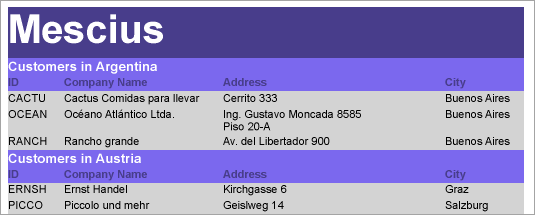
The final report will look as shown.
Create a report
Open Visual Studio to create a new project.
Follow topic Design Code-based Section Reports in .NET Core to create application with code-based section report in .NET Core.
In the Project name field, rename SectionReport1.cs as rptData.
Click Create.
Double-click rptData.cs to open the report in the Section Report designer.
Bind Report to Data
As you create a new report, the Report Data Source dialog appears for you to configure the report data connection. You can also access this dialog by clicking the DataSource Icon in the Detail section band.
Choose Custom tab > SQLite Provider in the Report Data Source dialog, and bind the report to Sqlite data using the following connection string and query.
data source=c:\data\NWIND.dbSelect * from Customers ORDER BY CountryClick OK to close the Report Data Source dialog and return to the report design surface.
Design Report Layout (rptData)
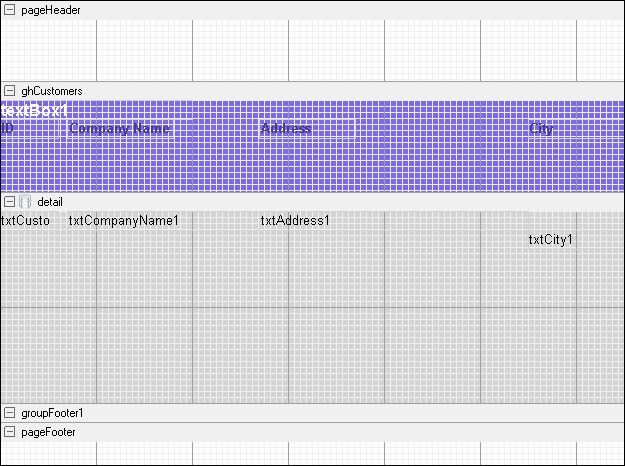
Select the PageHeader section and in the Properties Window, set the Height property to 0.65. (This will match the height of the page header in the template.)
On the design surface, select the grey area outside the report and in the Properties window, set the PrintWidth property to 6.5.
Right-click the report and select Insert > GroupHeader/Footer to add group header and group footer sections.
Select the group header and in the Properties window, set the properties as follows.
Property Name
Property Value
Name
ghCustomers
BackColor
MediumSlateBlue
CanShrink
True
DataField
Country
GroupKeepTogether
FirstDetail
KeepTogether
True
From the toolbox, drag the following controls to ghCustomers and in the Properties window, set the properties as follows.
TextBox1
Property Name
Property Value
DataField
="Customers in " + Country
(DataField)
Size
2, 0.2 in
Location
0, 0 in
Font Bold
True
ForeColor
White
Font Size
12
Label1
Property Name
Property Value
Text
ID
Size
0.6, 0.2 in
Location
0, 0.2 in
Font Bold
True
ForeColor
DarkSlateBlue
Label2
Property Name
Property Value
Text
Company Name
Size
1.1, 0.2 in
Location
0.7, 0.2 in
Font Bold
True
ForeColor
DarkSlateBlue
Label3
Property Name
Property Value
Text
Address
Size
1, 0.2 in
Location
2.7, 0.2 in
Font Bold
True
ForeColor
DarkSlateBlue
Label4
Property Name
Property Value
Text
City
Size
1, 0.2 in
Location
5.5, 0.2 in
Font Bold
True
ForeColor
DarkSlateBlue
Click the Detail section and in the Properties window, set the properties as follows.
Property Name
Property Value
BackColor
LightGray
CanShrink
True
From the toolbox, drag four TextBox controls onto the Detail section and set the properties of each textbox as follows.
TextBox1
Property Name
Property Value
DataField
CustomerID
Size
0.6, 0.2 in
Location
0, 0 in
TextBox2
Property Name
Property Value
DataField
CompanyName
Size
2, 0.2 in
Location
0.7, 0 in
TextBox3
Property Name
Property Value
DataField
Address
Size
2.8, 0.2 in
Location
2.7, 0 in
TextBox4
Property Name
Property Value
DataField
City
Size
1, 0.2 in
Location
5.5, 0 in
Select the group footer and in the Properties window, set the Height property to 0.
Create a report and design Report Layout (rptLetterhead)
Go to Project in the Visual Studio menu and select Add New Item...
Select ActiveReports 20 Section Report (code-based).
In the Project name field, rename SectionReport2.cs as rptLetterhead.
Click Create.
Double-click rptLetterhead.cs to open the report in the Section Report designer.
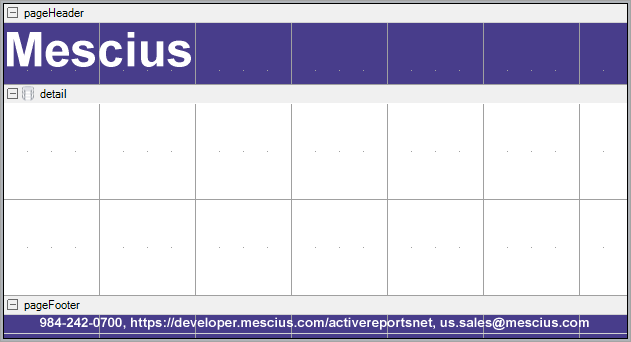
Select the Page Header and in the Properties window, set the properties as follows.
Property Name
Property Value
BackColor
DarkSlateBlue
Height
0.65
From the toolbox, drag a Label control onto the Page Header and in the Properties window, set the properties as follows.
Label1
Property Name
Property Value
Size
6.5, 0.65 in
Location
0, 0 in
Font Size
36
Font Bold
True
ForeColor
White
Text
Mescius
Select the Page Footer and in the Properties window, set the BackColor property to DarkSlateBlue.
From the toolbox, drag a Label control onto the Page Footer and in the Properties window, set the properties as follows.
Property Name
Property Value
Size
6.5, 0.2 in
Location
0, 0 in
Alignment
Center
Font Bold
True
ForeColor
White
Text
984-242-0700, https://developer.mescius.com/activereportsnet,
Add Code to Overlay Data Report Pages with Letterhead Report
Double-click the title bar of the Windows Form to create an event-handling method for the Form_Load event.
Add the following code to the handler to set the viewer to display the rptData report document an to overlay rptLetterhead on rptData.
Dim rpt As New rptData()
   rpt.Run()
   Dim rpt2 As New rptLetterhead()
   rpt2.Run()
   Dim i As Integer
   For i = 0 To rpt.Document.Pages.Count - 1
      rpt.Document.Pages(i).Overlay(rpt2.Document.Pages(0))
   Next
   Viewer1.Document = rpt.Document
rptData rpt = new rptData(); rpt.Run(); rptLetterhead rpt2 = new rptLetterhead(); rpt2.Run(); for(int i = 0; i < rpt.Document.Pages.Count; i++) { rpt.Document.Pages[i].Overlay(rpt2.Document.Pages[0]); } viewer1.Document = rpt.Document;Improve the appearance of the report and preview.