


- Introduction
- Report Readers
- Report Authors
- DevOps
-
Developers
- Quick Start
- Breaking Changes
- ActiveReports Version Compatibility and Migration
- License ActiveReports
- Configure ActiveReports Using Code
- Work with Reports using Code
- Report Parts
- Create Designer and Viewer Applications
- Extensibility in ActiveReports
- External Customizations in ActiveReports
- Export Reports
- Print Reports
- Plugins Development
- Samples
- Troubleshooting
Compatibility of Visual Studio Integrated Designers
ActiveReports 20 can be installed and used on the same machine in which other older versions of ActiveReports for .NET (except ActiveReports 13) have been installed.
Compatibility of ActiveReports Visual Studio Integrated Designers with Visual Studio
ActiveReports Visual Studio integrated designer of different versions can be used by integrating the designer with Visual Studio IDE (Integrated development environment). The following table shows the Visual Studio versions corresponding to the integrated designer versions that are supported.
VS 2013 | VS 2015 | VS 2017 | VS 2019 | VS 2022 | VS 2026 | |
|---|---|---|---|---|---|---|
ActiveReports 14 | ○ | ○ | ○ (VS SP2+) | ○ | × | × |
ActiveReports 15 | × | ○ | ○ (VS SP2+) | ○ | × | × |
ActiveReports 16 | × | × | ○ (VS SP2+) | ○ | ○ | ○ |
ActiveReports 17 | × | × | ○ (VS SP2+) | ○ | ○ | ○ |
ActiveReports 18 | × | × | ○ (VS SP2+) | ○ | ○ | ○ |
ActiveReports 19 | × | × | × | ○ | ○ | ○ |
ActiveReports 20 | × | × | × | ○ | ○ | ○ |
To switch the designers of versions prior to ActiveReports 13, use the switcher tool. See ActiveReports 13 help file for more information.
Starting from ActiveReports 14, you should use the Visual Studio menu to enable/disable the ActiveReports integration.
Manage Visual Studio Integration
In case you want to disable or uninstall ActiveReports 20 Visual Studio integration, do the following.
In Visual Studio, go to Extensions > Manage Extensions.
Navigate to ActiveReports 20 VS2022 and click Disable or Uninstall.
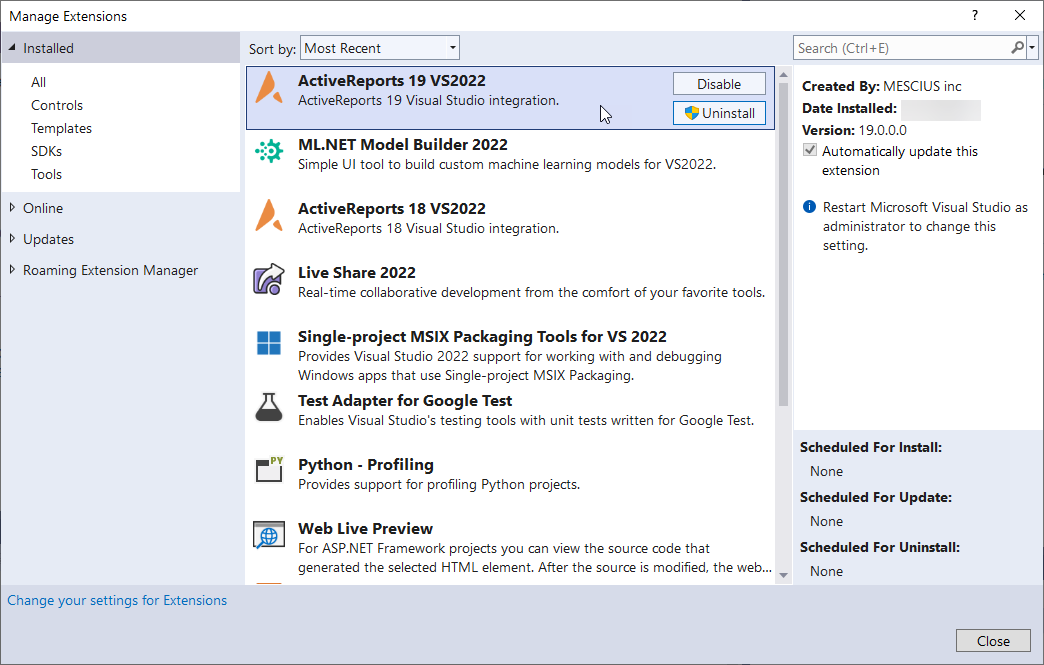
In case you want to install the integration again, follow these steps.
Go to the installation folder - C:\Program Files\MESCIUS\ActiveReports 20\VisualStudio (C:\Program Files (x86)\MESCIUS\ActiveReports 20\VisualStudio on a 64-bit Windows operating system).
Run the VSIX as per your Visual Studio Version.
Note:
It is not possible to use different versions of ActiveReports for .NET within a single Visual Studio project.
When using our Integrated Designer in Visual Studio 2022, you may observe invisible controls in our smart panels or tool windows (such as Report Explorer or Layers List). To solve this issue, navigate to Tools > Options > Environment > General and clear the 'Optimize rendering for screens with different pixel densities' checkbox.