-
Spread Windows Forms Product Documentation
- Getting Started
-
Developer's Guide
- Understanding the Product
- Working with the Component
- Spreadsheet Objects
- Ribbon Control
- Sheets
- Rows and Columns
- Headers
-
Cells
- Working with the Active Cell
- Adding Hyperlink in a Cell
- Creating a Range of Cells
- Managing Data on a Sheet
- Displaying Cell Data
- Creating a Span of Cells
- Allowing Cells to Merge Automatically
- Adding a Note to a Cell
- Adding a Tag to a Cell
- Displaying Text Tips in a Cell
- Working with Cell Format Strings
- Working with Pattern and Gradient Fill Effects
- Inserting Cells
- Setting Rich Text in a Cell
- Adding a Comment to a Cell
- Adding Image in a Cell
- Formatting a Cell Value
- Cell Types
- Data Binding
- Customizing the Sheet Appearance
- Customizing Interaction in Cells
- Tables
- Pivot Table
- Understanding the Underlying Models
- Customizing Row or Column Interaction
- Formulas in Cells
- Sparklines
- Keyboard Interaction
- Events from User Actions
- File Operations
- Storing Excel Summary and View
- Printing
- Chart Control
- Enhanced Chart
- Customizing Drawing
- Touch Support with the Component
- Spread Designer Guide
- Assembly Reference
- Import and Export Reference
- Version Comparison Reference
Focusing the Active Cell
Focusing the active cell enhances its visibility by highlighting the corresponding row and column. This feature improves navigation and readability, especially when working with large datasets.
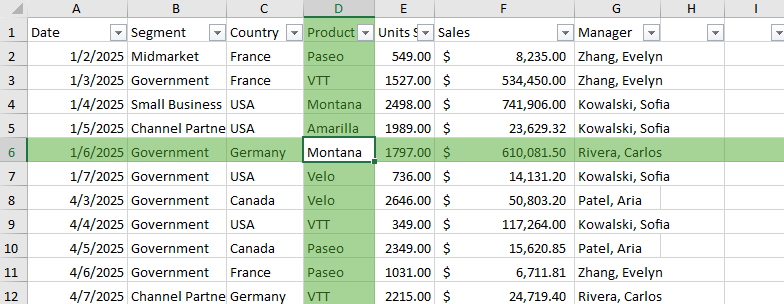
Spread WinForms implements the active cell focus through the FocusCellMode setting. It is enabled only when a valid active cell exists. If the current selection configuration does not maintain an active cell, the active cell will not be rendered as the focus cell.
When the active cell is focused:
The value of the active cell remains unchanged.
The row and/or column of the active cell is visually highlighted based on the FocusCellMode setting.
The highlight updates dynamically as the active cell changes.
The highlight is rendered as a UI overlay and does not modify cell StyleInfo or conditional formatting.
This feature does not affect selection behavior or editing.
If the active cell is a merged cell, the highlight extends to all rows and columns in the merged range.
Note: This feature is supported as long as LegacyBehaviors.Style is not used.
The table below lists all selection-related settings and indicates whether an active cell is maintained.
Settings | Setting Value | ActiveCell Maintained | Focus the Active Cell |
|---|---|---|---|
OperationMode | Normal | Yes | Enabled |
ReadOnly | No | Disabled | |
RowMode | Yes | Enabled | |
SingleSelect | No | Disabled | |
ExtendedSelect | No | Disabled | |
MultiSelect | No | Disabled | |
SelectionPolicy | Single/Range/MultiRange | Depends on OperationMode | Depends on OperationMode |
SelectionUnit | Cell/Row/Column | Depends on OperationMode | Depends on OperationMode |
Sheet Protection | Selection disabled | No | Disabled |
Selection allowed | Depends on OperationMode | Depends on OperationMode | |
CanFocus | True | Yes | Enabled |
False | No | Disabled | |
SelectionBlockOption | Cell/Row/Column/Sheet | Yes | Enabled |
RestrictRows/Columns | True/False | Yes | Enabled |
Using the Properties Window
At design time, in the Properties window, select the Spread component.
In the Behavior group, set the FocusCellMode property to Row, Column or Both.
Using Code
Spread WinForms provides the FocusCellMode enumeration to specify how the active cell is highlighted. When set to Row or Column, it highlights the active cell’s row or column respectively. When set to Both, both the row and column are highlighted.
Example
Refer to the following example code that shows how to focus active cell and set the focus cell highlight color.
fpSpread1.LegacyBehaviors = LegacyBehaviors.None;

//Set focus mode to highlight both the row and column of the active cell.
fpSpread1.FocusCellMode = FocusCellMode.Both;

// Activate cell D5 on the active sheet.
fpSpread1.AsWorkbook().ActiveSheet.Cells["D6"].Activate();

// Set the focus cell highlight color.
fpSpread1.FocusCellColor = GrapeCity.Core.SchemeColor.CreateArgbColor(166, 211, 150, 255);
fpSpread1.LegacyBehaviors = LegacyBehaviors.None
' Set focus mode to highlight both the row and column of the active cell
fpSpread1.FocusCellMode = FocusCellMode.Both
' Activate cell D5 on the active sheet
fpSpread1.AsWorkbook().ActiveSheet.Cells("D6").Activate()
' Set the focus cell highlight color to ARGB(255, 255, 0, 123)
fpSpread1.FocusCellColor = GrapeCity.Core.SchemeColor.CreateArgbColor(166, 211, 150, 255)Using the Spread Designer
1. Select the Spread component (or choose Spread from the drop-down menu in the property panel).
2. In the property list on the right, scroll down to find the FocusCellMode property and set it to Row, Column, or Both.
Alternatively, you can use the keyboard shortcut Alt + W + E + F to enable the Focus Cell settings.
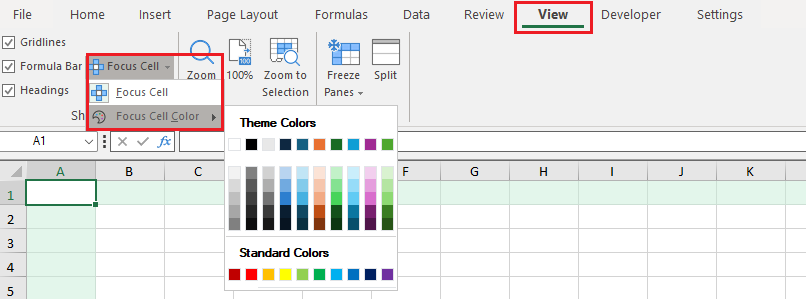
You can also click on the View option in the top menu bar, select options from the Focus Cell dropdown to enable the focus cell and set the focus color.