


Accessibility Support
SpreadJS provides optional accessibility support for users who rely on screen-reading applications such as Windows Narrator, NVDA (NonVisual Desktop Access), and VoiceOver for macOS.
Behavior may vary depending on the screen reader and browser combination used.
Enabling or Disabling Accessibility
Accessibility is disabled by default.
If accessibility is not enabled, screen readers will not announce SpreadJS content.
To enable accessibility support, set:
spread.options.enableAccessibility = true;Screen Reader Behavior
The following cases were observed during internal testing and illustrate how different user interactions and UI areas are announced by screen readers.
These examples are provided for reference.
Actual behavior may vary depending on the screen reader and browser combination.
Cases | Texts Read by the Screen Reader |
|---|---|
The cell (0, 1) becomes the active cell by pressing the Tab key, and its value is | Cell(0, 1) has value "name" |
The mouse enters cell (0, 1) in the viewport area, and its value is | Cell(0, 1) has value "name" |
The mouse enters cell (0, 1) in the column header area, and its value is | Column header Cell(0, 1) has value "name" |
The mouse enters cell (1, 0) in the row header area, and its value is | Row header Cell(1, 0) has value "name" |
The mouse enters the resize bar of the tab strip. | Resize |
The mouse enters the first area of the tab strip. | First |
The mouse enters the previous arrow area of the tab strip. | Previous arrow |
The mouse enters the next arrow area of the tab strip. | Next arrow |
The mouse enters the last area of the tab strip. | Last |
The mouse enters the previous button area of the tab strip. | Previous button |
The mouse enters the next button area of the tab strip. | Next button |
The mouse enters the sheet tab area of the tab strip, and its name is | Sheet tab "Sheet1" |
The mouse enters the new sheet area of the tab strip. | New sheet |
The mouse enters the blank area of the tab strip. | Blank |
The mouse enters the left button area of the horizontal scrollbar. | Scrollbar left button |
The mouse enters the top button area of the vertical scrollbar. | Scrollbar top button |
The mouse enters the thumb button area of the scrollbar. | Scrollbar thumb button |
The mouse enters the right button area of the horizontal scrollbar. | Scrollbar right button |
The mouse enters the bottom button area of the vertical scrollbar. | Scrollbar bottom button |
The page containing SpreadJS is the active browser tab, and the active cell is cell (0, 1) with value | Cell(0, 1) has value "name" |
Customizing Accessible Output
SpreadJS provides alternative text support at different levels. These mechanisms are independent.
Cell Alternative Text
Cell alternative text customizes how a cell is announced by screen readers.
It does not affect sorting, filtering, formulas, or search.
You can set or get cell alternative text using:
Example:
activeSheet.getCell(0, 0).altText("Set alternative text for the cell");
console.log(activeSheet.getCell(0, 0).altText());
SpreadJS supports serialization and deserialization of cell alternative text in .ssjson and .sjs formats.
Using the StorageType.altText enumeration, you can clear alternative text:
activeSheet.clear(0, 0, 3, 3,
    GC.Spread.Sheets.SheetArea.viewport,
    GC.Spread.Sheets.StorageType.altText);
You can also copy alternative text using CopyToOptions.altText.
Limitation: Row, column, and worksheet levels do not support alternative text.
Alternative Text for Pictures, Shapes, and Charts
For graphical objects such as pictures, charts, shapes, and connectors, alternative text can be set using the alt() method.
Example:
picture.alt("This is a mango image");
chart.alt("This is a column chart");
shape.alt("This is a cloud shape");
This alternative text is used for accessibility support.
Designer Support
SpreadJS Designer also supports accessibility.
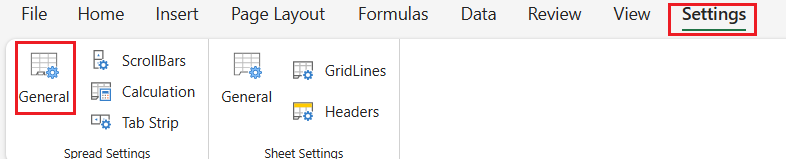
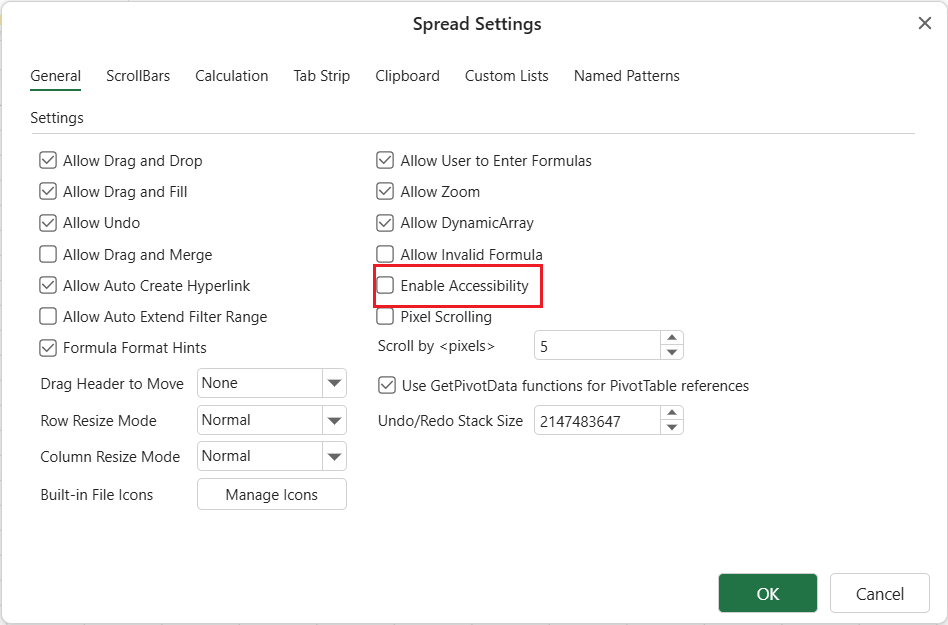
To enable accessibility in the Designer:
Go to Settings → Genera → Spread Settings
Select Enable Accessibility
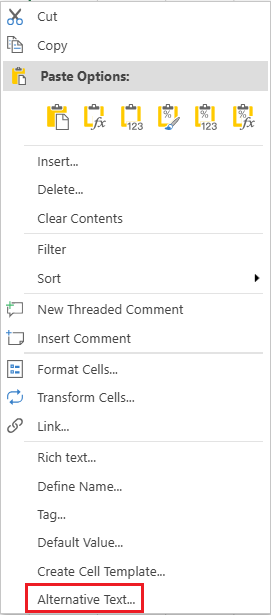
Cell alternative text can be viewed or modified using the Alternative Text… option in the cell context menu (when accessibility is enabled).
Compatibility and Limitations (Reference)
Screen Reader Compatibility Matrix
Screen Reader | Browser | Tab Key | Mouse Hover | Active Tab |
|---|---|---|---|---|
NVDA (Windows) | Chrome | Supported | Supported | Supported |
NVDA (Windows) | Firefox | Supported | Supported | Not supported |
NVDA (Windows) | Chromium Edge | Supported | Supported | Not supported |
NVDA (Windows) | Edge | Not supported | Not supported | Not supported |
NVDA (Windows) | IE | Not supported | Not supported | Not supported |
Windows Narrator | Chrome | Supported | Supported | Not supported |
Windows Narrator | Firefox | Supported | Supported | Not supported |
Windows Narrator | Chromium Edge | Supported | Supported | Not supported |
Windows Narrator | Edge | Supported | Not supported | Not supported |
Windows Narrator | IE | Supported | Not supported | Not supported |
VoiceOver (macOS) | Chrome | Supported with limitations | Supported with limitations | Not supported |
VoiceOver (macOS) | Safari | Supported with limitations | Supported with limitations | Not supported |
VoiceOver Limitations
VoiceOver ignores the
aria-labelattribute when adivelement contains content.VoiceOver does not recognize dynamically updated
aria-labelattributes.VoiceOver does not recognize tab strips, scrollbars, or graphical objects such as pictures, charts, and shapes.
Additional Notes
Behavior may vary depending on the screen reader and browser.
Mouse- or touch-based UI operations (such as drag fill and filtering) may be difficult to use with screen readers.
Accessibility support provides basic functionality.