


- SpreadJS Overview
- Getting Started
- JavaScript Frameworks
- Best Practices
- Features
- SpreadJS Designer
- SpreadJS Designer VSCode Plugin
- Tutorials
- SpreadJS Designer Component
- SpreadJS Collaboration Server
- Touch Support
-
Formula Reference
- Formula Overview
-
Formula Functions
- Barcode Functions
- Compatibility Functions
- Database Functions
- Date and Time Functions
- Engineering Functions
- Financial Functions
- Information Functions
- Logical Functions
- Lookup and Reference Functions
- Math and Trigonometric Functions
- Statistical Functions
- Sparkline Functions
- Text Functions
- Web Functions
- RegEx Functions
- ReportSheet Functions
- What-If Analysis Functions
- Other Functions
- Import and Export Reference
- Events
- API Documentation
- Release Notes
QUERY
This function returns data from a Data Manager table in a worksheet.
Syntax
QUERY(tableAndRows, [columns], [returnObject])Note:
To specify
returnObjectwhile omittingcolumns, leave the second argument empty. For example,QUERY("Products?productId=1",,TRUE).
Arguments
This function has the following arguments:
Argument | Description |
|---|---|
tableAndRows | Required. The Data Manager table name, optionally followed by a row selector. This argument can be a text value or a reference that resolves to a table selector. |
columns | Optional. The column name, an array of column names, or a reference that contains the column names to return. If omitted, all columns are returned. |
returnObject | Optional. A logical value that specifies the result type. |
Data types
tableAndRowsaccepts a text value or a reference that resolves to a table selector.columnsaccepts a column name, an array of column names, or a reference that contains column names.returnObjectaccepts a logical value. UseTRUEto return the first matching row as an object, orFALSEto return a two-dimensional array.
The function returns the following types of results:
A two-dimensional array when
returnObjectisFALSEor omitted.An object when
returnObjectisTRUE. The object contains the first matching row and can include related-table objects when relationships are configured.An empty result when no rows match the specified selector or filter.
The
#VALUE!error value when the Data Manager or specified table is unavailable.
Remarks
You can use the following row selectors:
Selector | Description | Example |
|---|---|---|
Table name | Returns all rows in the table. |
|
Row index | Returns the row at the specified zero-based row index. |
|
Primary key | Returns the row identified by the table primary key. |
|
Key-value filter | Returns rows whose field value exactly matches the specified value. |
|
You can select one or more columns by using a column name, an array, or a reference.
Type | Example |
|---|---|
One column |
|
Column array |
|
One-dimensional reference |
|
Notes:
The result follows dynamic-array or array-formula spill behavior when
returnObjectisFALSEor omitted. Enable dynamic arrays to spill the result into adjacent cells.For remote tables, the function might evaluate asynchronously while the data is being retrieved. The formula is recalculated when the table data changes.
Examples
The following examples use a Data Manager table named Products. The table contains fields such as productId, productName, categoryId, and unitPrice.
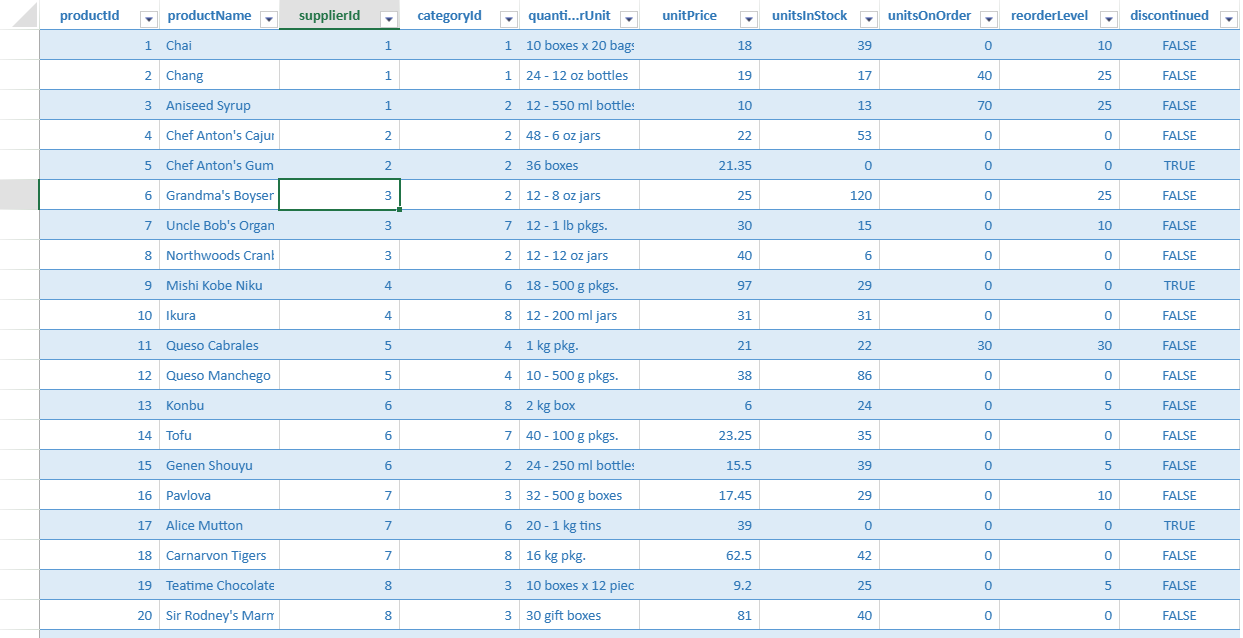
The following formula returns all rows and columns from the Products table.
=QUERY("Products")The following formula returns the productName and unitPrice columns for all rows.
=QUERY("Products", {"productName","unitPrice"})The following formula returns the selected columns for the row whose primary key is 1.
=QUERY("Products/1", {"productName","unitPrice"})The following formula returns the productName and unitPrice values for products whose categoryId value is 1.
=QUERY("Products?categoryId=1", {"productName","unitPrice"})The following formula returns the first product whose productId value is 1 as an object. This form can be used with the DataObject cell type.
=QUERY("Products?productId=1",,TRUE)The following formula returns a sorted list of unique category ID values. The result spills when dynamic arrays are enabled.
=SORT(UNIQUE(QUERY("Products","categoryId")))The following code sample uses the QUERY function with the DataObject cell type.
// Set a DataObject cell type that uses the QUERY function to provide data.
sheet.setFormula(2, 1, '=QUERY("Products?productId=1",,TRUE)');
var cellType = new GC.Spread.Sheets.CellTypes.DataObject(
    '=IFERROR(@.productName & " " & @.unitPrice, "")'
);
sheet.setCellType(2, 1, cellType);