


How to Parse and Extract HL7 Data
HL7 (Health Level Seven) is a widely adopted standard for exchanging healthcare information across systems worldwide. In HL7 Version 2 (V2), data is represented as a plain-text, delimiter-based format (essentially a long ASCII string) which can be difficult to read and work with. Unlike more structured formats such as JSON or XML, HL7 V2 lacks extensive native tooling for parsing and visualization.
This article demonstrates how to parse an HL7 V2 file and present its contents in a clear, hierarchical TreeView. By using ComponentOne TextParser to process the HL7 message and a WPF TreeView for display, the data becomes far easier to explore, understand, and debug.
What is HL7
HL7 provides three standards for exchanging electronic health care (e-health) records: V2, CDA, and FHIR. In this article, you use the HL7 V2 format. This article focuses solely on the HL7 V2 format:
MSH|^~\&|REGAD1|MCM|IFENG||199901110500||ADT^A02|000001|P|2.4|||

EVN|A02|199901110520||01||199901110500

PID|||12345^^^MEDCOM^MR~123456^^^USSSA^SS|253763|JOHN^SMITH||19560129|M|||677 DELAWARE AVENUE^^EVERETT^MA^02149||(555)753-1298

PV1||I|SICU^0001^01^GENHOS|||6N^1234^A^GENHOS|0200^JONES, GEORGE|0148^ADDISON,JAMES||MED|||||||0148^ANDERSON,CARL|S|1400|A
The HL7 message is an ASCII string with segments that are \r separated. The high-level rules for parsing the format are as follows:
Each segment starts with three characters that indicate the type of record. There are more than 120 types of segments, and it is possible to create your own types.
Segments contain composites (fields) separated by a vertical line (|). Each segment type has its own set of fields.
A field can contain sub-fields, each separated by the ^.
Each segment type has its own set of fields.
A message starts with a message header (MSH) segment. The header contains some metadata about the message, including its type.
Setting Up the C1_hl7 Solution
This tutorial creates a WPF application. Start creating a new solution named C1_hl7 using the following dotnet CLI commands in an empty folder.
dotnet new sln -n C1_hl7 -o C1_hl7		# create an empty solution
cd .\C1_hl7\
dotnet new wpf -n C1_hl7.wpf -o C1_hl7.wpf	# create a new WPF project
dotnet sln .\C1_hl7.sln add .\C1_hl7.wpf\C1_hl7.wpf.csproj	  # Add to the solution

dotnet new classlib -n C1_hl7.data -o C1_hl7.data	# create a new assembly
dotnet sln .\C1_hl7.sln add .\C1_hl7.data\C1_hl7.data.csproj

md Tests
dotnet new xunit -n C1_hl7.data.tests -o Tests\C1_hl7.data.tests

# Add the necessary project references
dotnet add .\C1_hl7.wpf\C1_hl7.wpf.csproj reference .\C1_hl7.data\C1_hl7.data.csproj
dotnet add .\Tests\C1_hl7.data.tests\C1_hl7.data.tests.csproj reference .\C1_hl7.data\C1_hl7.data.csproj

# Add all the necessary packages
dotnet add .\C1_hl7.wpf\C1_hl7.wpf.csproj package C1.WPF.TreeView -s https://api.nuget.org/v3/index.json
dotnet add .\C1_hl7.data\C1_hl7.data.csproj package C1.TextParser -s https://api.nuget.org/v3/index.json
Open the generated C1_hl7.sln solution file in Visual Studio. The C1_hl7.data project contains the code and templates for interpreting the HL7 files and therefore references the C1.TextParser NuGet package. The C1_hl7.wpf file is the data project that presents the data in a C1TreeView UI.
Interpreting the HL7 V2 File
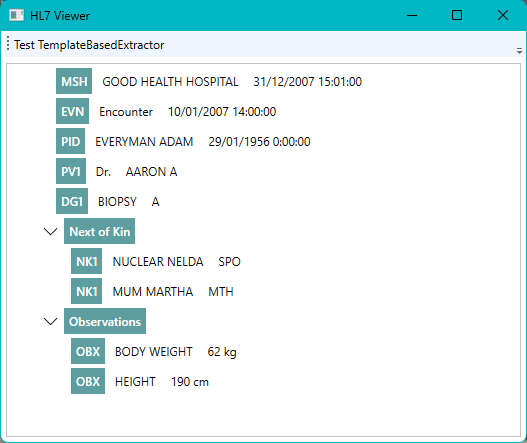
The file used contains data about a doctor’s appointment. It has information about the patient (and his family), the doctor, some observations, and a diagnosis. A recursive structure is needed to present it in a tree view:
Right-click the data project, click Add, then click New Folder and name it Model.
Add a new interface called ISegment under the Model folder and a new Segment class to implement this interface.
In ISegment.cs, add the following code block:
public interface ISegment
{
    string Segmenttype { get; init; }
    string Name { get; init; }
    string Data { get; init; }
    List<ISegment> Subsegments { get; init; }
}
The class Segment implements this interface. Add it in Segment.cs.
public class Segment : ISegment
{
    public Segment(string segmenttype, string name, string data)
    {
        Segmenttype = segmenttype;
        Name = name;
        Data = data;
    }
    public string Segmenttype { get; init; }
    public string Name { get; init; }
    public string Data { get; init; }
    public List<ISegment> Subsegments { get; init; } = new();
}
Reading the HL7 File
Next, write a separate class to read the file. This class needs a template file that describes the HL7 V2 format. Because this is a class library, add this file as a resource in the assembly.
Right-click the data project and add a new folder named Templates.
Right-click the Templates folder and add a new file called xml.
In the properties of this file, set the Build Action to Embedded resource.
The ComponentOne TextParser library supports three different extractors for different scenarios, including plain text, a specialized HTML extractor, and a template-based extractor. The template-based extractor is the most generic, as it allows users to parse data structures following a declarative XML template. Since the template can be provided as a separate file, it provides both the template and source to parse.
The TemplateBasedExtractor class can be used to parse the HL7 file. To use this class, a template to extract the data from the file must be described. Here’s the template:
<?xml version="1.0" ?>

<template rootElement="HL7Segment" >

  <element name="common" >
    <element name="Type" extractFormat="regex:[A-Z]{2}[A-Z\d]"  />
    <element name="Id" startingRegex="\|" extractFormat="regex:.*?\|" />
  </element >

  <element name="HL7Segment" >
    <element template="common" />
    <element name="Fields" extractFormat="regex:.*\r" />
  </element>

</template>
This XML file has the <HL7Segment> element as its root element. The template recursively describes the elements. In this case, the elements are the following:
The common element — Each HL7 line has at least a type and an optional identifier described by the common element.
The HL7Segment element — A message contains the common element and a variable number of fields. These fields depend on the message type, so you handle them as a big string.
Add a new class to the data project called HL7Datareader. This class is responsible for transforming the HL7 string to a Segment (with its Subsegments). It takes a string as its argument and returns the corresponding List<ISegment>.
First, write a method to read the HL7Template.xml file from the assembly resources and return a TemplateBasedExtractor.
Add a constant string, _templateResource, to the class
Add the method, ReadTemplateResource
public class HL7Datareader
{
    private const string _templateResource = "C1_hl7.data.Templates.HL7Template.xml";

    internal TemplateBasedExtractor ReadTemplateBasedExtractor()
    {
        var assembly = Assembly.GetExecutingAssembly();
        using Stream stream = assembly.GetManifestResourceStream(_templateResource);
        return new TemplateBasedExtractor(stream);
    }

    // The rest of the class follows
}
Next add the following ReadData method to the HL7Datareader class. This method receives a string in HL7 format and transforms it into a list of Segments.
public List<ISegment> ReadData(string hl7String)
{
    // the Extract method expects a stream
    using MemoryStream hl7 = new MemoryStream(Encoding.ASCII.GetBytes(hl7String));
    TemplateBasedExtractor templateBasedExtractor = ReadTemplateBasedExtractor();
    IExtractionResult extractionResult = templateBasedExtractor.Extract(hl7);
    // The final result of the extraction is a json string
    string json = extractionResult.ToJsonString();

    return null;
    // deserialize the json string
    //HL7Message? messages = JsonSerializer.Deserialize<HL7Message>(json);

    //return InterpretExtractedData(messages);
}
The class HL7Message does not exist so it cannot be deserialized yet. To see the result of the extractionResult.ToJsonString method, put a breakpoint on the line, return null;.
You can inspect the JSON string in the debugger and copy the whole string to the clipboard.
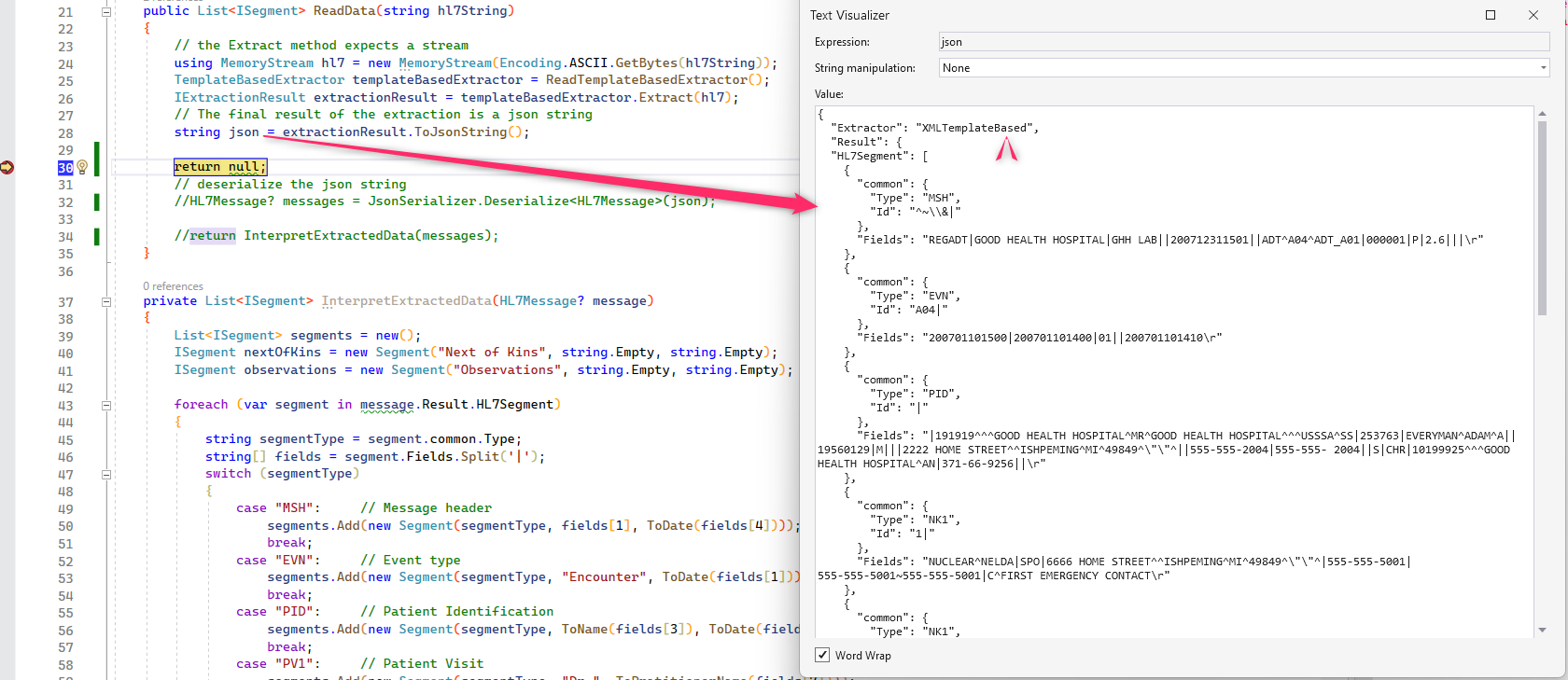
To deserialize this string, add a new class called Message in the Model folder in the C1_hl7.data project.
Remove the actual Message class and copy the JSON file produced in the previous step. Instead of just copying the contents, use Edit > Paste Special > Paste JSON as Classes.
Visual Studio now generates the classes for your model to deserialize the JSON file, with Rootobject as its root.
To be closer to the domain model, rename this class to HL7Message.
Next, uncomment the two last lines in the method and remove the return null; line.
Finally, convert the HL7Message into a List<ISegment>. Here’s the function, which goes inside the same HL7Datareader class.
private List<ISegment> InterpretExtractedData(HL7Message? message)
{
    List<ISegment> segments = new();
    ISegment nextOfKin = new Segment("Next of Kin", string.Empty, string.Empty);
    ISegment observations = new Segment("Observations", string.Empty, string.Empty);
    foreach (var segment in message.Result.HL7Segment)
    {
        string segmentType = segment.common.Type;
        string[] fields = segment.Fields.Split('|');
        switch (segmentType)
        {
            case "MSH":     // Message header
                segments.Add(new Segment(segmentType, fields[1],
						ToDate(fields[4])));
                break;
            case "EVN":     // Event type
                segments.Add(new Segment(segmentType, "Encounter",
						  ToDate(fields[1])));
                break;
            case "PID":     // Patient Identification
                segments.Add(new Segment(segmentType, ToName(fields[3]),
						  ToDate(fields[5])));
                break;
            case "PV1":     // Patient Visit
                segments.Add(new Segment(segmentType, "Dr.",
						   ToPratitionerName(fields[7])));
                break;
            case "NK1":     // Next of Kin
                nextOfKin.Subsegments.Add(new Segment(segmentType,
						   ToName(fields[0]), fields[1]));
                break;
            case "OBX":     // ObservationResult
                string obs = fields[1].Split('^').Last();
                observations.Subsegments.Add(new Segment(segmentType, obs,
						fields[3] + " " + fields[4]));
                break;
            case "DG1":     // Diagnosis Information
                segments.Add(new Segment(segmentType, fields[2], fields[4]));
                break;
        }
    }

    segments.Add(nextOfKin);
    segments.Add(observations);

    return segments;

    string ToName(string humanName)
    {
        string[] nameparts = humanName.Split('^');

        return nameparts.Length switch
        {
            0 => string.Empty,
            1 => nameparts[0],
            _ => $"{nameparts[0]} {nameparts[1]}"
        };
    }

    string ToPratitionerName(string humanName)
    {
        string[] nameparts = humanName.Split('^');

        return nameparts.Length switch
        {
            0 => string.Empty,
            1 => nameparts[0],
            2 => nameparts[1],
            _ => $"{nameparts[2]} {nameparts[3]}"
        };
    }


    string ToDate(string dt)
    {
        if (DateTime.TryParseExact(dt, new string[] { "yyyyMMddHHmm", "yyyyMMdd" }, null, DateTimeStyles.None, out DateTime d))
            return d.ToString();
        else return dt;
    }
}
In this case, you only want to represent some fields in the tree view. In an actual project, you can use more fields and store them in a database. If you plan to do more HL7 projects, move the helper functions into a HL7Helperclass. For the sake of simplicity, you have implemented them as nested functions.
Presenting the HL7 File
The HL7 file will be presented in a C1TreeView. The data project already defines the ViewModel and the WPF project only presents the View.
Here is the XAML for the MainWindow:
<Window
        xmlns="http://schemas.microsoft.com/winfx/2006/xaml/presentation"
        xmlns:x="http://schemas.microsoft.com/winfx/2006/xaml"
        xmlns:d="http://schemas.microsoft.com/expression/blend/2008"
        xmlns:mc="http://schemas.openxmlformats.org/markup-compatibility/2006"
        xmlns:local="clr-namespace:C1_hl7.wpf"
        xmlns:c1="http://schemas.componentone.com/winfx/2006/xaml" x:Class="C1_hl7.wpf.MainWindow"
        mc:Ignorable="d"
        Title="HL7 Viewer" Height="450" Width="800">
    <DockPanel LastChildFill="True">
        <DockPanel.Resources>
            <!-- styles for the textblocks in the treeview -->
            <Style TargetType="TextBlock" x:Key="segmentType">
                <Setter Property="Foreground" Value="White" />
                <Setter Property="Background" Value="CadetBlue" />
                <Setter Property="Margin" Value="0 0 5 0" />
                <Setter Property="Padding" Value="5" />
                <Setter Property="FontWeight" Value="DemiBold" />
            </Style>
            <Style TargetType="TextBlock" x:Key="nameType">
                <Setter Property="Margin" Value="0 0 5 0" />
                <Setter Property="Padding" Value="5" />
            </Style>
            <Style TargetType="TextBlock" x:Key="dataType">
                <Setter Property="Margin" Value="0 0 5 0" />
                <Setter Property="Padding" Value="5" />
            </Style>
        </DockPanel.Resources>

        <ToolBar DockPanel.Dock="Top">
            <Button Content="Test TemplateBasedExtractor" Click="TestExtractor_Click" />
        </ToolBar>

        <!-- TreeView is referred as "tree" in the code -->
        <c1:C1TreeView x:Name="tree"
                       ItemsSource="{Binding}"
                       SelectionMode="Single"
                       SnapsToDevicePixels="True"
                       HorizontalContentAlignment="Stretch"
                       Margin="5">

            <!-- representation of one tree item -->
            <c1:C1TreeView.ItemTemplate>
                <!-- Bound to the property (List) SubSegments of the Segment-->
                <c1:C1HierarchicalDataTemplate ItemsSource="{Binding Subsegments}" >
                    <StackPanel Orientation="Horizontal" >
                        <TextBlock HorizontalAlignment="Left" Text="{Binding Segmenttype}" Style="{StaticResource segmentType}" />
                        <TextBlock HorizontalAlignment="Left" Text="{Binding Name}" Style="{StaticResource nameType}"/>
                        <TextBlock HorizontalAlignment="Left" Text="{Binding Data}" Style="{StaticResource dataType}"/>
                    </StackPanel>
                </c1:C1HierarchicalDataTemplate>
            </c1:C1TreeView.ItemTemplate>
        </c1:C1TreeView>
    </DockPanel>
</Window>
Observe the definition of the C1TreeView:
The ItemsSource is set to {Binding}.
The ItemTemplate determines what is shown in the Treeview and how.
All that is left now is to implement MainWindow.xaml.cs:
using C1_hl7.data.Model;
using C1_hl7.data;
using System.Collections.Generic;
using System.Windows;
using System.IO;

namespace C1_hl7.wpf
{
    /// <summary>
    /// Interaction logic for MainWindow.xaml
    /// </summary>
    public partial class MainWindow : Window
    {
        public MainWindow()
        {
            InitializeComponent();
            LoadData();
        }

        private void LoadData()
        {
            string hl7 = File.ReadAllText(@"Data\ADT_A04.hl7");
            HL7Datareader hL7Datareader = new HL7Datareader();
            List<ISegment> message = hL7Datareader.ReadData(hl7);

            tree.DataContext = message;
        }

        private void TestExtractor_Click(object sender, RoutedEventArgs e)
        {
            TestExtractor wnd = new TestExtractor();

            wnd.Show();
        }
    }
}
The TestExtractor_Click function opens a window where users can enter a data file and a template file to test the TemplateBasedExtractor class.
Conclusion
HL7 V2 is a complex, delimiter-based format that can be challenging to work with directly. However, by leveraging the TemplateBasedExtractor class and an XML-driven template, the parsing process becomes far more manageable, transforming raw message data into a structured and usable object model.
Once parsed, visualizing the data in a hierarchical format is straightforward with the C1TreeView component. Its intuitive data binding and flexible styling options make it easy to present even complex HL7 messages in a clear and navigable way.
The TemplateBasedExtractor significantly reduces the effort required to process HL7 files by handling the heavy lifting of parsing. From there, the InterpretExtractedData method can focus solely on mapping fields based on segment types. By further refining the XML template, you can extend the object model and simplify interpretation logic even more. Adding simple UI elements, such as a button to reload or test different files, makes the solution practical and easy to experiment with.
FAQs
Q: Can this code be used to parse and extract HL7 V3 data?
A: Yes, but the XML template may require changes not included in this tutorial. The Template-based Extractor supports XML format, which is the basis for HL7 Version 3 data files compared to delimited text seen in V2.
Q: How can I determine which fields are extracted and displayed in the TreeView?
A: In the InterprateExtractedData method above, the fields are parsed into an array. In this example, specific fields are then extracted using explicit indices. Notice that not all fields are extracted in this sample, but you could easily extract more fields from the array into your custom segment collection.
Q: How can I extend the object model generated by TemplateBasedExtractor?
A: You can extend the object model by making the XML template more descriptive. Right now, the template extracts only three generic pieces of information: Type, Id, and Fields.
To generate a richer object model, you can add segment-specific elements and field-level definitions to the template. For example, instead of treating the rest of the segment as one large Fields value, the template could define individual HL7 fields for known segment types such as MSH, PID, PV1, or OBX.
Example:
<template rootElement="HL7Segment">

  <element name="common">
    <element name="Type" extractFormat="regex:[A-Z]{2}[A-Z\d]" />
    <element name="Id" startingRegex="\|" extractFormat="regex:.*?\|" />
  </element>

  <element name="HL7Segment">
    <element template="common" />
    <element name="Fields" extractFormat="regex:.*\r" />
  </element>

  <element name="PID">
    <element template="common" />
    <element name="PatientId" startingRegex="\|" extractFormat="regex:.*?\|" />
    <element name="PatientName" startingRegex="\|" extractFormat="regex:.*?\|" />
    <element name="DateOfBirth" startingRegex="\|" extractFormat="regex:.*?\|" />
    <element name="Gender" startingRegex="\|" extractFormat="regex:.*?\|" />
  </element>

</template>